How to set roles and permissions
- Kelune CRM Cloud
A role is a set of permissions, such as “View contacts” or “Send and schedule campaigns”. Every member, API key, and connected AI tool has one. Kelune CRM Cloud comes with five built-in roles, and you can create your own.
The built-in roles
| Role | What it is for |
|---|---|
| Owner | Full control, including billing and deleting the workspace |
| Admin | Everything except deleting the workspace or transferring ownership |
| Manager | Runs the CRM day to day, without permissions or billing |
| Agent | Works the data: view, create, edit and import. Cannot delete, export, or send |
| Viewer | Read-only access |
Owner and Admin cannot be changed. You can change the permissions of Manager, Agent, and Viewer, but not their names.
See and change a role
- Click Settings in the sidebar.
- Under Team, click Roles & permissions.
- Click the pencil button (Edit) in the role’s row.
- Tick or untick permissions. Each group, such as Contacts or Campaigns, has a checkbox for all of its permissions.
- Click Update.
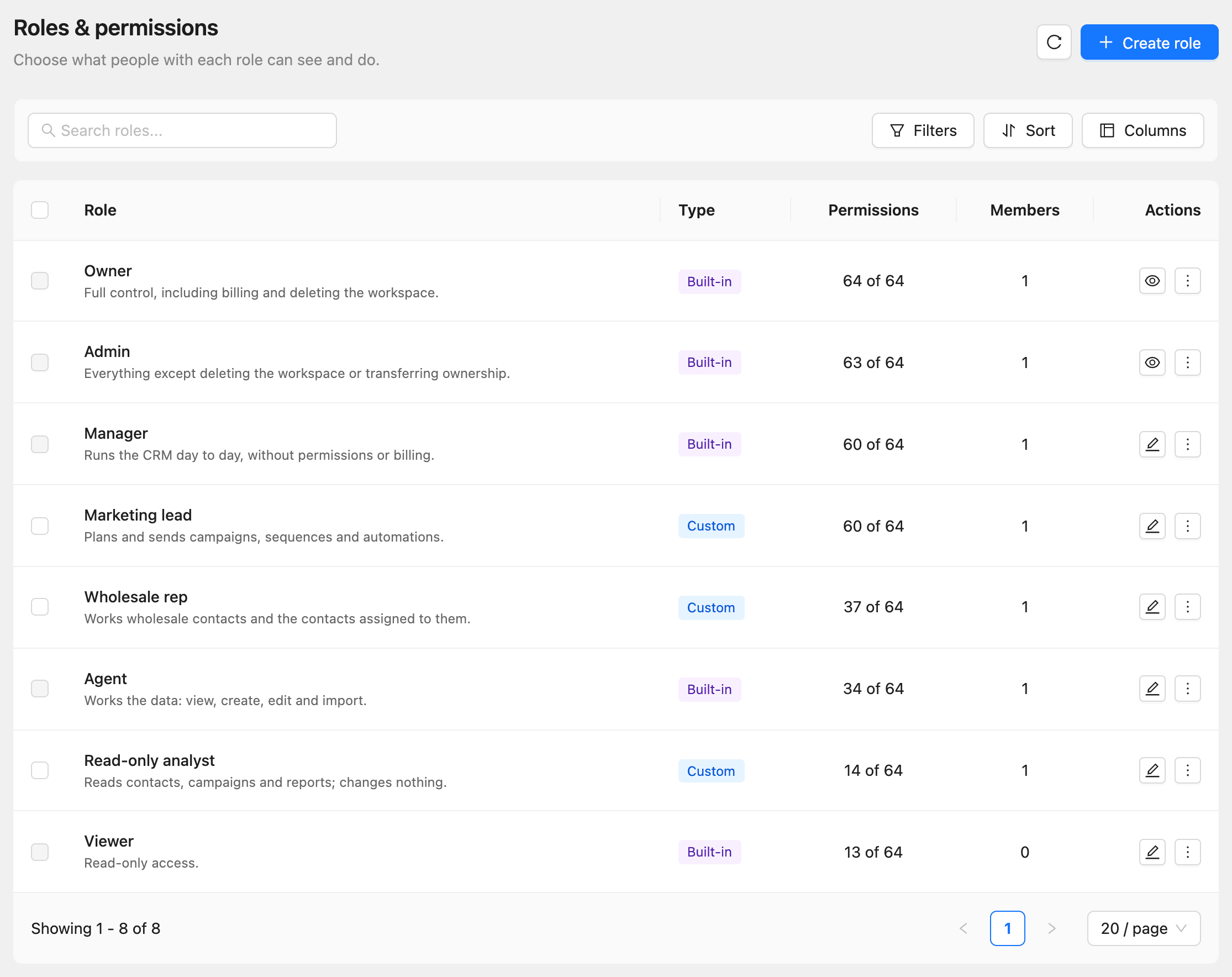
Changes apply right away to everyone with the role. A changed built-in role is marked Customized; open its More menu and click Reset to default to undo your changes.
Create a custom role
- Click Create role.
- Enter a Role name, such as “Marketing assistant”, and a Description.
- To start from a built-in role, choose it under Preset.
- Tick the permissions the role needs.
- Click Create.
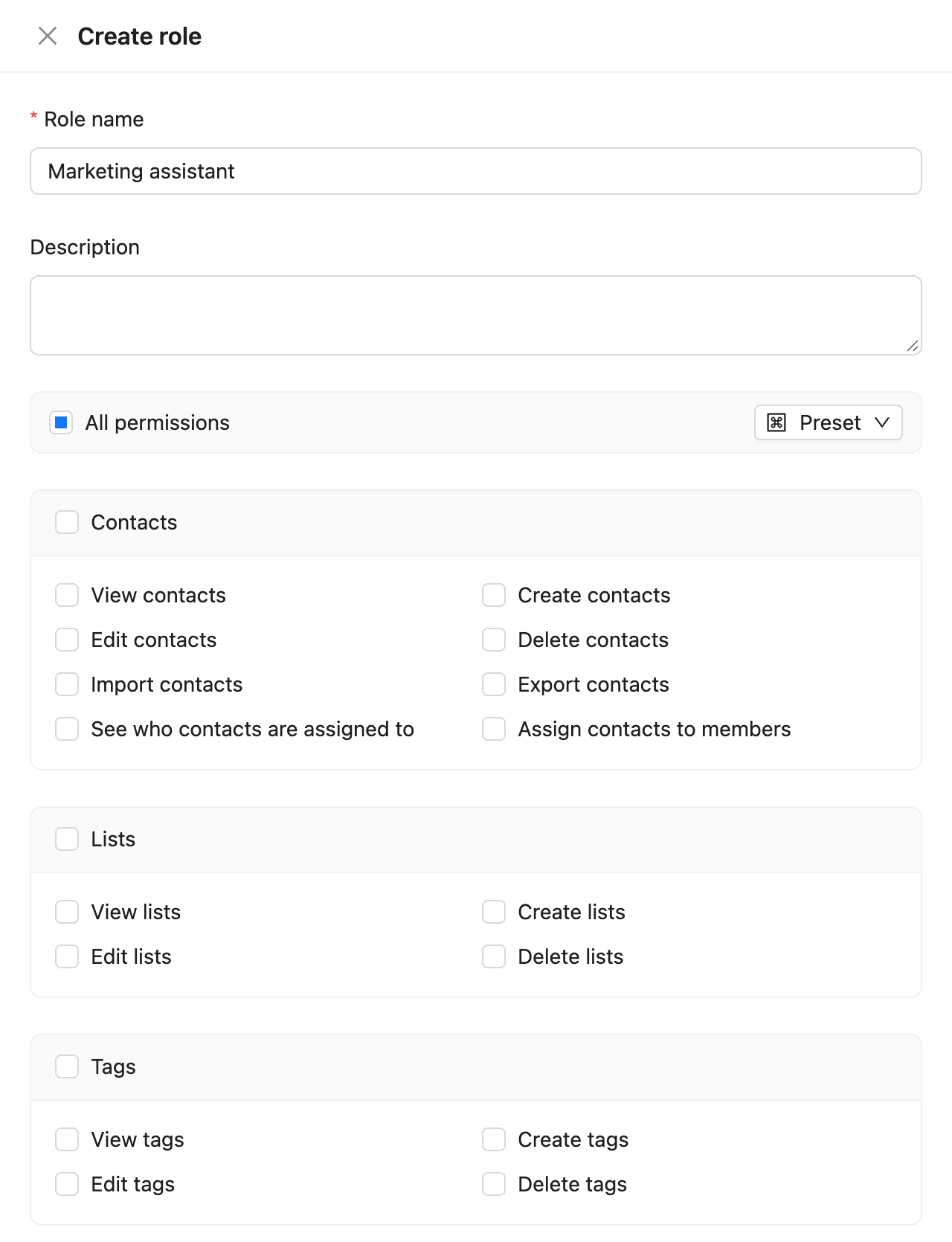
To start from an existing role, open its More menu and click Duplicate. You cannot give a role a permission you do not have yourself.
The permission groups
| Group | Permissions |
|---|---|
| Contacts | View, create, edit, delete, import, and export contacts; see and change who contacts are assigned to |
| Lists, Tags, Segments, Smart links, Email templates | View, create, edit, and delete |
| Campaigns | View, create, edit, and delete; send and schedule |
| Sequences | View, create, and delete; edit sequences and enroll contacts |
| Automations | View, create, edit, and delete |
| Media | View, upload, organize, and delete |
| Email logs | View, export, and delete |
| Analytics | View analytics and reports |
| Settings | Manage settings, custom fields, email providers, incoming webhooks, roles, and API keys |
| Workspace | View, invite, and remove members; change roles; edit and delete the workspace; manage billing; view the audit log |
Permissions marked with an info icon, such as Manage API keys or Invite members, are never available to connected AI tools, even when the role has them. See How to connect AI tools.
Delete a custom role
Open the role’s More menu and click Delete. Everyone with the role moves to Viewer, and so do pending invitations, API keys, and AI tools that used it. Built-in roles cannot be deleted.
Who can grant what
Roles have a rank: Owner, Admin, Manager, Agent, Viewer, and then custom roles. You can invite people to, or change members to, only roles at or below your own, and only roles whose permissions you have yourself.