How to finish the workspace setup wizard
- Kelune CRM Cloud
A new workspace opens on a short setup wizard. It collects what your emails need from day one: who sends them, the business details in the footer, and the first lists and tags to organize contacts.
The wizard has six steps: Welcome, Sender, Lists, Tags, Team, and Finished. Every step is optional.
Move through the wizard
Each step has the same buttons at the bottom:
| Button | What it does |
|---|---|
| Save & next (Next on the first step) | Saves the step and opens the next one |
| Skip | Opens the next step without saving this one |
| Back | Returns to the previous step |
| Skip all | Closes the wizard. You can set everything later in Settings |
If you close the browser, the wizard opens again on the step where you stopped.
Step 1: Add your business details
- Click Upload logo to add your logo. The hint under the button shows the file types and the size limit.
- Check the Business name. It starts as the workspace name.
- Enter your Business full address.
- Click Next.

The logo appears on the unsubscribe and subscription confirmation pages. The business name and address go into your email footer. Most countries require a postal address in marketing email, and the {{business_address}} merge tag inserts it.
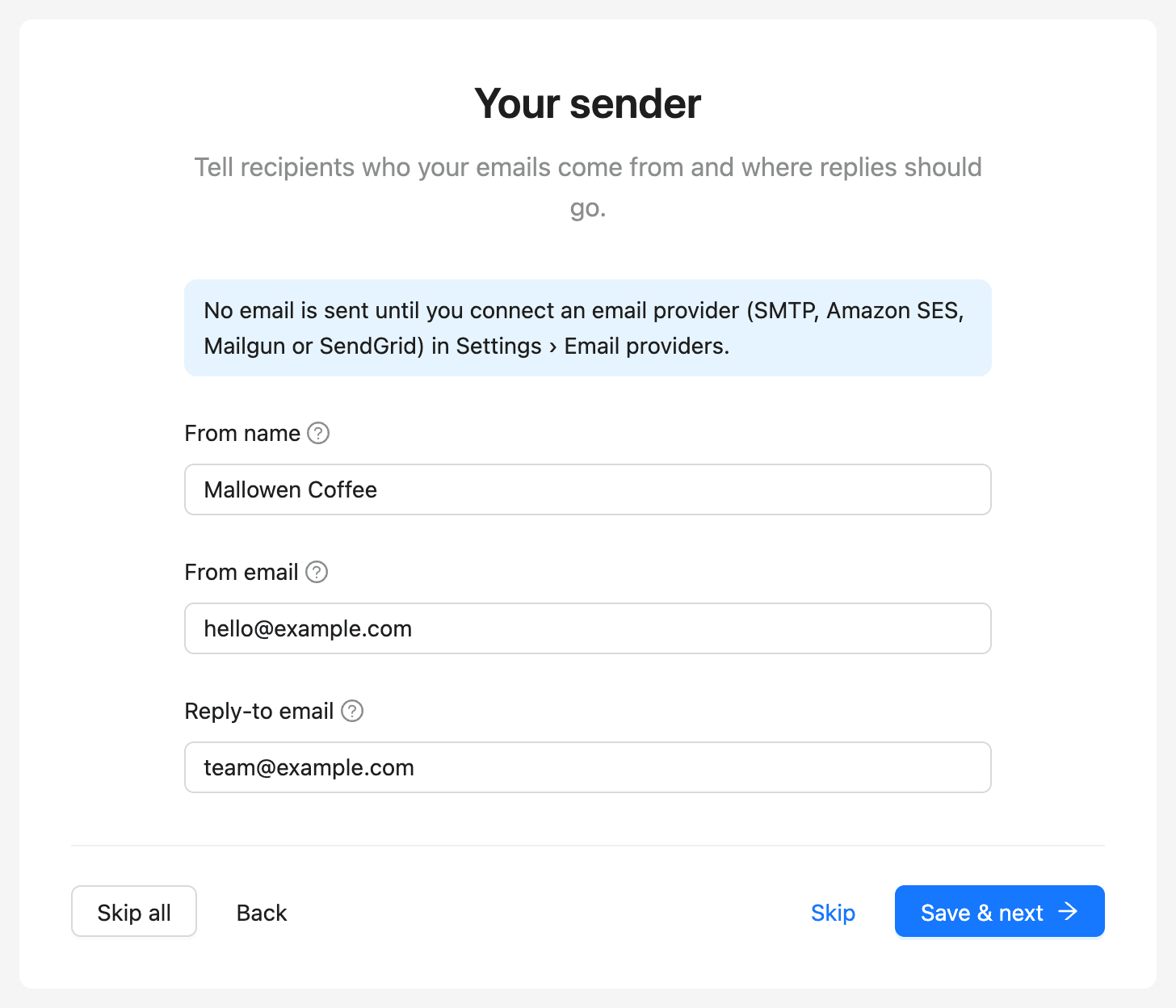
Step 2: Set your sender
- Enter the From name: the name people see in their inbox.
- Enter the From email. Use an address on a domain your email provider can send from.
- Enter the Reply-to email if replies should go to a different address. Leave it blank to receive replies at the From address.
- Click Save & next.
Step 3: Create contact lists
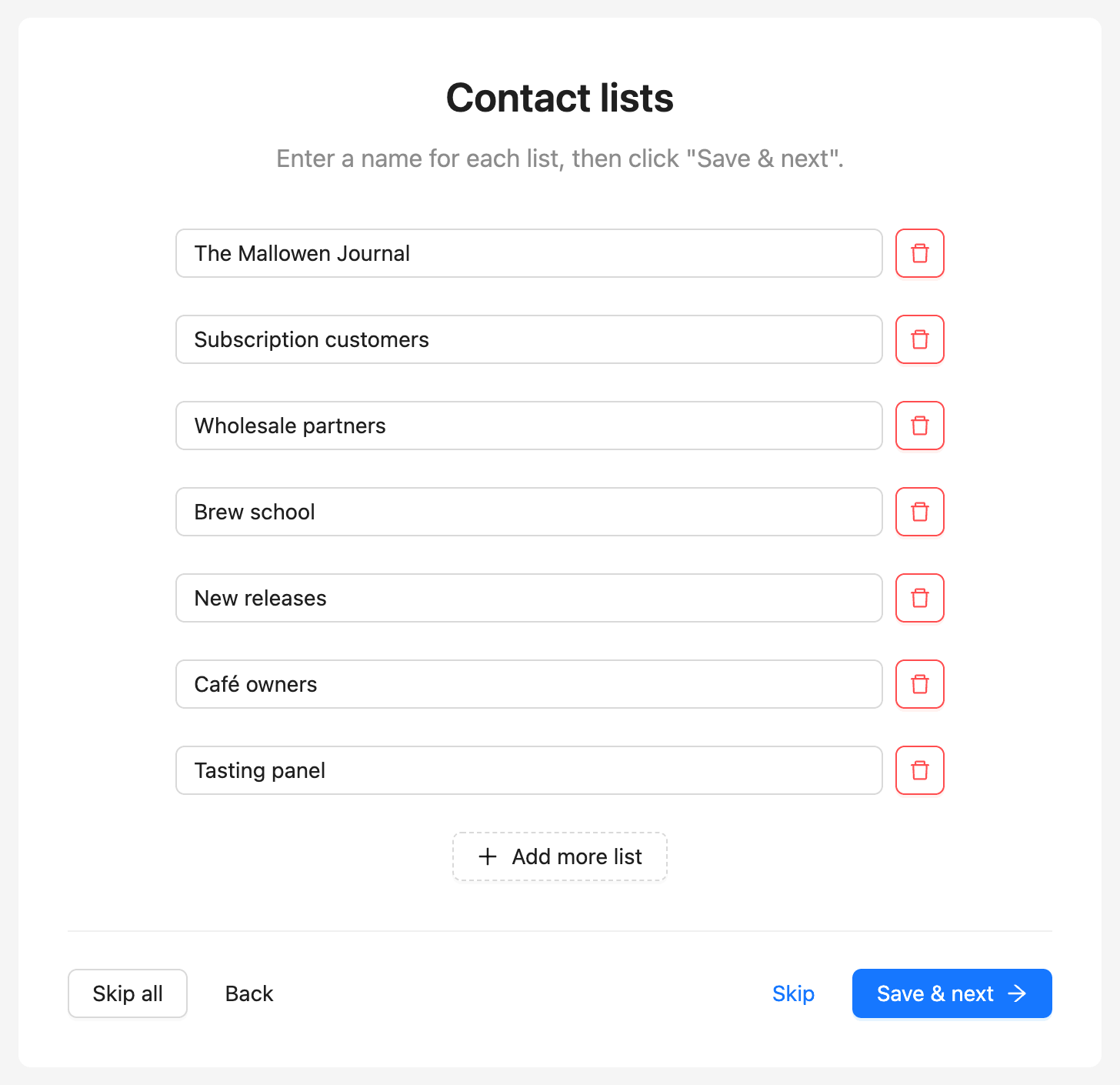
Lists group contacts by audience, such as newsletter readers, customers, or partners.
- Enter one list name in each row.
- Click Add more list for another row.
- Click Save & next.
The delete button next to a saved list removes it.
Step 4: Create contact tags
Tags label contacts by interest, stage, or source. A contact can carry any number of tags.
- Enter one tag name in each row.
- Click Add more tag for another row.
- Click Save & next.
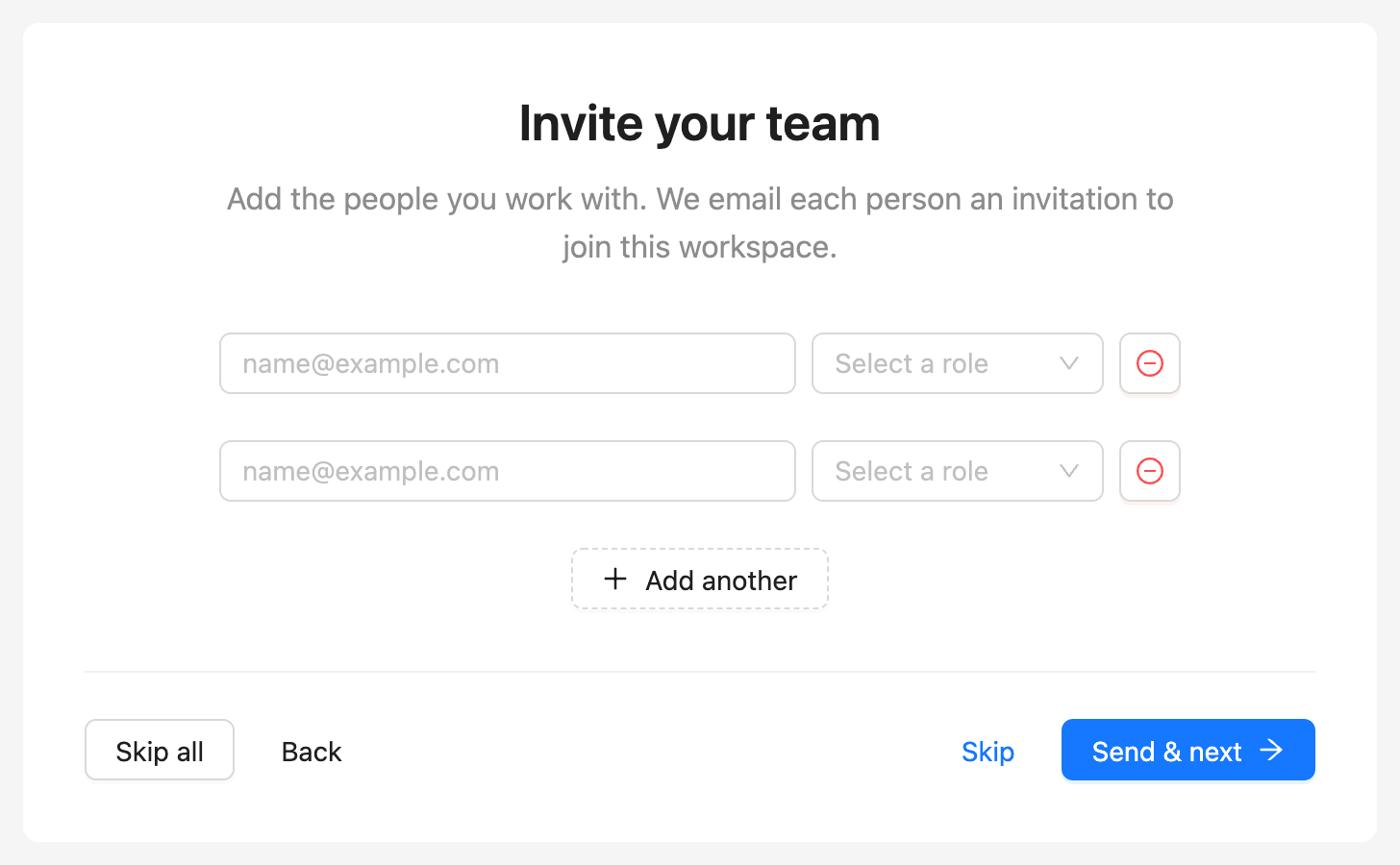
Step 5: Invite your team
- Enter a colleague’s email address.
- Choose their role.
- Click Add another to invite more people.
- Click Send & next.
Each person gets an email invitation to join the workspace. If the plan has no free seats, the step says so. See How to invite and manage members.
Step 6: Finish
Click Go to dashboard. The wizard does not open again.
Change these settings later
| What | Where |
|---|---|
| Logo, business name, address | Settings, then General |
| From name, From email, reply-to | Settings, then Global email |
| Lists and tags | Contacts, then the Lists or Tags tab |
| Team | Settings, then Members |