How to build your first automation
- Kelune CRM Cloud
An automation does a task by itself when something happens to a contact, such as sending a welcome email when someone joins your list and a tip three days later. This guide builds a welcome automation from start to finish.
Step 1: Create the automation
- Click Automations in the sidebar.
- Click Create automation.
- Choose how to start:
- To start from a ready-made workflow, find it in the list and click Use template. Click the eye button (Preview) first to see its steps.
- To start from nothing, click Create from scratch, enter an Automation name, choose the Trigger type, and click Create.
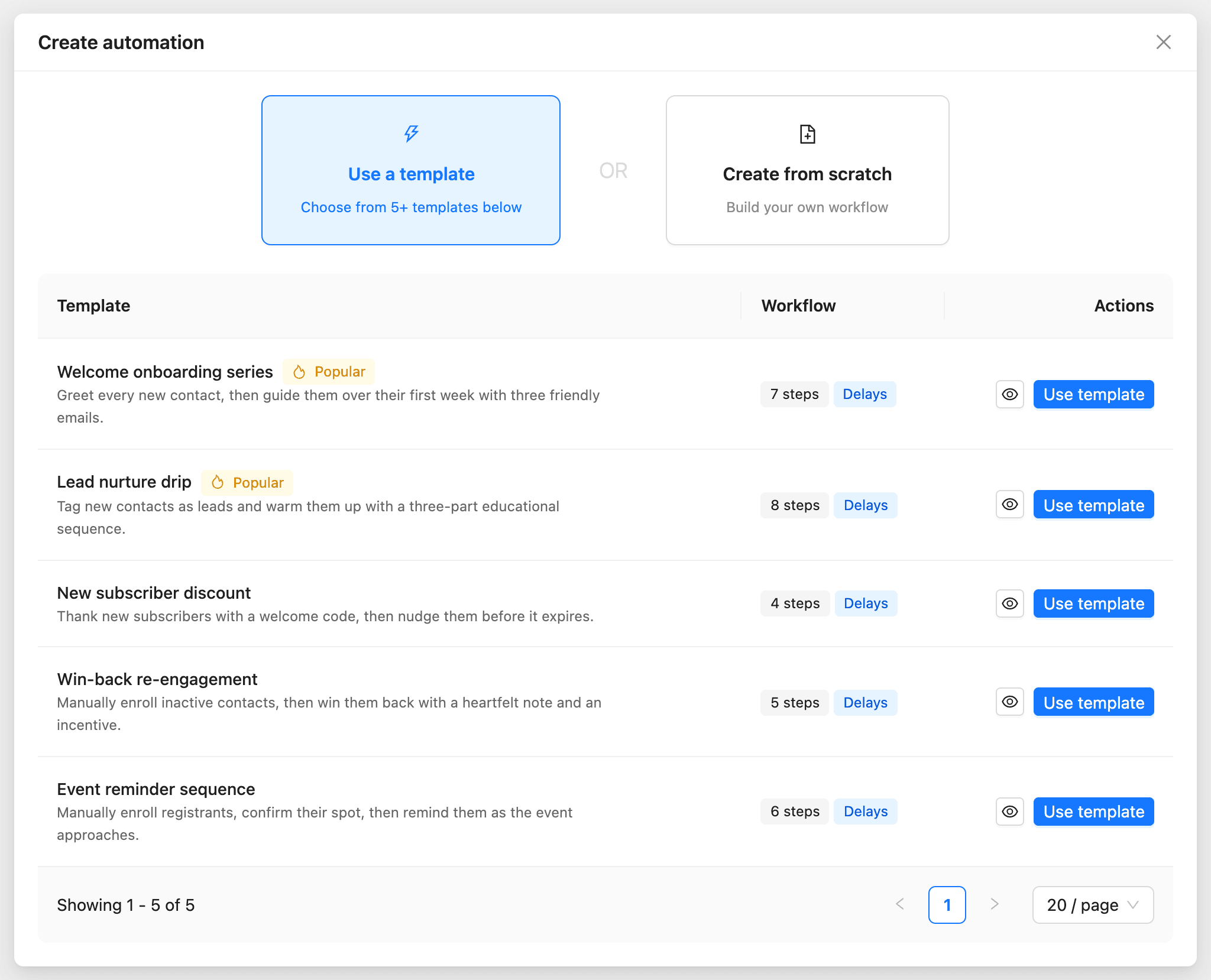
| Template | What it does |
|---|---|
| Welcome onboarding series | Greets every new contact, then sends two more emails over the first week and tags them |
| Lead nurture drip | Tags new contacts as leads and sends three educational emails |
| New subscriber discount | Sends a welcome code, then a reminder before it expires |
| Win-back re-engagement | For contacts you add by hand: a “we miss you” email, then an incentive |
| Event reminder sequence | For registrants you add by hand: a confirmation, then reminders before the event |
The automation opens on the Workflow tab as a draft. Templates come with sample emails; you change them in step 3.
Step 2: Set the trigger
The trigger is the first step on the canvas: the event that starts the automation for a contact.
- Click the Trigger step.
- Choose the Trigger type, such as Contact created or Added to list.
- Fill in its settings, such as which lists.
- Under Enrollment, choose whether Allow re-entry lets a contact go through more than once.
- Click Save.
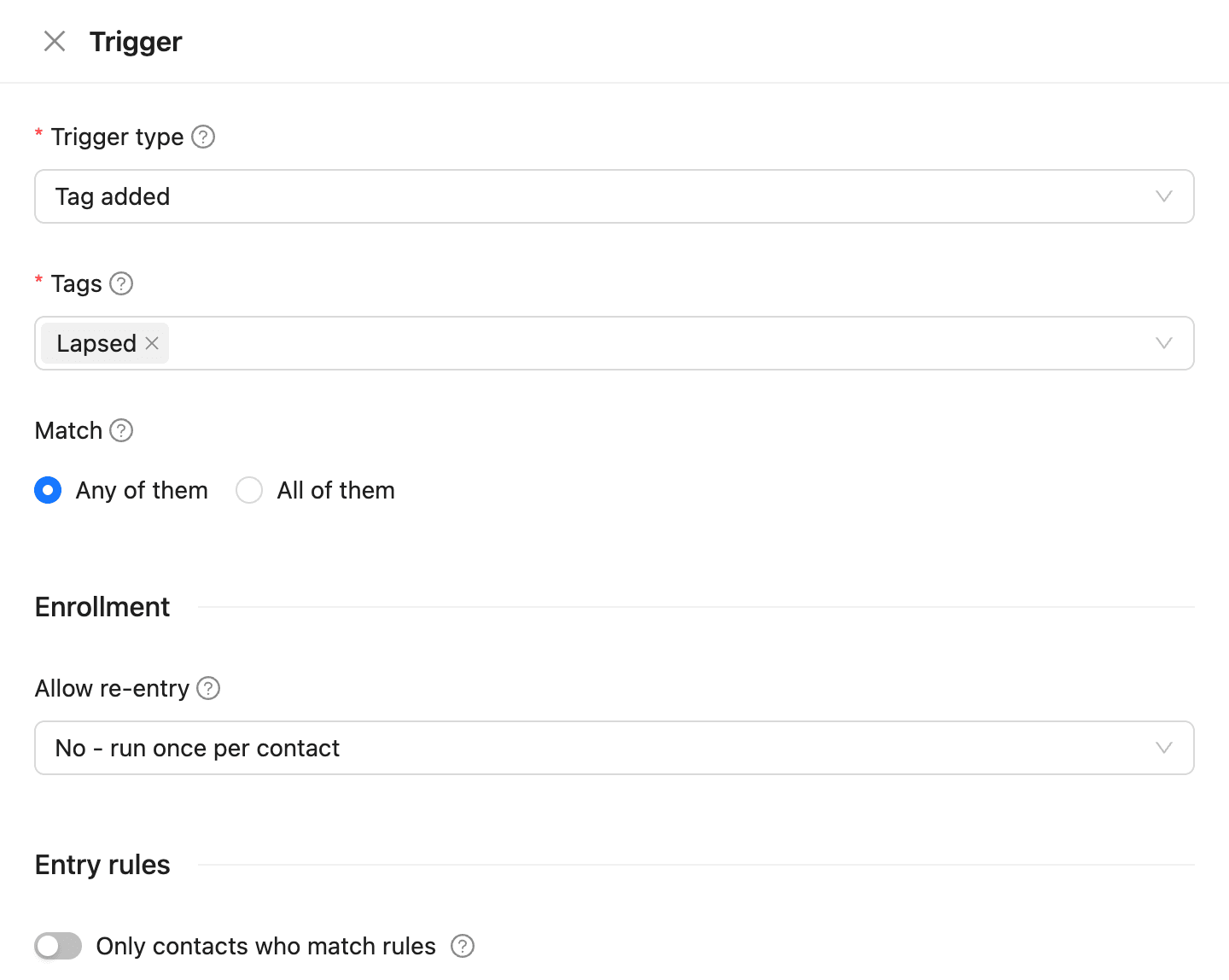
To let only some contacts in, turn on Only contacts who match rules under Entry rules and add conditions, as in a segment.
Step 3: Add the steps
- Click a + button on the canvas where the step should go.
- Choose a tab: Action, Condition, or Delay.
- Choose the step, such as Send email, and fill in its settings.
- Click Save.
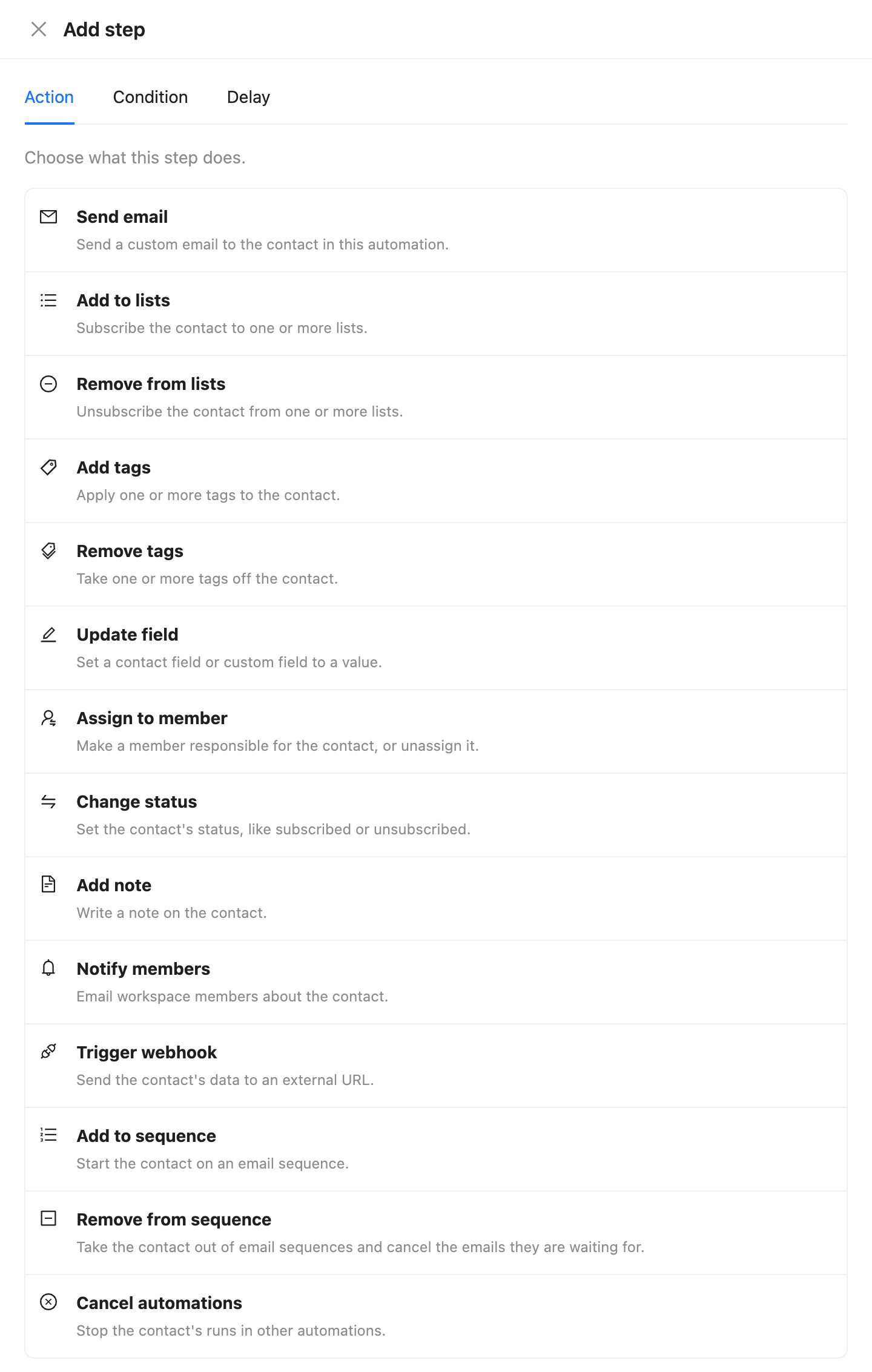
For a welcome email:
- Choose Send email.
- Enter the Email subject and Preview text.
- Under Sender, keep Global email or choose another sender.
- Under Content, write the email or click Templates to start from one.
- Click Send test to send it to yourself, then click Save.
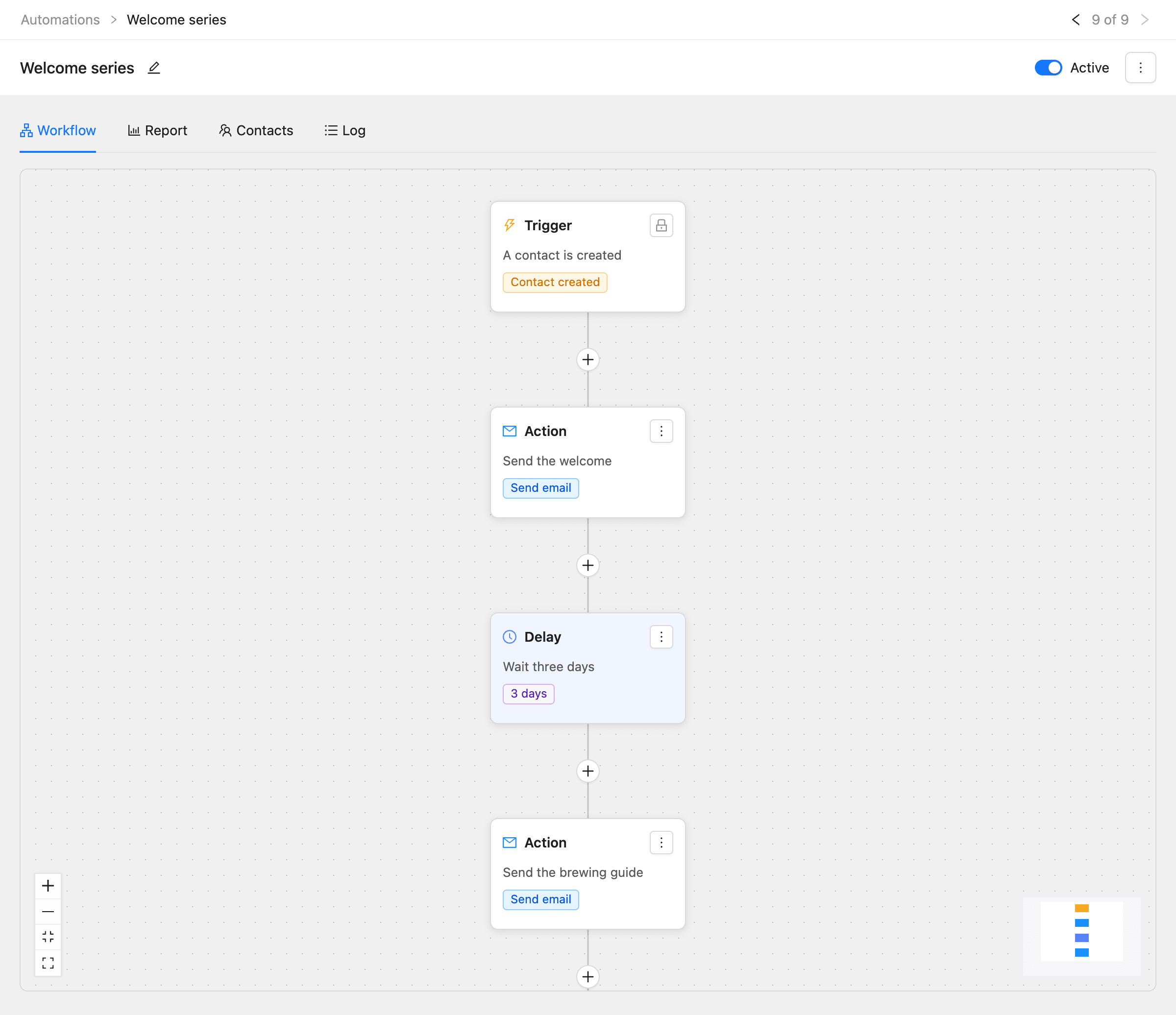
Then add a Delay, such as For a time of 3 Days, and a second Send email after it.
The canvas saves every change by itself. To change a step, click it. To move, copy, or remove it, open its menu (the three dots) and click Move up, Move down, Duplicate, or Delete.
Step 4: Activate it
- Turn on the switch at the top right of the automation.
- If a step is not finished, a message lists what to fix, such as “the email needs a subject and content”. Fix it and try again.
The status changes to Active. From now on, every contact the trigger matches enters the automation. Contacts who were already on the list before you activated it do not enter; only new events start it.
Step 5: Check that it works
- Trigger it yourself, for example by adding your own contact to the list.
- Open the automation’s Contacts tab and find your contact.
- Click it to see each step it went through.
See How to read automation reports.
Pause or change an automation
Turn off the switch to pause it. Contacts stay where they are and carry on when you turn it back on.
You can edit an active automation. Changes apply to contacts when they reach the changed step. Changing a delay to another kind of wait, such as from For a time to Until a date, restarts the wait for contacts already on it.
For an automation with the Manual enrollment trigger, add contacts on its Contacts tab with Enroll contact. You can also add any contact to an active automation from their profile with Add to automation.