How to invite and manage members
- Kelune CRM Cloud
Members are the people who can sign in to your workspace, each with a role that decides what they can see and do. Invite your team when you start, and change roles as their work changes.
Invite a member
- Click Settings in the sidebar.
- Under Team, click Members.
- Click Invite member.
- Enter their Email.
- Choose a Role. See How to set roles and permissions.
- Click Send invitation.
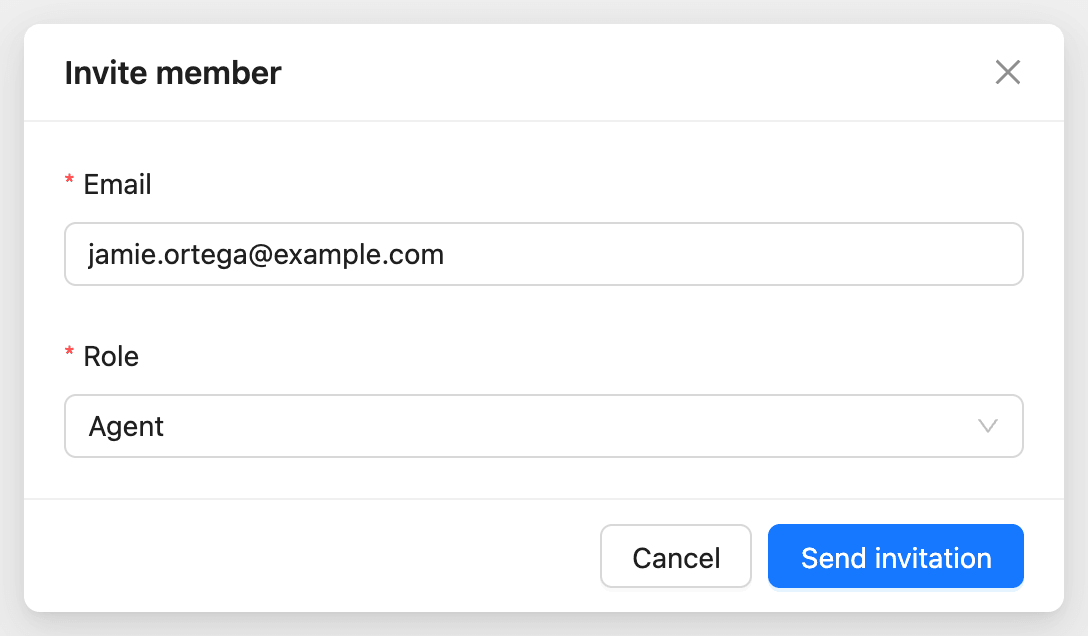
You can offer only roles at or below your own. They get an email with a link that works for 7 days.
What the invited person does
- Open the email and click Accept the invitation.
- If they have no account, enter a Name and Password and click Create the account and join. If they have one, they sign in.
- The workspace opens.
Someone who already has an account also sees the invitation on their Workspaces page, with Join and Decline.
Follow invitations
Open the Invitations tab on Members to see invitations that have not been accepted yet, with their role, when they were sent, and when they expire.
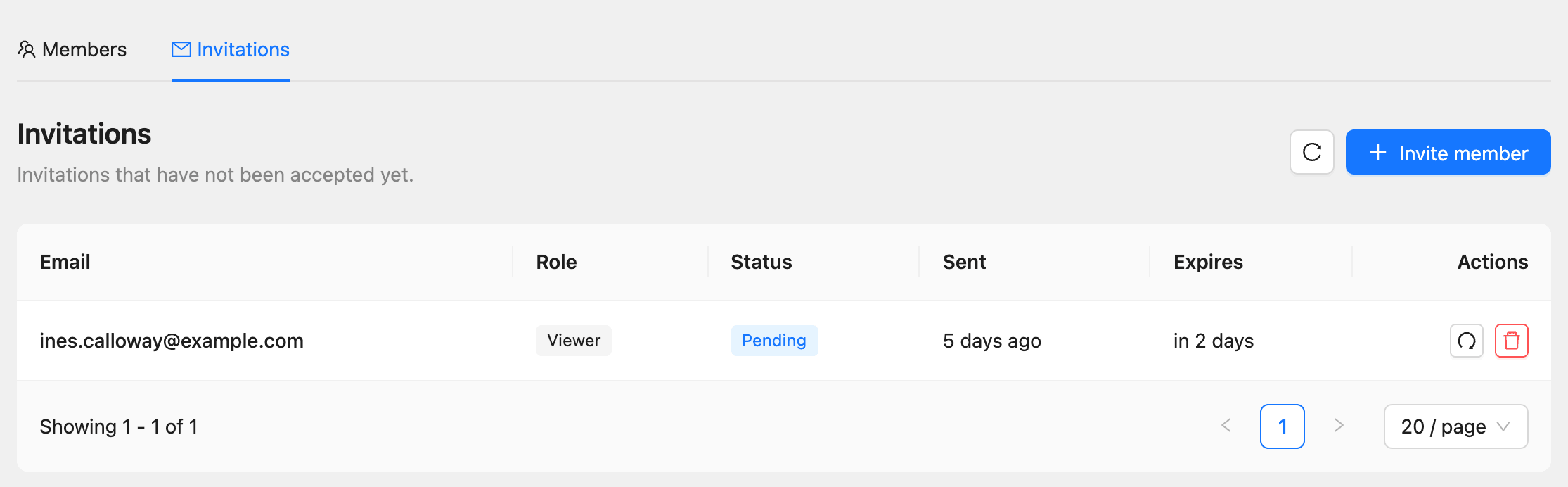
| Status | What it means |
|---|---|
| Pending | Sent and still valid |
| Expired | The 7 days passed. Resend it to send a new link |
| Declined | The person declined it |
Click Resend to send a new link with 7 more days; the old link stops working. Click Revoke to cancel an invitation.
Change a member’s role
- On the Members tab, click the pencil button (Change role) in the member’s row.
- Choose the new role.
- Click Save.
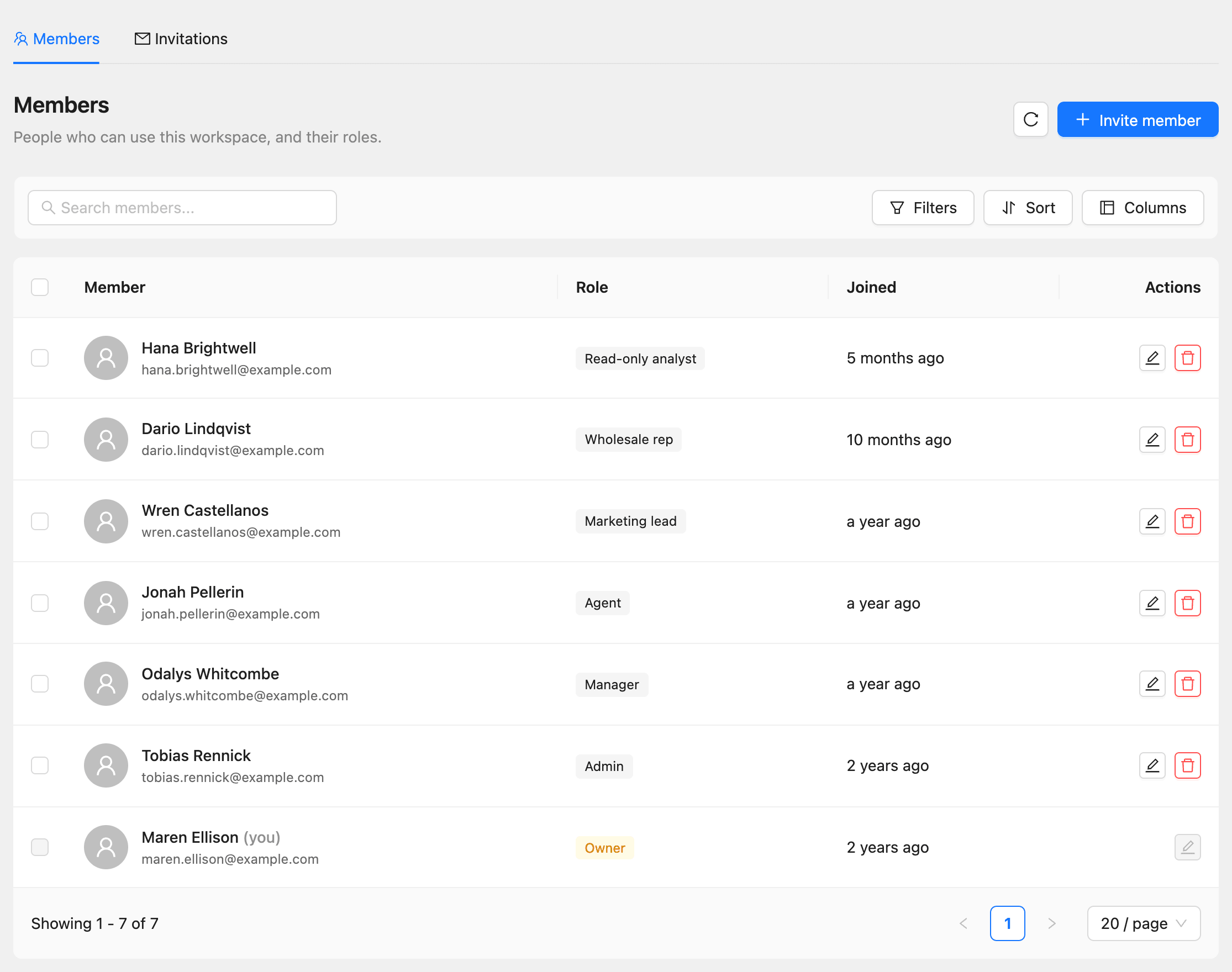
You can change the role of members at or below your own role, but never your own. To change several at once, select them and choose Assign role.
Remove a member
Click the delete button (Remove) in the member’s row and confirm. They lose access to this workspace right away. Their account and their other workspaces are not affected.
Hand over ownership
A workspace can have more than one Owner. To hand it over:
- Change the new owner’s role to Owner. Only an Owner can do this.
- Ask them to change your role, if you want to step down.
The last Owner cannot be removed or demoted, and cannot leave.
Leave a workspace
Click your name at the top right, then Leave workspace, and confirm. You lose access until someone invites you again.
Common questions
Invite member is turned off. All of the plan’s seats are used. Remove a member, revoke a pending invitation, or upgrade.
The invitation link says it is no longer valid. It expired, was revoked, or was already used. Ask for a new invitation.
The person signed in with another email address. The invitation page offers Accept as their current address, or to sign out and use the invited one.