How to send recurring campaigns
- Kelune CRM Cloud
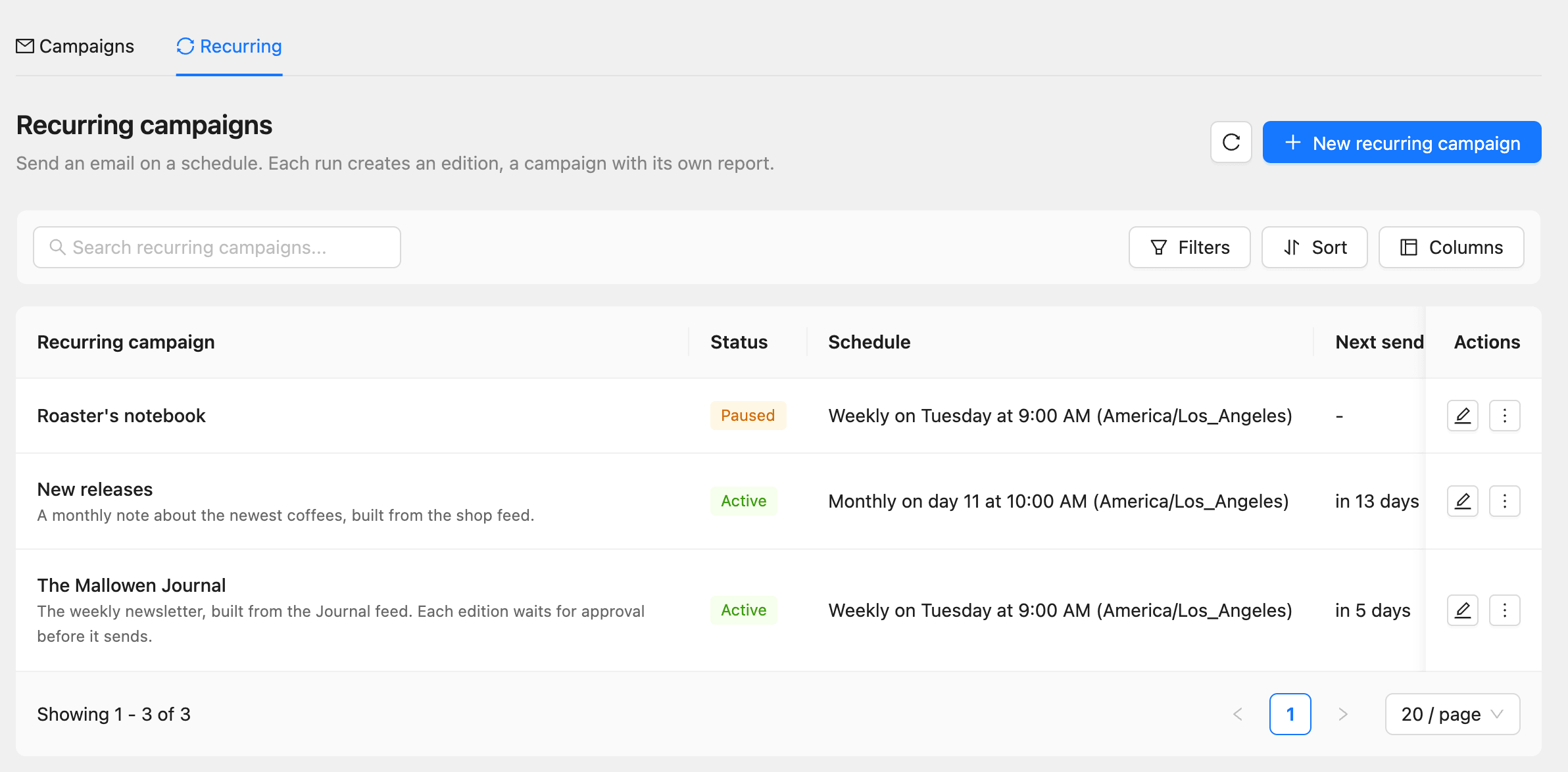
A recurring campaign sends an email on a schedule, such as a weekly newsletter every Tuesday at 9:00 AM. Each run creates an edition: a campaign of its own with its own report. Add a content feed and every edition fills itself with your newest posts or products.
Create a recurring campaign
- Click Campaigns in the sidebar, then the Recurring tab.
- Click New recurring campaign.
- Enter a Name, such as “Weekly journal”, and click Create and edit.
The editor has five steps: Content, Subject & sender, Schedule, Audience, and Review. Click Save & next to move on.
Step 1: Write the content
Write the email in the visual or rich text editor, or start from a template, as for any campaign.
To show the items from a feed (set up in step 3):
- In the visual editor, drag the Feed block onto the email. Set how many items it shows, whether it shows New since the last edition or the Latest items, and the Layout.
- In the rich text editor, click Feed items in the toolbar. It adds
{{feed.items}}on a line of its own.
An email holds one feed block.
Step 2: Set the subject and sender
Enter the Email subject, the Preview text, and the Emails sender, as for any campaign. Every edition uses this subject.
Step 3: Set the schedule
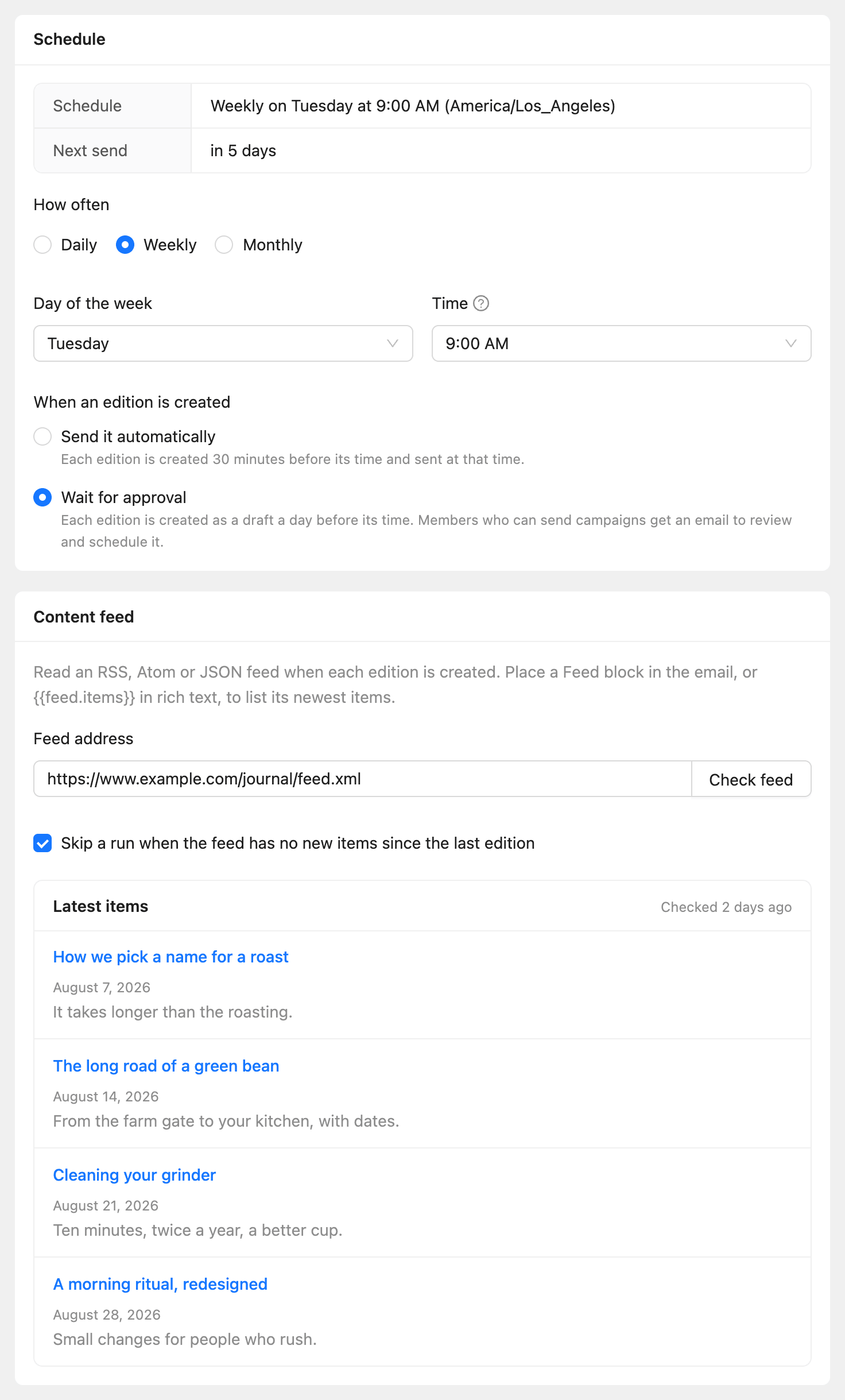
- Under How often, choose Daily, Weekly, or Monthly.
- Choose the Day of the week or Day of the month, and the Time. Times are in the workspace time zone.
- Under When an edition is created, choose how it goes out.
- To use a feed, enter the Feed address under Content feed and click Check feed.
| Option | What happens |
|---|---|
| Send it automatically | Each edition is created 30 minutes before its time and sent at that time |
| Wait for approval | Each edition is created as a draft a day before its time. Members who can send campaigns get an email to review and schedule it |
A month without the chosen day, such as the 31st in April, sends on its last day.
Check feed reads the feed and lists its Latest items, so you can see what the next edition will show. The feed can be RSS, Atom, or JSON Feed. Turn on Skip a run when the feed has no new items since the last edition so readers never get an empty edition.
Step 4: Choose the audience
Choose the Target lists, Target tags, or Target segments, and anyone to exclude, as for any campaign. Each edition goes to the contacts in its audience at the time it is sent, so new contacts in a list get the next edition.
Step 5: Review and activate
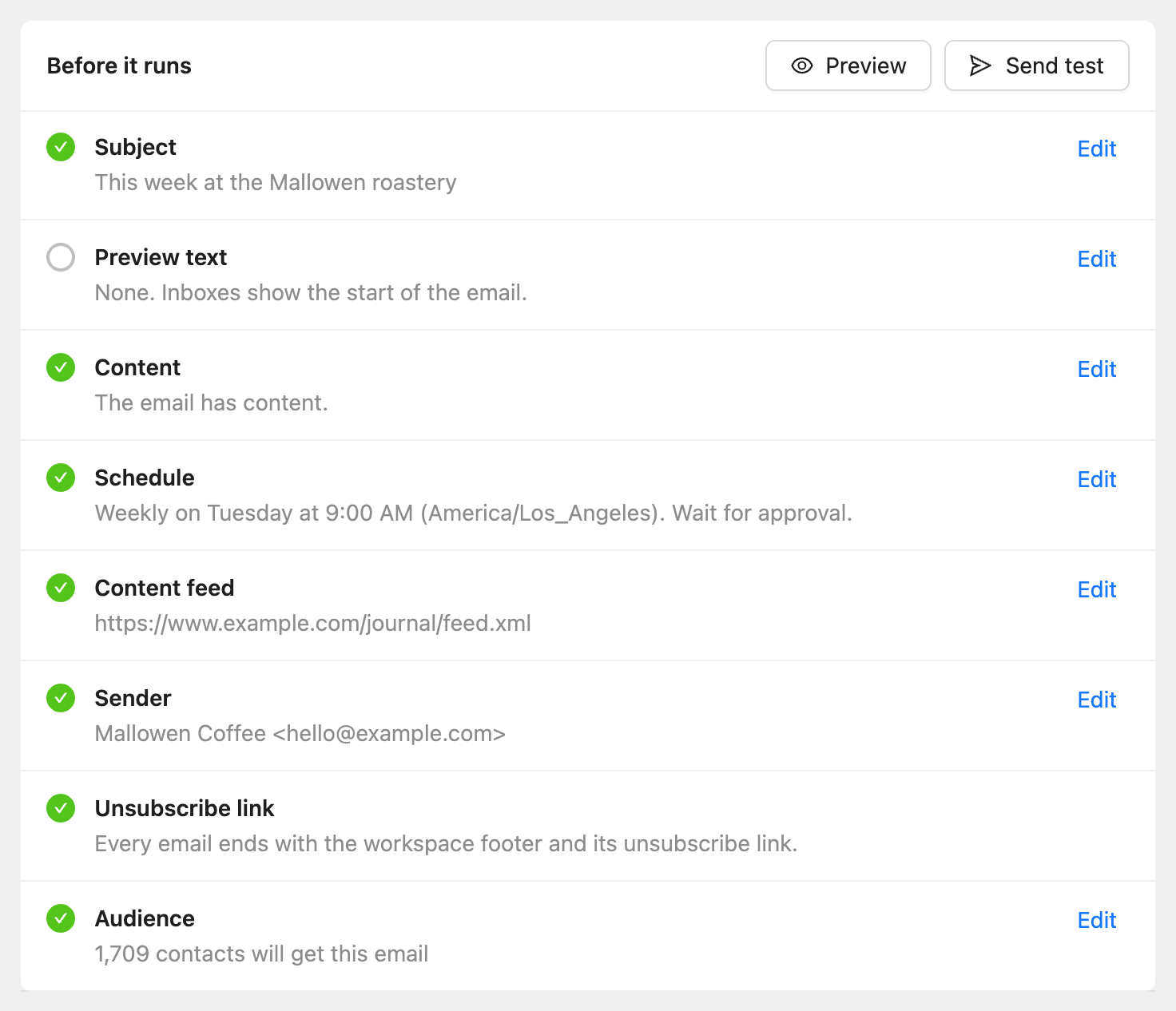
- Check the Before it runs list. Every item needs a check mark.
- Click Send test to send yourself a copy.
- Click Activate and confirm.
The status changes to Active and the Next send column shows when the first edition goes out.
Read the editions
Open a recurring campaign from the Recurring tab. Editions lists each one with its status, sent count, and open and click rates. Click an edition to open its full report.
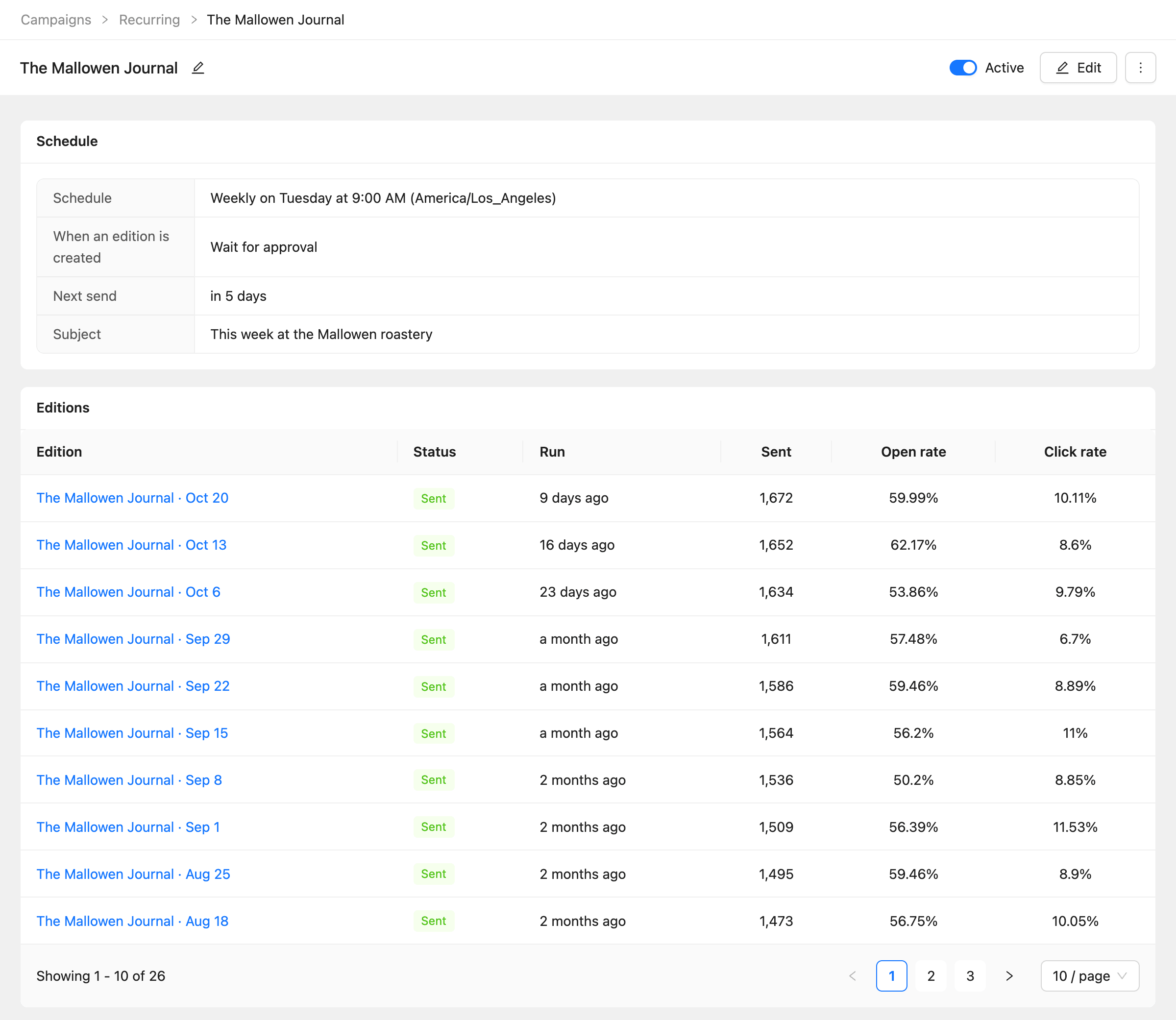
Changes you make to the recurring campaign apply to editions created from then on. Editions already created keep their own copy.
Pause or delete
- To pause, turn off the Active switch at the top of the page, or click Pause in the row’s More actions menu. No new editions are created, and runs missed while paused are not sent later.
- To delete, click Delete in the row’s More actions menu. Its editions and their reports are deleted too.
Common questions
An edition was skipped. Open the recurring campaign: the message at the top starts with “Last run was skipped” and gives the reason. Common reasons: the previous edition is still waiting for approval or still sending, the feed had no new items, the feed could not be read, or the plan’s email limit was used up.
The feed shows nothing. Check that the address opens in a browser and returns a feed, not a web page. Click Check feed again after fixing it.
Do editions count toward my campaign limit? No, but each edition counts toward the number of campaigns scheduled at once, and its emails count toward your email limits.