How to build segments
- Kelune CRM Cloud
A segment is a group of contacts defined by rules instead of picked by hand, such as “tagged Gift buyer and active” or “has not opened an email in 90 days”. Kelune CRM Cloud recalculates who matches, so the segment stays current as contacts change. You can send a campaign to a segment like you would to a list.
Create a segment
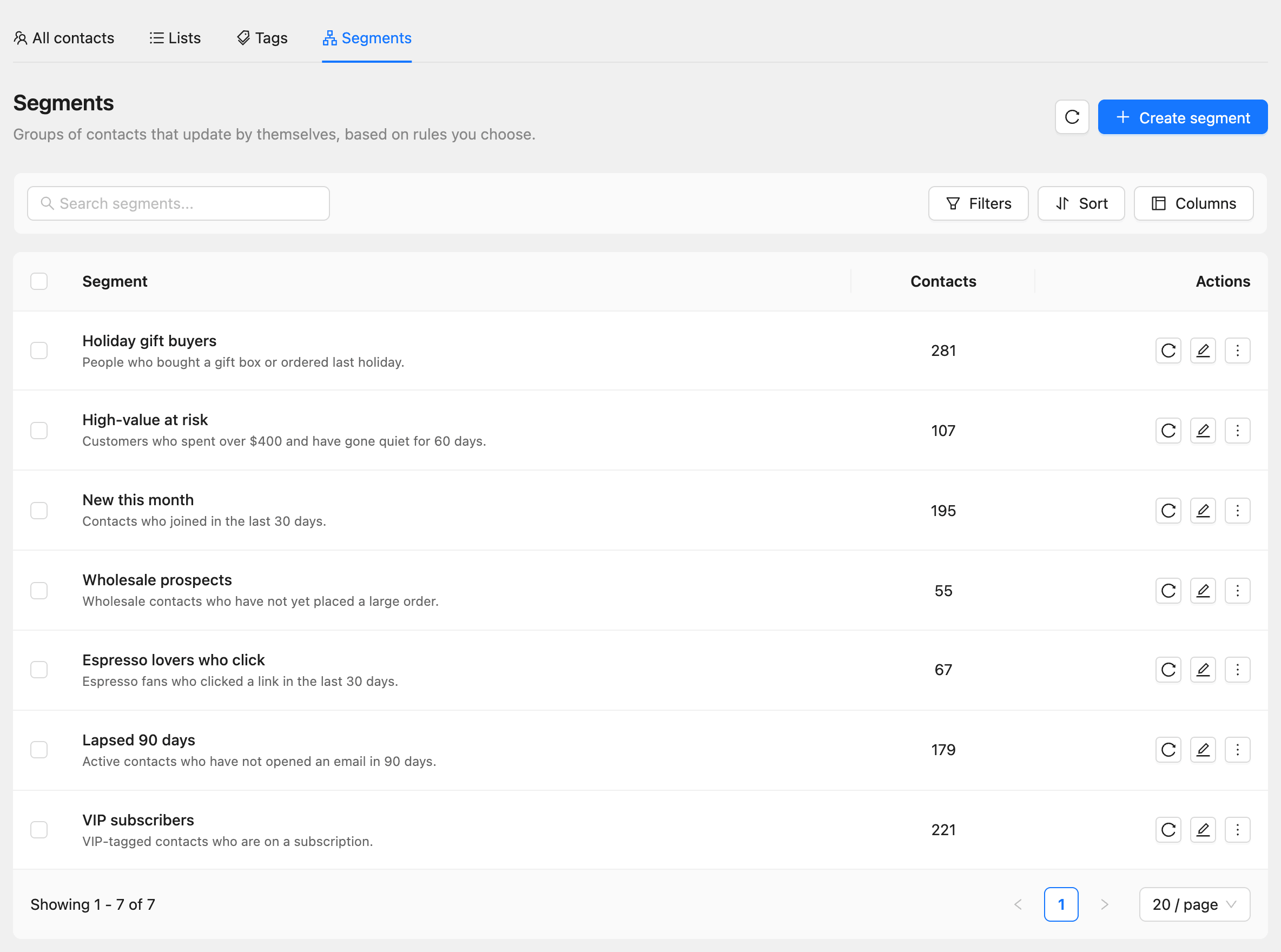
- Click Contacts in the sidebar, then the Segments tab.
- Click Create segment.
- Enter a Segment name and, if you like, a Description.
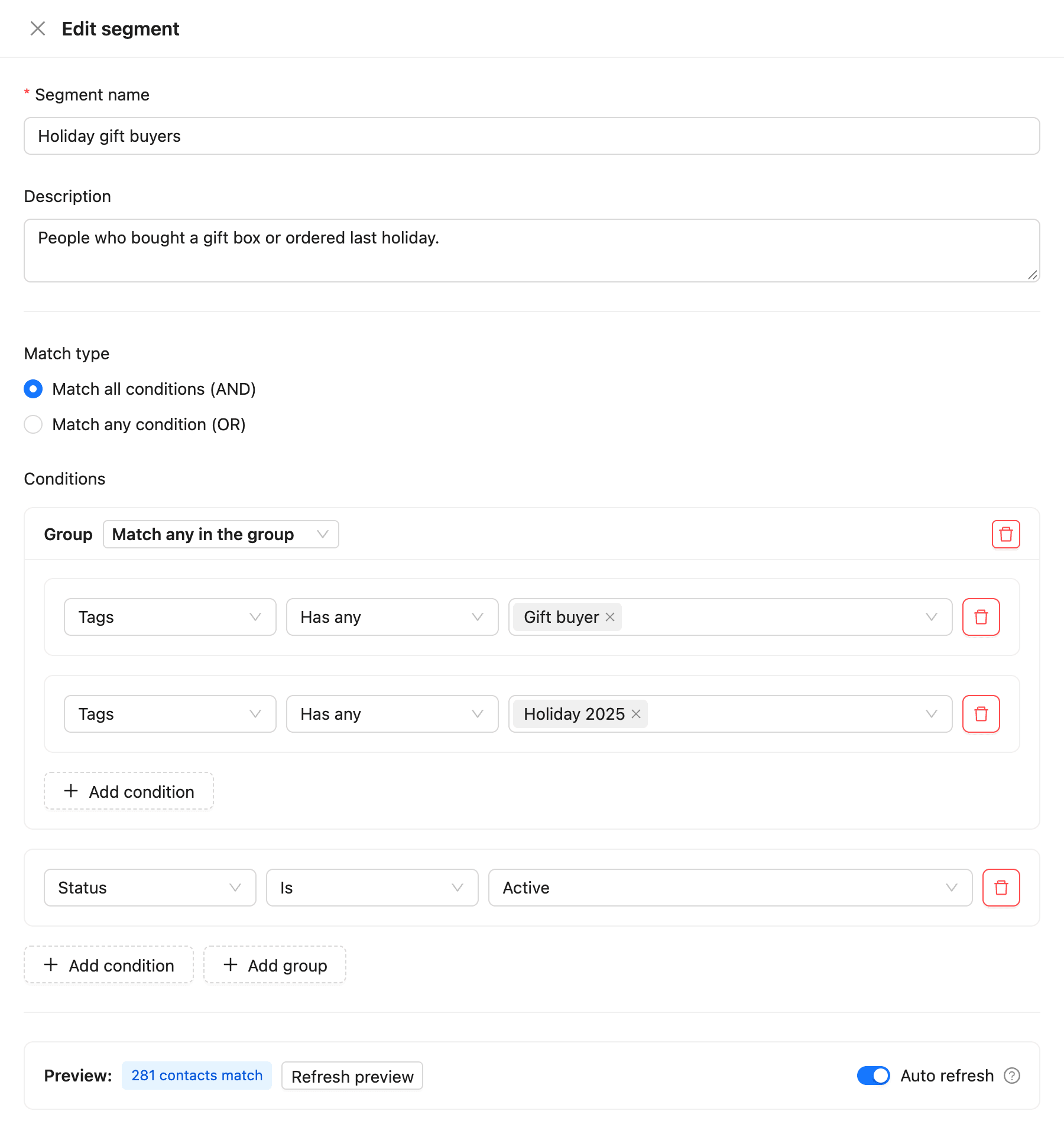
- Choose the Match type: Match all conditions (AND) or Match any condition (OR).
- Under Conditions, choose a field, an operator, and a value.
- Click Add condition for each rule you need.
- Check the Preview count, such as “281 contacts match”.
- Click Create.
Group conditions
Click Add group to combine conditions that follow a different rule from the rest. A group has its own setting, Match all in the group or Match any in the group.
For example, the segment above matches contacts tagged “Gift buyer” or “Holiday 2025” (a group set to match any), and whose status is Active.
What you can filter on
| Condition | Examples of operators |
|---|---|
| Contact fields: Email, First name, Company, City, Country, and more | Contains, Starts with, Is empty |
| Status | Is, Is not |
| Lists and Tags | In any, In all, Not in, Has any, Does not have |
| Created at, Updated at, and date custom fields | Before, After, In last X days |
| Number custom fields | Greater than, Less than |
| Activity | Did or Did not: Open an email, Click a link in an email, Click a smart link, Bounce an email, Unsubscribe, in the last so many days |
| Sequence | In a sequence, in any state or Active, Completed, or Canceled |
| Assigned to, Created by, Created via | Is any of, Is none of |
Your custom fields are listed under Custom fields in the field menu.
Keep a segment up to date
With Auto refresh on, the segment is recalculated on a schedule. How often depends on your plan, from once a day on Free to every 15 minutes on Scale.
To recalculate one segment now, click the refresh button (Refresh membership) in its row on the Segments tab.
Use a segment
- Choose it under Target segments or Exclude segments in a campaign’s Audience step.
- Use it in automation conditions and in recurring campaigns.
- Export its contacts from the segment’s More actions menu.
Common questions
A segment shows “Stale”. It has not been recalculated within your plan’s refresh interval. Click Refresh membership.
A segment shows “Not refreshing”. It has more conditions than your plan allows, or you have more segments than your plan can refresh. Remove conditions or upgrade.
Each plan limits the number of segments and conditions per segment. See How to check plans, usage, and billing.