How to build email sequences
- Kelune CRM Cloud
A sequence is a series of emails that each contact gets on their own schedule, counted from the day they join, such as a welcome series of five emails over two weeks. Contacts can join at any time, and each one starts at the first email.
Create a sequence
- Click Email sequences in the sidebar.
- Click New sequence.
- Enter a Name and, if you like, a Description.
- Click Create and edit.
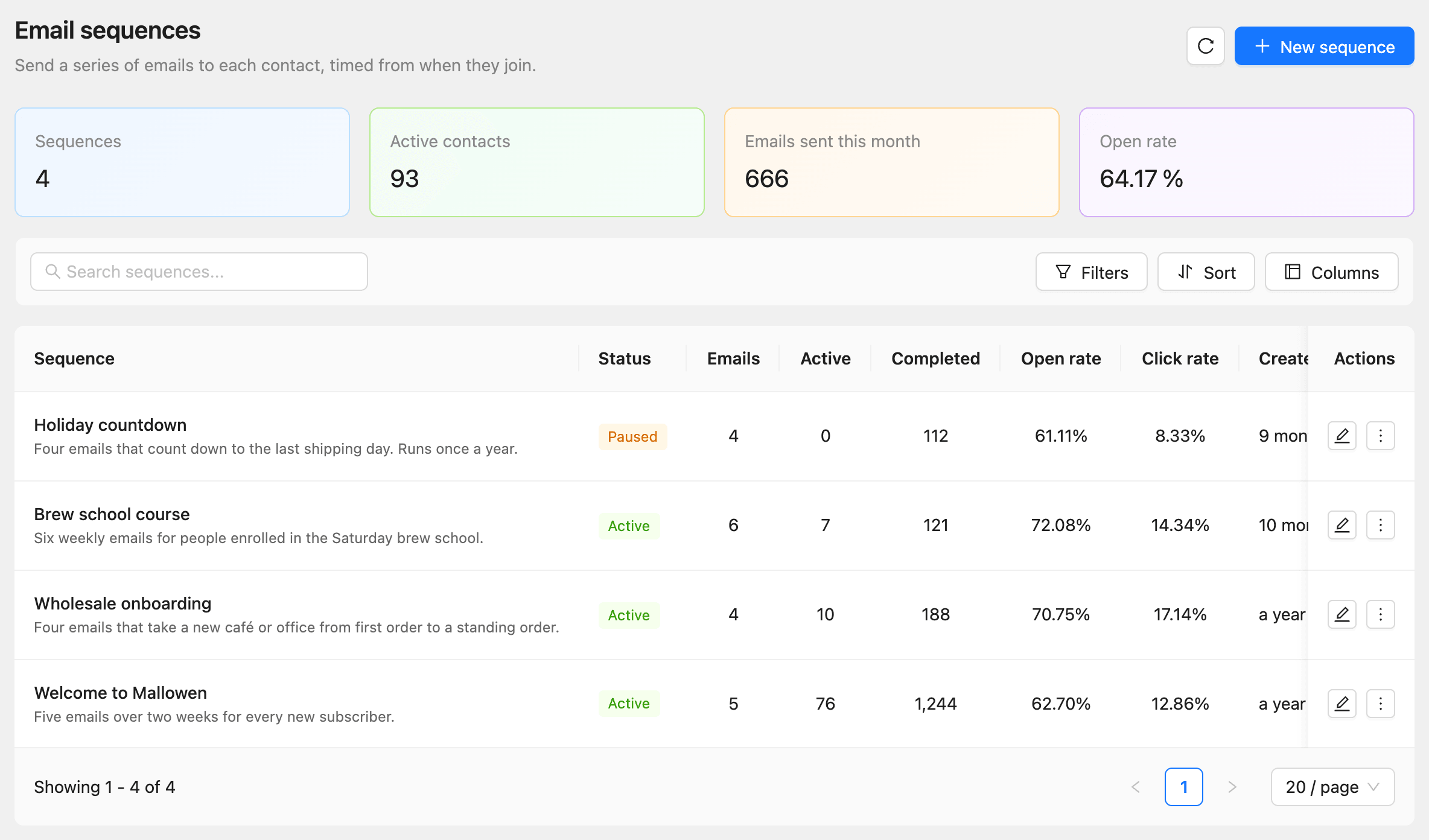
The sequence starts as a draft with no emails.
Add the emails
- Click Add the first email, or Add an email for the next ones.
- On Content, write the email, or click Templates to start from one.
- Click Next.
- Enter the Email subject and Preview text.
- Under Timing, set Send after: how long after joining the contact gets this email.
- Click Next, check the Review step, then click Add email.
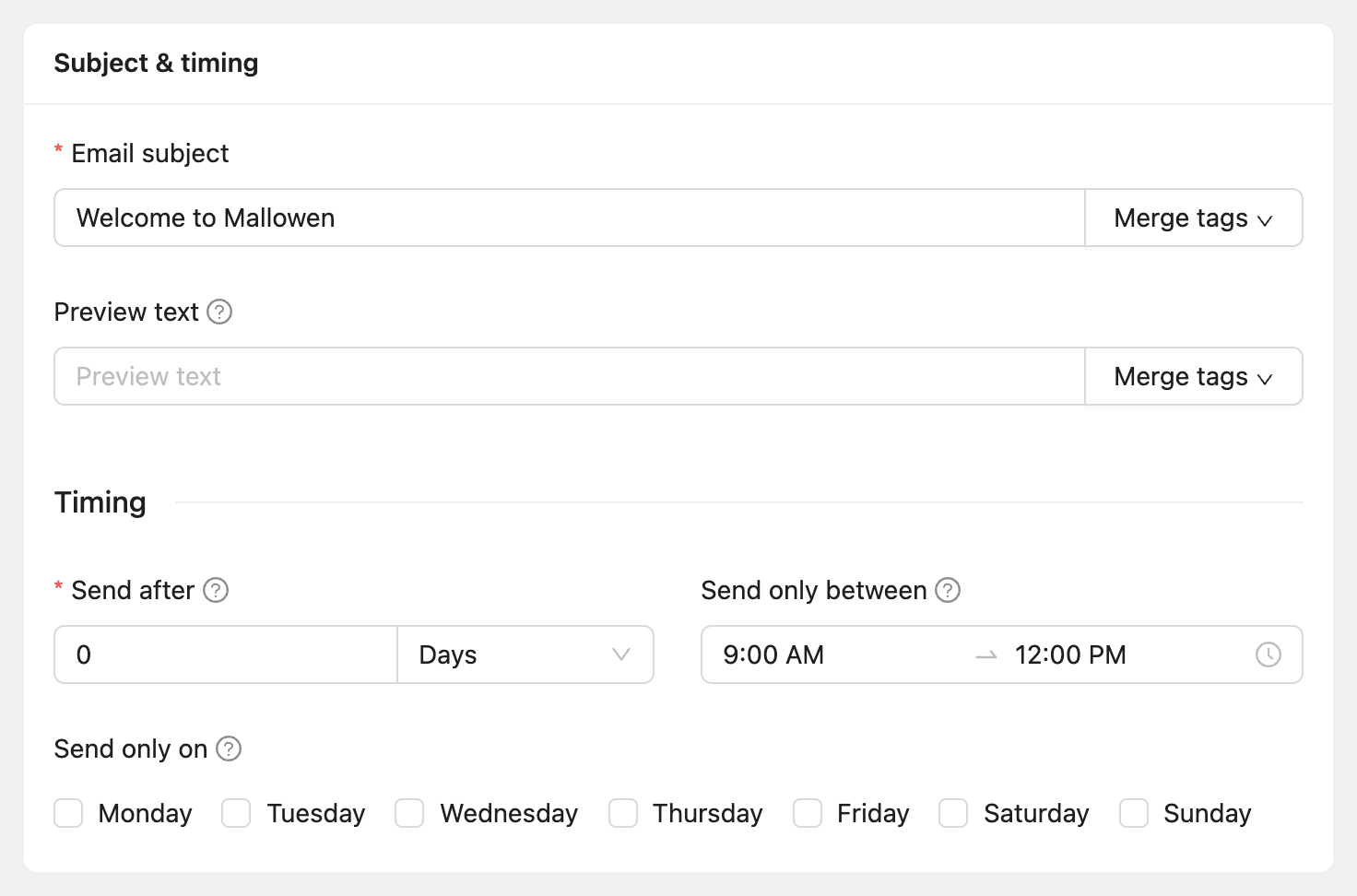
| Timing option | What it does |
|---|---|
| Send after | Minutes, hours, days, or weeks after the contact joined. 0 sends it right away |
| Send only between | A time window, in each contact’s time zone (or the workspace’s when it is not known). An email due outside it waits for the window |
| Send only on | The days of the week emails may go out. Leave all unchecked to send on any day |
Every wait is counted from when the contact joined, not from the previous email. For a welcome series, use 0 days, 3 days, 7 days, and so on.
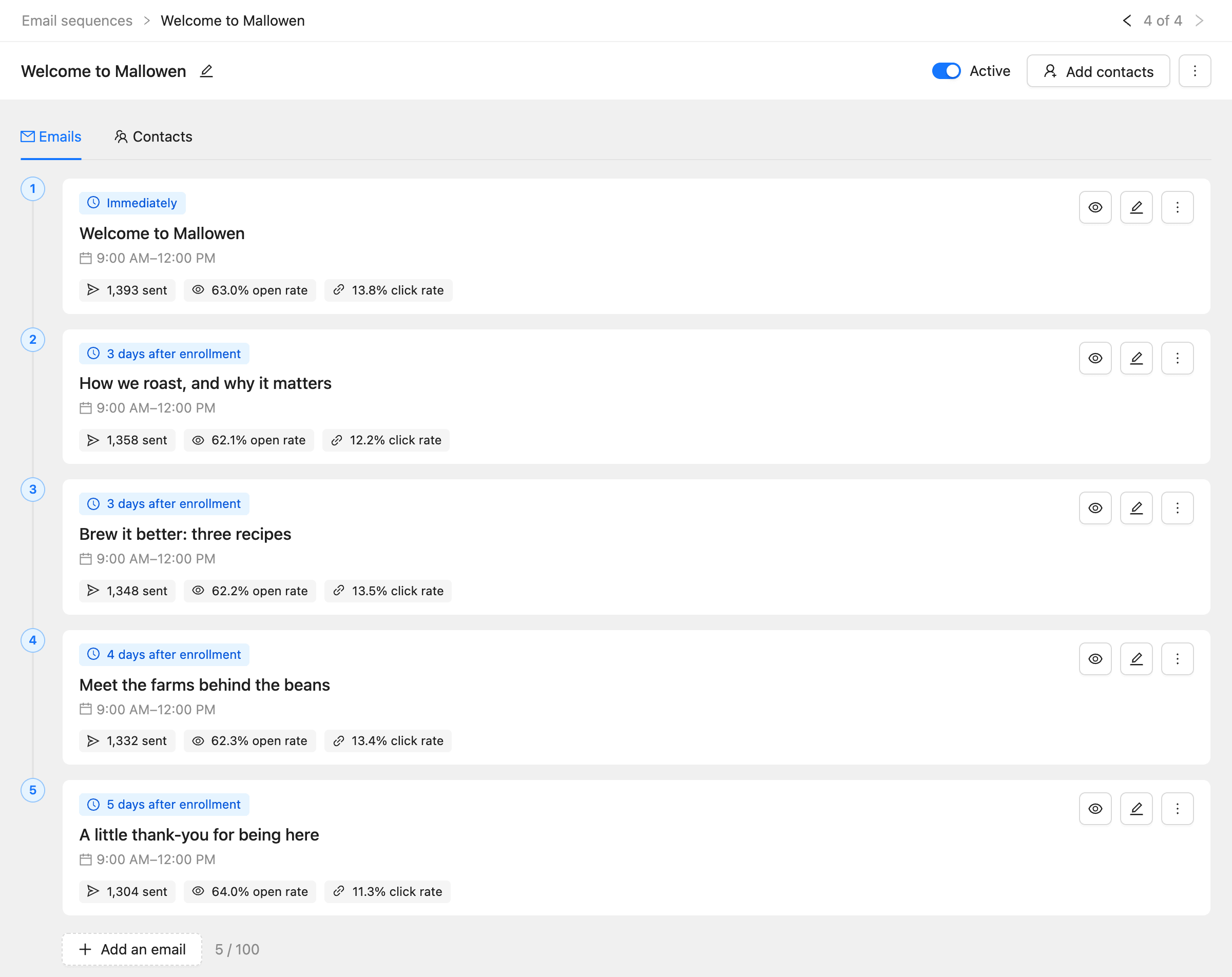
To change a wait, click the wait time on the email’s card. Changes apply to contacts already in the sequence from their next email.
Activate the sequence
- Turn on the switch at the top of the sequence.
- Confirm.
Every email needs a subject and content first. Emails go out through the workspace’s default sender; to use another, open More options and click Sender.
Add contacts
- Click Add contacts at the top of the sequence.
- Under Choose contacts, pick By lists, tags and segments, or Pick contacts to choose up to 500 by hand.
- Choose the lists, tags, or segments, and any to exclude.
- Click Add contacts.
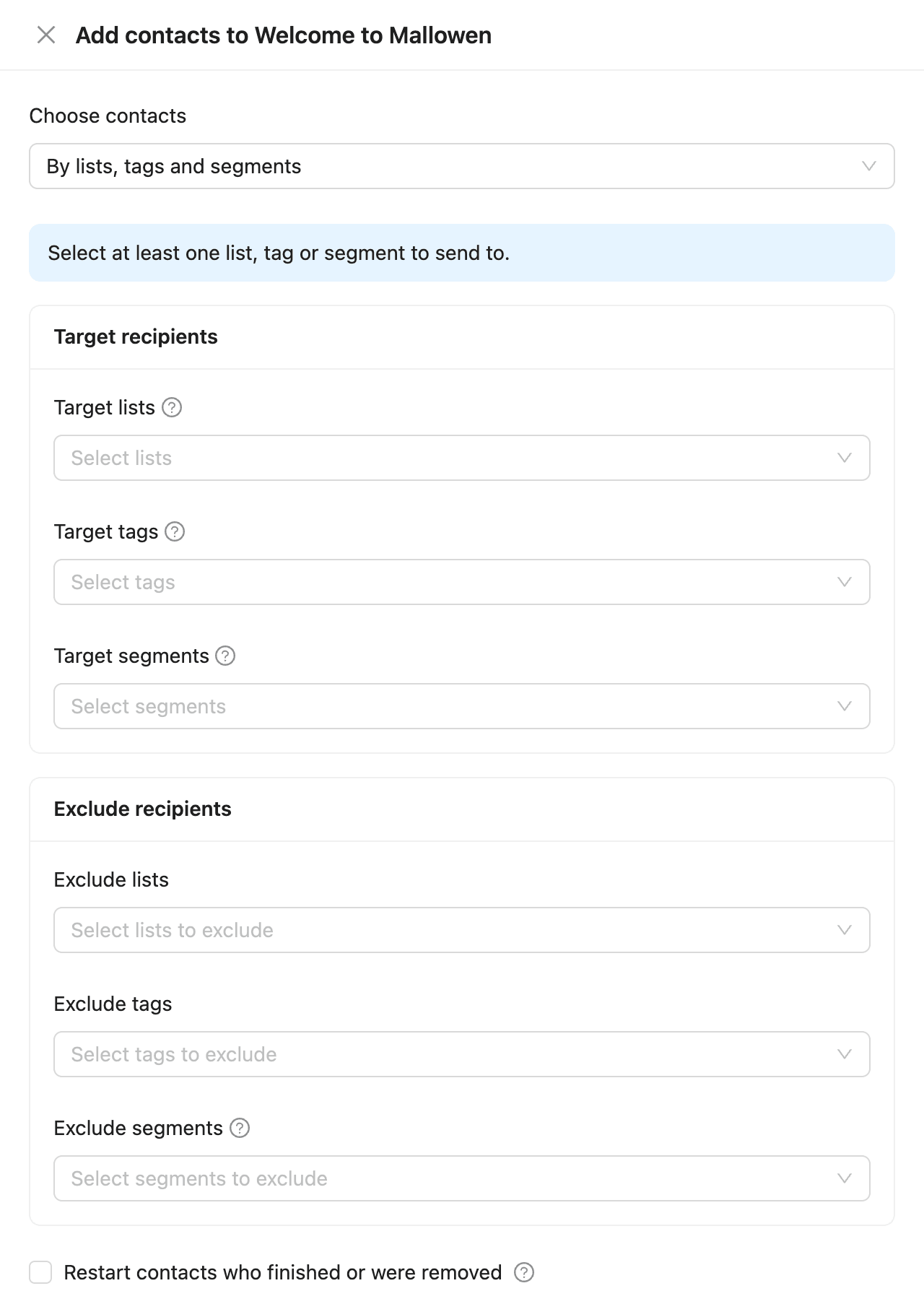
Only active contacts with an email address are added, and contacts already in the sequence are skipped. Turn on Restart contacts who finished or were removed to start those again from the first email.
Adding by list or segment adds the contacts in it now. To add every new contact as they arrive, use an automation with the Add to sequence action. See How to use triggers, delays, and actions.
You can also add contacts from the Contacts page (select them, then Add to sequence under bulk actions) or from a contact’s Sequences tab.
Follow the contacts
The Contacts tab lists everyone in the sequence with their Status, the Last email they got, and the Next email and when it is due.
| Status | What it means |
|---|---|
| Active | Still getting emails |
| Completed | Got the last email |
| Canceled | Left the sequence. The reason is shown, such as Unsubscribed, Email bounced, or Removed by a member |
A contact who unsubscribes, bounces, or marks an email as spam leaves every sequence they are in. To take someone out by hand, select them and click Remove from sequence. Click Restart on a finished contact to send them every email again.
To see one email’s results, open the menu on its card (the three dots) and click Report. It shows sent, delivered, open, click, bounce, and unsubscribe figures, and clicks per link.
Pause the sequence
Turn off the switch at the top. No emails go out while it is paused, and contacts keep their place. When you turn it back on, emails that fell due go out within a minute.
Common questions
I added an email at the end. Do contacts who finished get it? Not by themselves. Open More options and click Continue finished to send them the new emails, with the same gap.
A contact shows “Waiting”. Their next email could not go out yet, for example because they have not confirmed a double opt-in. It is tried again every hour.
Does a sequence stop when someone replies? No. Replies go to your reply-to address. Remove the contact by hand, or with an automation.