How to add custom fields
- Kelune CRM Cloud
Custom fields store details that the standard contact fields do not cover, such as a favorite roast, a birthday, or a customer number. Once you add one, it appears on every contact’s form and profile, and you can use it in imports, segments, automations, and emails.
Create a custom field
- Click Settings in the sidebar, then Custom fields.
- Click Create custom field.
- Choose the Field type.
- Enter the Field label: the name people see on the form.
- Check the Field key. It is made from the label, and it cannot be changed after you create the field.
- Fill in the options for the type you chose, such as the choices of a dropdown.
- Turn on Required field if every contact must have a value.
- Click Create.
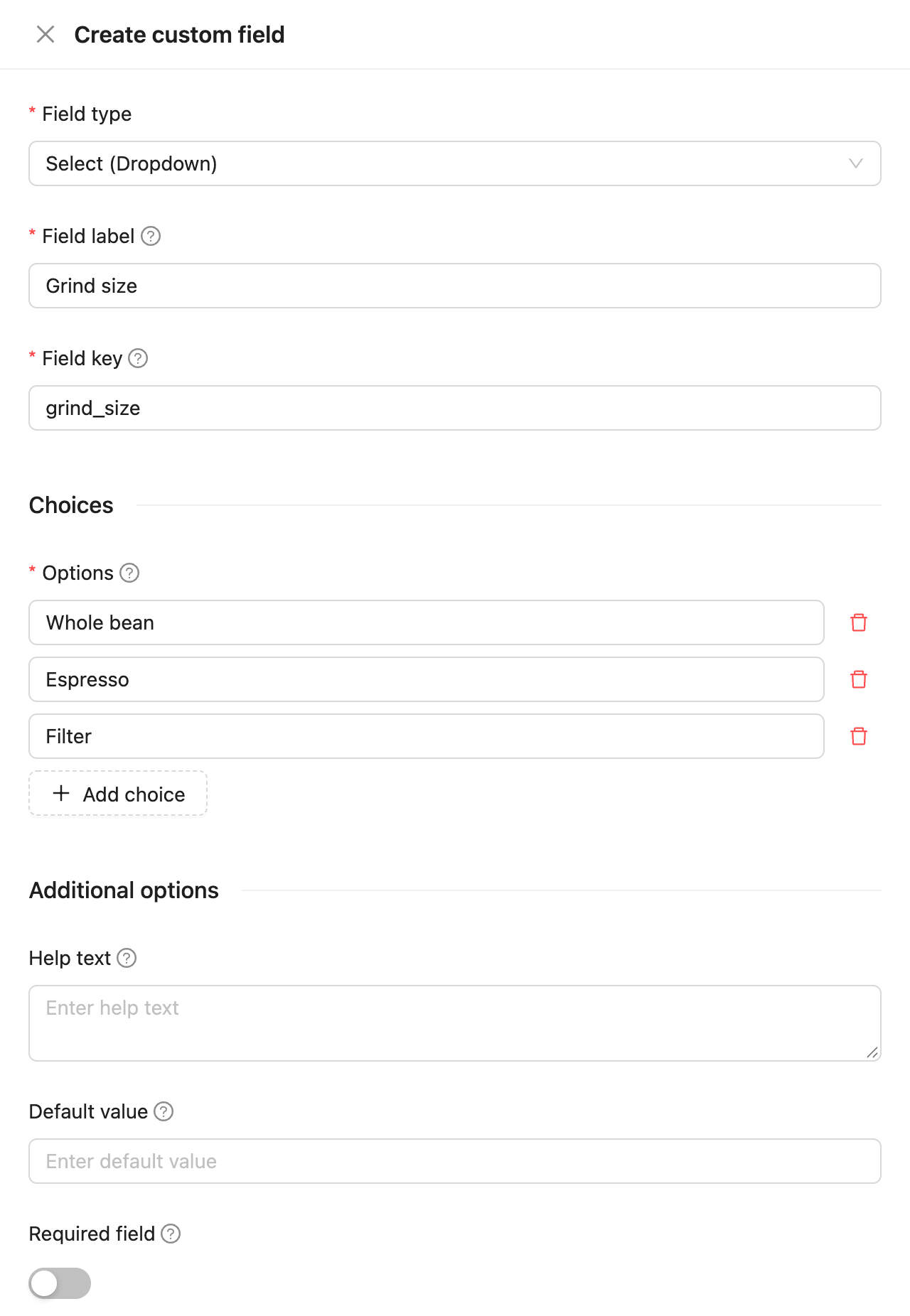
Field types
| Field type | Stores | Options |
|---|---|---|
| Single line text | A short text | Maximum length |
| Multi-line text | A longer text | Maximum length |
| Number | A number | Minimum value, Maximum value, Step (use 0.01 for decimals) |
| An email address | ||
| URL | A web address | |
| Phone | A phone number | |
| Select (Dropdown) | One choice from a list | Options |
| Radio buttons | One choice, shown as buttons | Options |
| Checkboxes | Any number of choices | Options |
| Date | A calendar date | |
| Date and time | A date and a time |
Every type also takes Help text, shown under the field, and a Default value that new contacts start with.
Reorder fields
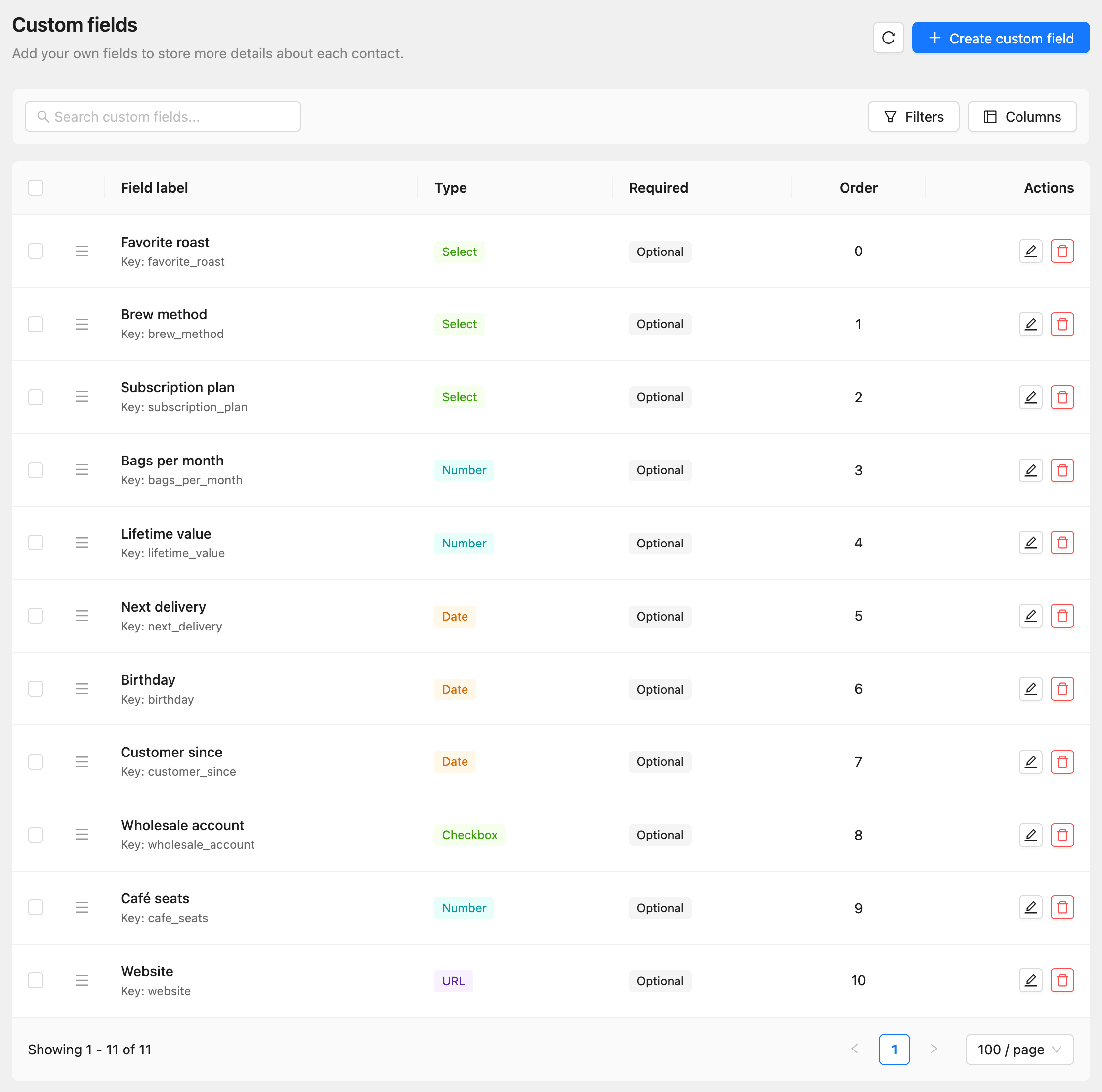
The Custom fields page lists your fields in the order they appear on the contact form. Drag a row by its handle to move it.
Use a custom field
| Where | How |
|---|---|
| Emails | Insert {{custom.<key>}}, such as {{custom.favorite_roast}}, or pick it from Merge tags. Dates print as “January 2, 2026” |
| Imports | Map a column to the field in the Map fields step. See How to import contacts |
| Segments | Choose it under Custom fields when you add a condition. See How to build segments |
| Incoming webhooks and the API | Send it as custom_field__<key> |
Edit or delete a field
Use the pencil button to change a field’s label or options, and the delete button to remove it.
Each plan limits the number of custom fields. See How to check plans, usage, and billing.