How to read automation reports
- Kelune CRM Cloud
Every automation has its own report: how many contacts it reached, how many finished, and how each step did. Use it to check that an automation works after you activate it, and to find the step where contacts drop out.
Open the report
- Click Automations in the sidebar.
- Open an automation.
- Click the Report tab.
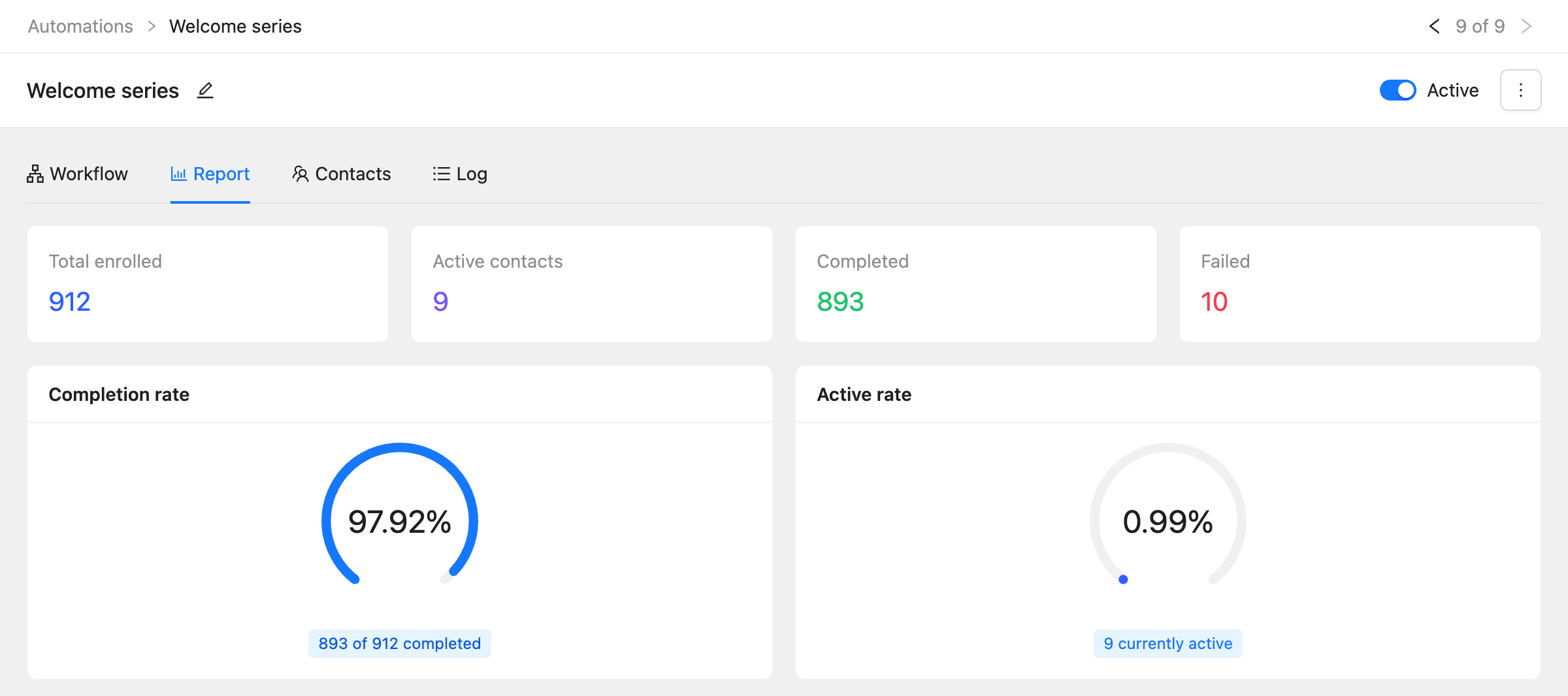
| Figure | What it counts |
|---|---|
| Total enrolled | Contacts who entered the automation |
| Active contacts | Contacts still in it, waiting for a delay or the next step |
| Completed | Contacts who reached the end |
| Failed | Contacts who stopped because a step failed, left early, or were canceled |
| Completion rate | Completed contacts as a share of everyone enrolled |
| Active rate | Active contacts as a share of everyone enrolled |
Performance metrics counts every step run: Total actions executed, Successful actions, Failed actions, and Average execution time.
Enrollments over the last 30 days charts how many contacts entered and finished each day.
See each step
Further down the Report tab, Steps lists every step in order:
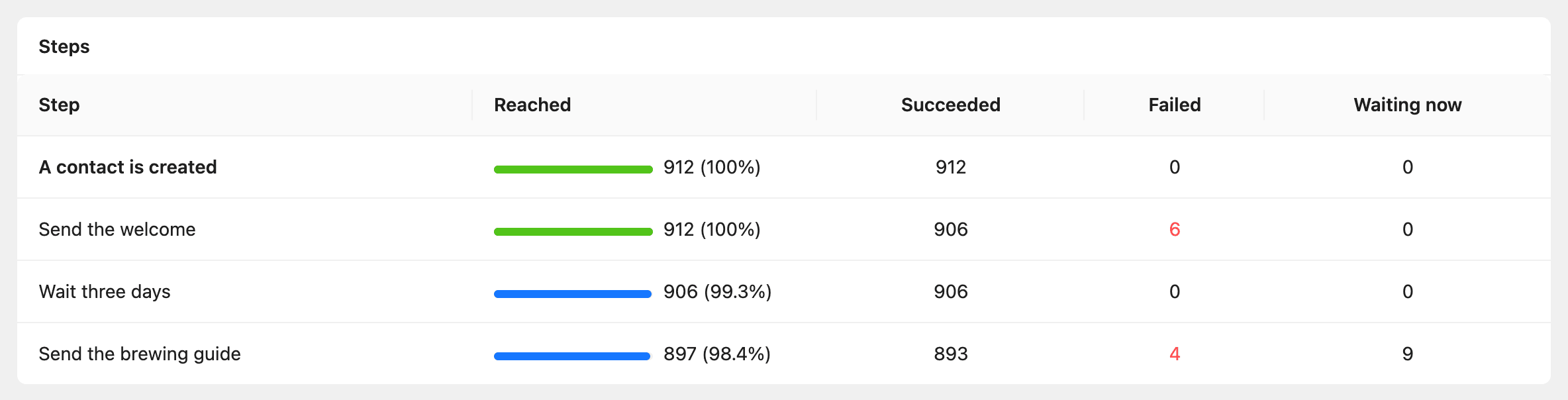
| Column | What it shows |
|---|---|
| Reached | Contacts who got to the step, and the share of everyone enrolled |
| Succeeded / Failed | Times the step ran without and with an error |
| Waiting now | Contacts waiting on the step, such as a delay that has not ended |
A big drop between two steps shows where contacts leave, for example a condition that sends most of them down the other branch.
Emails lists each send email step with how many emails were Sent, Opened, Clicked, Bounced, and Failed.
See who is in it
Click the Contacts tab to see every contact in the automation with their Status, Current step, when they were Enrolled and Finished, and how many Runs they had.
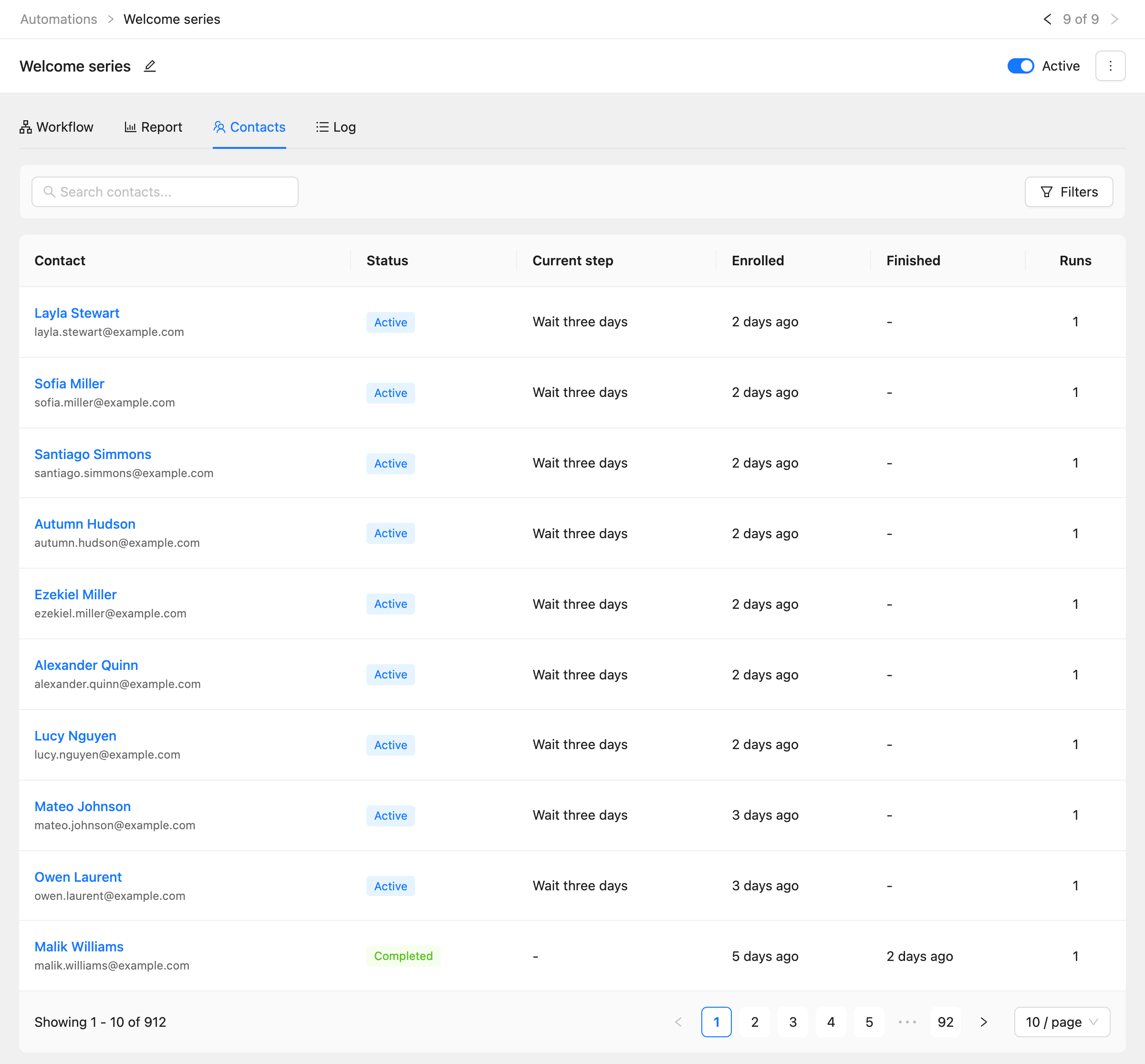
Filter by Status to find contacts who are Active, Completed, Failed, Awaiting opt-in, Canceled, or Exited. A contact who is Awaiting opt-in waits until they confirm their subscription.
Follow one contact’s journey
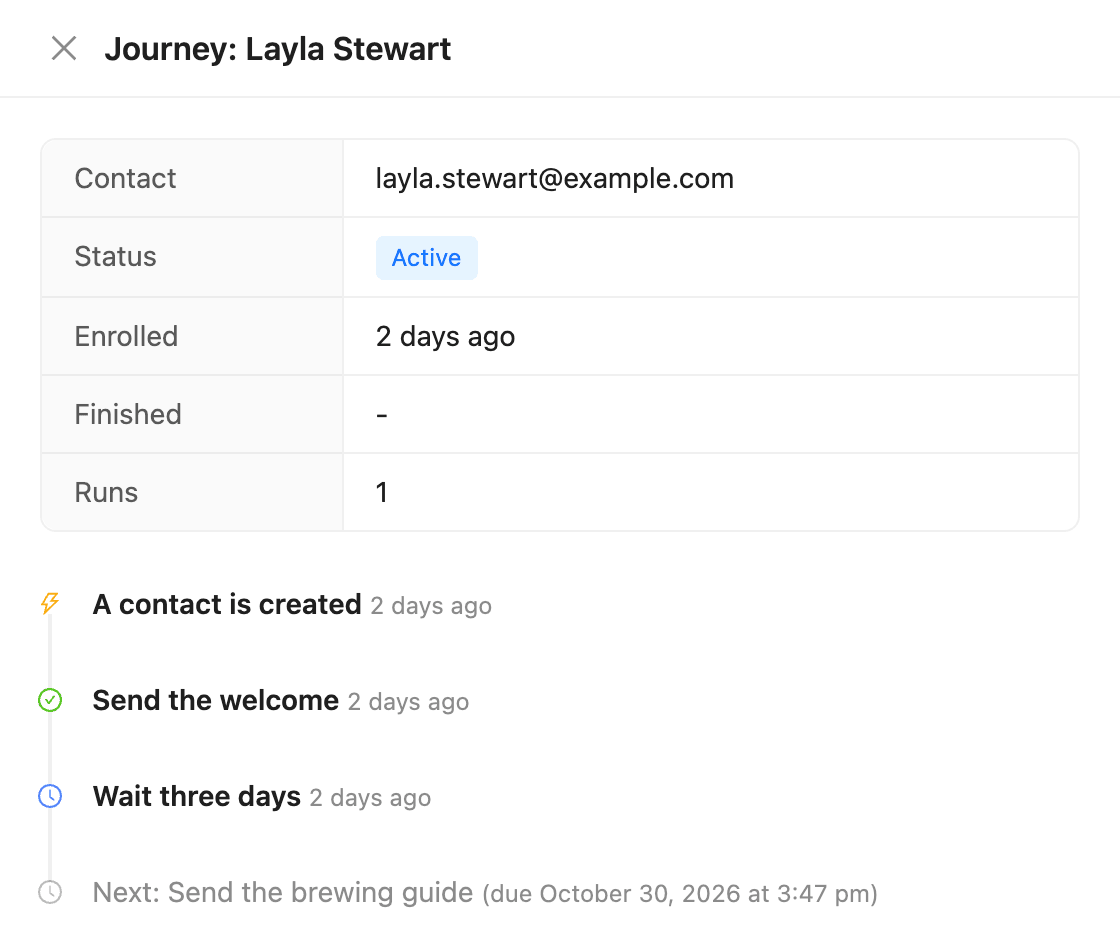
Click a contact’s name on the Contacts or Log tab. The journey drawer shows every step they went through, in order, with the time, the branch they took, and any error. The last line shows the next step and when it is due.
Read the log
Click the Log tab to see every step run for every contact, newest first, with its Result, Message, and Duration. Filter by Result to show only failed runs.
The log also records contacts who could not enter, with the reason, for example when the plan’s monthly enrollment limit is reached.
How long reports keep step history depends on your plan; see How to check plans, usage, and billing.
Troubleshooting
Nobody enters the automation. Check that it is Active, and that the trigger matches what happens: the right tag, list, or webhook. Contacts do not enter for events that happened before you activated it.
A step shows failures. Open the Log tab, filter by Failed, and read the Message. A send email step fails when no email provider is connected or the contact cannot be mailed.
Contacts wait on a step for a long time. That is usually a delay or a wait for an event. Click a contact to see when their next step is due.