How to check plans, usage, and billing
- Kelune CRM Cloud
Kelune CRM Cloud has four plans: Free, Starter, Growth, and Scale. Every feature is on every plan. The plans differ only in size: how many contacts, emails, team members, and other items a workspace can have.
Plans belong to workspaces, not accounts. If you are in several workspaces, each one has its own plan and its own usage.
The plans
| Plan | Monthly | Yearly |
|---|---|---|
| Free | $0 | $0 |
| Starter | $9 | $90 |
| Growth | $19 | $190 |
| Scale | $49 | $490 |
Prices are per workspace. A yearly plan costs ten months. Sales tax or VAT is added at checkout where it applies.
Main limits
| Limit | Free | Starter | Growth | Scale |
|---|---|---|---|---|
| Contacts | 1,000 | 5,000 | 25,000 | 100,000 |
| Emails per period | 5,000 | 60,000 | 300,000 | 1,200,000 |
| Emails per day | 1,000 | 10,000 | 50,000 | 200,000 |
| Team members | 2 | 3 | 10 | Unlimited |
| Email providers | 1 | 2 | 5 | 10 |
| Campaigns | 25 | Unlimited | Unlimited | Unlimited |
| Automations | 5 | 20 | Unlimited | Unlimited |
| Active automations | 2 | 5 | 25 | Unlimited |
| Segments | 2 | 10 | 50 | Unlimited |
| Sequences | 1 | 5 | 25 | Unlimited |
| Recurring campaigns | 1 | 3 | 10 | Unlimited |
| Email templates | 10 | 50 | Unlimited | Unlimited |
| Media storage | 100 MB | 1 GB | 5 GB | 20 GB |
| Analytics history (days) | 30 | 180 | 365 | 1,095 |
| Email log retention (days) | 30 | 90 | 180 | 365 |
The Usage tab lists every limit, including API calls, AI tool calls, smart link clicks, and webhook calls. Periods run with the workspace’s billing period.
The footer on Free plan emails
On the Free plan, campaign and automation email ends with a small “Sent with Kelune CRM” line. Every paid plan removes it.
Check your usage
- Click Billing & usage at the bottom of the sidebar.
- Click the Usage tab.
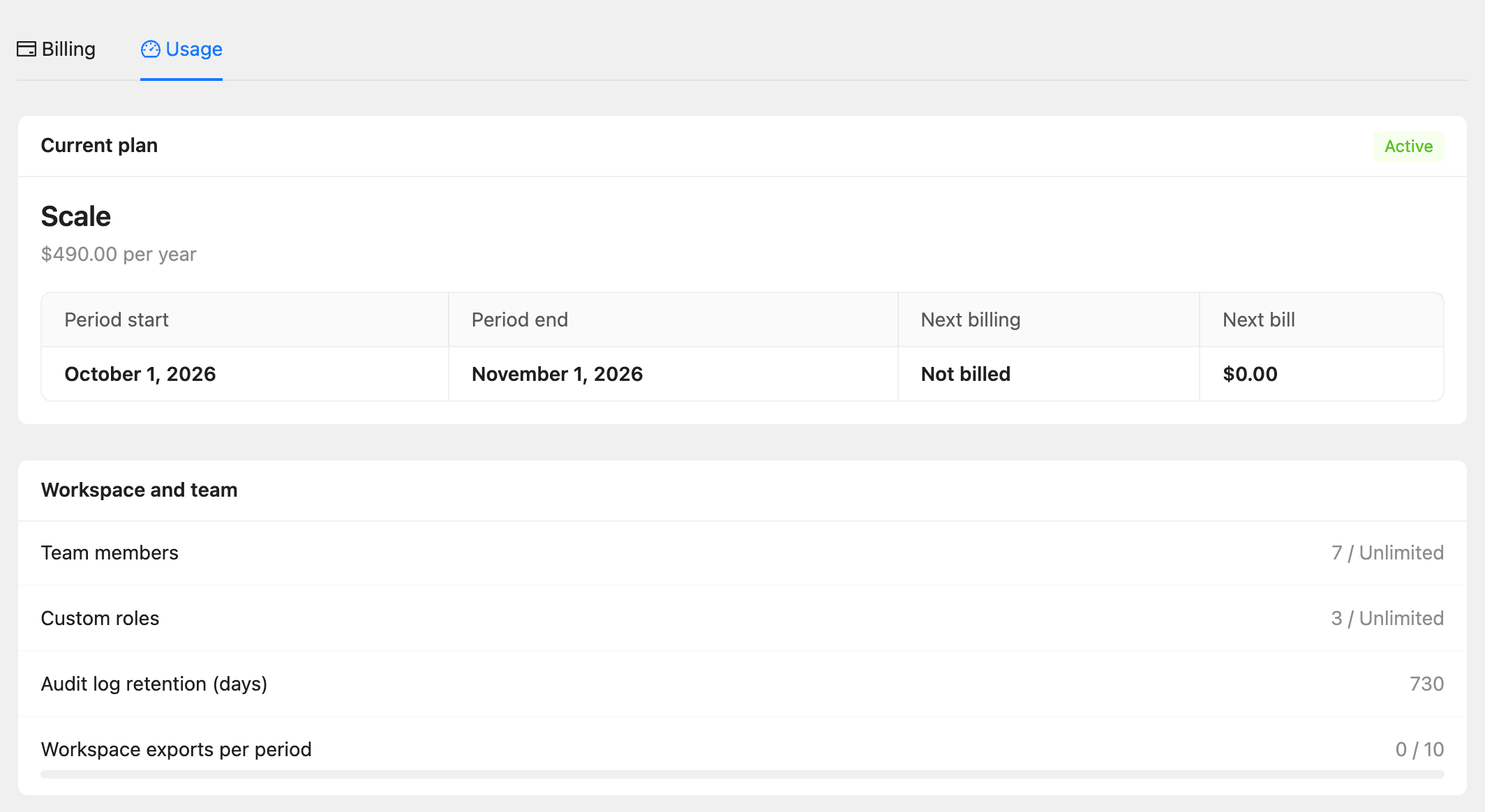
Current plan shows the plan, its price, and the billing period. Each limit below shows what you have used out of what the plan allows, such as “2,400 / 100,000”.
What happens at a limit
- Close to a limit, the page you are on shows “Plan limit almost reached” with how much is left.
- At a limit, creating one more of that item stops with “Plan limit reached”. Owners and admins see an upgrade link, and other members are asked to contact an owner.
- During a send, a campaign that runs out of daily or monthly email pauses instead of failing. Resume it after the limit resets, or upgrade and resume it right away.
Nothing is deleted when you reach a limit.
Upgrade your plan
- Click Billing & usage, then the Billing tab.
- Under Plans, choose Monthly or Yearly.
- Click Upgrade on the plan you want.
- Complete the checkout.
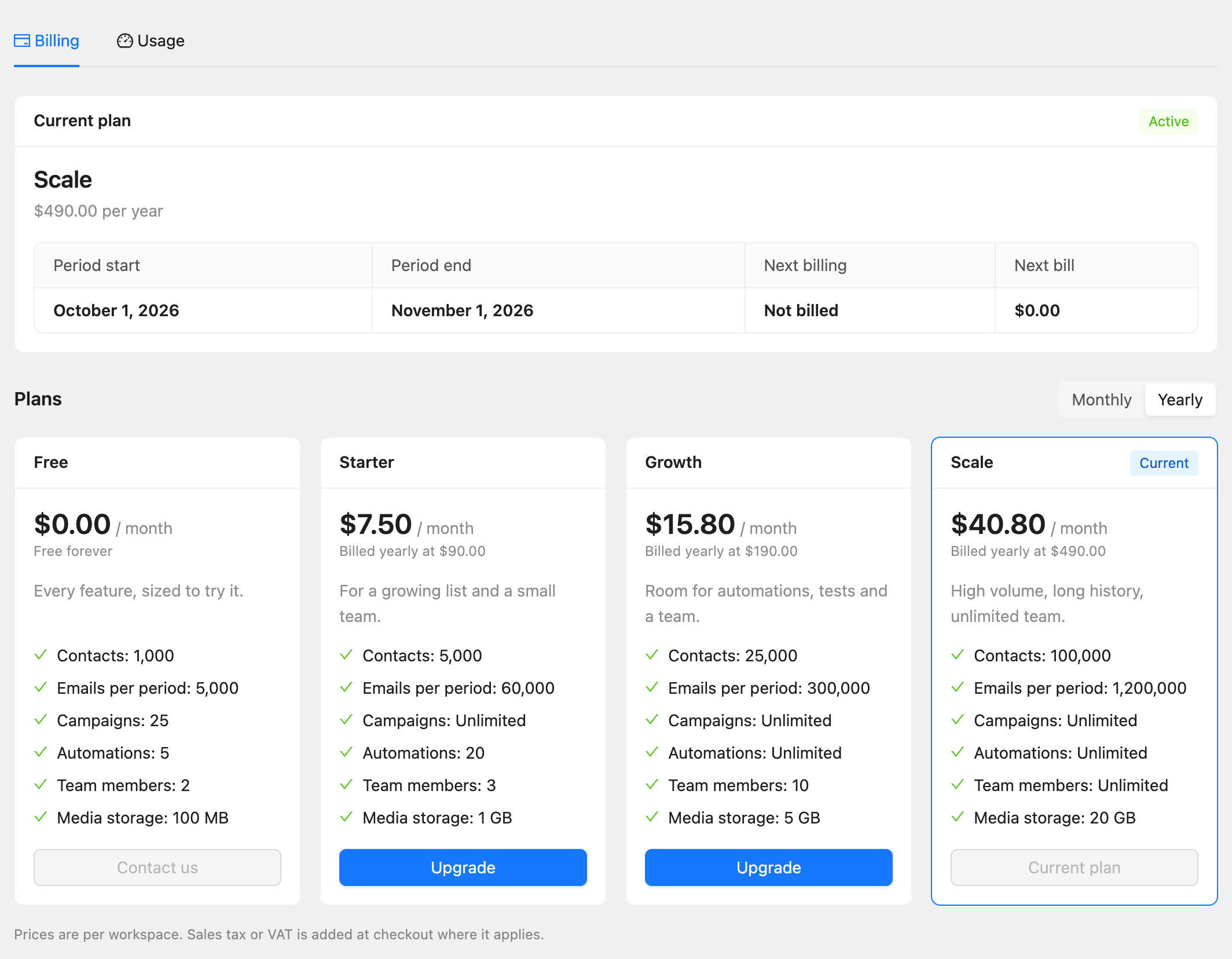
The new plan starts at once. If you already pay for a plan, you pay the price difference for the rest of the billing period.
Use Manage billing to update your payment method, and View invoices to download past invoices.
Downgrade or cancel
- Downgrade moves you to a smaller plan at the end of the billing period.
- Cancel subscription keeps your plan until the end of the period, then moves the workspace to Free.
Either way, anything over the new limits becomes read-only. Nothing is deleted, and you can upgrade again at any time.
Common questions
What if a payment fails? The workspace keeps its plan while payment is retried over the next few days, and a banner asks you to update the payment method. If payment keeps failing, the workspace moves to Free plan limits until it is paid. Nothing is deleted.
Can I have more than one Free workspace? Each account can own one Free workspace. Paid workspaces do not count toward this.