How to use the media library
- Kelune CRM Cloud
The media library holds the images you use in emails, templates, and your workspace logo. Upload an image once, then pick it from any email editor.
Upload images
- Click Media in the sidebar.
- Open the folder the images belong in, or stay in Media.
- Click Upload and choose one or more files, or drag them onto the page.
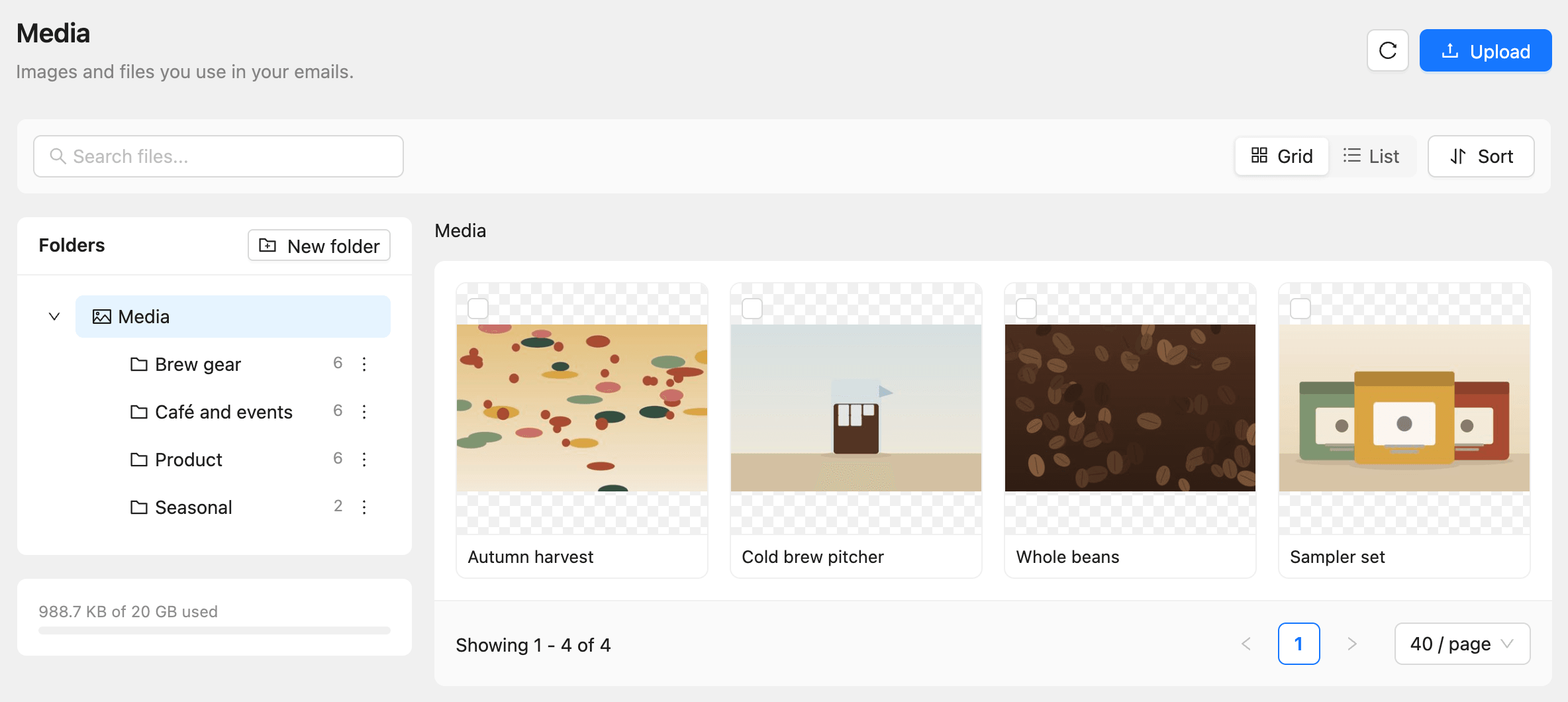
Kelune CRM Cloud accepts PNG, JPEG, and GIF images. JPEG and PNG files have their camera and location data removed when they are uploaded. The Uploads panel shows each file as Uploading, Uploaded, or Failed, with the reason.
You can also upload straight from an email editor: in an Image block, click Choose image, open the Upload tab, and drop or paste the image.
Organize with folders
- Click New folder in the Folders card.
- Enter a name and save it.
- To move images, select them and click Move to…, or drag them onto a folder.
Open a folder’s menu (the three dots next to it) to Rename or Delete it. When you delete a folder that has files in it, choose whether to move them to the folder above or delete everything inside.
Click List above the images to see each file’s type, dimensions, size, and who uploaded it. Search files… looks in every folder.
Edit a file’s details
- Click an image.
- Change its Name or Default alt text.
- Click Save.
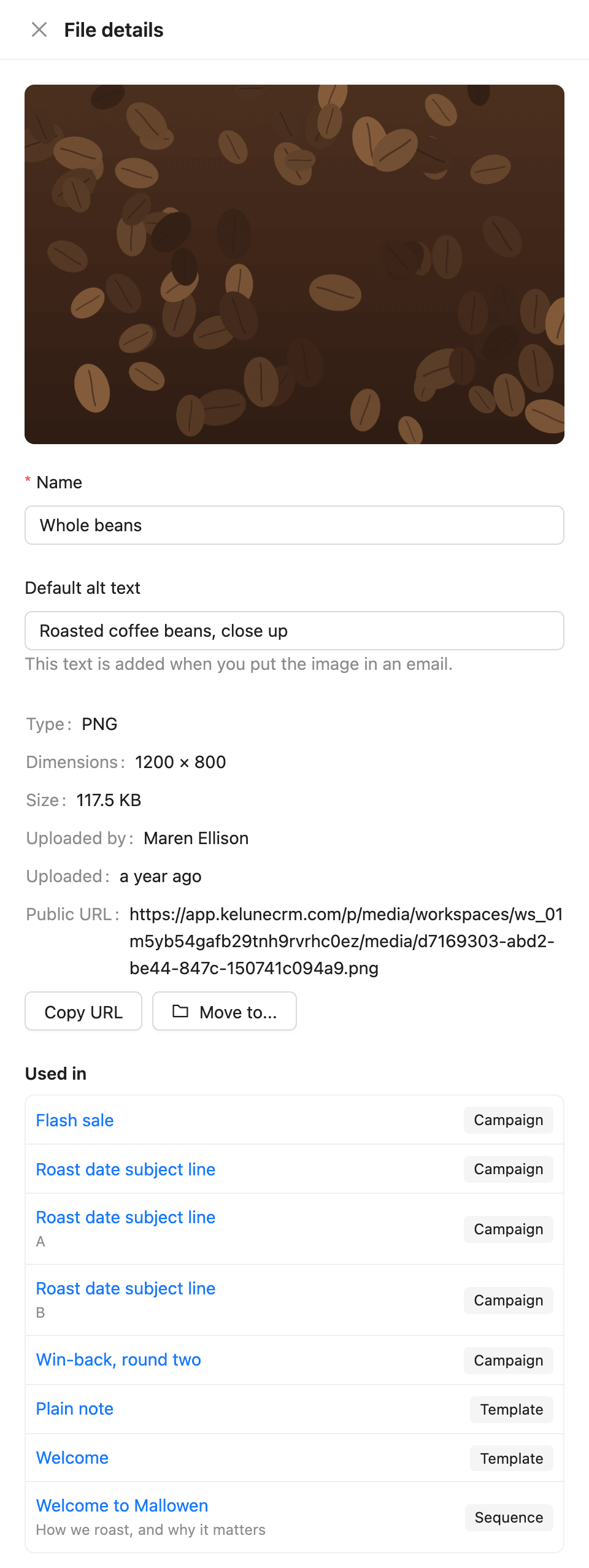
The default alt text is added to the image when you put it in an email, so people who cannot see images still know what it shows. Used in lists the templates, campaigns, automations, recurring campaigns, and sequences that use the image.
Click Copy URL to copy the image’s public address, for example to use in an HTML block.
Delete files
- Select the files, or open one.
- Click Delete and confirm.
Storage
The meter under Folders shows how much of your plan’s storage is used, such as “988.7 KB of 20 GB used”. From 80% a banner warns you; when storage is full, Upload is turned off until you delete files or upgrade.
Troubleshooting
“Too large. The limit is …” The file is bigger than your plan’s largest file. Resize or compress it and upload again.
“Not a supported type. Use PNG, JPEG or GIF.” Save the image in one of those formats. SVG, WebP, and PDF files are not accepted.
“The image is too large.” The image is wider or taller than 8,000 pixels. Resize it; email images rarely need more than 1,200 pixels.
“Verify the workspace owner’s email to upload files.” The workspace owner has not confirmed their email address yet. Ask them to click the link in the verification email.