How to start automations from an incoming webhook
- Kelune CRM Cloud
An incoming webhook is a private URL that another app, such as your shop, a form tool, or an integration service, sends contact data to. Kelune CRM Cloud adds or updates the contact, applies tags and lists, and can start an automation for them.
Create a webhook
- Click Settings in the sidebar.
- Under Advanced, click Incoming webhooks.
- Click Create webhook.
- Enter a Webhook name and, if you like, a Description.
- Under Default settings, choose the Default lists, Default tags, and Default status for contacts it receives.
- Under Allowed actions, tick what the webhook may do, such as Create contact and Update contact.
- Click Create.
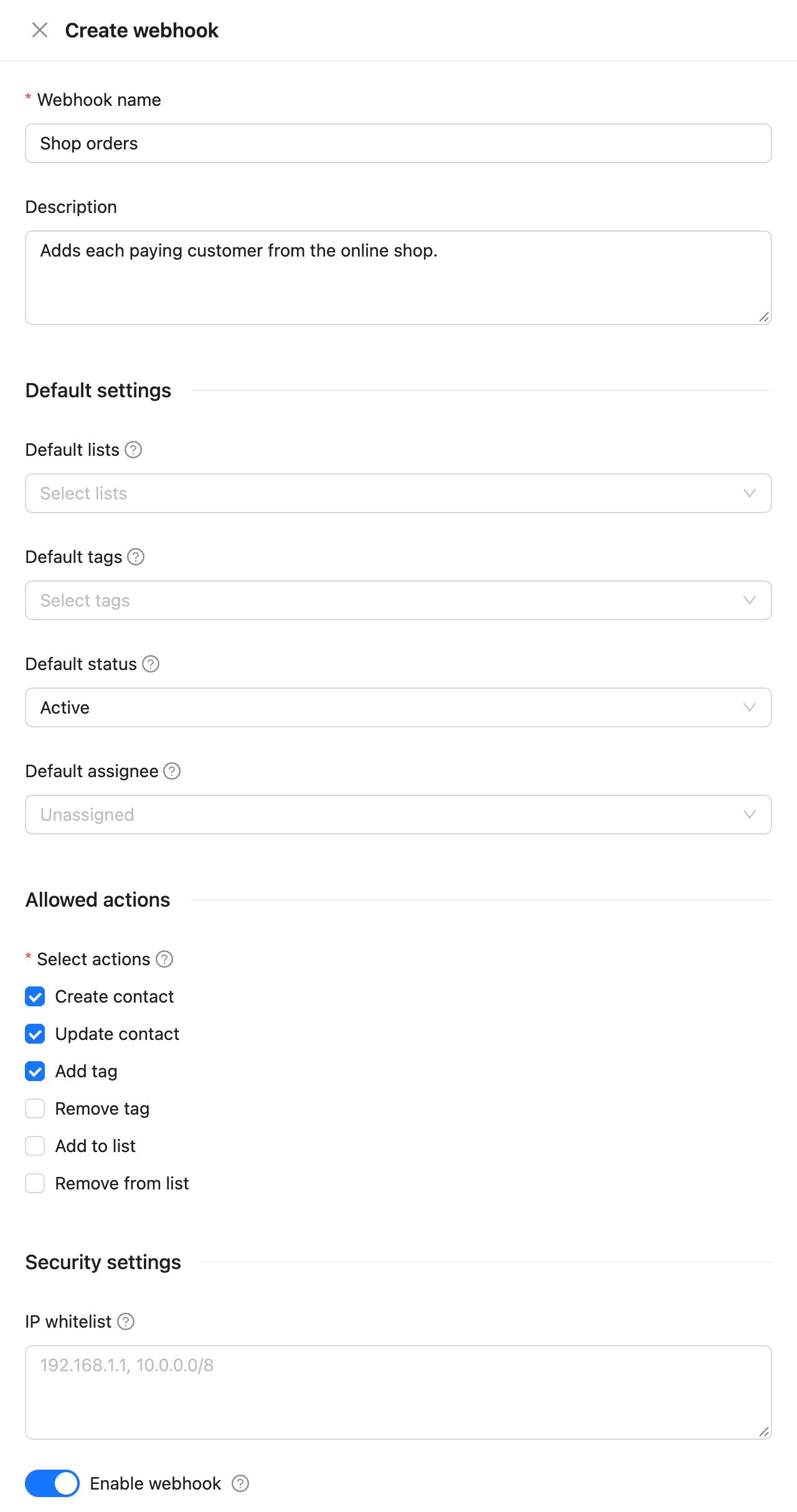
| Allowed action | What it lets a request do |
|---|---|
| Create contact | Add a contact whose email is not in the workspace yet |
| Update contact | Change the fields of a contact who already exists |
| Add tag, Remove tag | Change the contact’s tags |
| Add to list, Remove from list | Change the contact’s lists |
With Default status set to Pending, new contacts get the double opt-in email. See How to set up double opt-in.
Copy the URL
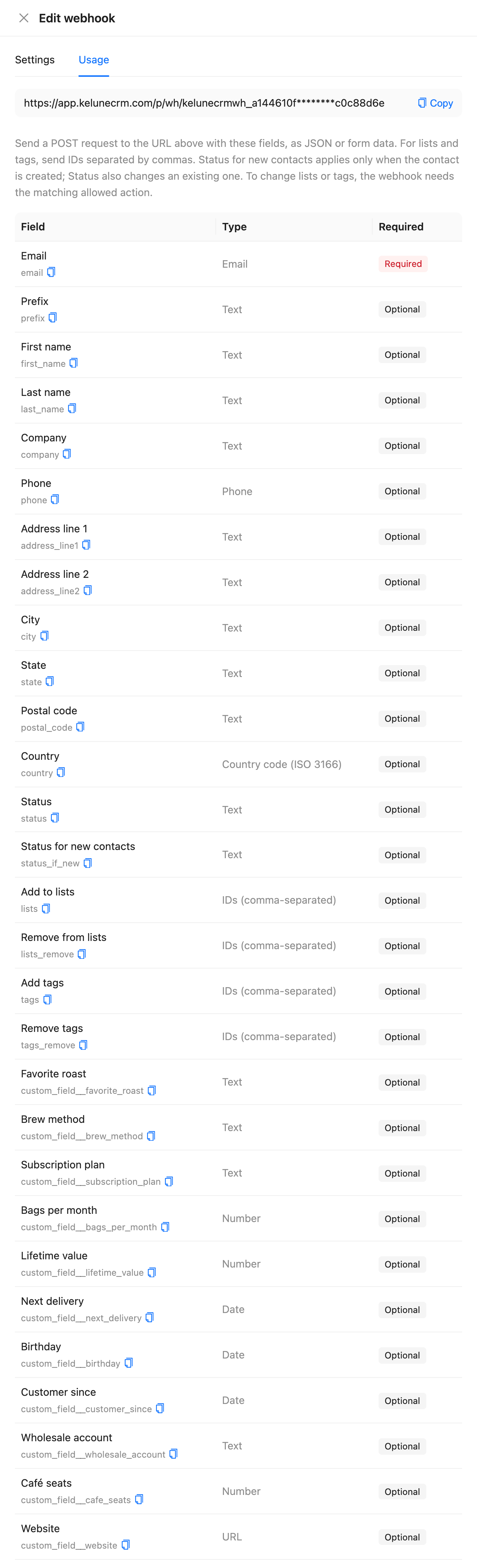
After you create it, the drawer opens the Usage tab.
- Click Copy next to the URL.
- Paste it into the other app as the address to send data to.
Send data to it
Send a POST request with the contact’s details as JSON or form data. email is required; every other field is optional.
curl -X POST "YOUR_WEBHOOK_URL" \ -H "Content-Type: application/json" \ -d '{ "email": "[email protected]", "first_name": "Jamie", "company": "Corner Café", "tags": "YOUR_TAG_ID" }'The Usage tab lists every field you can send, including one per custom field, named custom_field__ plus the field key. To add lists or tags, send their IDs in lists or tags, separated by commas.
| Field | What it does |
|---|---|
email |
Finds the contact, or creates one |
first_name, last_name, company, phone, city, country, and the other contact fields |
Fill in the contact’s details. Blank values do not erase stored ones |
status |
Sets the status: active, pending, or unsubscribed |
status_if_new |
Sets the status only when the contact is created |
lists, lists_remove, tags, tags_remove |
Add or remove lists and tags. Sending these replaces the defaults for this request |
A contact who unsubscribed, bounced, or marked email as spam is never subscribed again by a webhook.
Start an automation
- Create an automation, or open one. See How to build your first automation.
- Set the trigger to Webhook received.
- Choose the Webhook, or leave it on Any webhook.
- Add the steps and activate the automation.
Every contact the webhook receives now enters the automation. For example, the “Order webhook” automation tags each new shop customer and starts the welcome sequence.
Check the requests
Open the webhook’s More actions menu and click View logs. Each request shows its time, status code, IP address, and duration. Click View details to see the payload, headers, and the response. Logs are kept for 30 days.
| Response | What it means |
|---|---|
200 |
The contact was created or updated |
400 |
The body could not be read, or the email is missing or not valid |
403 |
The IP address is not allowed, or the contact does not exist and Create contact is not allowed |
404 |
The URL is wrong, or the webhook is turned off |
413 |
The body is larger than 1 MB |
429 |
Too many requests. Wait and send again |
Limit who can call it
Under Security settings:
- IP whitelist: enter the IP addresses or ranges (such as
192.168.1.0/24) the other app sends from. Requests from anywhere else are refused. - Enable webhook: turn it off to refuse every request without deleting the webhook.