How to connect AI tools
- Kelune CRM Cloud
You can work in Kelune CRM Cloud from an AI assistant, such as Claude or ChatGPT. Ask it to find contacts, build a segment, write a campaign draft, or check your results, and it does the work in your workspace with the access you allow.
Connect a tool
- Click Settings in the sidebar.
- Under Advanced, click AI tools.
- On Connect a tool, click your tool, such as Claude or ChatGPT.
- Follow the steps shown and copy the URL or settings into the tool.
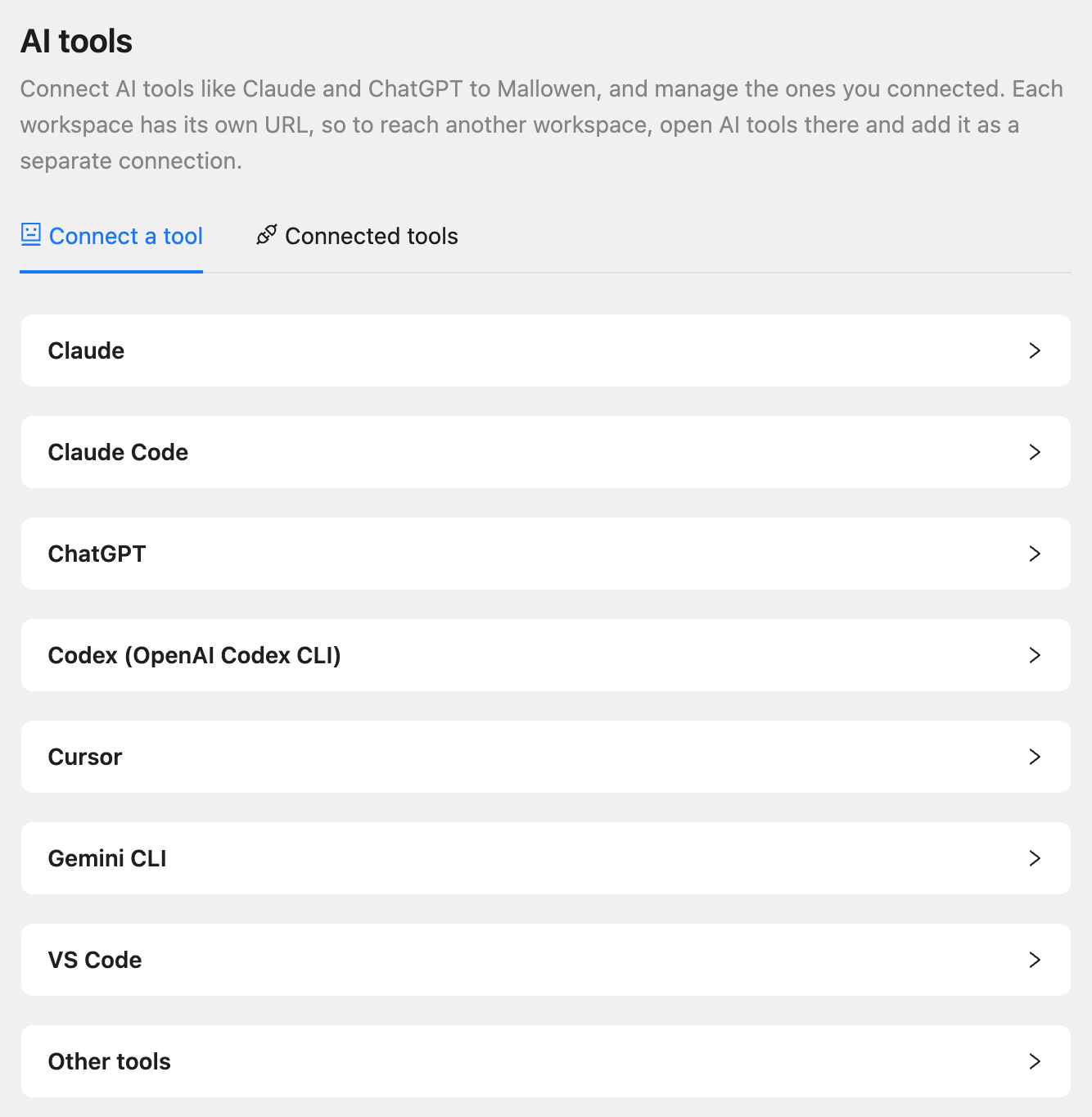
| Tool | Where the URL goes |
|---|---|
| Claude | Settings, then Connectors: add a custom connector with the URL |
| Claude Code | Run the command shown, then type /mcp to sign in |
| ChatGPT | Settings, then Apps & Connectors: turn on developer mode, then create a connector with the URL and choose OAuth |
| Codex (OpenAI Codex CLI), Cursor, Gemini CLI, VS Code | Add the settings shown to the tool’s configuration file, then sign in from the tool |
| Other tools | Any tool that supports remote MCP servers: add a remote server with the URL |
The URL belongs to this workspace. To use another workspace, open AI tools there and add it as a separate connection.
Approve the connection
When the tool connects, Kelune CRM Cloud opens in your browser and asks you to approve it:
- Check the tool’s name and the workspace.
- Choose the Role the tool works with. It starts at your own role; pick a smaller one to give it less.
- Choose the access:
- Read is always on: it can see your contacts, campaigns, reports, and other records.
- Write lets it create, change, and delete records. Campaigns it creates are saved as drafts.
- Send email lets it send and schedule campaigns and turn on automations and sequences. Leave it off unless you want the tool to reach real people.
- Click Allow access.
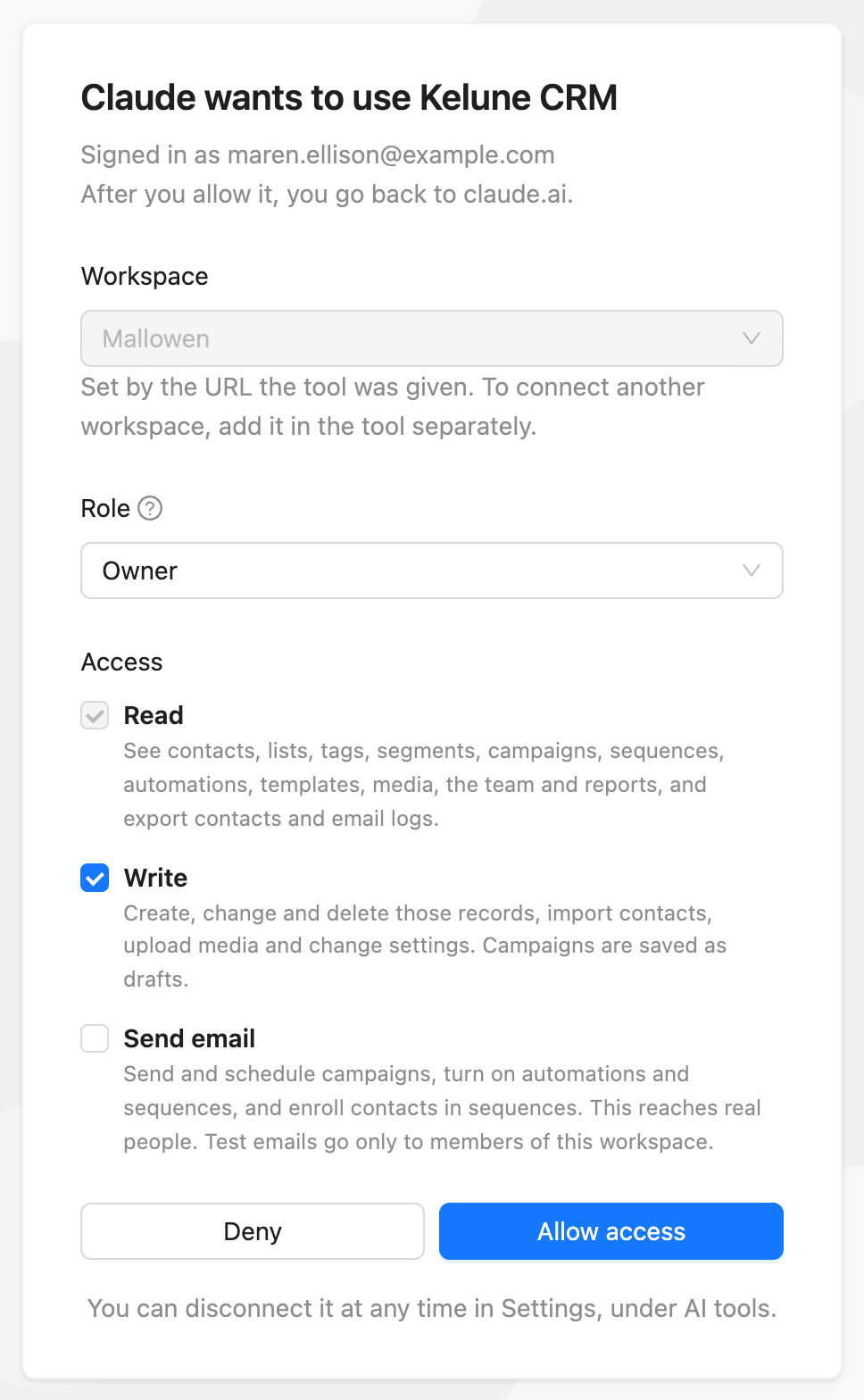
You go back to the tool, which can now use the workspace.
What AI tools can and cannot do
With the access you allow, a tool can work with contacts, lists, tags, segments, campaigns, recurring campaigns, sequences, automations, email templates, media, smart links, email logs, and reports.
Some things are never available to an AI tool, whatever its role:
- Email provider settings and incoming webhooks
- Roles, API keys, and inviting, removing, or changing members
- Editing or deleting the workspace, and billing
Test emails from a tool go only to members of the workspace. Before a tool sends a campaign, it must confirm the exact number of recipients.
See and disconnect tools
Open the Connected tools tab to see each tool, who connected it, its Role, its Access, and when it was Last used. Members with the permission to manage API keys see everyone’s tools; other members see their own.
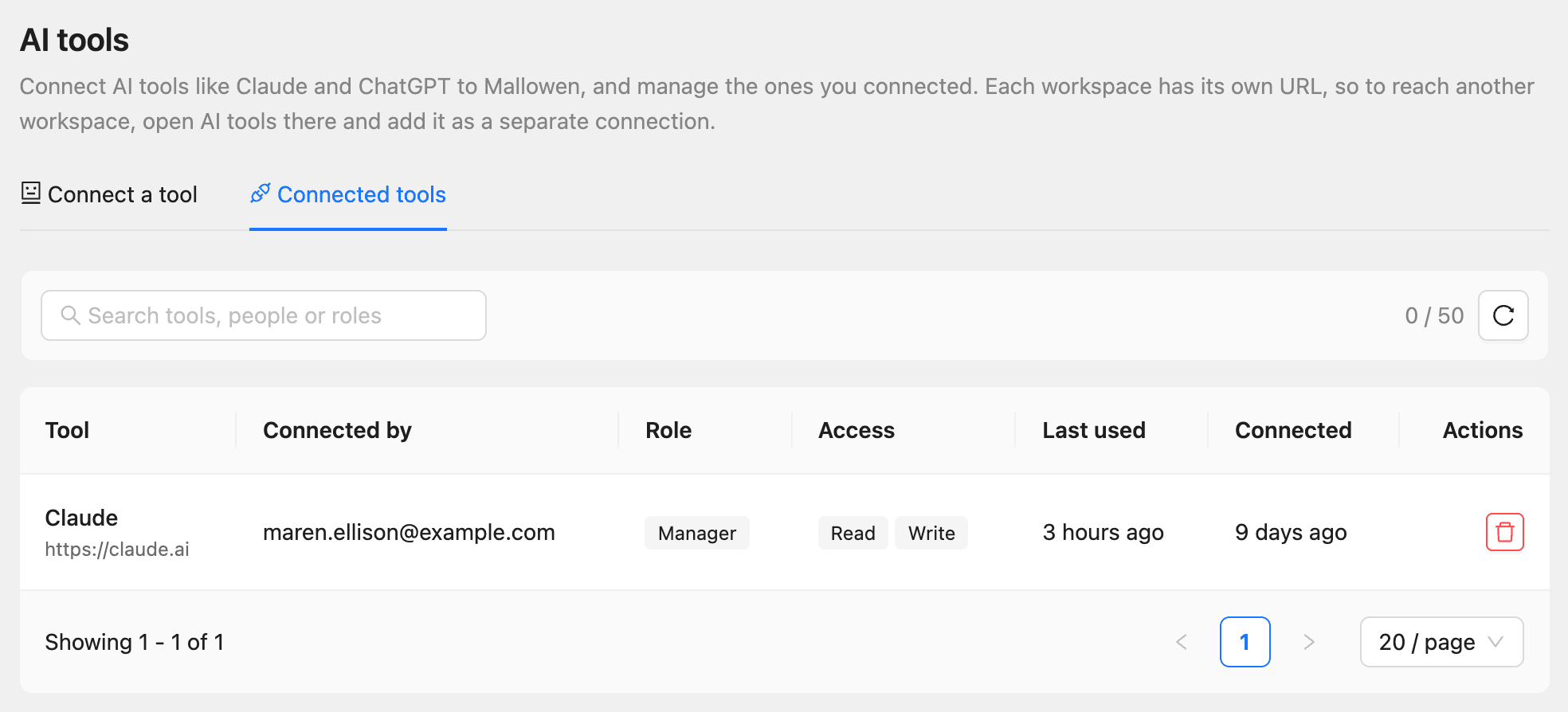
To disconnect a tool, click the delete button (Disconnect) in its row and confirm. It loses access right away; you can connect it again later.
Connecting and disconnecting tools is recorded in the audit log. Changes a tool makes are recorded under your name, marked with the tool.
Common questions
The tool says a plan limit is reached. The workspace has used its AI tool calls for this billing period, or has as many connected tools as its plan allows. Disconnect a tool you no longer use, or upgrade.
The connection request expired. Approve within 15 minutes of starting it. Start again from the tool.
The approval screen says the workspace is not mine. You are signed in with an account that is not a member of the workspace the URL belongs to. Sign in with the right account, or copy the URL from AI tools in your own workspace.