How to organize contacts with lists and tags
- Kelune CRM Cloud
Lists and tags both group contacts. A contact can be in any number of lists and carry any number of tags.
- Use a list for an audience you email as a group, such as your newsletter readers or wholesale partners.
- Use a tag for a fact about a contact, such as an interest, a source, or a stage, like “Espresso lover” or “Referral”.
Campaigns, segments, automations, and smart links can all use both.
Create a list
- Click Contacts in the sidebar, then the Lists tab.
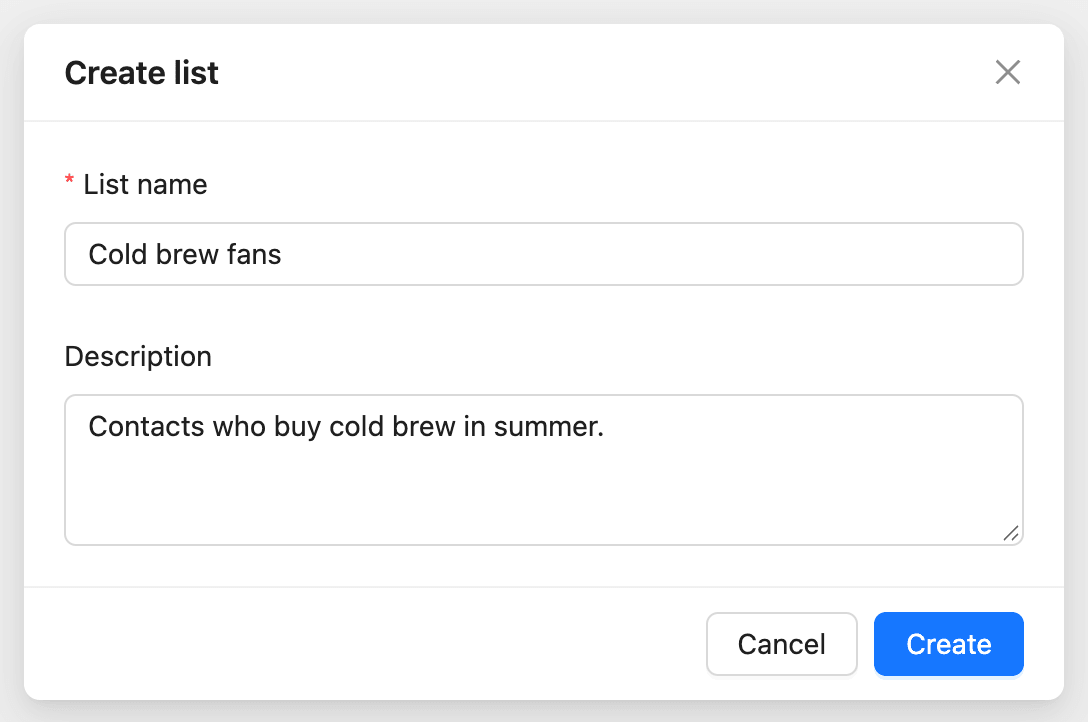
- Click Create list.
- Enter a List name.
- Add a Description so your team knows what the list is for.
- Click Create.
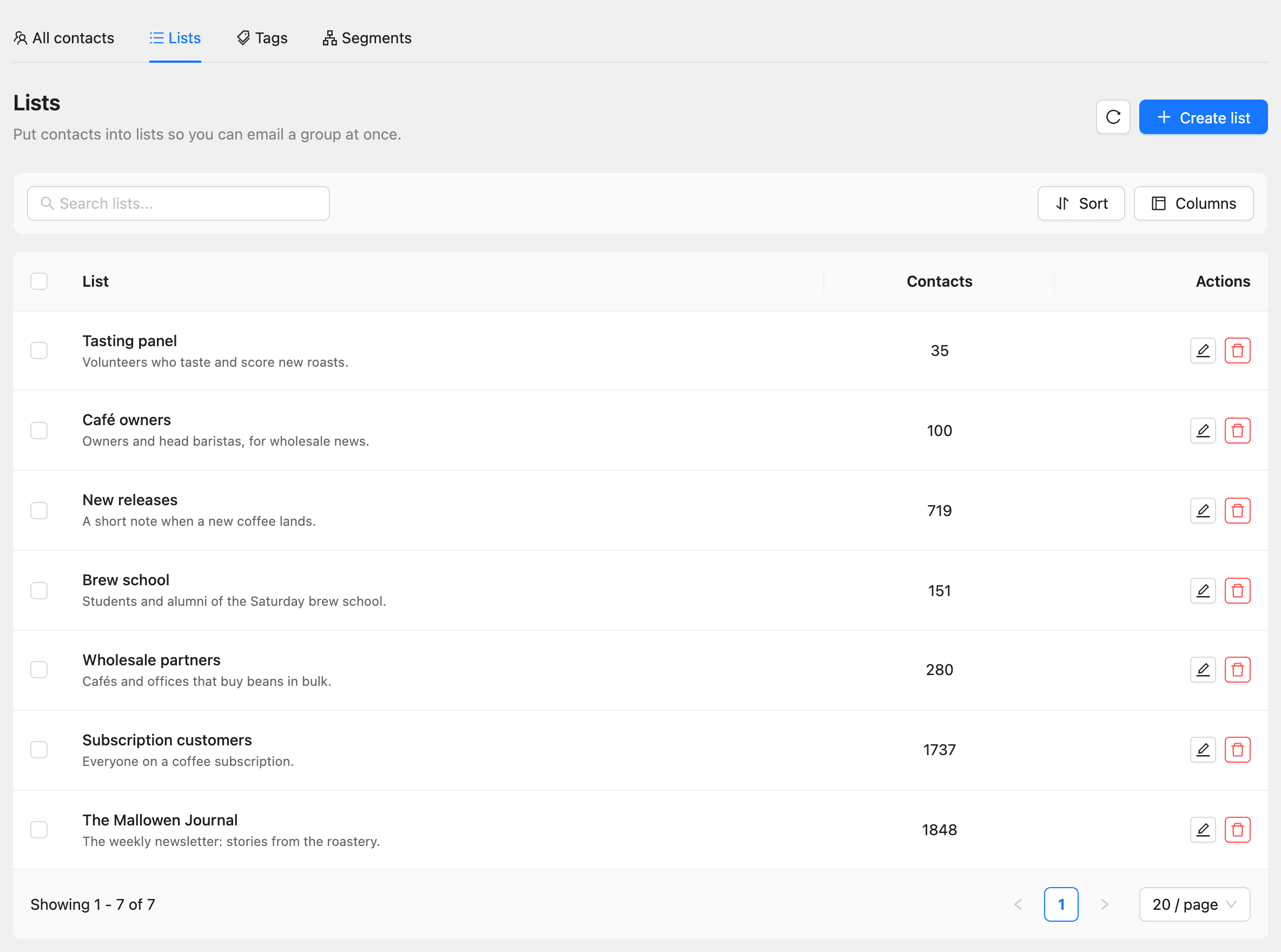
The Lists tab shows each list with its number of contacts.
Create a tag
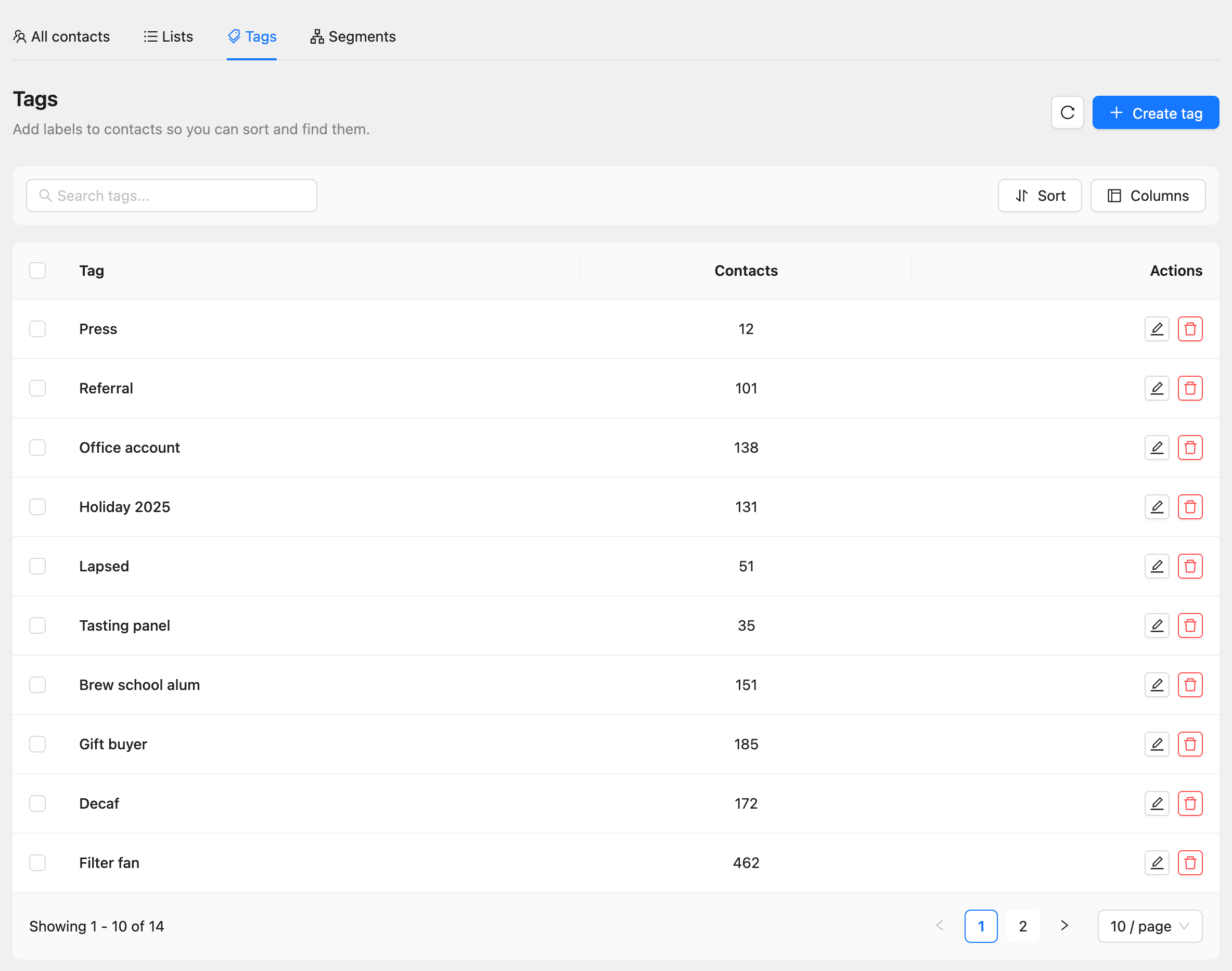
- Click Contacts, then the Tags tab.
- Click Create tag.
- Enter a Tag name and, if you like, a Description.
- Click Create.
Add a contact to a list or tag
On a contact’s profile:
- Click Add on the Lists or Tags row.
- Pick one or more lists or tags from the menu. Type to search, or type a new name and choose Create “…” to make one on the spot.
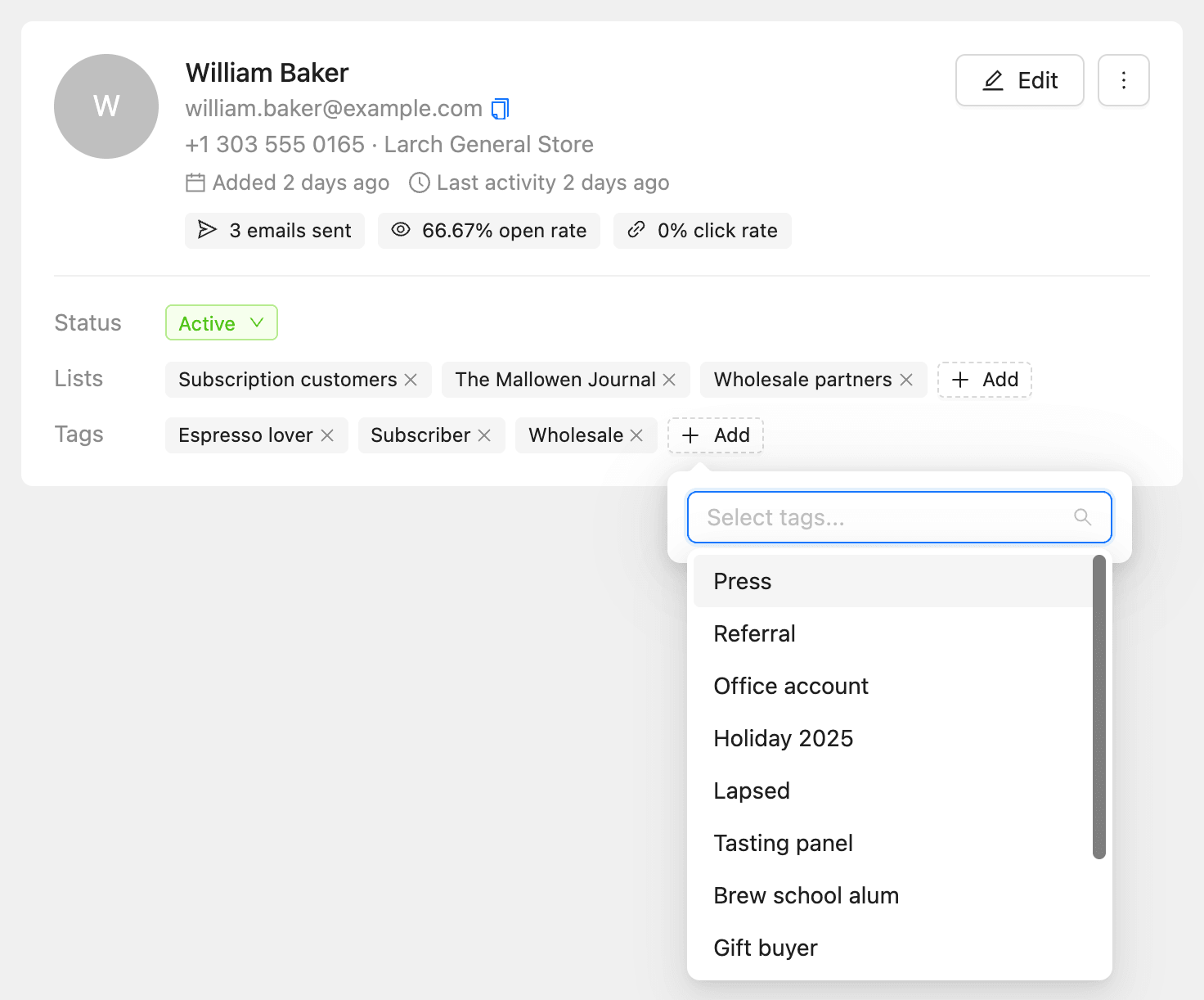
To take a contact out, click the × on the list or tag.
You can also set lists and tags in the Create contact and Quick edit forms, in a contact import, or for many contacts at once with Bulk actions on the Contacts page.
Edit or delete a list or tag
On the Lists or Tags tab, use the pencil button to rename a list or tag, or the delete button to remove it.
Deleting a list or tag does not delete any contacts. They only stop being in that list or carrying that tag.
Lists, tags, or segments?
| Use | When |
|---|---|
| A list | You add people on purpose, and email them as one audience |
| A tag | You label people with a fact you or an automation decide |
| A segment | The group should update by itself from rules, such as “tagged VIP and opened an email in the last 30 days” |
Each plan limits the number of lists and tags. See How to check plans, usage, and billing.