How to secure your account
- Kelune CRM Cloud
Your account is how you sign in to every workspace you belong to. Protect it with a strong password, a second step at sign-in, and a check of where you are signed in. These settings belong to you, not to a workspace.
Open your account settings
- Click your name at the top right.
- Click Account settings.
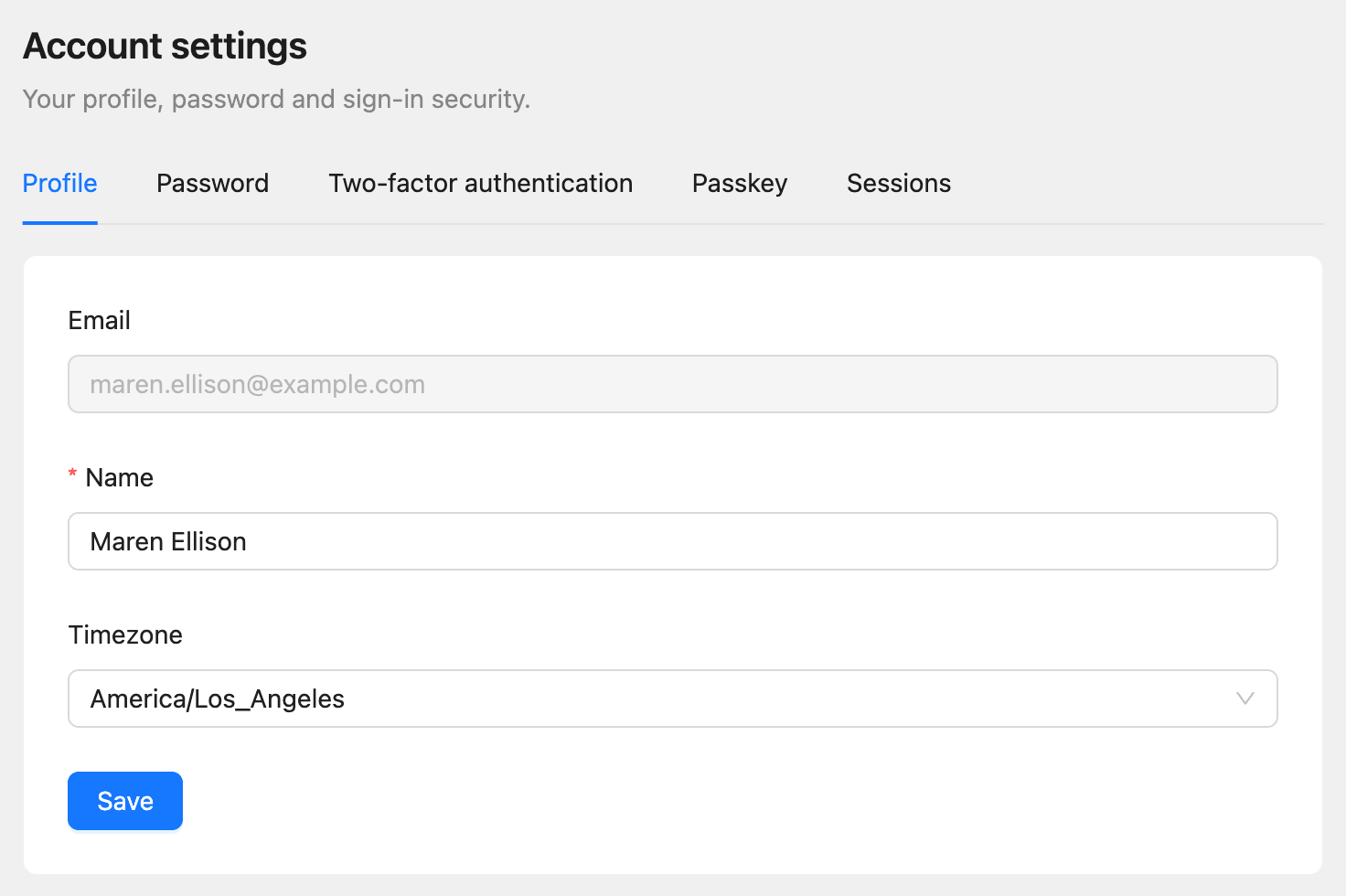
| Tab | What it holds |
|---|---|
| Profile | Your Name and Timezone. Your email address is shown but cannot be changed once confirmed |
| Password | Change your password |
| Two-factor authentication | A code from an authenticator app at every sign-in |
| Passkey | Sign in with your fingerprint, face, or device PIN |
| Sessions | Where you are signed in |
Change your password
- Open the Password tab.
- Enter your Current password.
- Enter a New password and repeat it in Confirm new password.
- Click Change password.
A password needs at least 8 characters, with at least one letter and one number. It cannot contain your name or email, or be a password that has appeared in a public data breach. Changing it signs you out on every other device.
Turn on two-factor authentication
Two-factor authentication asks for a code from an app on your phone, such as Google Authenticator, 1Password, or Authy, each time you sign in with your password.
- Open the Two-factor authentication tab.
- Click Turn on.
- Scan the QR code with your authenticator app, or add the key shown.
- Enter the 6-digit code the app shows and click Confirm.
- Save the 10 recovery codes that appear.
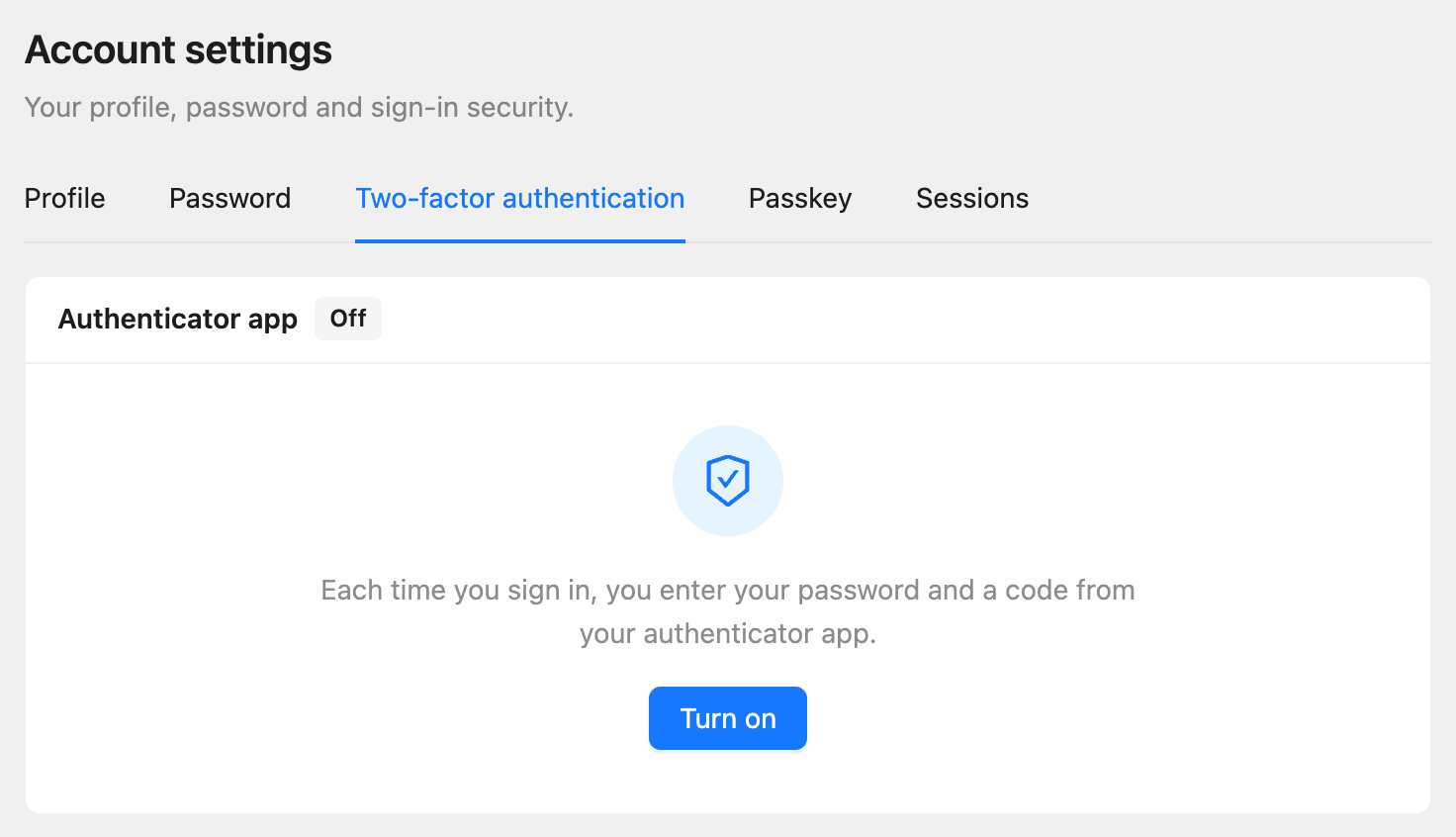
To get a new set, click New recovery codes; the old codes stop working. To stop using two-factor authentication, click Turn off. Both ask for your password.
Add a passkey
A passkey signs you in with your fingerprint, face, or device PIN instead of a password and code. It works only on Kelune CRM Cloud, so a fake site cannot steal it.
- Open the Passkey tab.
- Click Add a passkey.
- Enter your password, then follow your browser’s prompt.
To sign in with it, click Sign in with a passkey on the sign-in page. A passkey marked Synced is saved in a password manager or cloud keychain and works on your other devices too. You can add up to 10, and rename or remove each one.
Check where you are signed in
Open the Sessions tab to see every device signed in to your account, with its browser, system, IP address, and when it was last active. The device you are using is marked This device.
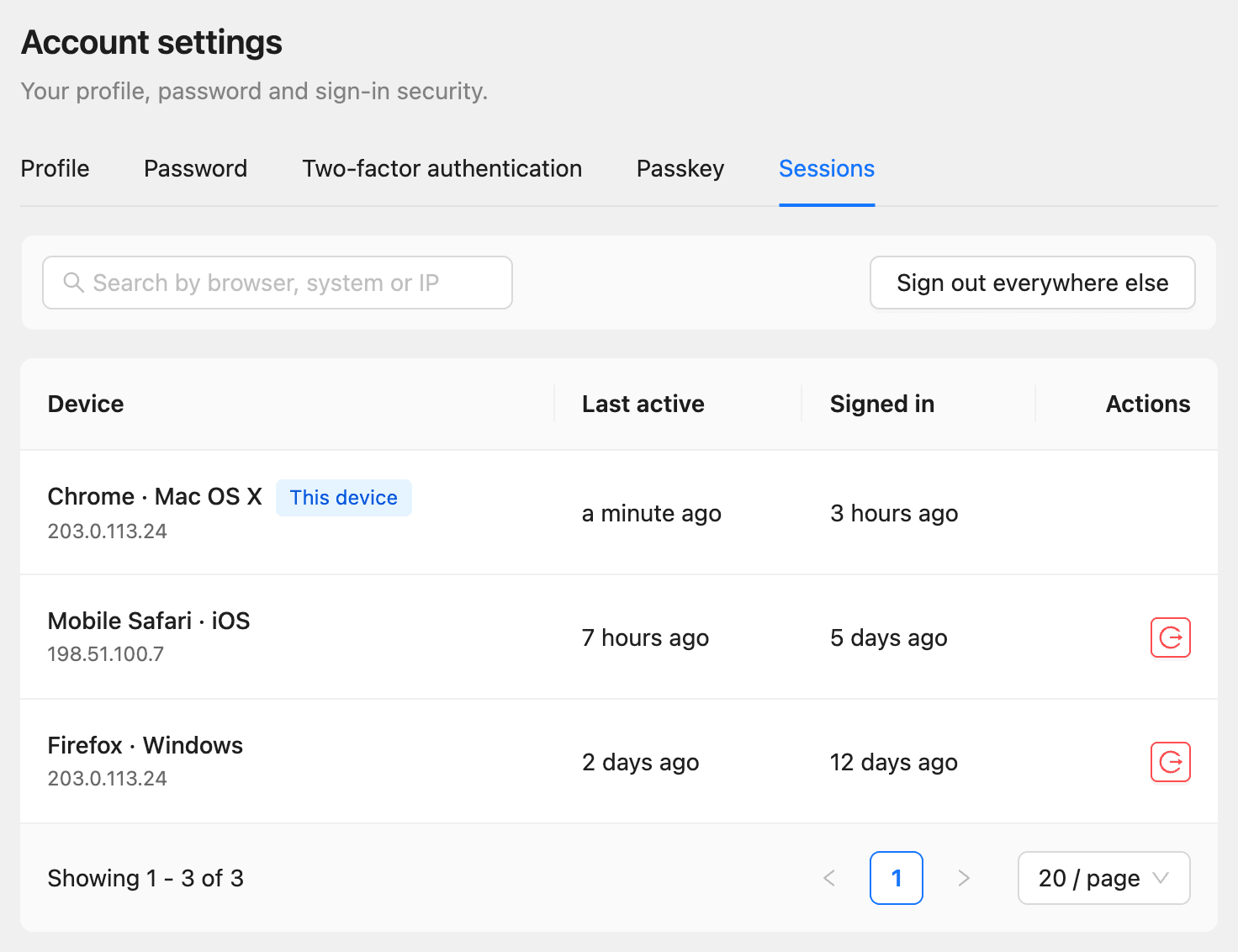
- To sign out one device, click the sign-out button in its row.
- To sign out every device but this one, click Sign out everywhere else.
If you see a device you do not know, sign it out, then change your password.
Reset a forgotten password
- On the sign-in page, click Forgot your password?.
- Enter your Email address and click Send the link.
- Open the email and click the link within one hour.
- Enter a New password and click Save the password.
Resetting your password signs you out everywhere. Then sign in with the new password.
Common questions
“Too many failed sign-in attempts.” After five wrong attempts in a row, sign-in is locked for a short time, which grows with each further attempt. Wait, then try again, or reset your password.
I lost my phone and my recovery codes. Sign in with a passkey if you added one. Otherwise, contact support.
Can I sign in with Google? No. Sign in with your email and password, or with a passkey.