How to use notes and the activity timeline
- Kelune CRM Cloud
A contact’s profile keeps their history in one place. Notes hold what your team knows about them. The activity timeline records what they did. The emails list shows every message they were sent.
Open a contact by clicking their name on the Contacts page, then use the tabs under their details.
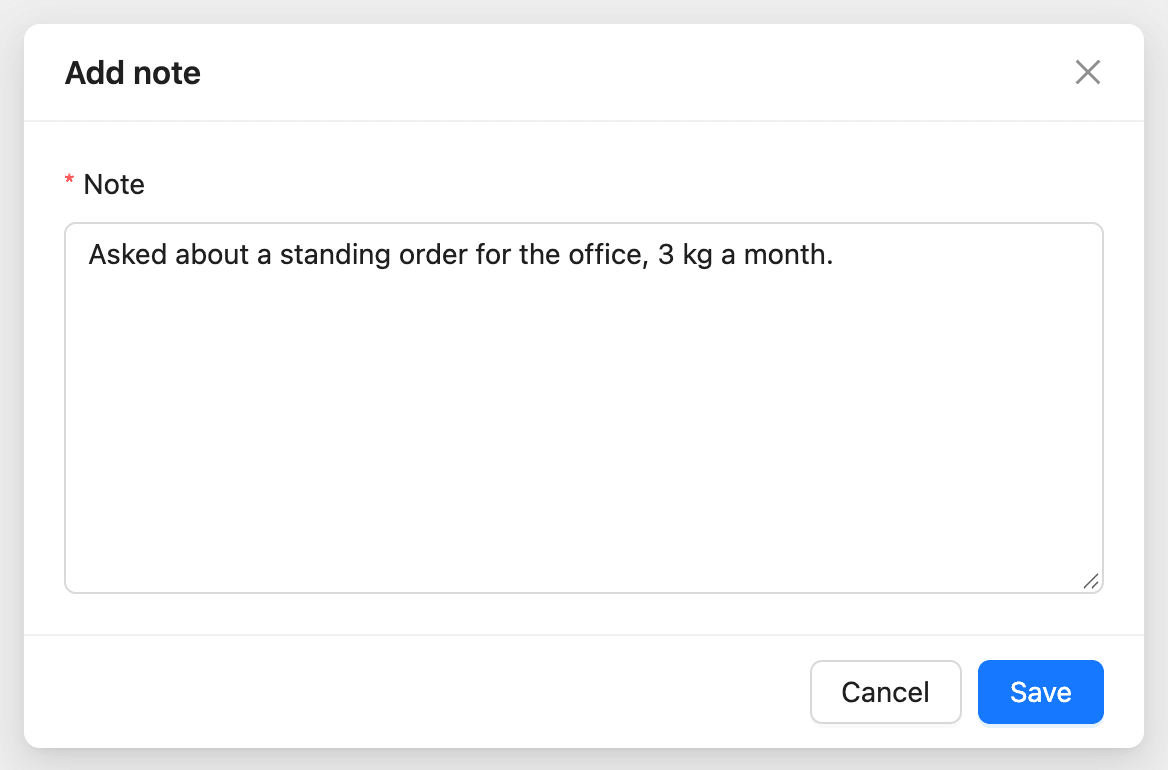
Add a note
- On the contact’s profile, click the Notes tab.
- Click Add note.
- Write the Note.
- Click Save.
Each note shows who wrote it and when. A changed note is marked “edited”.
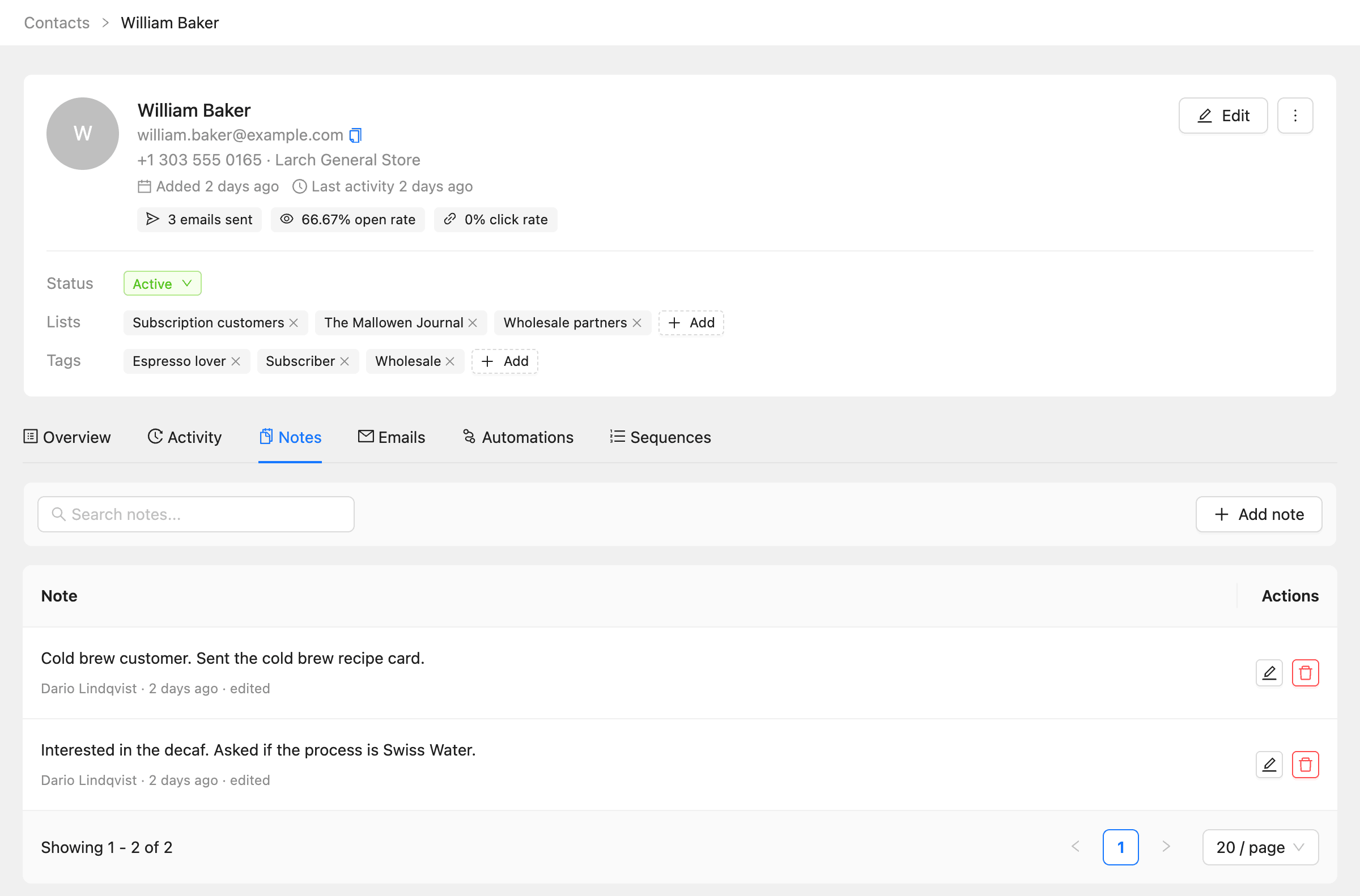
- Use Search notes… to find a note.
- Use the pencil button to edit a note, and the delete button to remove it.
You can also add a note in the Add new note box of the Create contact and Quick edit forms, or import notes from a file.
Each plan limits the number of notes per contact. See How to check plans, usage, and billing.
Read the activity timeline
Click the Activity tab. Each row is one thing the contact did or that happened to them, newest first.
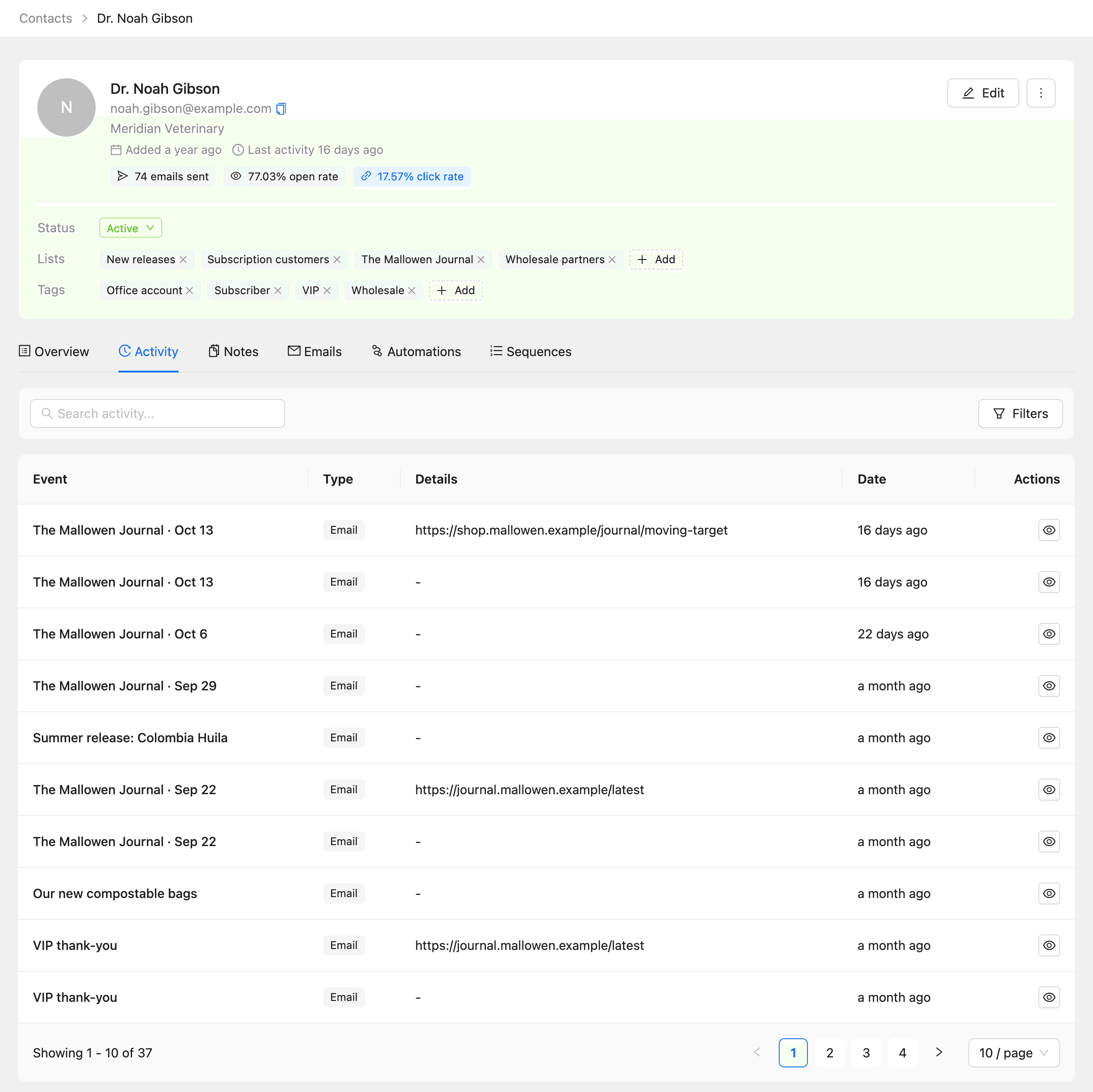
| Column | What it shows |
|---|---|
| Event | The email, smart link, or automation the event belongs to |
| Type | Email, Smart link, or Automation |
| Details | The link clicked, the reason for a bounce, or the change made |
| Date | When it happened |
- Type in Search activity… to find an event.
- Click Filters to show one type.
- Click the eye button (View details) to see an event in full, such as the device, browser, and country of an open or click.
Check the emails a contact was sent
Click the Emails tab. It lists every email sent to the contact: campaigns, sequence emails, automation emails, and tests.
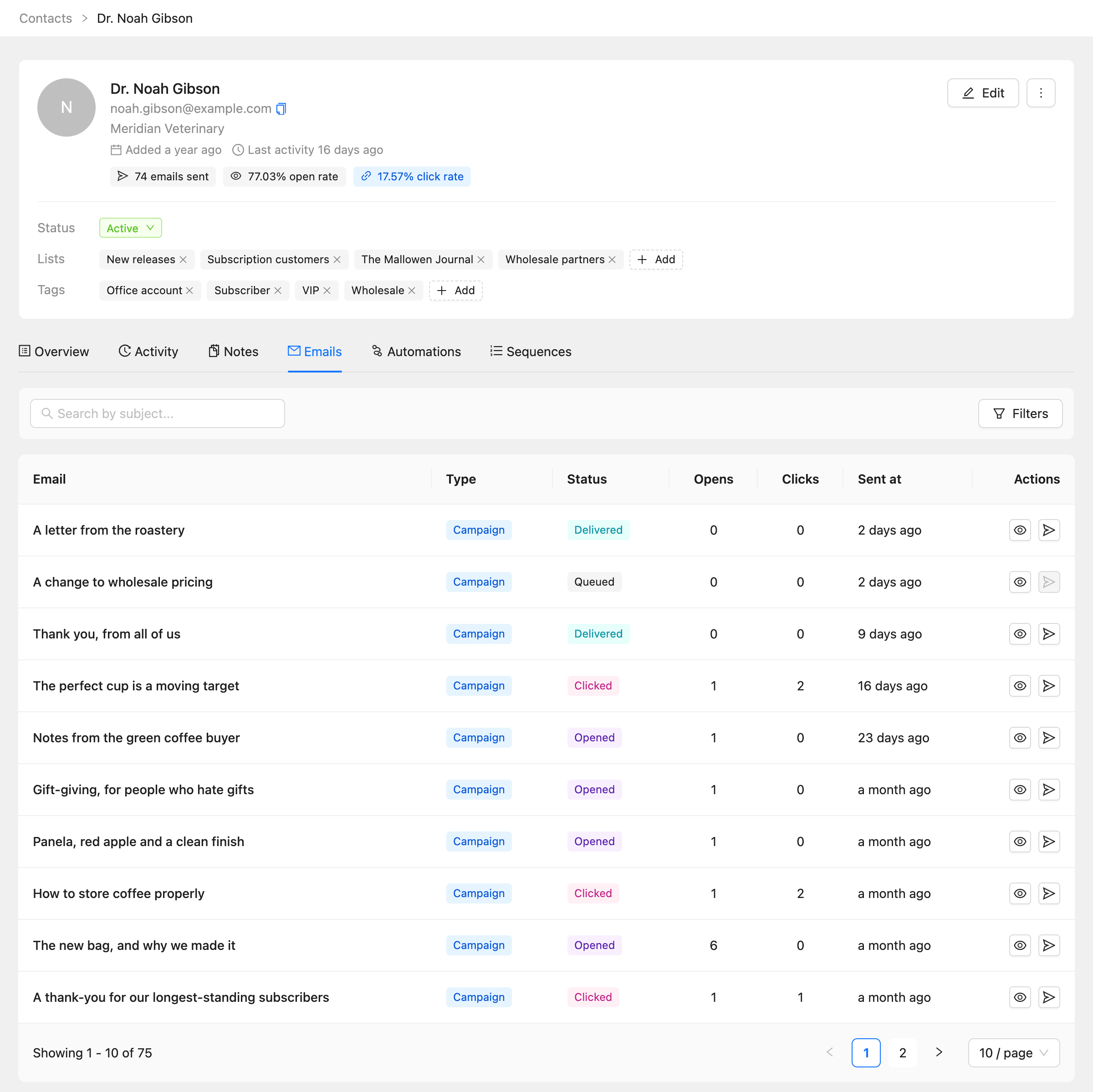
- Click Filters to show one Type or Status.
- Click the eye button (View) to see the email as it was sent.
- Click the send button (Resend) to send it to the contact again.
For every email in the workspace, use Email logs in the sidebar. See How to read email logs and reports.