How to collect leads from Meta lead ads
- Kelune CRM Cloud
Meta lead ads are Facebook and Instagram ads with a built-in form. When someone fills one in, Kelune CRM Cloud saves them as a contact within moments, adds the lists and tags you chose for that form, and keeps every answer they gave in a note on the contact. There is no export, spreadsheet, or integration service in between.
Each connection is one Facebook Page. A lead form on that Page, used in a Facebook or an Instagram ad, sends its leads through the connection.
How it works
Meta delivers leads only to a Meta app, so the connection reads your leads through an app that your business owns. You create the app once in Meta for Developers, and Kelune CRM Cloud does the rest:
- You enter the app’s ID and secret and a Page access token. Kelune CRM checks them with Meta, subscribes your Page to lead events, and reads the Page’s lead forms.
- You paste the connection’s Callback URL and Verify token into the app’s webhook settings.
- Meta sends each new lead to that URL. Kelune CRM fetches the answers from Meta and saves the contact.
- Every 15 minutes, Kelune CRM also reads the latest leads of each form, so a lead Meta failed to deliver still arrives.
Prepare your Meta app
These steps happen in Meta for Developers and Meta Business Settings, so the names below are Meta’s.
- In Meta for Developers, create an app of type Business, owned by your business portfolio, and add the lead ads use case.
- Give the app the
leads_retrieval,pages_show_list,pages_read_engagement, andpages_manage_metadatapermissions. Kelune CRM refuses a token that lacksleads_retrievalorpages_manage_metadata, and names the missing one. - Open App settings › Basic, add a privacy policy URL, and copy the App ID and App secret.
- Create an access token for the Page. A token for a system user that has the Page assigned is best, because it does not expire when someone changes their password. A Page access token works too.
- In Meta Business Settings, open Integrations › Leads access and allow the app, or its system user, on the Page. A missing Leads access entry is the most common reason Meta refuses to share leads.
- Switch the app to Live mode. An app in development mode receives only test leads.
Connect a Page
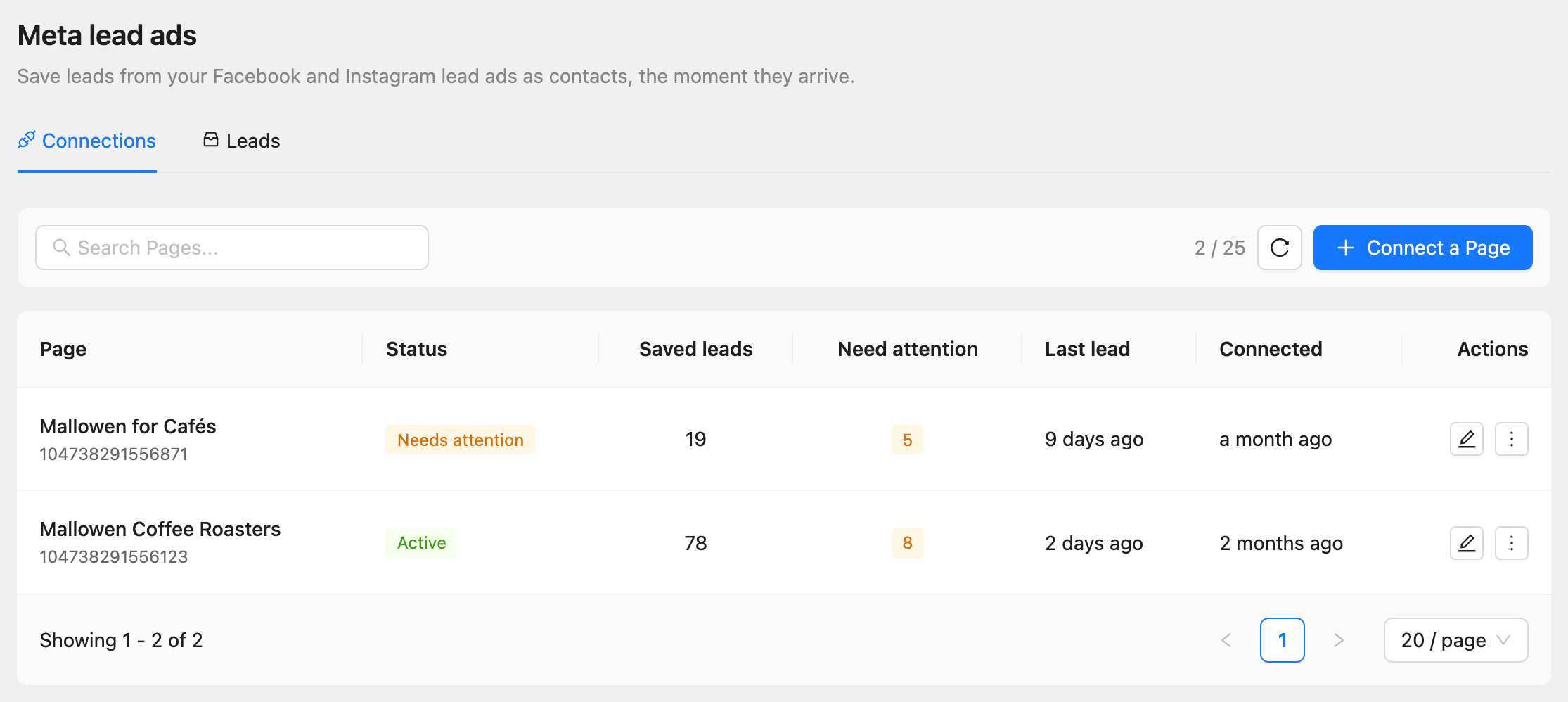
The Meta lead ads page lists the Pages you have connected, with how many leads each saved and how many need attention.
- Click Settings in the sidebar.
- Under Advanced, click Meta lead ads.
- Click Connect a Page.
- Enter the App ID, App secret, and Page access token.
- If the token reaches more than one Page, enter the Page ID of the one to connect.
- Under Where leads go, choose the Lists and Tags every lead gets, unless its form has its own.
- Choose the Status for new contacts.
- Choose the Country for local phone numbers, so a number written without its calling code is saved in full.
- Click Connect.
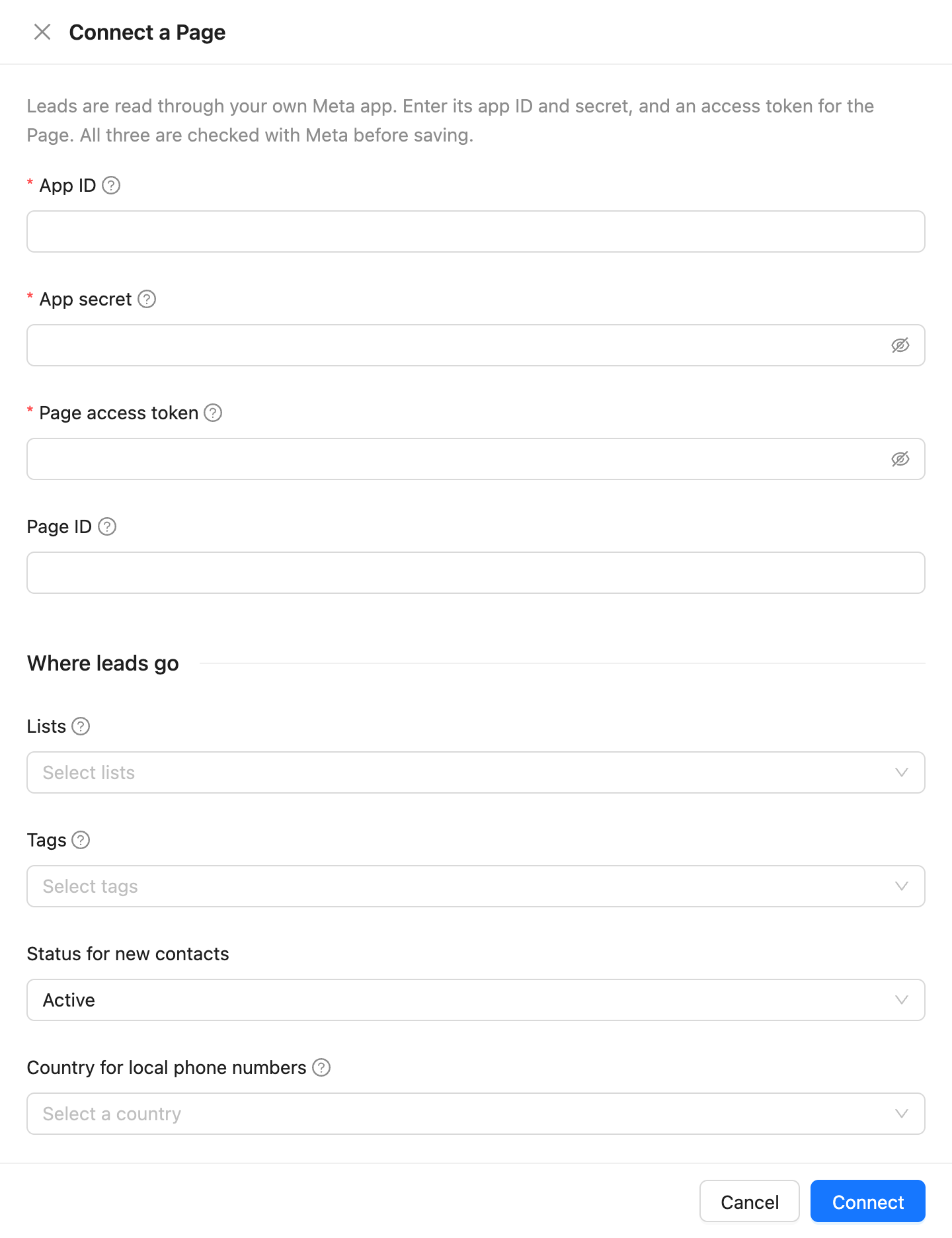
Kelune CRM checks all three values with Meta before it saves the connection. The app secret and the access token are stored encrypted and are never shown again; to change one, enter a new value.
With Status for new contacts set to Pending, new contacts get the double opt-in email before your campaigns reach them. See How to set up double opt-in.
Add the webhook in Meta
After you connect, the drawer opens the Usage tab with the two values your Meta app needs. You can come back to them at any time: click Edit on the connection, then Usage.
- Copy the Callback URL and the Verify token with their copy buttons.
- In your Meta app, open Webhooks and choose Page.
- Paste both values, verify, and subscribe to the
leadgenfield.
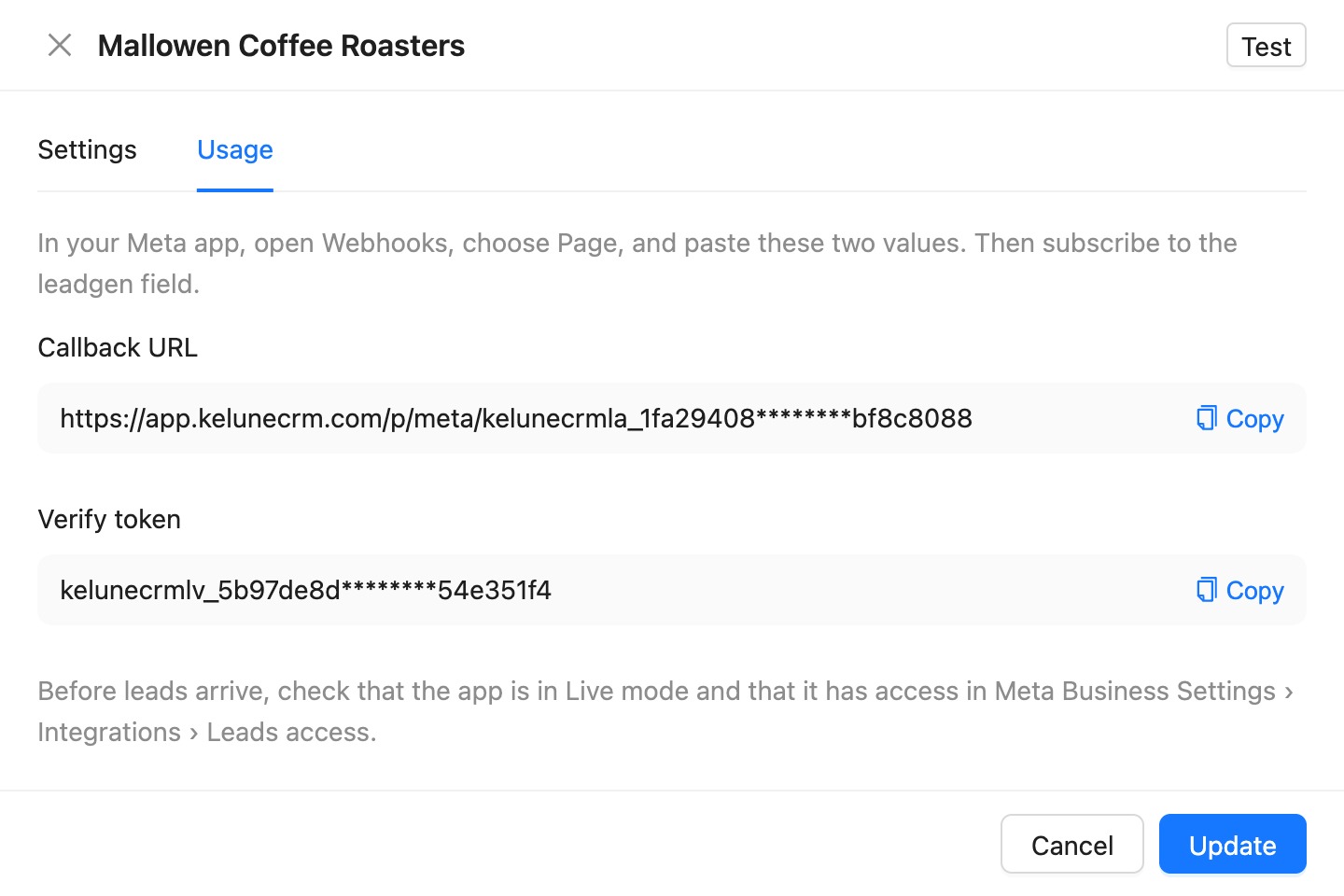
To check the whole path, click Test in the drawer, then send a test lead with Meta’s Lead Ads Testing Tool. It appears on the Leads tab within moments.
Send each form to its own lists and tags
The connection’s Settings tab lists the Page’s lead forms under Forms.
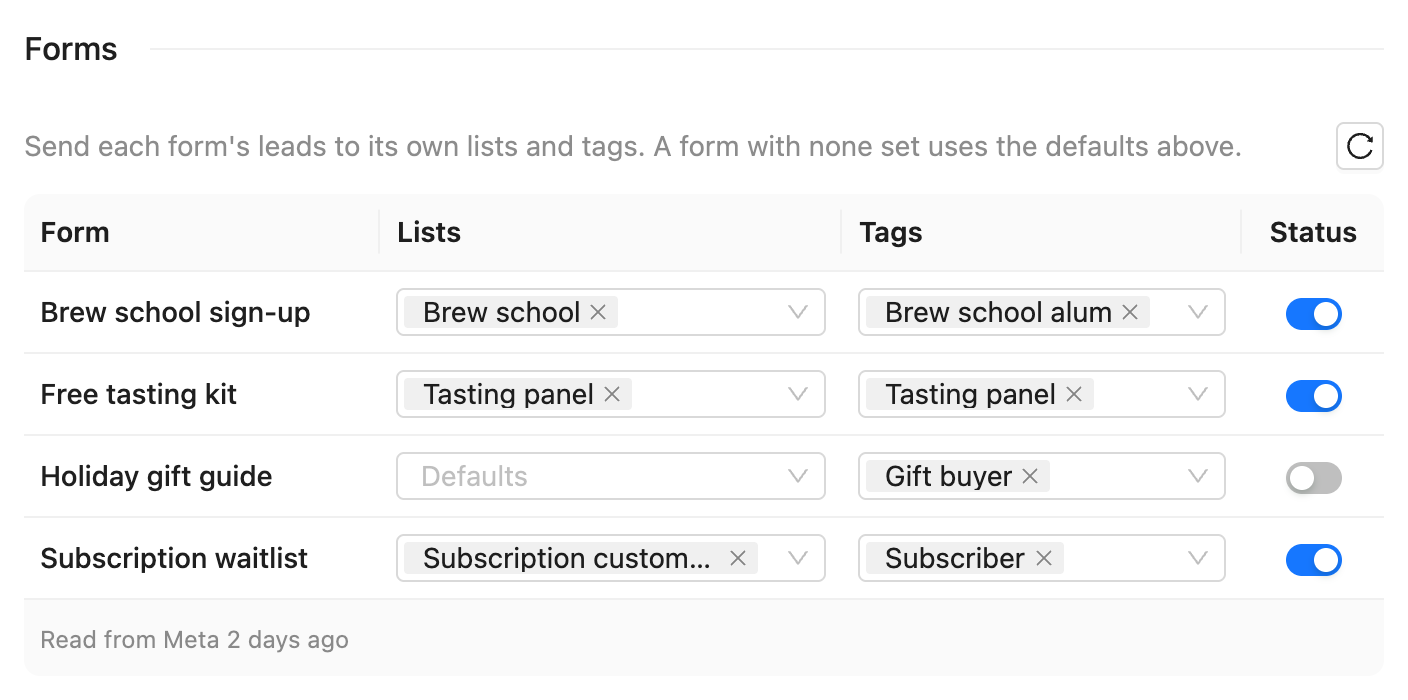
- Choose Lists and Tags for a form to send its leads there. A form with none set uses the defaults from Where leads go.
- Turn a form’s Status switch off to stop saving its leads. They are logged as Skipped, and you can retry them later.
- A form you created after connecting appears when you click the refresh button beside Forms.
What a lead becomes
A lead needs an email address or a phone number, nothing else. Your workspace’s required contact fields do not apply to leads.
- Matching: Kelune CRM looks for an existing contact by email first, then by phone. A match is updated; otherwise a new contact is created.
- Unique fields still hold: if the email belongs to one contact and the phone to another, the first contact is updated without the phone, and the phone is kept in the note. Contacts are never merged.
- The note: every lead adds one note to the contact with the form, the ad and campaign, the platform (Facebook or Instagram), the time, and every answer, including your custom questions.
- Channel: contacts created from leads show Lead ads as the channel they came in through.
- Automations: a new contact starts automations with the Contact created trigger, and an updated one starts those with Contact updated. See How to use triggers, delays, and actions.
Standard form questions fill these contact fields:
| Meta question | Contact field |
|---|---|
| Email, work email | |
| Phone number, work phone number | Phone |
| First name and last name, or full name | First name and last name |
| Company name | Company |
| Street address, city, state or province, ZIP or post code, country | Address fields |
Every other answer, such as a job title or a custom question, is kept in the note.
Read the lead log
The Leads tab lists every lead from every connected Page, newest first. Search by name, email, or phone, or filter by Status and Page. Each row shows the Form, Platform, Status, Source, and when it was Received. Source is Delivered for a lead Meta sent, and Found later for one the 15-minute check picked up.
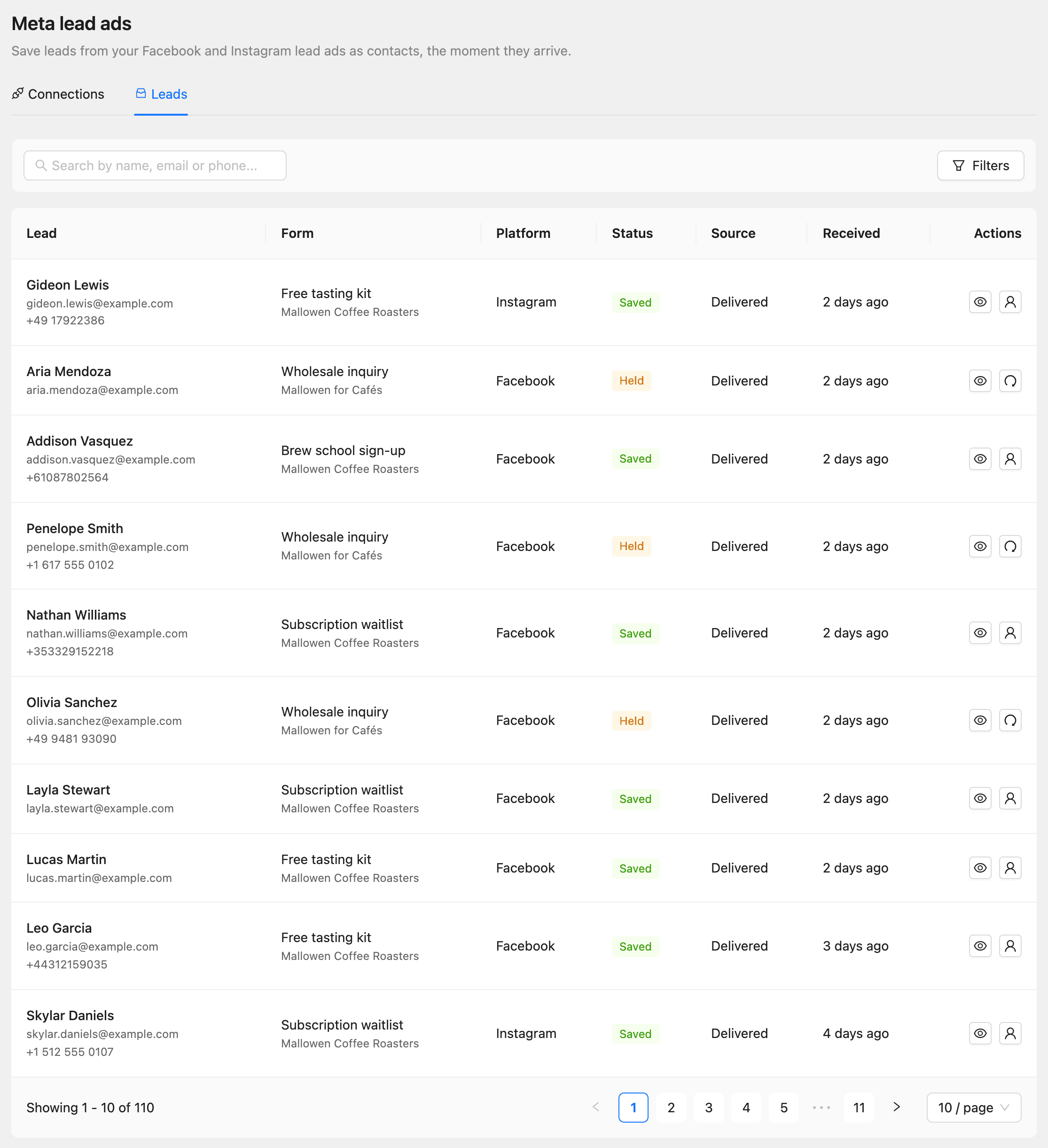
| Status | What it means | What to do |
|---|---|---|
| Waiting | The lead arrived and is queued | Nothing; it is saved within moments |
| Saving | The answers are being fetched from Meta | Nothing |
| Saved | The contact was created or updated | Click Open contact to see them |
| Needs review | The lead has no email and no phone | Click View answers and add the contact by hand if you want them |
| Held | Meta refused the connection, so the lead waits | Fix the connection; held leads are queued again |
| Plan limit | The workspace reached its contacts limit | Upgrade or make room, then click Retry |
| Skipped | The lead’s form is turned off | Turn the form on, then click Retry |
| Failed | Meta did not return the lead after every retry | Click Retry |
When Meta is briefly unavailable, Kelune CRM tries again after 1 minute, 5 minutes, 15 minutes, 1 hour, 3 hours, and 6 hours, and shows the next try under the status. Only after the last one does the lead become Failed.
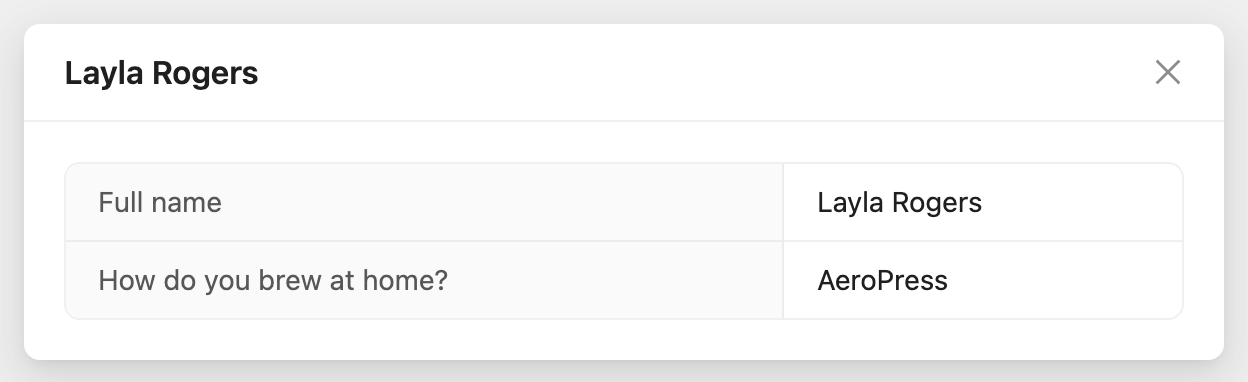
View answers shows the raw answers for 30 days after the lead arrives. After that, the answers remain only in the note on the contact.
When a connection needs attention
If Meta stops accepting the access token, for example because it expired or Leads access was removed, the connection’s status changes to Needs attention. New leads are kept as Held, and members who can manage lead ads get one email about it.
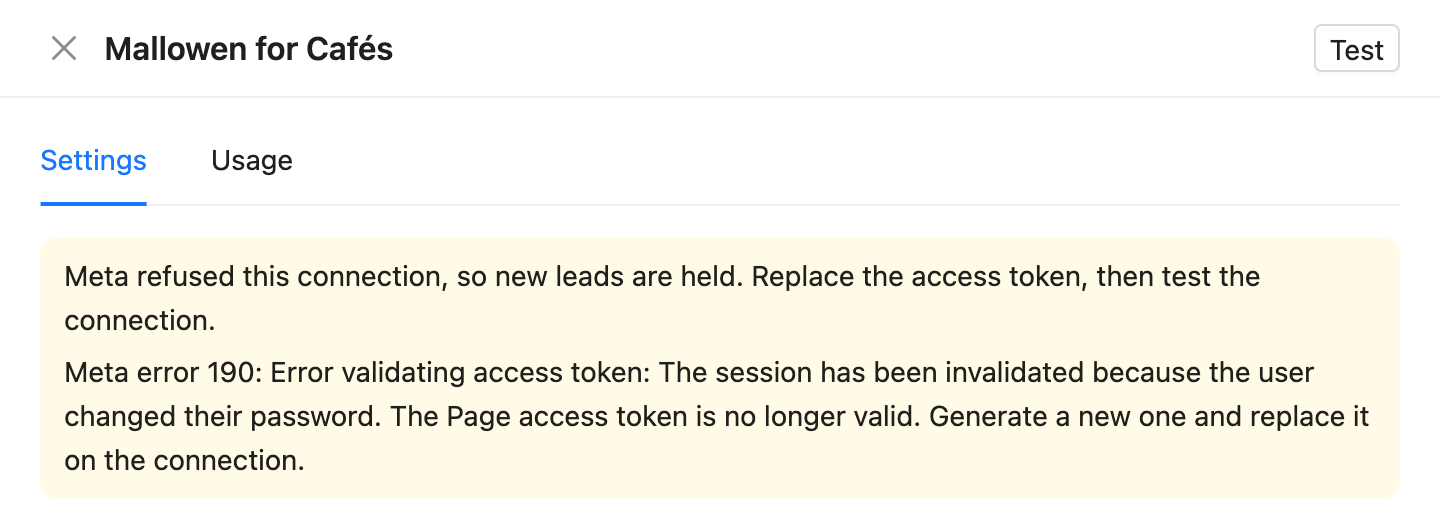
- Click Edit on the connection.
- Enter a new Page access token, and check Leads access in Meta Business Settings.
- Click Update.
- Click Test to confirm Meta accepts the connection.
Once the connection works again, the held leads are queued again and saved.
Manage connections
The Connections tab shows each Page with its Status, Saved leads, leads that Need attention, Last lead, and when it was Connected. Click Edit to change the token or defaults, or open More actions:
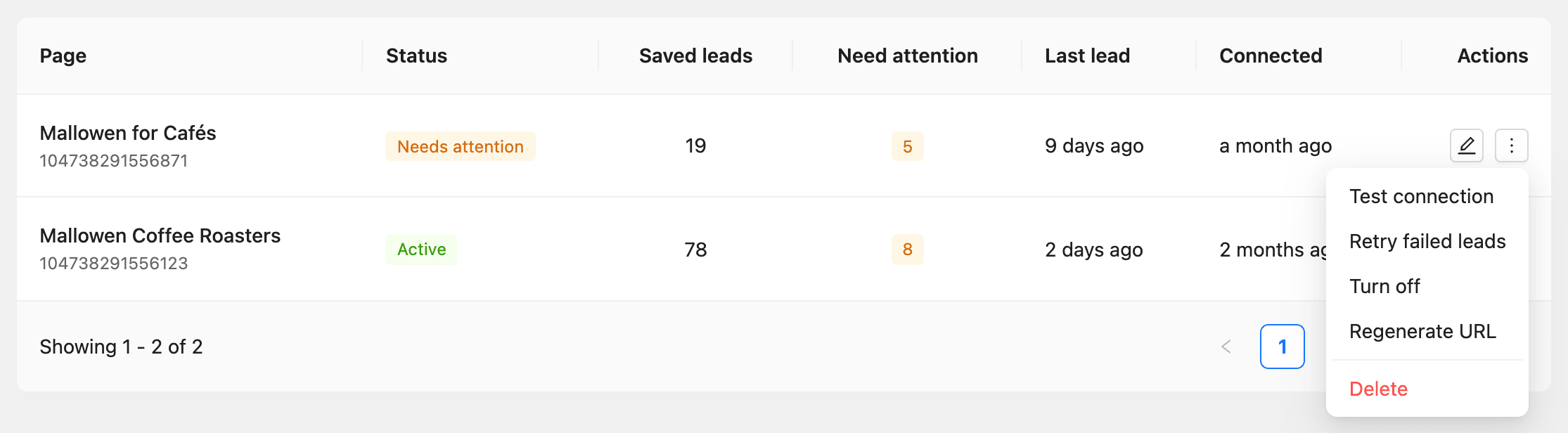
| Action | What it does |
|---|---|
| Test connection | Checks the app, the token, and the Page subscription with Meta again |
| Retry failed leads | Queues the connection’s held, plan limit, skipped, and failed leads again |
| Turn off, Turn on | Stops or resumes saving leads from the Page. While it is off, its leads are not saved |
| Regenerate URL | Creates a new callback URL. The old one stops working at once, so paste the new one into your Meta app |
| Delete | Removes the connection and its lead log. Contacts already saved are kept |