How to connect an email provider
- Kelune CRM Cloud
Kelune CRM Cloud sends your workspace’s campaigns, automations, and sequences through an email provider that you connect. There is no shared sending server: until a provider is connected, the workspace sends no email.
You can connect any of these:
| Provider | What you need |
|---|---|
| SMTP | Any SMTP server: host, port, username, and password |
| Amazon SES | IAM credentials that can send email with SES, and a sender verified in SES |
| Mailgun | A Mailgun API key and your verified sending domain |
| SendGrid | A SendGrid API key and a verified sender |
Step 1: Choose the provider
- Click Settings in the sidebar.
- Under Email, click Email providers.
- Click Create email provider.
- Choose SMTP, Amazon SES, Mailgun, or SendGrid.
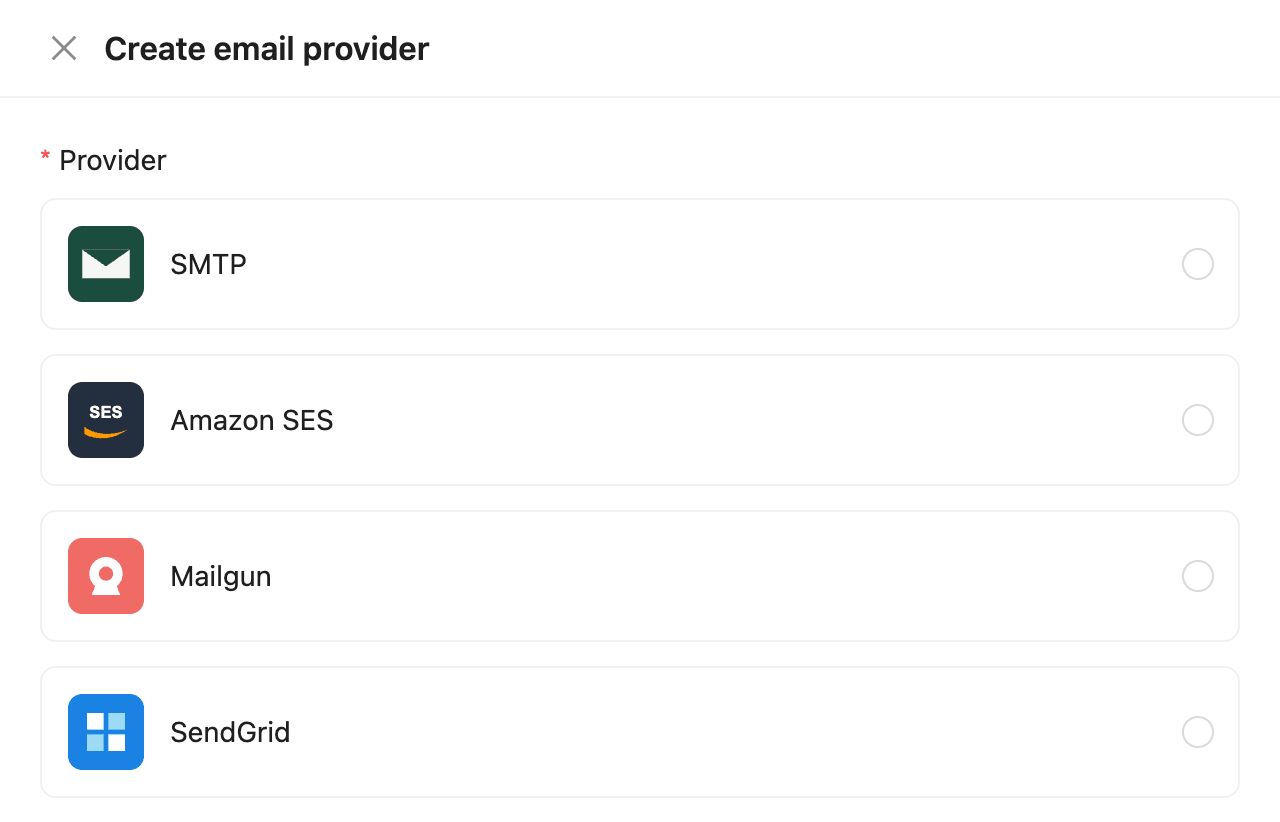
To pick a different provider later in the form, click Change next to its name.
Step 2: Set the sender
The Sender section comes first for every provider.
- Leave Enable connection on. When it is off, nothing is sent through this provider.
- Enter the Sender email: the From address this connection uses. Your provider must allow this address.
- Enter the Sender name that recipients see.
- Enter a Reply-to address if replies should go somewhere else.
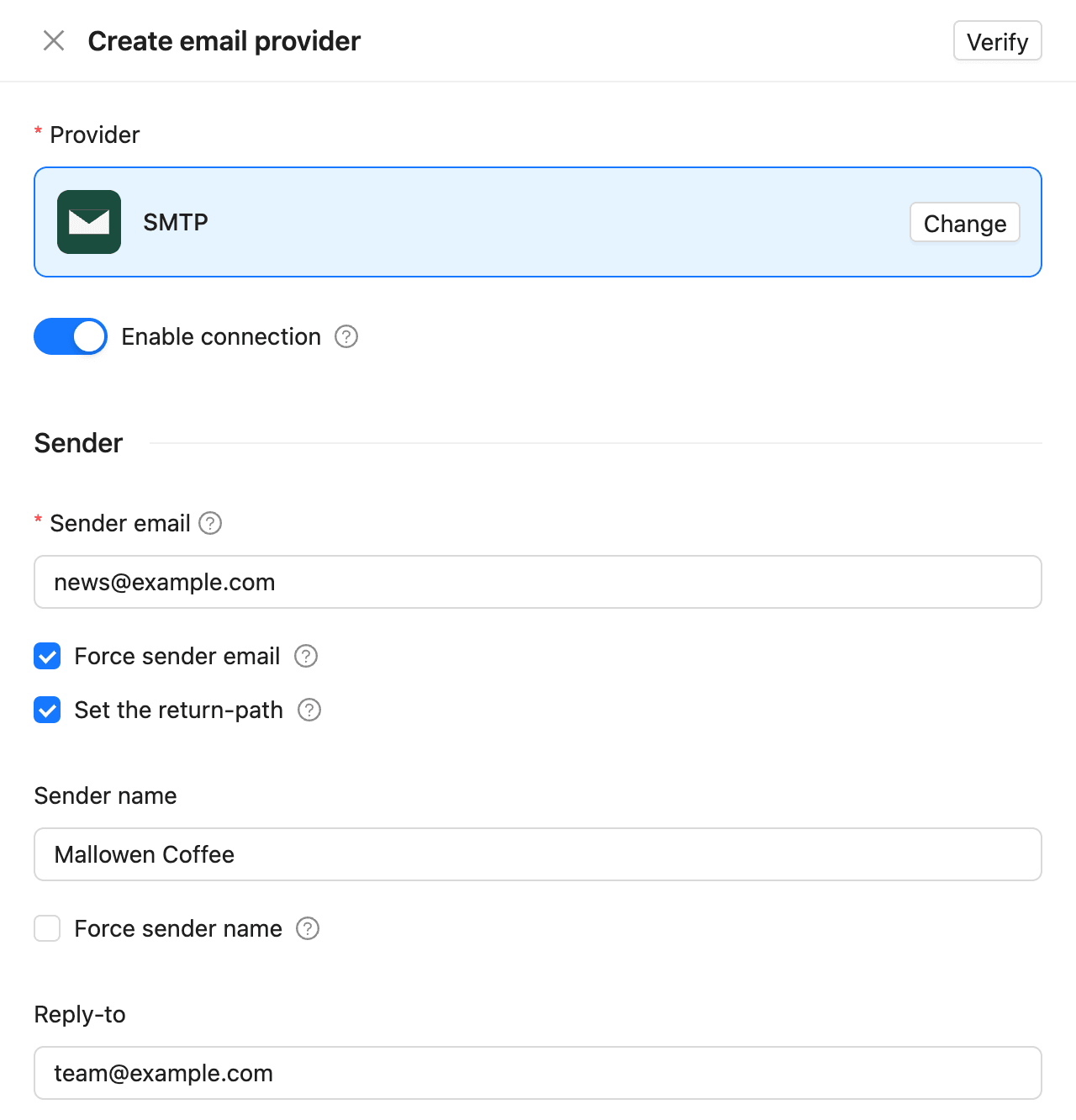
| Option | What it does |
|---|---|
| Force sender email | Always sends from the sender email, even if a campaign sets another From address. On by default, because most providers only send from a verified address |
| Set the return-path | SMTP and Amazon SES only. Sends bounce notices to the sender email |
| Force sender name | Always uses this sender name, even if an email sets a different one |
Step 3: Enter the connection details
The fields depend on the provider.
| Provider | Fields |
|---|---|
| SMTP | SMTP host, SMTP port, Encryption (TLS, SSL, or None), Auto TLS, SMTP username, SMTP password |
| Amazon SES | Access key ID, Secret access key, Region (where your sender is verified) |
| Mailgun | API key, Domain, Region: US (api.mailgun.net) or EU (api.eu.mailgun.net) |
| SendGrid | API key |
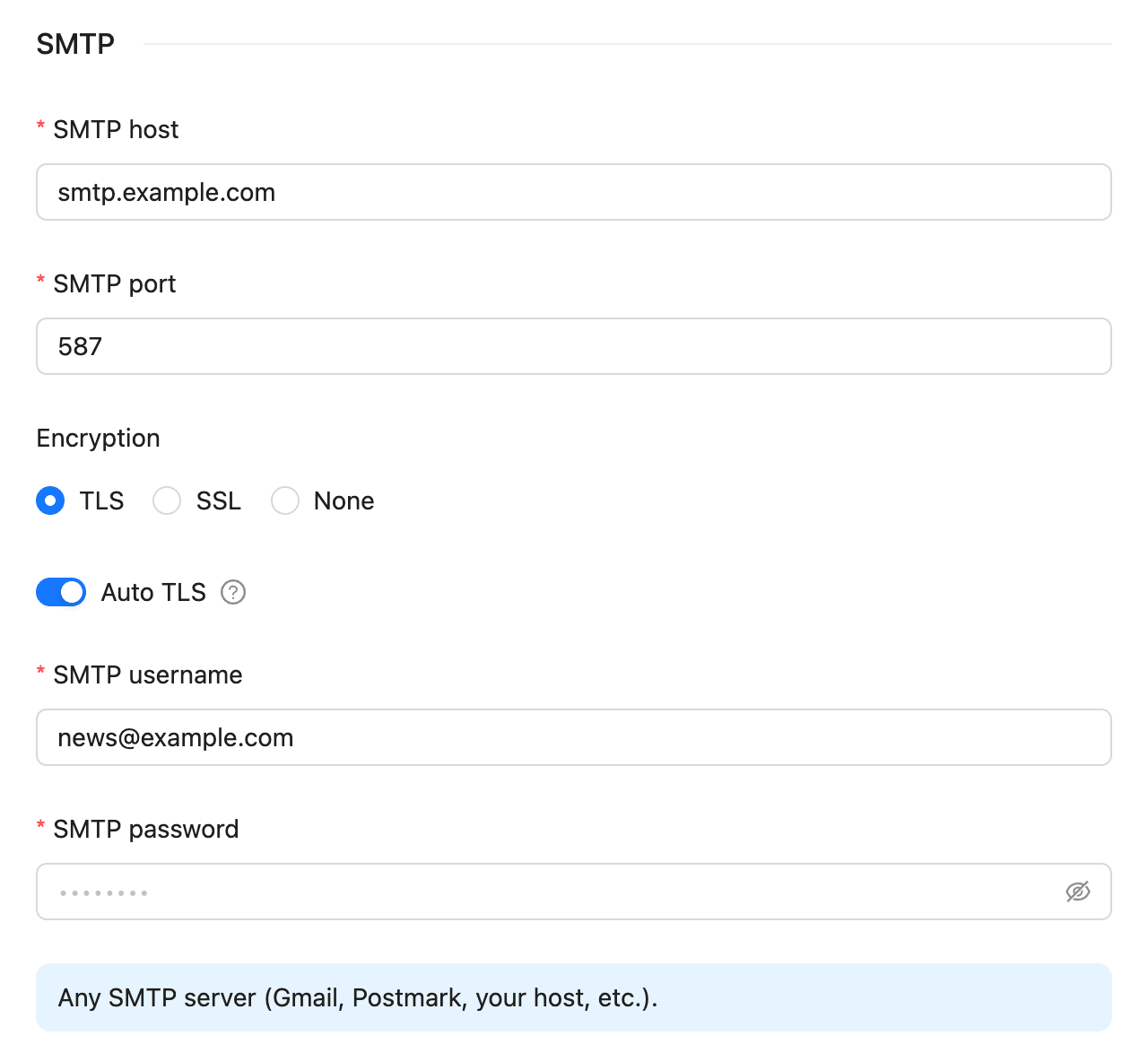
Credentials are stored encrypted and are never shown again after you save. Leave Auto TLS on unless your SMTP server has trouble with TLS.
Step 4: Verify and save
- Click Verify at the top of the drawer. A working connection shows “Connection successful!”.
- Click Create.
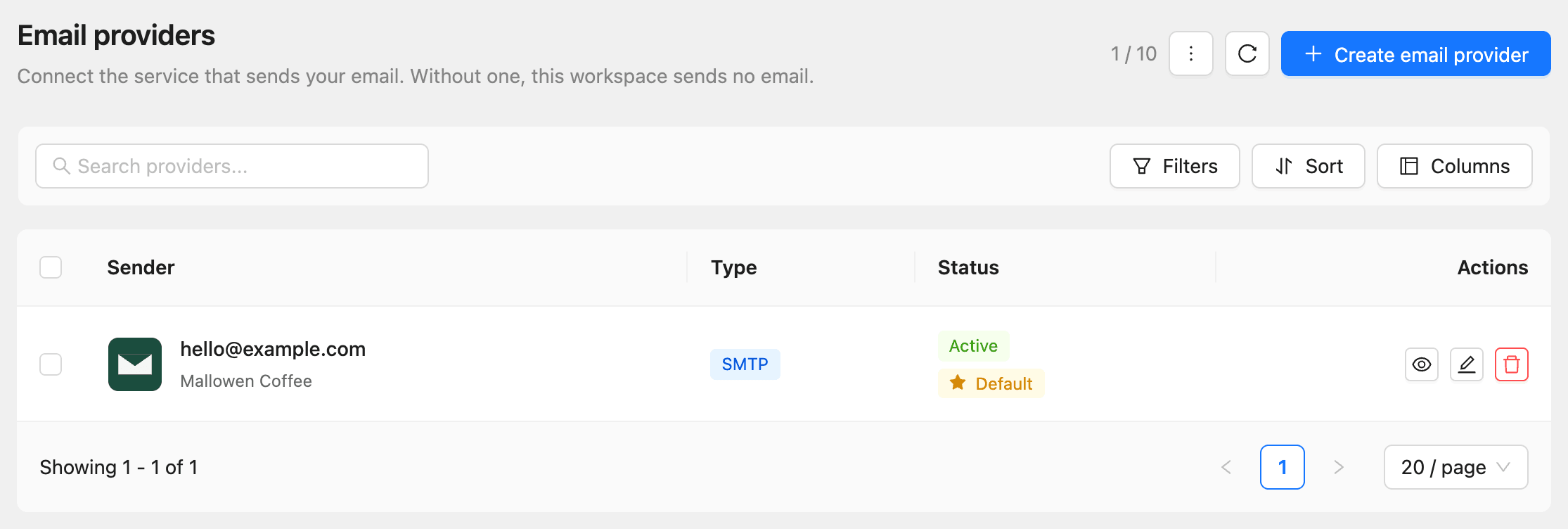
The provider appears on Email providers with its Type and Status.
Send a test email
- On Email providers, click the More button (the three dots) next to the count at the top.
- Click Send test.
- In Send through, keep Workspace default or choose one provider.
- Enter the Recipient address.
- Click Send.
Choose the default provider
The first provider you connect becomes the default, marked Default in the Status column. Campaigns that send with Global email use the default provider.
To change it, click the star button (Set as default sender) in another provider’s row. A campaign can also choose one provider in its Subject & sender step.
Set up bounce handling
Bounce handling stops email to addresses that bounce and to people who mark your email as spam. It works with Amazon SES, Mailgun, and SendGrid.
- Click Settings, then Bounce handling.
- Choose your provider’s tab.
- Click Copy URL under Receiver URL.
- Follow the Configuration guide on the page to paste that URL into your provider’s console.
- For Mailgun or SendGrid, paste the signing key the guide names and click Save.
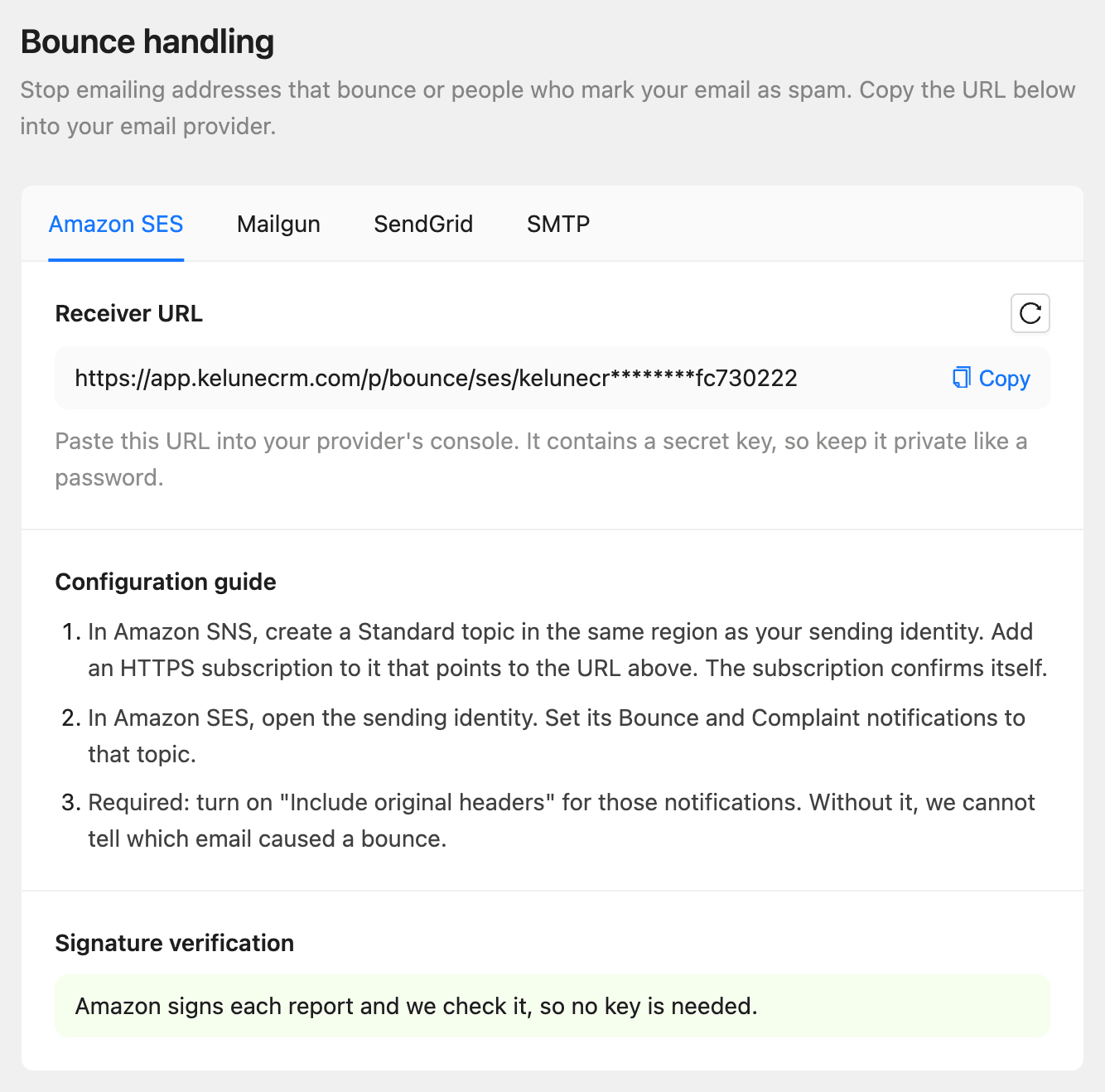
Amazon SES signs its reports, so it needs no key. For Mailgun and SendGrid, the key makes sure only your provider can stop email to your contacts.
Troubleshooting
Verify fails. Check the host, port, and encryption for SMTP, or the key and region for the other providers. A port and encryption pair that does not match (for example, port 465 with TLS) is a common cause.
Email is rejected or lands in spam. Your sending domain needs SPF and DKIM records, and ideally a DMARC record, set up with your provider. Kelune CRM Cloud does not manage DNS; your provider’s console lists the records to add.
Amazon SES sends only to some addresses. A new SES account is in the sandbox and sends only to verified addresses. Ask AWS for production access.
The limit message appears when you click Create email provider. The plan’s provider limit is reached. Delete a provider you no longer use, or upgrade.