How to set global email settings
- Kelune CRM Cloud
Global email settings are the workspace defaults for every email you send: who it comes from, where replies go, and the footer with the unsubscribe link. Set them once when you start, and change them when your business details change.
Set the default sender
- Click Settings in the sidebar.
- Under Email, click Global email.
- Enter the From name recipients see in their inbox, such as your business name.
- Enter the From email. Use an address on a domain your email provider can send from.
- Enter a Reply-to name and Reply-to email if replies should go somewhere other than the From address.
- Click Save settings.
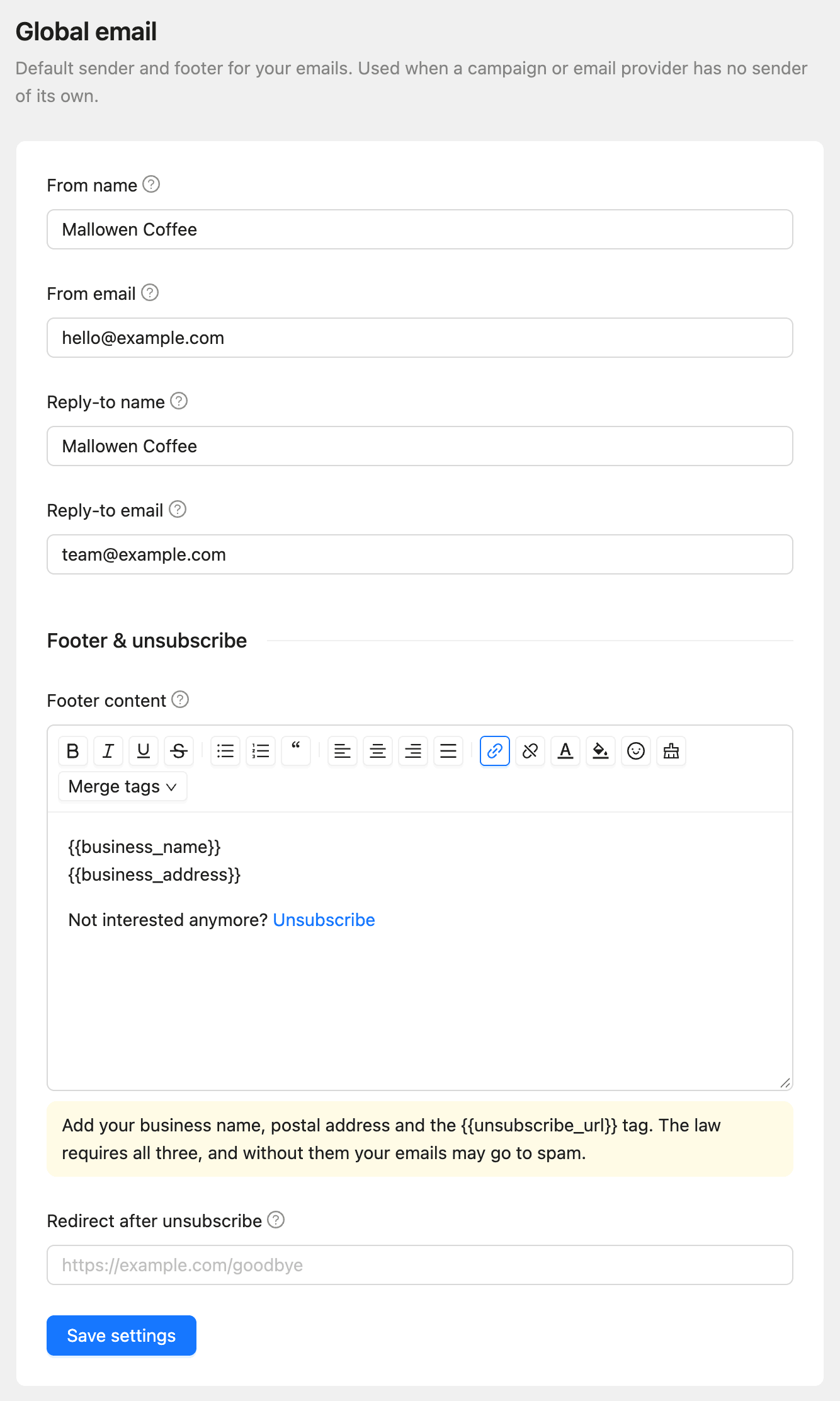
These values are used only when nothing more specific is set. Each part of the sender comes from the first of these that has it:
- The sender set on the campaign, sequence, or automation step.
- The sender of the email provider that sends it. See How to connect an email provider.
- Global email.
Write the footer
The Footer content under Footer & unsubscribe is added to the end of campaigns, recurring campaigns, sequence emails, automation emails, and test emails.
- Edit the text in the footer editor.
- Click Merge tags to insert
{{business_name}},{{business_address}}, or{{unsubscribe_url}}. - Keep the unsubscribe link. Select the link text and link it to
{{unsubscribe_url}}. - Click Save settings.
The business name and address come from General settings.
A design made in the visual editor can use its own footer instead. See How to design email templates.
Choose the unsubscribe page
When someone clicks the unsubscribe link, Kelune CRM Cloud unsubscribes them and shows a confirmation page.
To send them to your own page instead, enter its address in Redirect after unsubscribe and click Save settings. Leave it blank to show the built-in page.
Unsubscribing changes the contact’s status to Unsubscribed for the whole workspace, so they stop getting your email, whatever lists they are in.