How to manage contacts
- Kelune CRM Cloud
Contacts are the people you email. Each contact has an email address, a status, and any lists, tags, notes, and custom fields you give them. This guide covers the Contacts page and a contact’s profile.
To bring in many contacts at once, see How to import contacts.
Find your contacts
Click Contacts in the sidebar. The All contacts tab lists every contact with their lists, tags, and status.
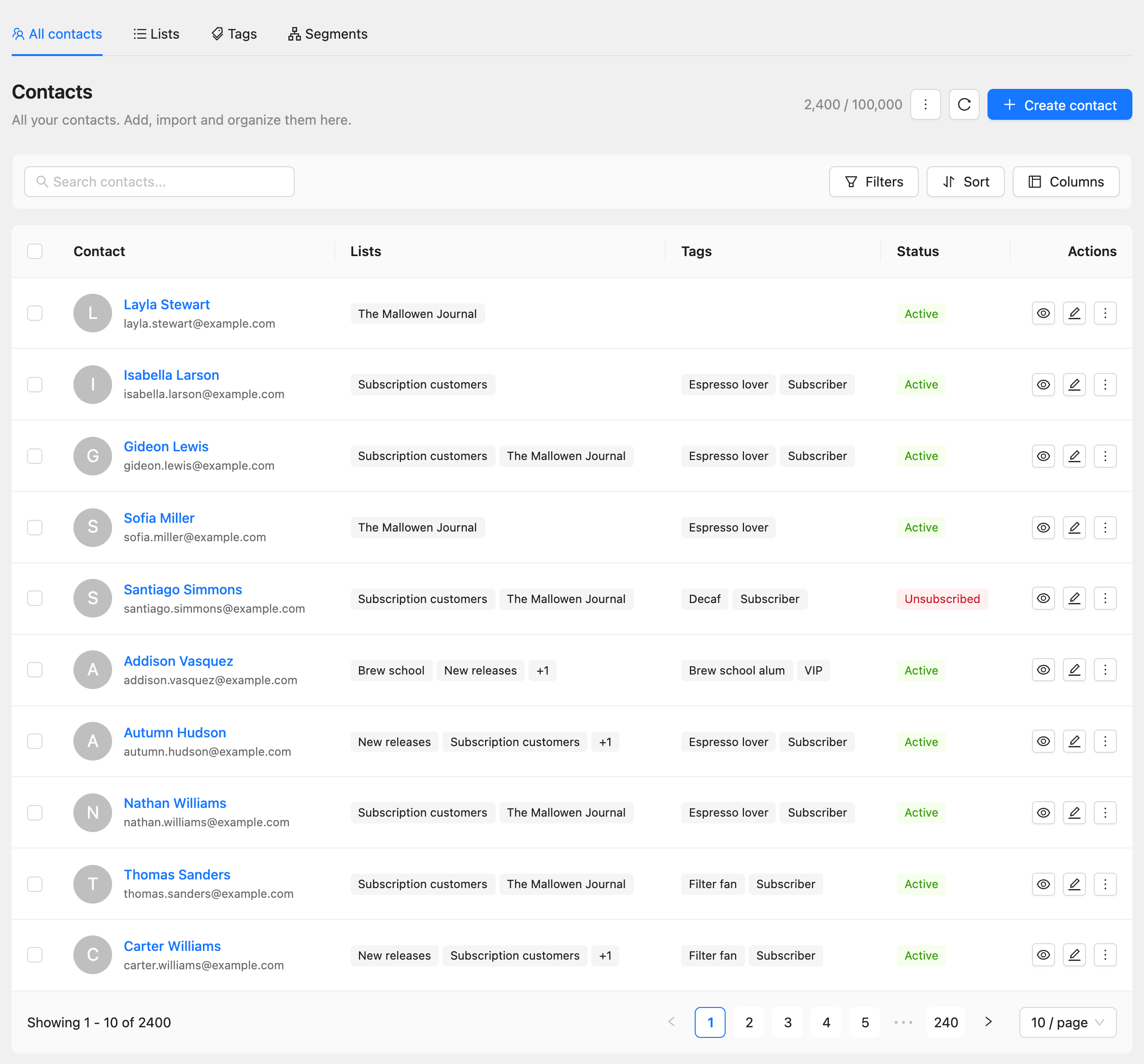
- Type in Search contacts… to find a contact by name or email.
- Click Filters to narrow the table by Status, Lists, Tags, Assigned to, or Created by.
- Click Sort to change the order, and Columns to choose which columns show.
The count at the top right, such as “2,400 / 100,000”, shows how many contacts you have and how many your plan allows.
Add a contact
- On Contacts, click Create contact.
- Enter the Email. It is the only field required by default.
- Fill in any other fields, such as First name, Last name, Phone, and Company.
- Choose a Status. New contacts are Active unless you choose otherwise.
- Add the contact to Lists and Tags if you like.
- Click Create.
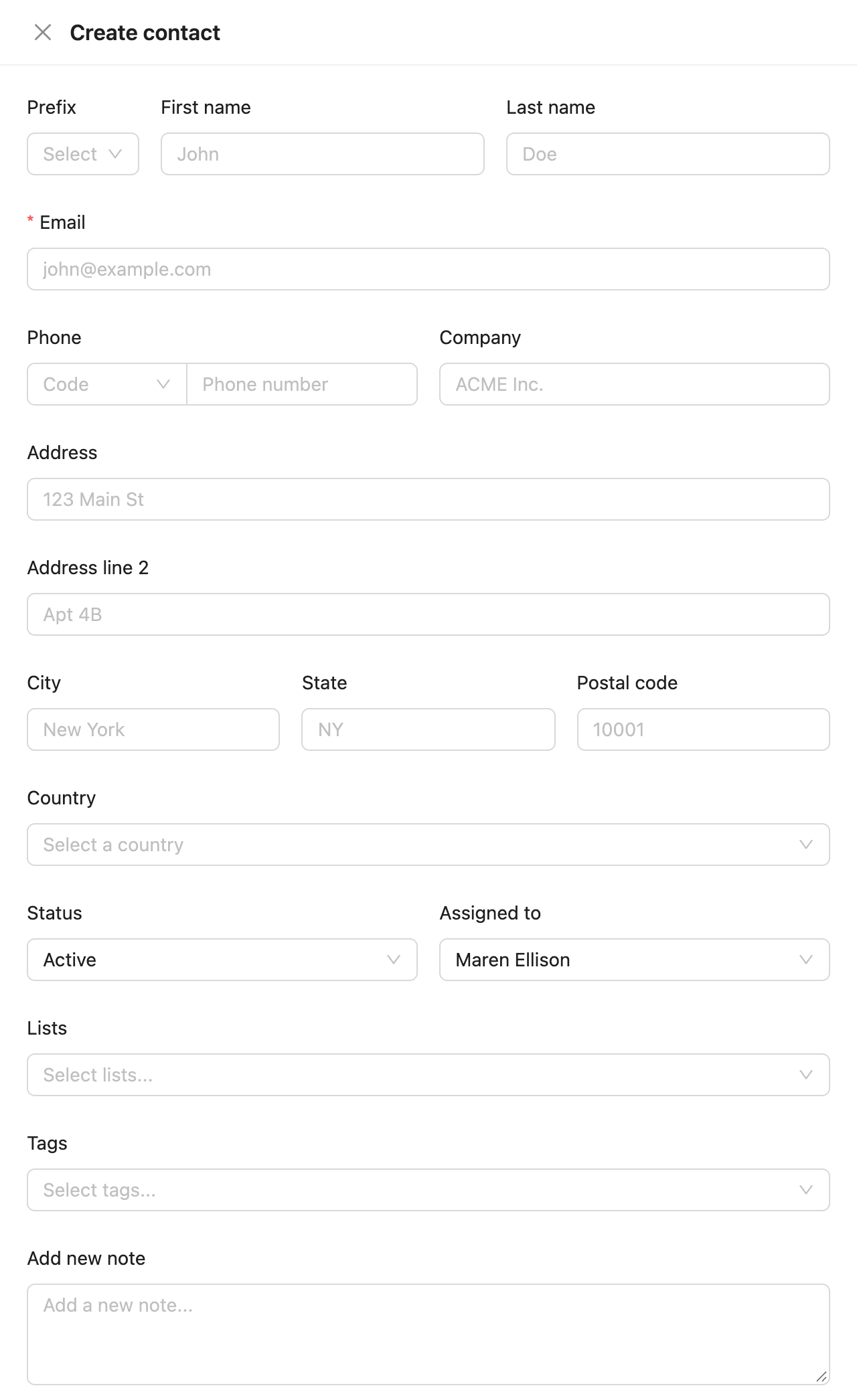
Your custom fields appear under Custom fields at the bottom of the same form.
Contact statuses
| Status | What it means |
|---|---|
| Active | Receives campaigns, sequences, and automation email |
| Pending | Has not confirmed their subscription yet. Gets no marketing email |
| Unsubscribed | Opted out. Gets no marketing email |
| Bounced | Email to this address bounced. Gets no more email |
| Complained | Marked an email as spam. Gets no more email |
Kelune CRM Cloud sets Unsubscribed, Bounced, and Complained for you when a contact unsubscribes or your provider reports a bounce or complaint.
Open a contact
- Click the eye button (Quick view) in a row to see the contact in a side panel without leaving the list.
- Click the pencil button (Quick edit) to change their details.
- Click the contact’s name to open their full profile.
The profile shows the contact’s details, status, lists, and tags at the top, with emails sent, open rate, and click rate. Use the arrows at the top right to move to the previous or next contact.
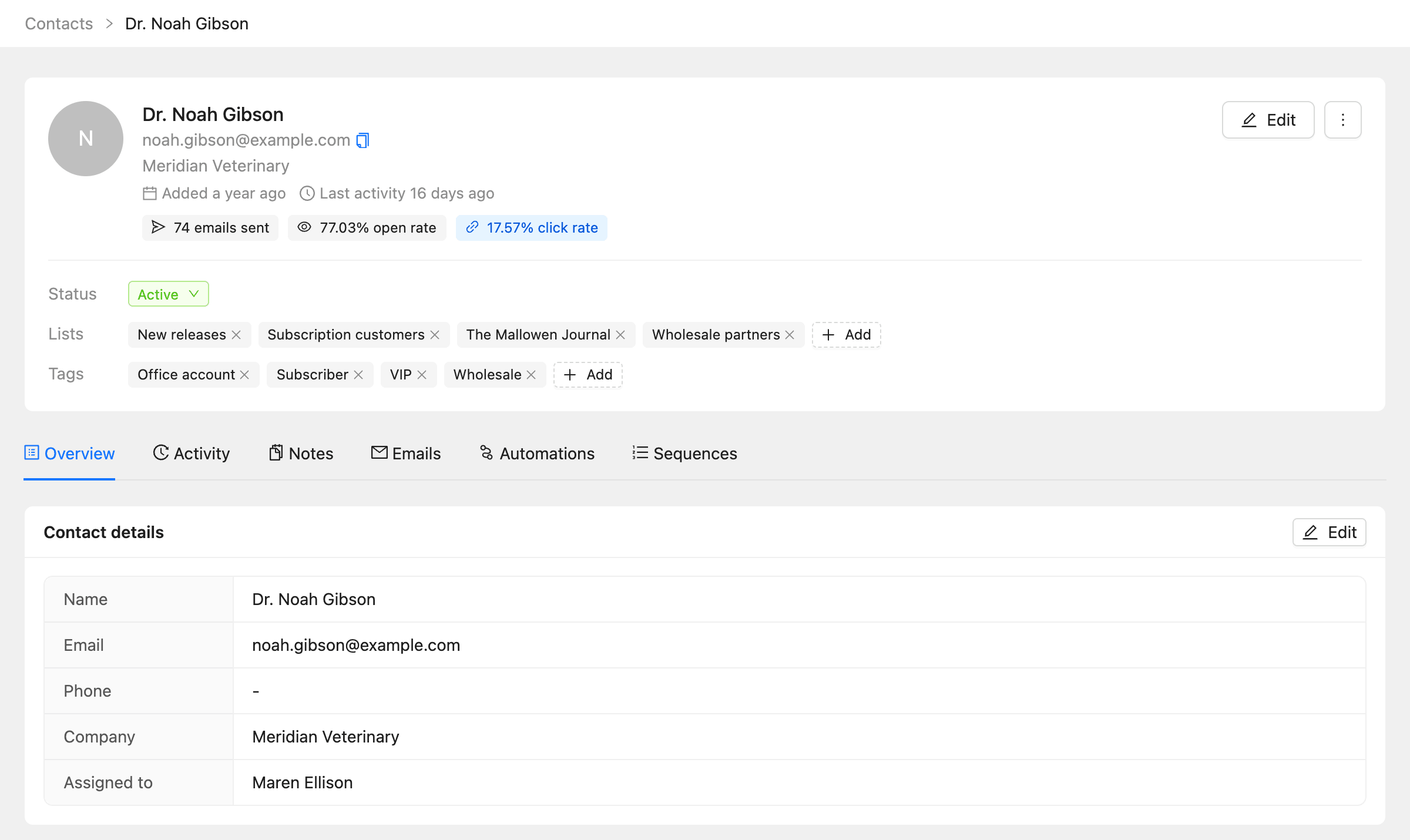
| Tab | What it shows |
|---|---|
| Overview | Contact details, Address, custom fields, and Subscription |
| Activity | Every email open, click, smart link click, and automation step. See How to use notes and the activity timeline |
| Notes | Notes your team wrote about the contact |
| Emails | Every email sent to the contact, with its status |
| Automations | Automations the contact is in, and where they are |
| Sequences | Sequences the contact is enrolled in |
To change the status, click the status tag next to Status and choose another. To add a list or tag, click Add on that row.
Change many contacts at once
- On Contacts, select the checkbox of each contact you want to change.
- Open Bulk actions and choose what to do.
- Pick the tags, lists, status, member, or sequence the action needs.
- Click Confirm.
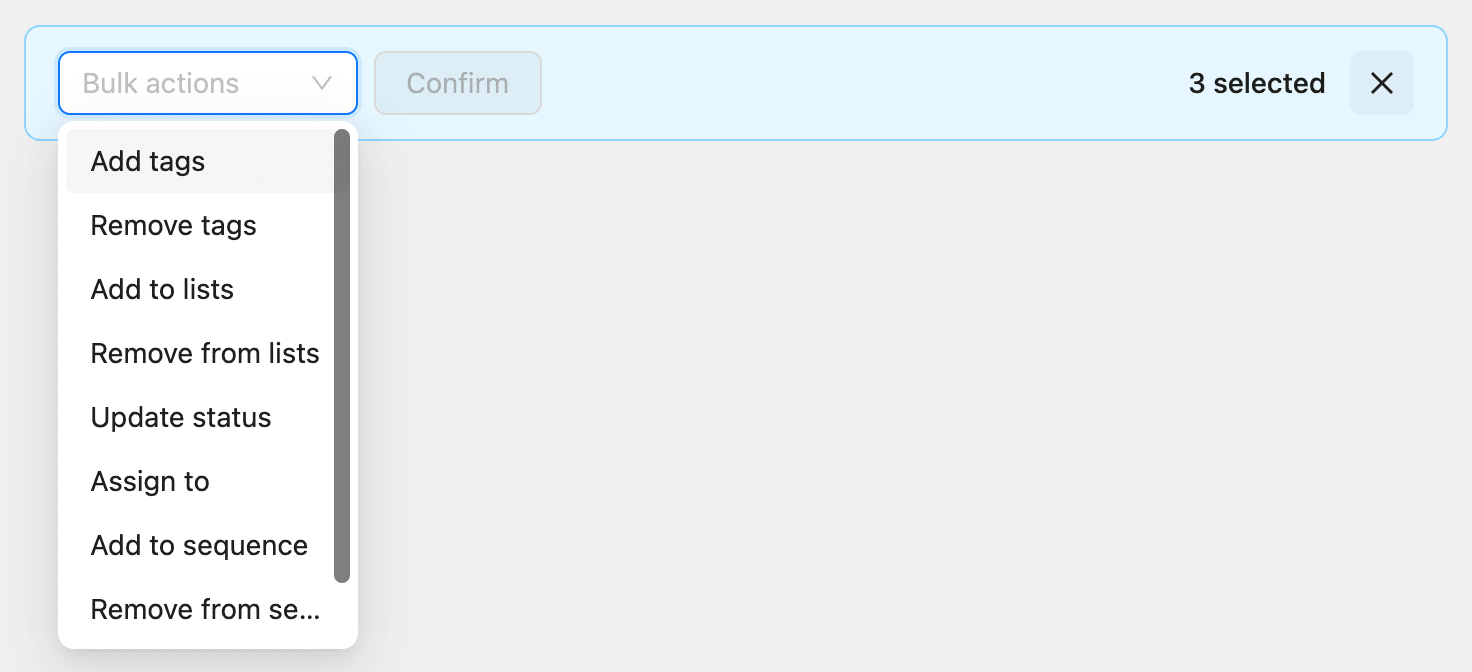
| Bulk action | What it does |
|---|---|
| Add tags / Remove tags | Adds or removes the tags you choose |
| Add to lists / Remove from lists | Adds the contacts to lists, or takes them out |
| Update status | Sets one status for every selected contact |
| Assign to | Makes one member responsible for the contacts |
| Add to sequence / Remove from sequence | Starts or stops a sequence for them. See How to build email sequences |
| Delete | Deletes the selected contacts |
Delete or erase a contact
A contact’s More actions menu (the three dots on the profile) has two ways to remove them:
- Delete removes the contact. The same address can be added again later.
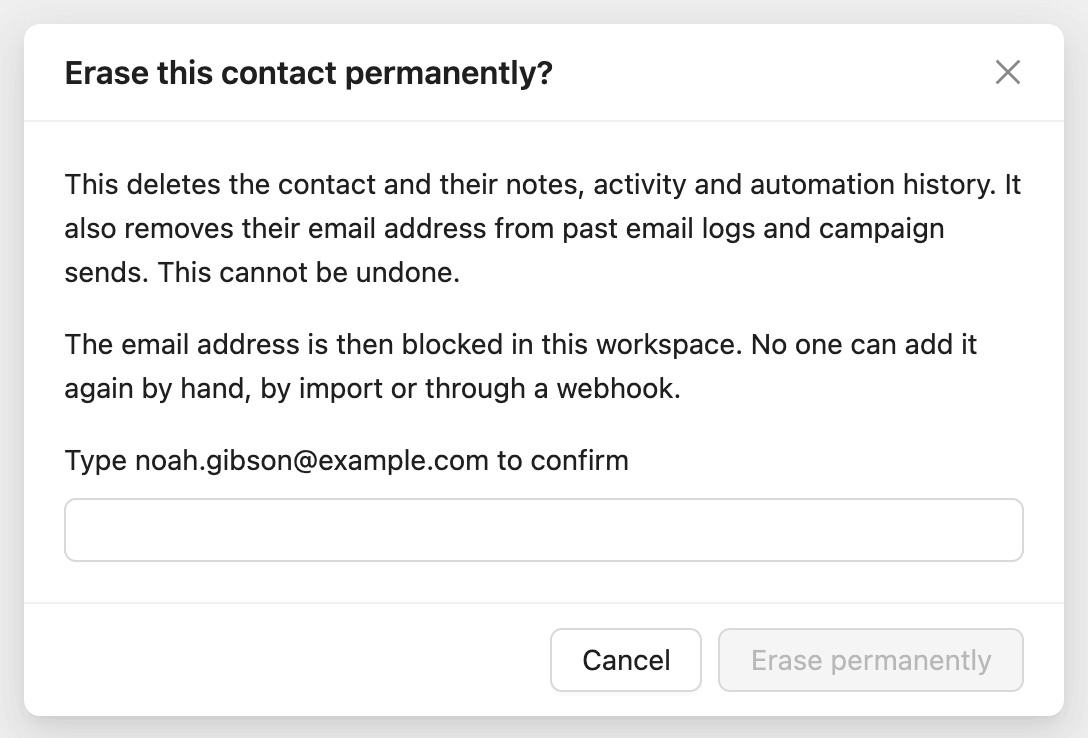
- Erase permanently also removes their notes, activity, and automation history, removes their address from past email logs and campaign sends, and blocks the address in the workspace. No one can add it again by hand, by import, or through a webhook.
To erase, type the contact’s email address to confirm, then click Erase permanently.
The same menu has Download data (GDPR), which downloads what the workspace stores about the contact, for a data access request.
Common questions
Why can’t I save a contact? A required field is empty, or another contact already has the same value in a unique field. See contact rules.
Why is Create contact unavailable? Your plan’s contact limit is reached, or your role cannot create contacts.
Can I subscribe an unsubscribed contact again? Yes, by changing their status, but only do it if they asked you to. The app asks you to confirm.