How to design email templates
- Kelune CRM Cloud
An email template is a saved design you can start any email from, such as your newsletter layout or a welcome note. Build it once, then apply it in a campaign, a sequence email, or an automation email instead of starting from a blank page.
Create a template
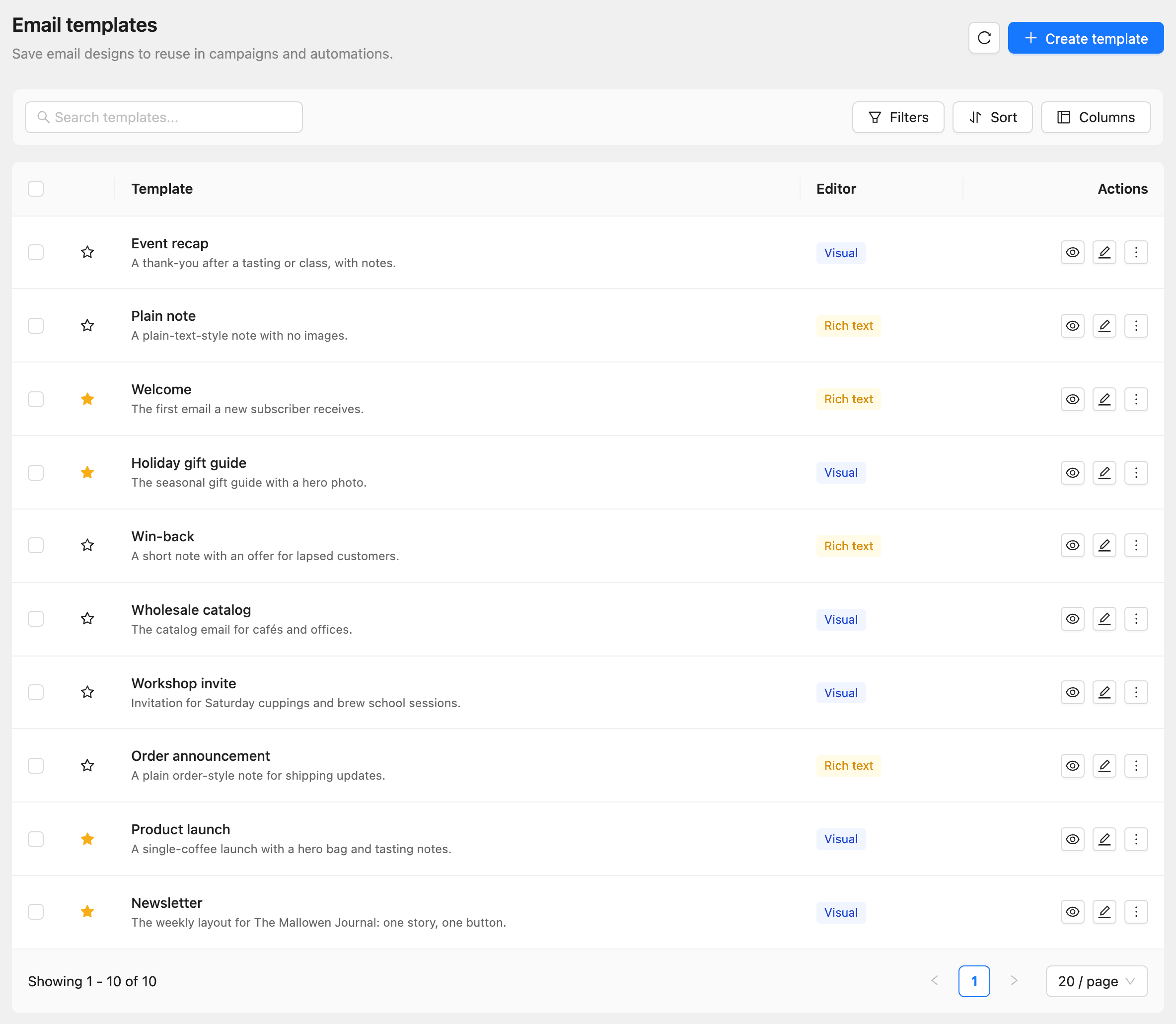
- Click Email templates in the sidebar.
- Click Create template.
- Enter a Template name and, if you like, a Description.
- To show a preview image in lists, click Upload thumbnail and choose an image from your media library.
- Click Create.
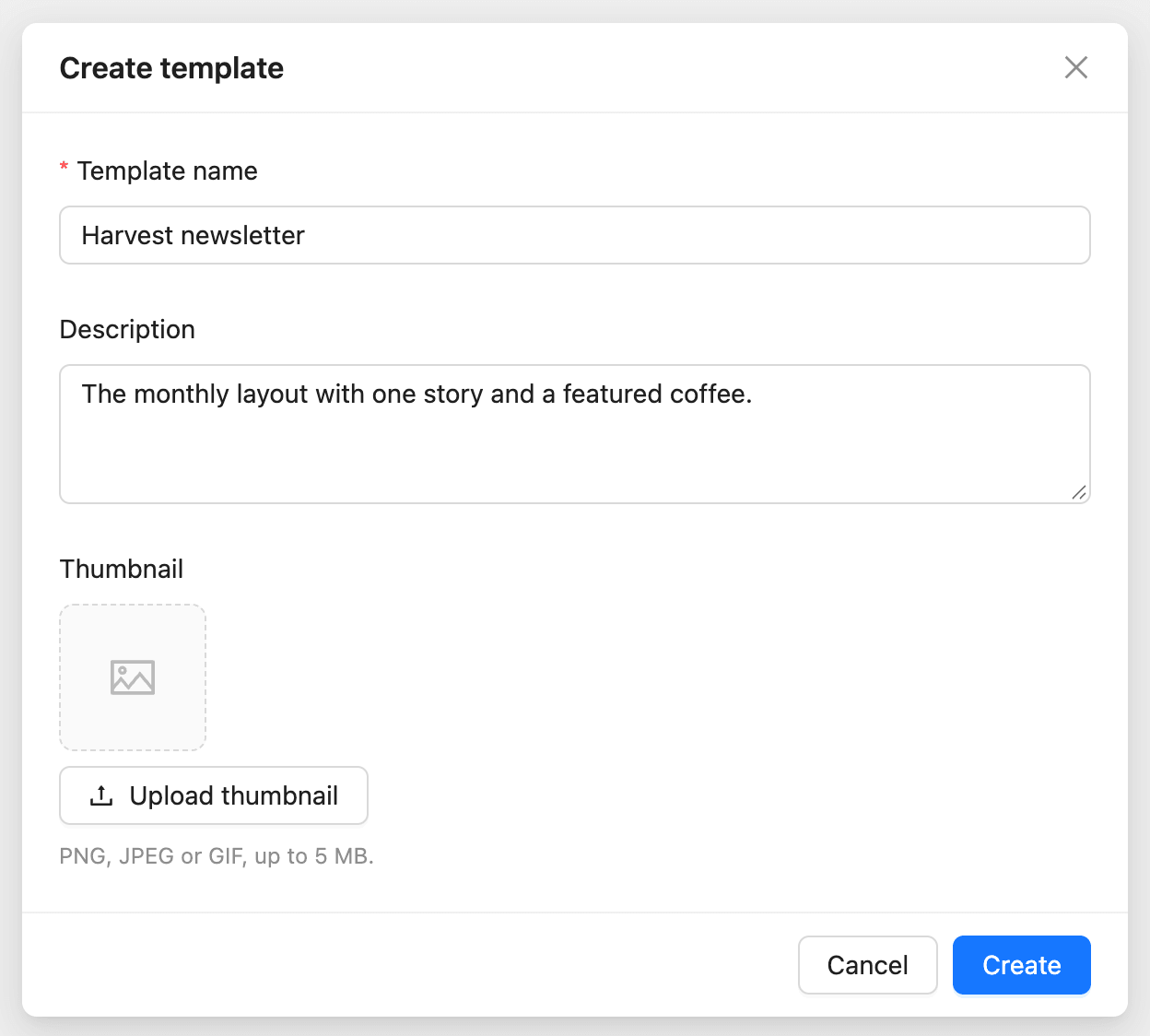
The template opens in the editor, starting in the visual editor.
Build the design
The menu above the email switches between two editors:
| Editor | Best for |
|---|---|
| Visual editor | Designed emails with columns, images, buttons, and colors. Drag blocks onto the email and set their style |
| Rich text editor | Plain, letter-style emails. Your text goes into the default email layout, with its footer |
In the visual editor:
- On the Content tab, drag a block such as Heading, Paragraph, Image, or Button onto the email.
- Click a block on the email to change its text and style in the left panel.
- To add a row with a column layout, open the Blocks tab and drag a layout onto the email.
- On the Body tab, set the Background color, Content width, and Font family for the whole email.
- Click Save.
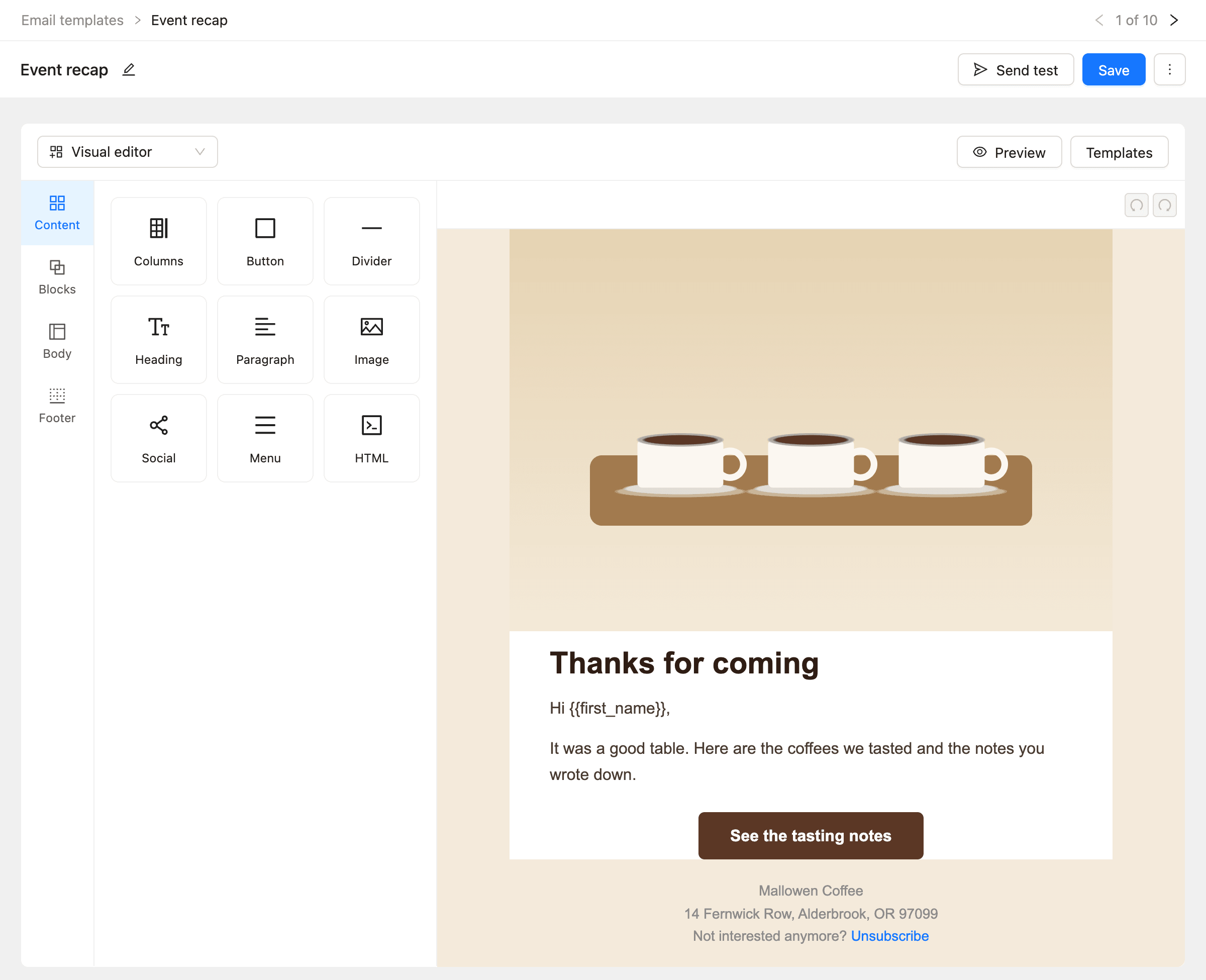
| Block | What it adds |
|---|---|
| Columns | A row split into columns, each holding its own blocks |
| Heading, Paragraph | Text |
| Image | An image from your media library or a URL, with Alternate text |
| Button | A link styled as a button |
| Divider | A horizontal line |
| Social | Icons that link to your social profiles |
| Menu | A row of text links |
| HTML | Your own HTML code |
Add merge tags
Merge tags fill in each contact’s own details when the email is sent.
- Click where the value should go.
- Click Merge tags and choose one, such as First name.
The tag appears as {{first_name}}. Contact fields, your business name and address, and your custom fields (as {{custom.your_field}}) are all in the menu.
To show a fallback when a contact has no value, add it after a bar: {{first_name|there}} shows “there” for contacts without a first name.
Set the footer
Every email ends with the workspace footer, which holds your business address and the unsubscribe link. You set it once in Global email settings.
In the visual editor, the Footer tab controls it for this design:
| Option | What it does |
|---|---|
| Show footer | Turn it off to leave the footer out of this design |
| Source: Global | Uses the workspace footer from Settings. It is added when the email is sent |
| Source: Custom | Uses the footer you write here instead |
Preview and send a test
- Click Preview to see the email at Desktop, Tablet, and Mobile widths.
- Click Send test at the top of the page.
- Enter an email address and click Send test.
The test goes out through your default email provider, with “[TEST]” before the template name as the subject. It is not sent to a contact, so contact merge tags such as {{first_name}} come out empty, or show their fallback.
Use a template
In the content step of a campaign, a sequence email, or an automation email:
- Click Templates above the email.
- Choose a template on the Custom tab, or a ready-made design on the Built-in tab.
- Click Use.
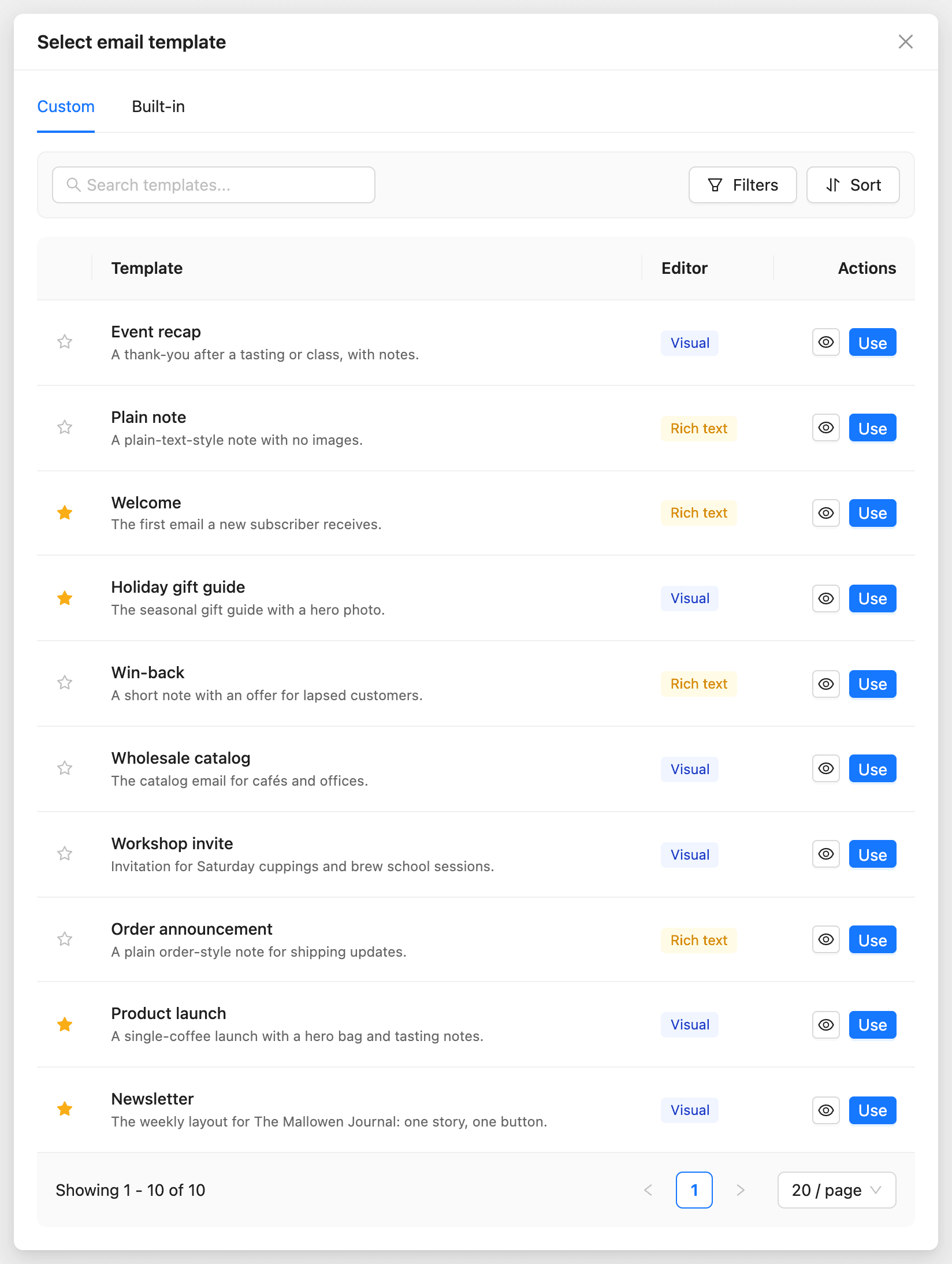
The design is copied into the email. Later changes to the template do not change emails that already use it, and editing the email does not change the template.
Manage templates
On Email templates, each row has these actions:
| Action | What it does |
|---|---|
| Star | Marks the template as a favorite. Filter by Favorite to find favorites quickly |
| Preview | Shows the design without opening the editor |
| Edit template | Opens the editor |
| Duplicate (under More actions) | Makes a copy named with “(Copy)” at the end |
| Delete (under More actions) | Deletes the template. Emails that used it keep their copy |