How to build a conditional automation
- Kelune CRM Cloud
A condition step splits an automation into two paths. Contacts who match go down the yes path and everyone else down the no path, so one automation can, for example, thank people who opened your email and send a reminder to those who did not.
Add a condition
- Open the automation on the Workflow tab.
- Click the + button where the decision should happen.
- Open the Condition tab.
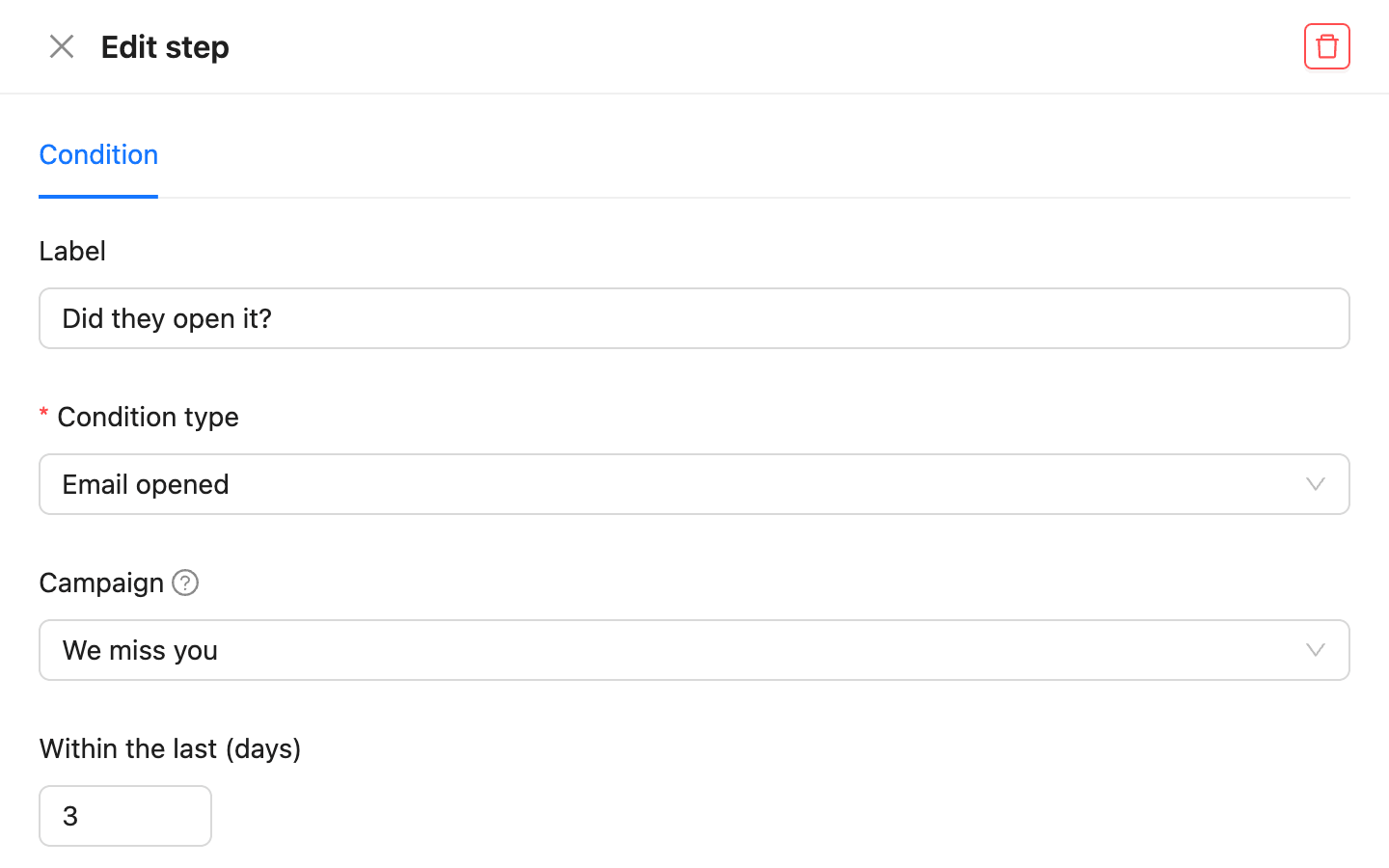
- Enter a Label, such as “Did they open it?”.
- Choose the Condition type and fill in its settings.
- Click Save.
The canvas now shows two paths under the condition, marked YES and NO. Click the + button on a path to add its steps. A path you leave empty ends the automation for the contacts who take it.
What a condition can check
| Condition type | Yes when the contact |
|---|---|
| Match rules | Matches a set of rules, as in a segment |
| Field value | Has a field or custom field that Equals, Contains, Greater than, or matches another operator against your value |
| In list, Not in list | Is, or is not, in the chosen list |
| Has tag, Does not have tag | Has, or does not have, the chosen tag |
| In segment, Not in segment | Is, or is not, in the chosen segment |
| Email opened, Email clicked | Opened, or clicked a link in, the chosen campaign (or Any email) Within the last (days) |
Text values are compared without regard to case. If a condition cannot be checked, for example because the list was deleted, the contact takes the no path.
Split contacts at random
Choose A/B split to send contacts down path A or path B by chance, for example to compare two welcome emails. Set the Path A share; path B gets the rest. Compare the emails on the automation’s Report tab.
Wait until they do something
Choose Wait until (goal) to hold contacts until they act, up to a time limit:
- Under Wait for, choose the event, such as They click a link in an email or A tag is added.
- Choose what it applies to, such as a campaign, or leave it on any.
- Set Wait at most, such as 3 days.
- Click Save.
Contacts who do it go down the path marked MET right away. Contacts who have not done it when the time is up go down TIMED OUT. Contacts who already have the tag or list when they reach the step move on at once.
| Wait for | Met when the contact |
|---|---|
| A tag is added | Gets one of the chosen tags |
| They join a list | Joins one of the chosen lists |
| They open an email, They click a link in an email | Opens, or clicks a link in, the chosen campaign or any email |
| They click a smart link | Clicks the chosen smart link |
| A webhook sends them | Is sent by an incoming webhook |
| Completes a sequence | Gets the last email of the chosen sequence |
Change or remove a condition
Click the condition to change its settings.
To delete it, open its menu (the three dots) and click Delete. If its paths have steps, choose which path to keep: its steps move up into the condition’s place, and the other path’s steps are deleted.
Example: a win-back
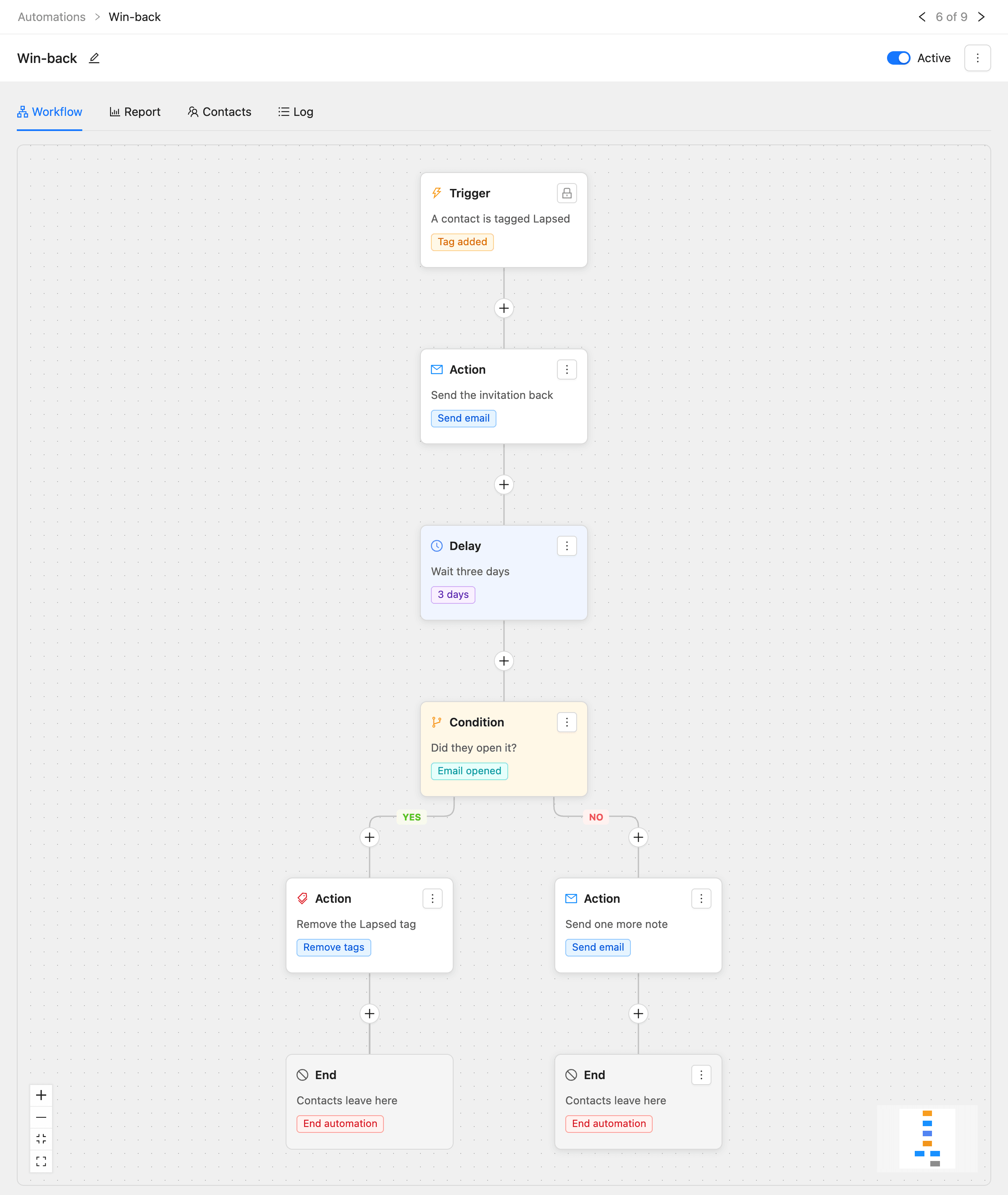
The demo “Win-back” automation shows a common pattern:
- Trigger: Tag added, “Lapsed”.
- Send email: an invitation to come back.
- Delay: 3 days.
- Condition: Email opened, the invitation, within the last 3 days.
- Yes path: Remove tags, “Lapsed”.
- No path: Send email, one more note, then End automation.