How to create your Kelune CRM Cloud account
- Kelune CRM Cloud
Kelune CRM Cloud is the hosted edition of Kelune CRM. You sign up in the browser, create a workspace, and start adding contacts. There is nothing to install or update.
A new workspace starts on the Free plan, and sign-up needs no credit card.
Sign up
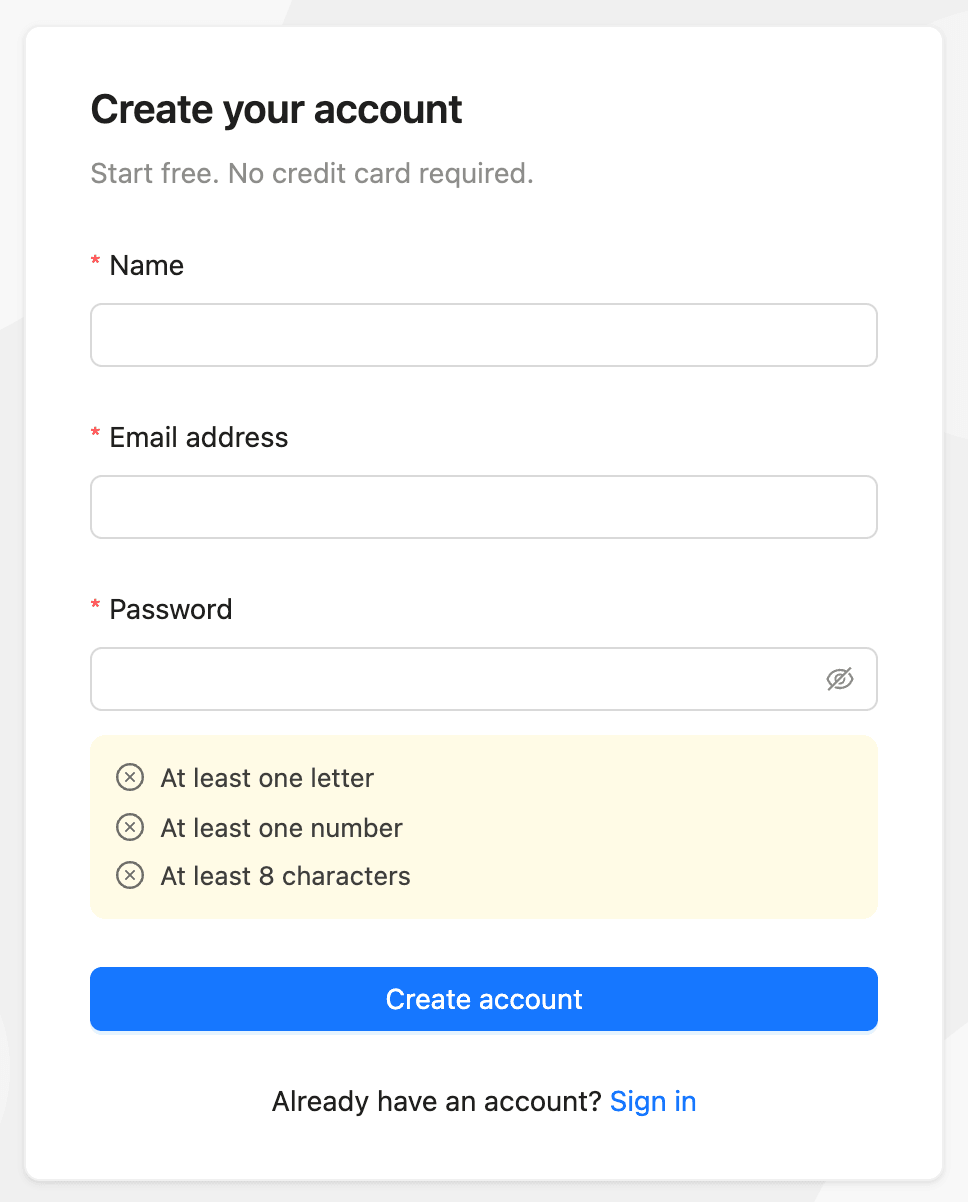
- Go to app.kelunecrm.com/register.
- Enter your Name.
- Enter your Email address.
- Enter a Password. The rules under the field turn green as you meet them: At least one letter, At least one number, and At least 8 characters.
- Click Create account.
Verify your email
Kelune CRM Cloud sends a 6-digit code to the address you signed up with, and the Verify your email screen opens.
- Enter the code from the email in Verification code, or click the link in the same email.
- Click Verify email.
If the email does not arrive, click Resend next to “Didn’t get the code in the email?”. The button counts down before you can use it again.
If you typed the wrong address, click Change next to “Wrong email address?”, enter the correct address, and click Send code. The old code stops working.
Create your first workspace
A workspace holds its own contacts, campaigns, automations, and team. The plan and billing belong to the workspace, not to your account.
- On Create your first workspace, enter a Workspace name of at least 2 characters, such as your business name.
- Click Create the workspace.
If someone has already invited you, a You have been invited card appears above the form. Click Join to accept an invitation, or Decline to refuse it. You can still create your own workspace from the same page.
The new workspace opens on the setup wizard. It asks for your business details, your sender, and your first lists and tags. See How to finish the workspace setup wizard.
Sign in
- Go to app.kelunecrm.com/login.
- Enter your Email address and Password.
- Click Sign in.
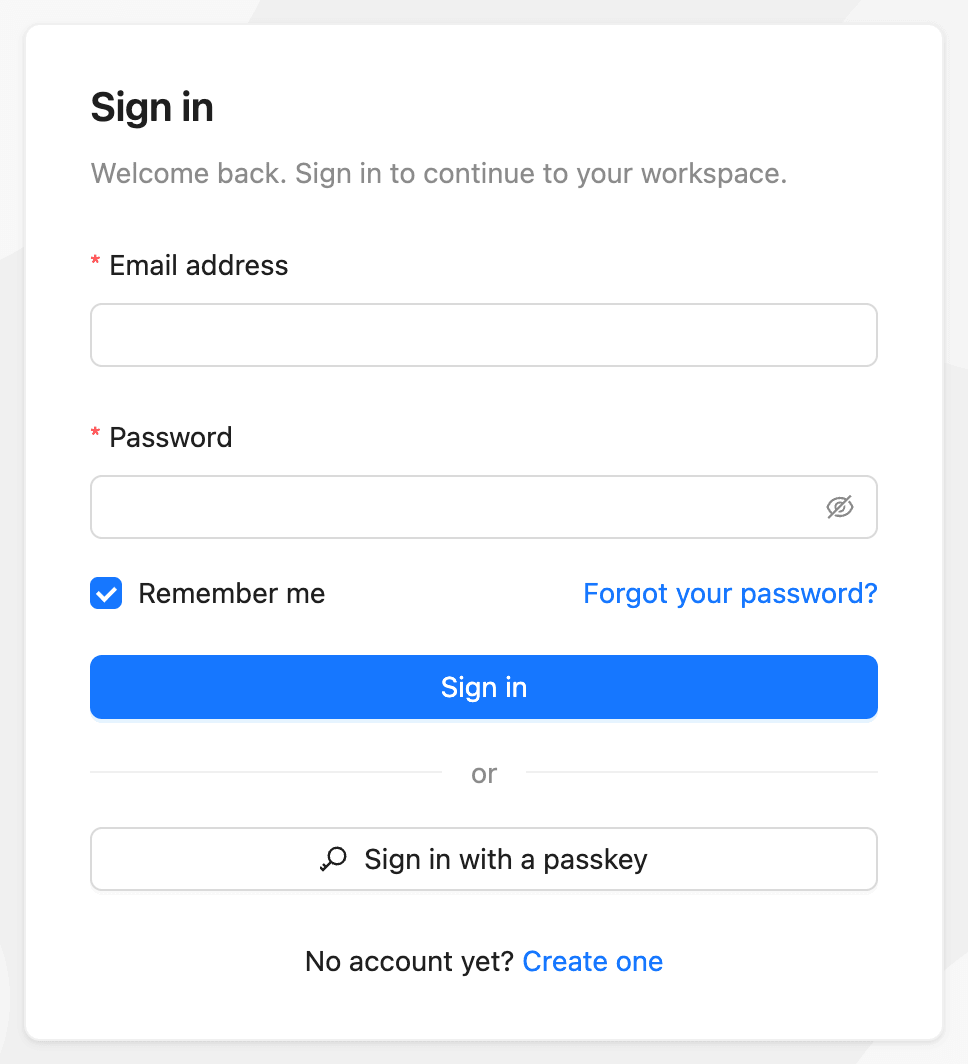
- Keep Remember me selected to stay signed in on that device.
- If you added a passkey, click Sign in with a passkey instead of typing your password.
- If two-factor authentication is on, enter the code from your authenticator app or one of your recovery codes on the next screen.
To add a passkey or turn on two-factor authentication, see How to secure your account.
Reset a forgotten password
- On the sign-in form, click Forgot your password?.
- Enter your Email address and click Send the link.
- Open the email and click the link.
- Enter a New password and click Save the password.
Each reset link works once and expires after one hour. If it has expired, click Request another link.
Switch between workspaces
The current workspace’s name appears under the Kelune CRM logo at the top of the sidebar.
- Click the workspace name.
- Select another workspace. Each one shows your role in it.
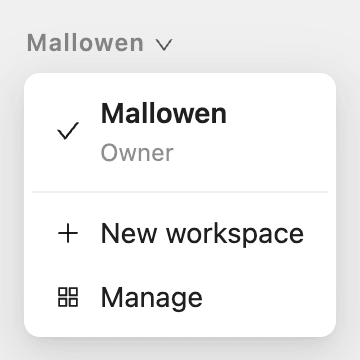
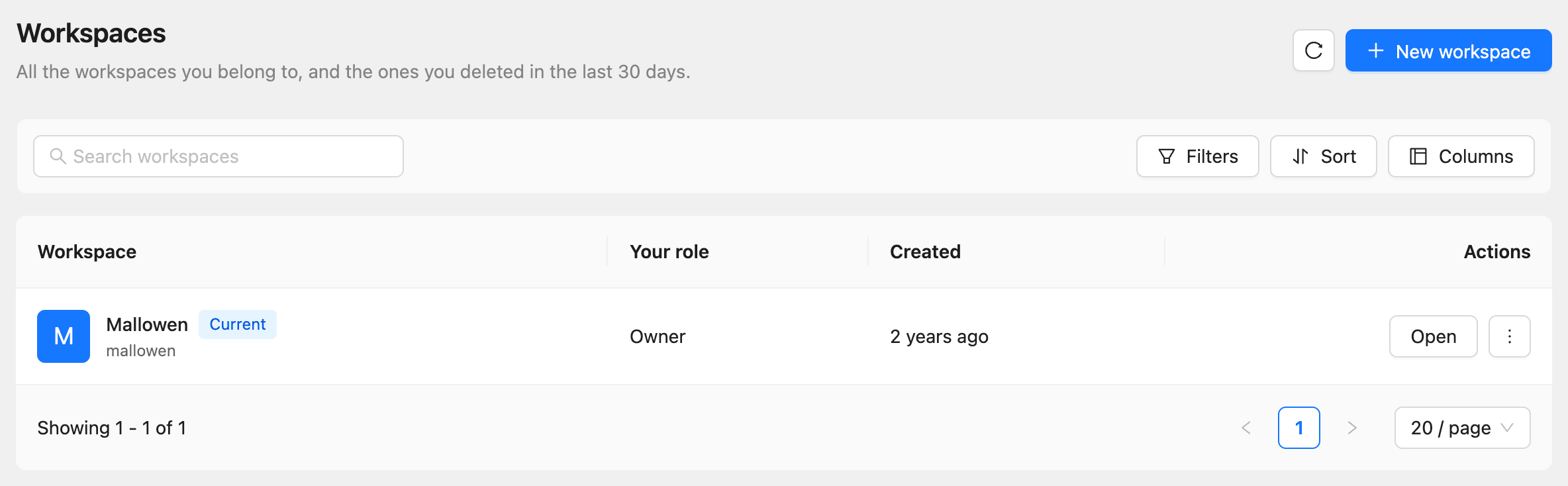
The same menu has New workspace, to create another workspace, and Manage, which opens the Workspaces page. That page lists every workspace you belong to, and the ones you deleted in the last 30 days. You can also open it from Workspaces at the bottom of the sidebar.
Common questions
I did not get the verification email. Check your spam folder, then click Resend. If the address is wrong, use Change to correct it.
Can I sign in with Google? No. Kelune CRM Cloud signs you in with your email address and password, or with a passkey.
Can I use the same account in several workspaces? Yes. One account can belong to any number of workspaces, each with its own role.