How to create API keys
- Kelune CRM Cloud
An API key lets your own code, or an app you connect, read and change this workspace’s data without signing in, for example to sync contacts from your shop every night. Each key has a role that limits what it can do.
Create a key
- Click Settings in the sidebar.
- Under Advanced, click API keys.
- Click Create API key.
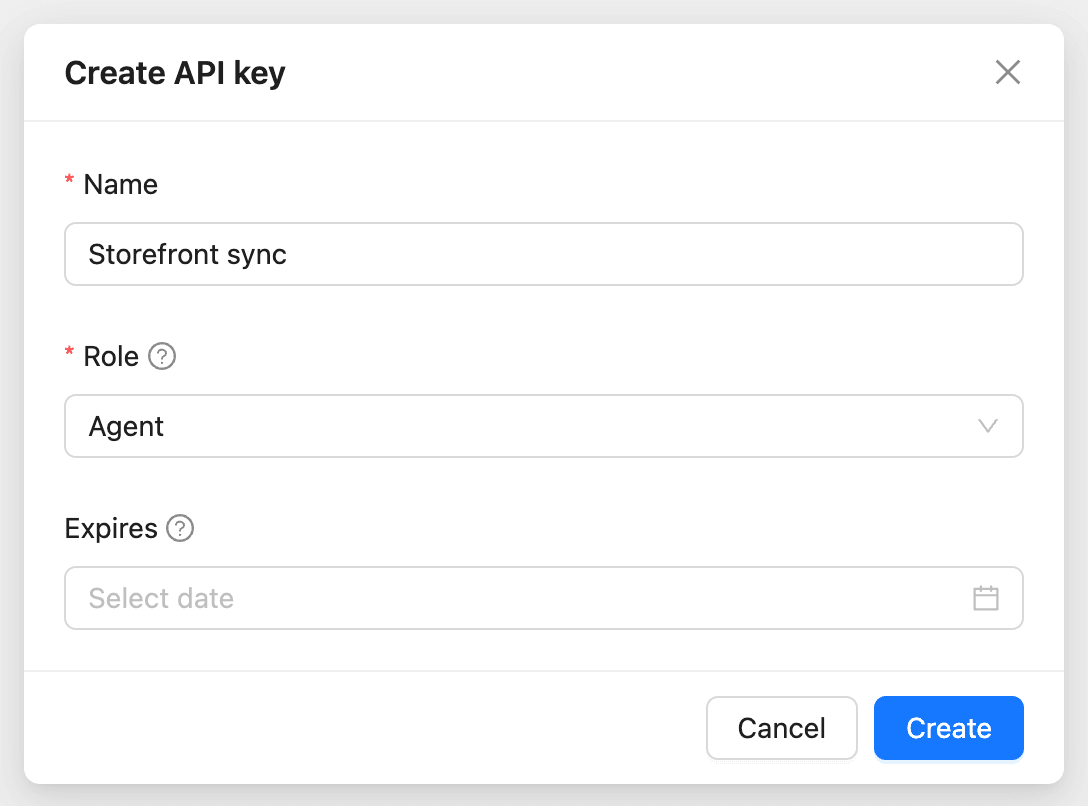
- Enter a Name that says what uses it, such as “Storefront sync”.
- Choose a Role. The key can do what this role allows, and never more than you can.
- To make the key stop working on a date, set Expires. Leave it empty for a key that does not expire.
- Click Create.
The key appears once. Click the copy button, store it somewhere safe, such as your app’s secret settings, and click I have copied it.
Use the key
Send the key in the Authorization header of every request:
curl "https://app.kelunecrm.com/api/v1/contacts" \ -H "Authorization: Bearer YOUR_API_KEY"The key already names its workspace, so request paths start at /api/v1/ without the workspace address. Each request counts as one API call.
| Response | What it means |
|---|---|
401 |
The key is not valid: wrong, expired, or revoked |
402 |
The plan’s limit is reached, such as API calls per billing period |
403 |
The key’s role does not allow this, or the action needs a signed-in member |
429 |
More than 600 requests in a minute with this key. Wait and try again |
Some actions always need a person signed in to the app and never work with a key: managing API keys, members, invitations, and roles, and editing or deleting the workspace.
Choose the right role
Give each key the smallest role that does its job. A reporting tool that only reads data can use Viewer; a sync that adds contacts needs a role that can create and edit contacts. You can make a custom role for a key; see How to set roles and permissions.
A key acts on behalf of the member who created it. If that member’s own role changes, the key can never do more than they can now. If they leave the workspace, the key stops working.
See and revoke keys
The API keys page lists every key with its Role, who created it, when it was Last used, and when it Expires.
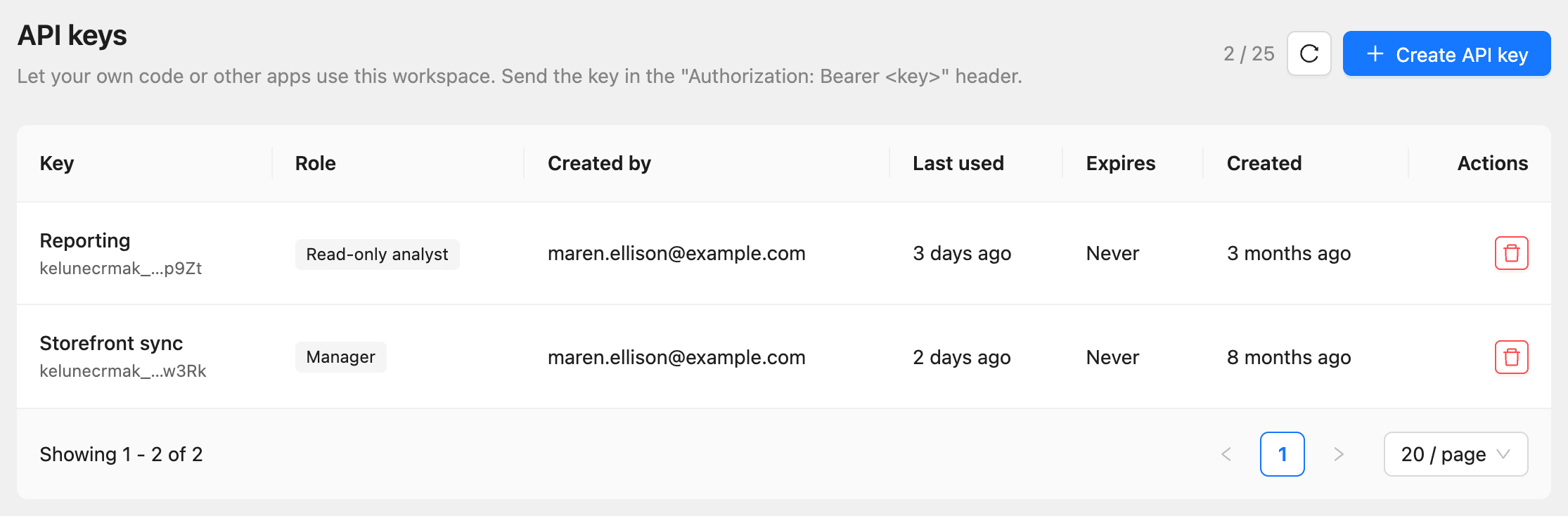
To revoke a key, click the delete button (Revoke) in its row and confirm. Anything using the key stops working right away. Keys cannot be edited or shown again; to change one, create a new key and revoke the old one.
Creating and revoking keys is recorded in the audit log, and so are the changes a key makes that the log records.