How to import contacts
- Kelune CRM Cloud
Use the importer to bring an existing audience into your workspace from a .csv or .xlsx file. The import has three steps: Upload file, Map fields, and Result.
Prepare the file
- Put the column names in the first row, and one contact on each row after it.
- Include an email column. Email is always unique, and it is required unless your contact rules say otherwise.
- To add contacts to lists or tags, give them a column with the names separated by commas, such as
Wholesale, Espresso lover. Lists and tags that do not exist yet are created. - For notes, separate two notes with a blank line inside the cell.
- Save spreadsheets as CSV (UTF-8) or
.xlsx.
Step 1: Upload the file
- Click Contacts in the sidebar.
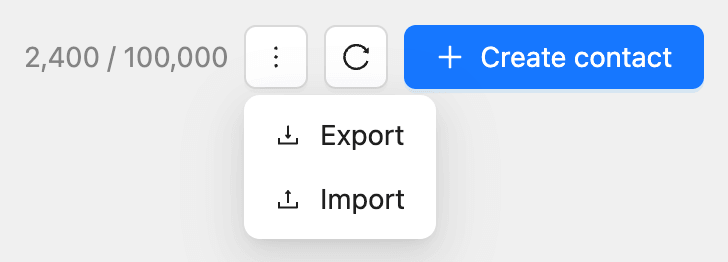
- Click the More button (the three dots) at the top right.
- Click Import.
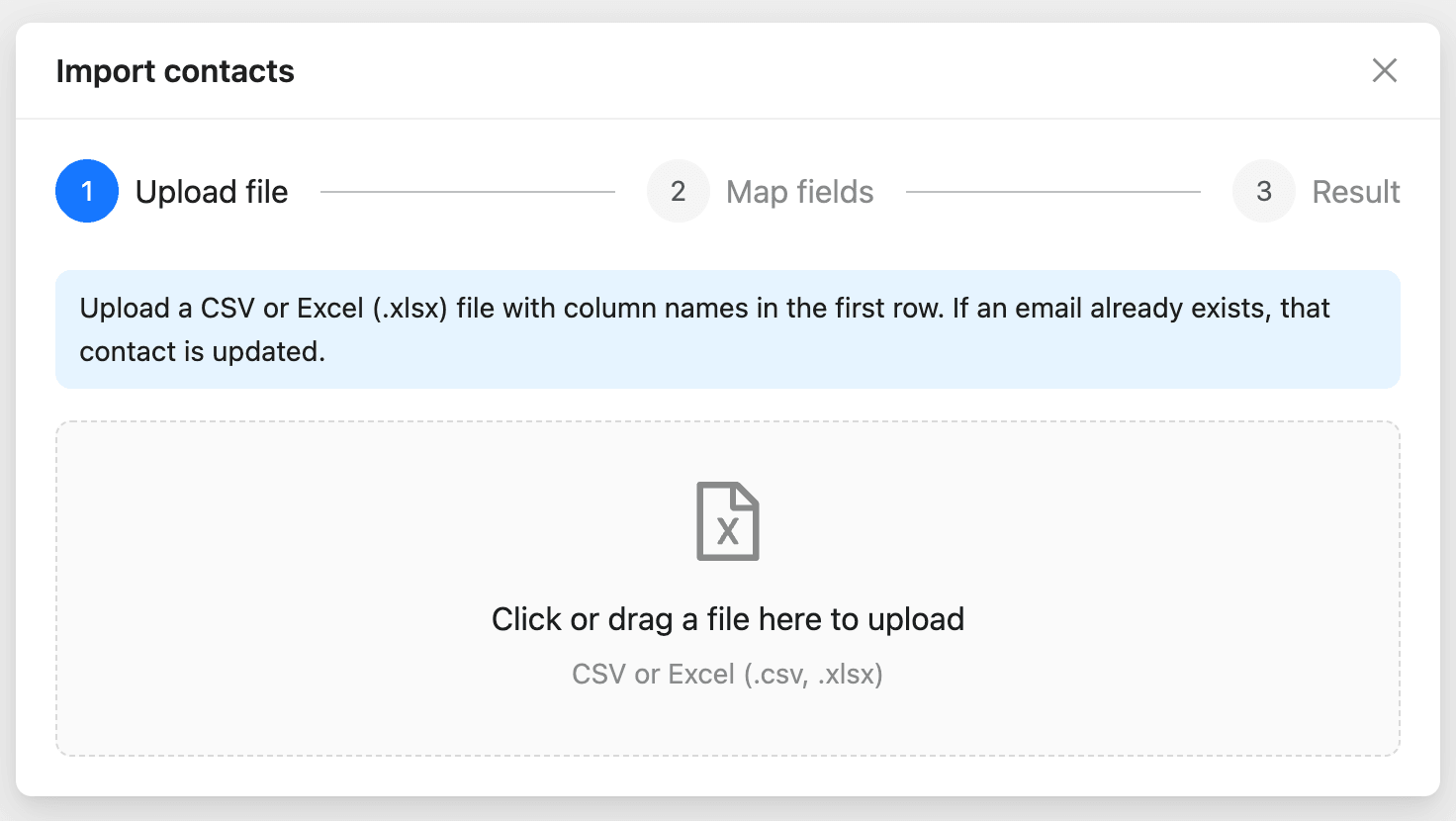
- Drag the file onto the box, or click it and choose the file.
Step 2: Map the columns
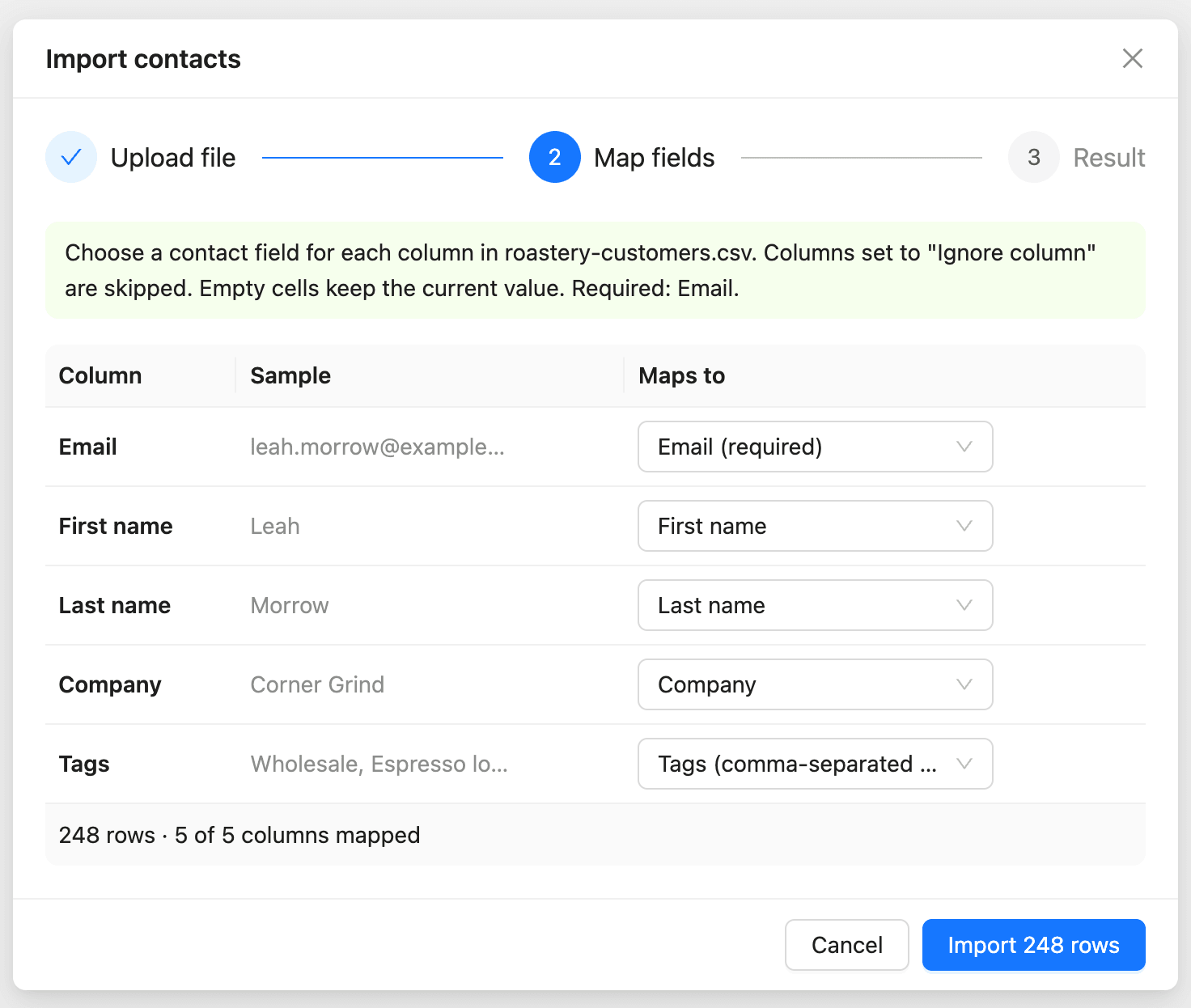
The importer lists each column with a sample value from the first row. Columns whose names match a contact field are mapped already.
- For each column, choose a contact field under Maps to.
- Choose – Ignore column – for a column you do not want to import.
- Check the line under the table, such as “248 rows · 5 of 5 columns mapped”.
- Click Import 248 rows. The button shows your file’s row count.
Besides the standard fields and your custom fields, a column can map to:
| Field | What the column holds |
|---|---|
| Lists (comma-separated names) | List names. Missing lists are created |
| Tags (comma-separated names) | Tag names. Missing tags are created |
| Notes (a blank line between notes) | One or more notes for the contact |
| Assigned to (member’s email or name) | The member the contact is assigned to |
| Status | active, pending, unsubscribed, bounced, or complained |
The importer stops you if a required field has no column. The message names the fields still needed.
How existing contacts are handled
- A row whose email matches an existing contact updates that contact.
- A row that matches no one creates a contact. Without a status column, new contacts are Active.
- An empty cell keeps the contact’s current value.
- A row that breaks a rule is skipped, and the rest of the file still imports.
Step 3: Review the result
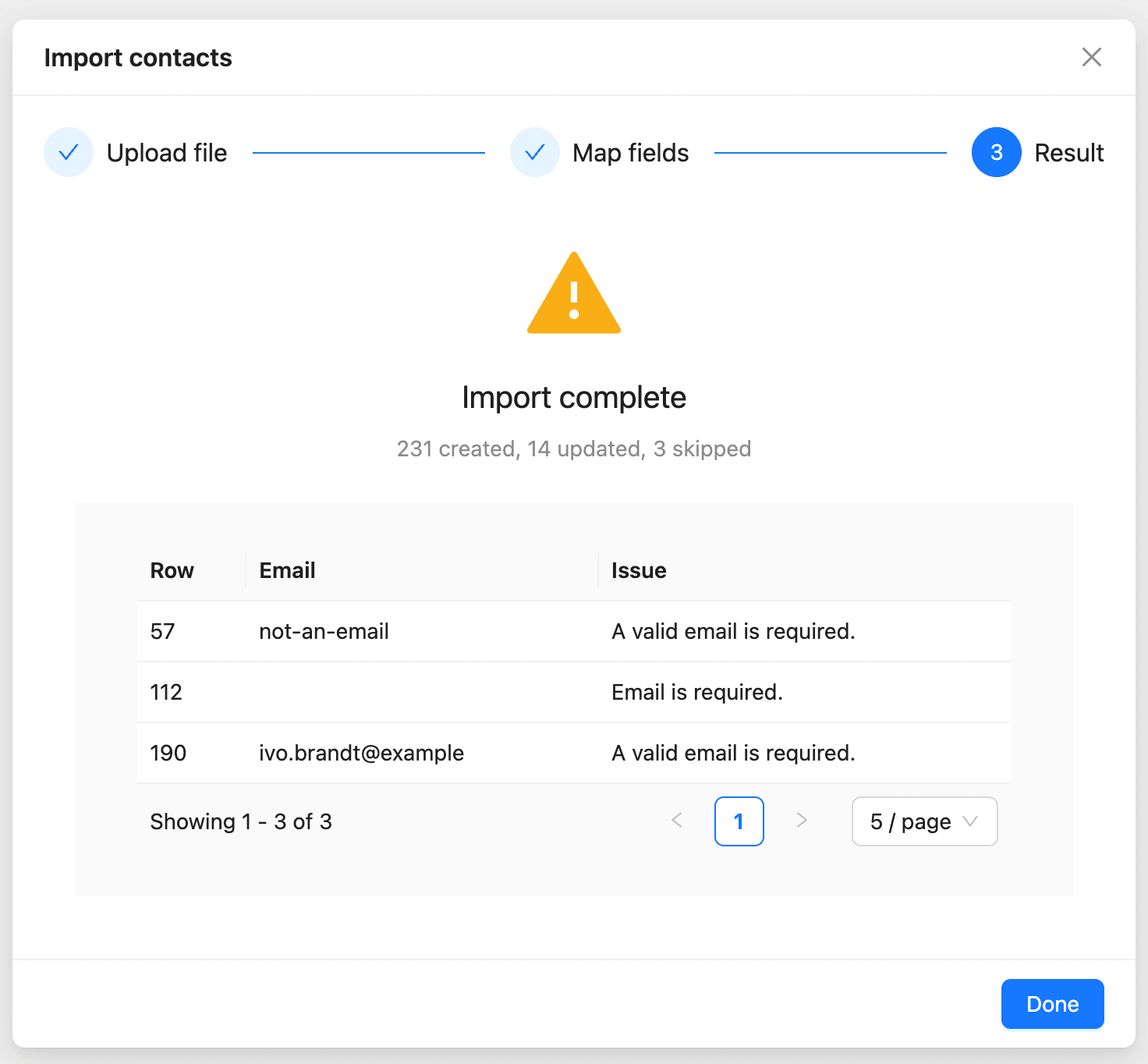
The Result step shows progress while rows are imported, then a summary such as “231 created, 14 updated, 3 skipped”. Each skipped row is listed with its row number, email, and the reason.
You can close the window while a large import runs. It keeps going in the background.
Troubleshooting
| Message | What to do |
|---|---|
| “Upload a .csv or .xlsx file.” | Save the file as CSV or Excel and upload it again |
| “The file needs a header row and at least one data row.” | Add column names in the first row |
| “The file could not be parsed as CSV.” | Open the file in a spreadsheet app and save it again as CSV (UTF-8) |
| “A valid email is required.” | Fix the address in that row and import the file again. Rows already imported are updated, not duplicated |
| “Email is required.” | Add the missing address, or change the required fields in your contact rules |
Plan limits
Each plan limits the number of contacts, the rows in one import, and the imports per hour. When an import would go past the contact limit, the rows over it are skipped. See How to check plans, usage, and billing.