How to check queue health
- Kelune CRM Cloud
Kelune CRM Cloud sends campaigns, runs automation steps, and refreshes segments in the background. Queue health shows whether that work keeps up, so you can tell a slow send from a stuck one.
Open queue health
- Click Settings in the sidebar.
- Under System, click Queue health.
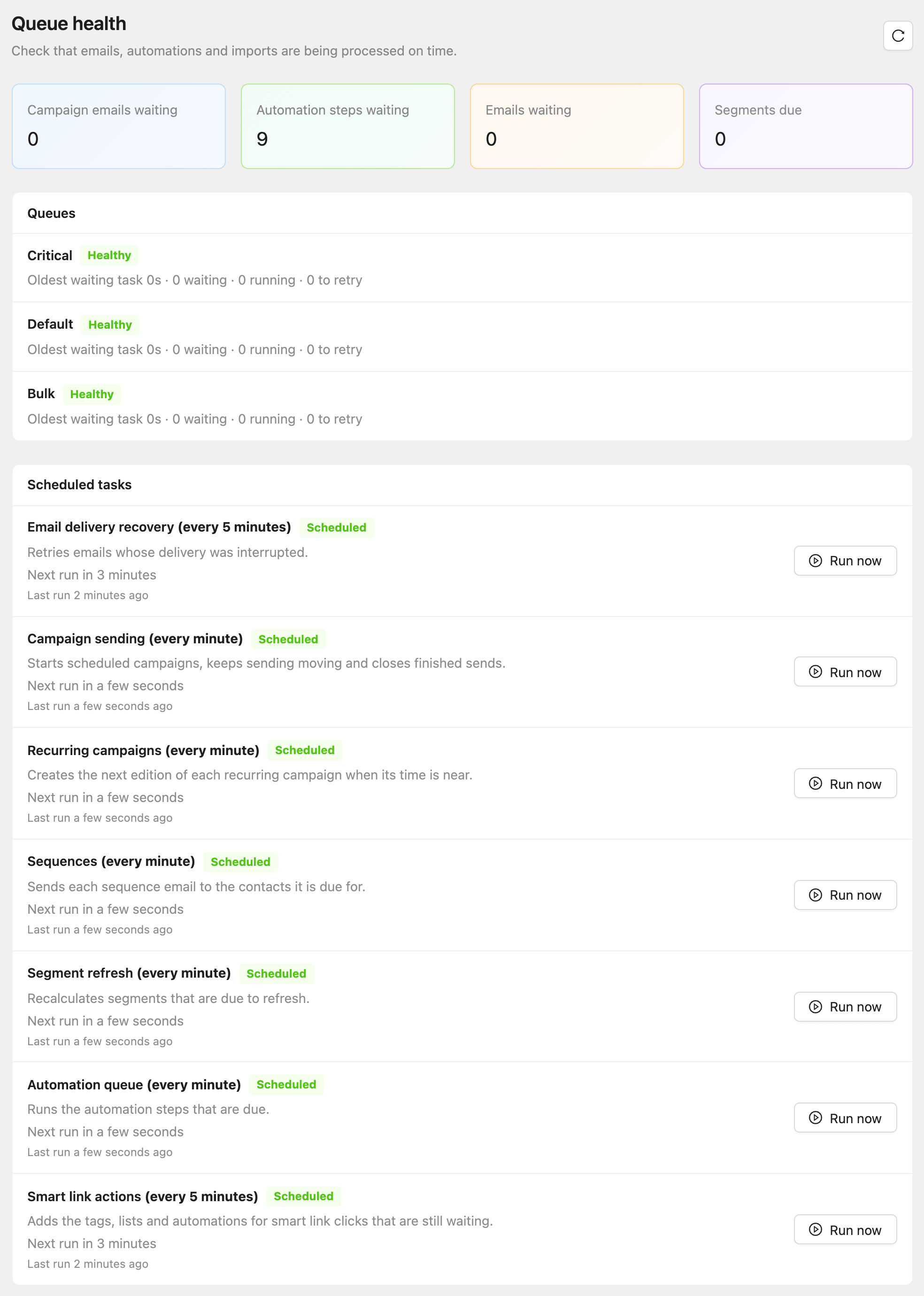
The page refreshes by itself every 30 seconds. Click the refresh button to update it now.
What the page shows
The cards at the top count this workspace’s waiting work:
| Card | What it counts |
|---|---|
| Campaign emails waiting | Campaign emails queued or being sent |
| Automation steps waiting | Automation steps due or running. Steps due more than 15 minutes ago are shown as overdue |
| Emails waiting | Other emails still queued from the last 7 days |
| Segments due | Segments due for their automatic refresh. Those more than an hour late are shown as stale |
Queues shows the three lines all background work goes through:
| Queue | What it carries | Shown as Delayed after |
|---|---|---|
| Critical | Account emails, tests, and confirmations | 1 minute |
| Default | Automation and sequence emails and steps | 2 minutes |
| Bulk | Campaign sends, segment refreshes, imports, and exports | 10 minutes |
Scheduled tasks lists the tasks that run every minute or every five minutes, such as Campaign sending and Sequences, with when each one last ran and runs next.
When something looks stuck
- Bulk is Delayed during a large campaign. That is expected: campaign sends take turns with other work. Check again in a few minutes.
- One task looks late. Click Run now on it once, then refresh. It only starts the task’s next run sooner.
- A task shows Overdue or Not scheduled, or the page says background processing is stopped. The background service is down, and nothing you do here will fix it. Contact support.
- Overdue automation steps or stale segments stay while every queue is Healthy. Contact support.