How to read email logs and reports
- Kelune CRM Cloud
Email logs records every email the workspace sends: campaigns, sequences, automations, tests, and opt-in emails. Use it to answer “did this person get my email?” Campaign and sequence reports add up the same records into open, click, and bounce figures.
Find an email
- Click Email logs in the sidebar.
- Type a recipient’s address or a subject in Search by subject, recipient….
- Click Filters to narrow by Type, Status, Provider, or Date range.
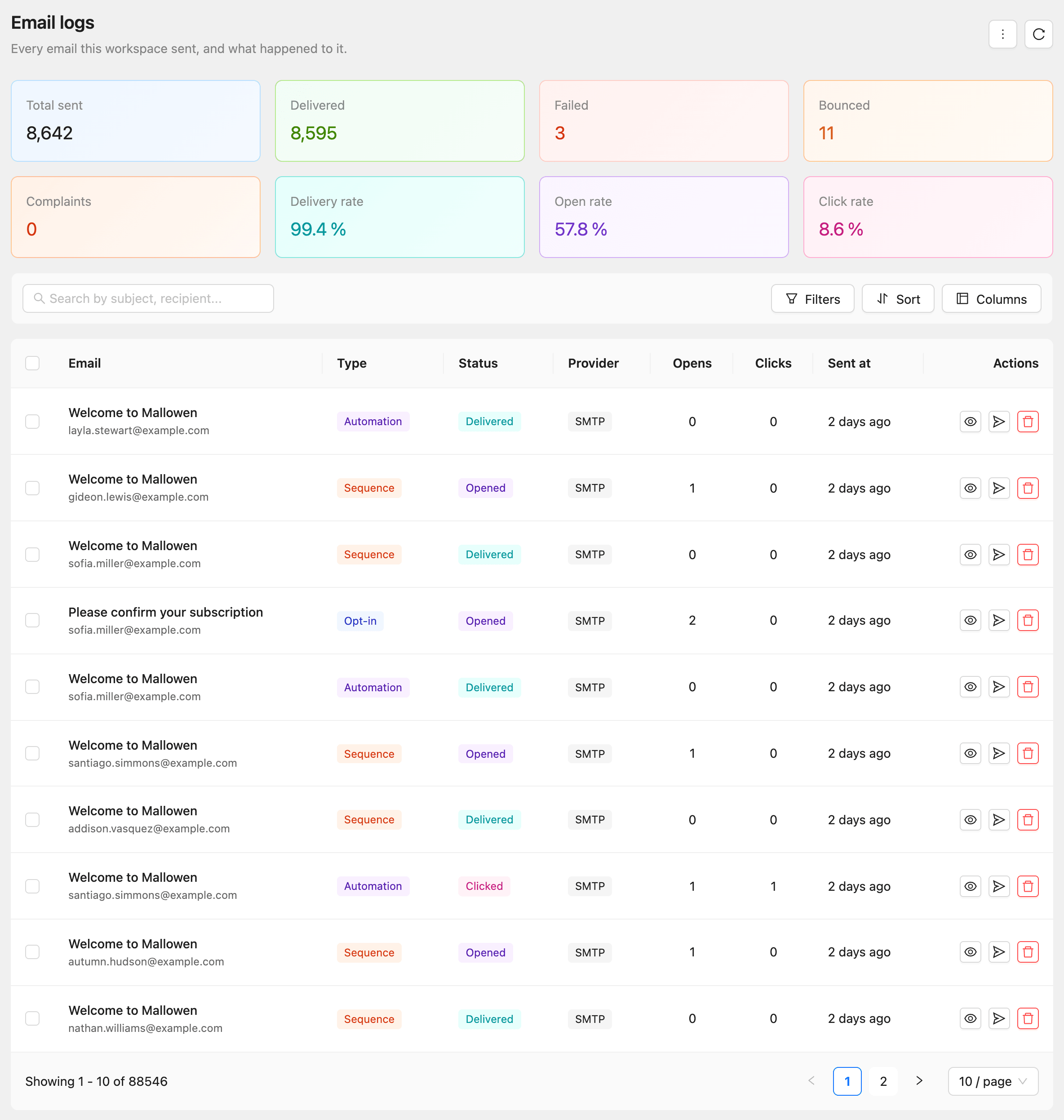
The cards at the top cover the chosen date range, or the last 30 days when none is set.
| Status | What it means |
|---|---|
| Queued | Waiting to be sent |
| Sent | Handed to your email provider |
| Delivered | Your provider confirmed it was delivered |
| Opened | The recipient opened it |
| Clicked | The recipient clicked a link |
| Bounced | The inbox server refused it |
| Failed | It could not be sent. The details show the error |
| Canceled | It was never sent, for example because its campaign was canceled |
See one email’s details
Click the eye button (View) in a row.
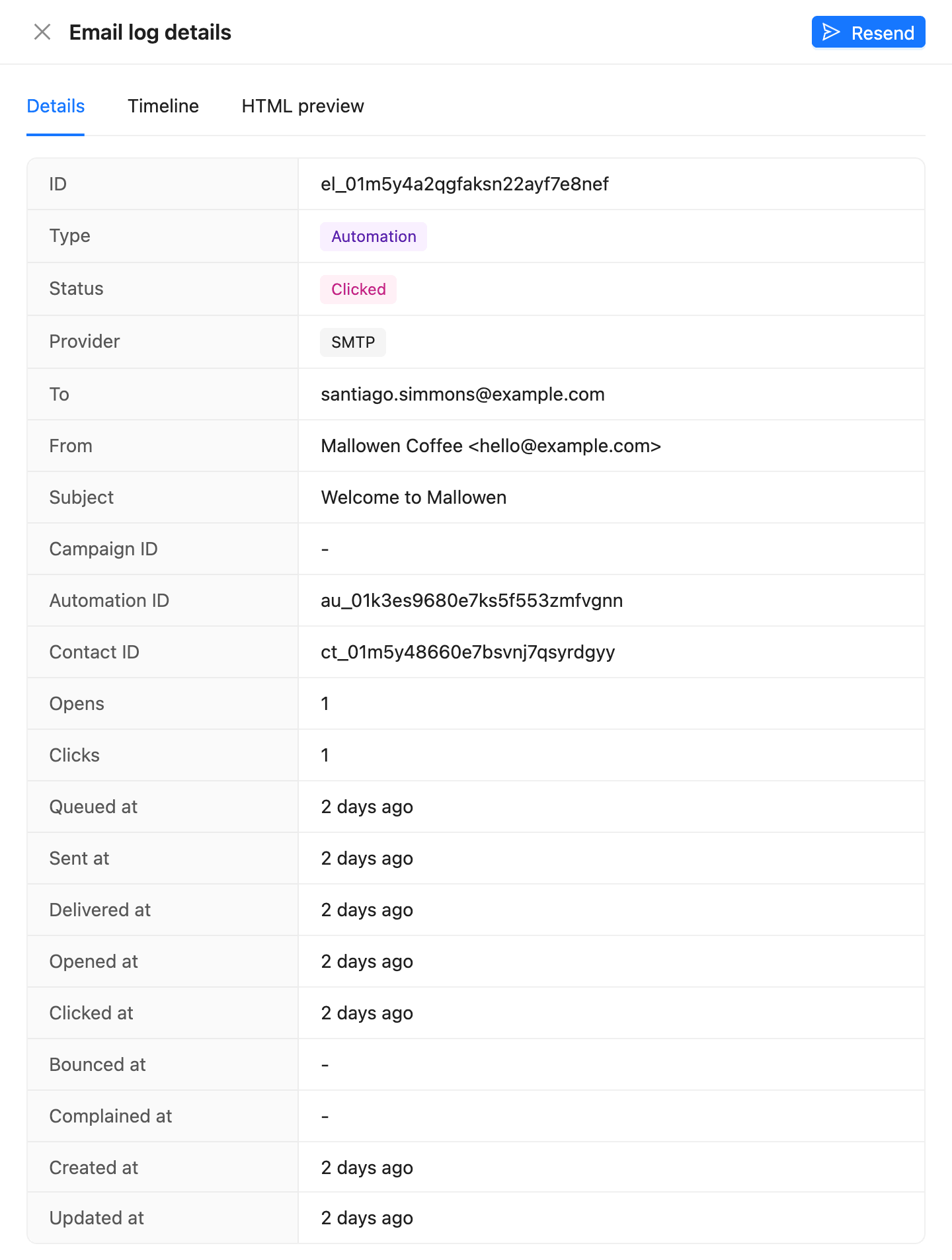
| Tab | What it shows |
|---|---|
| Details | Who it went to and from, the provider, the related campaign or automation, and the time it was queued, sent, delivered, opened, clicked, or bounced |
| Timeline | The same events in order, with the number of opens and clicks |
| HTML preview | The email exactly as it was sent |
Resend, export, or delete
- Resend sends the same email to the recipient again, as a new log entry. It counts toward your email limits, and it is refused if the contact no longer accepts email.
- Export (under More at the top right) downloads the logs that match your filters as a CSV file. Times are in UTC.
- Delete removes a log entry. An email still being sent cannot be deleted.
How the figures are counted
Campaign reports, sequence email reports, and Analytics count opens and clicks the same way:
| Figure | How it is counted |
|---|---|
| Total sent | Emails delivered plus emails that bounced |
| Delivered | Emails your provider accepted |
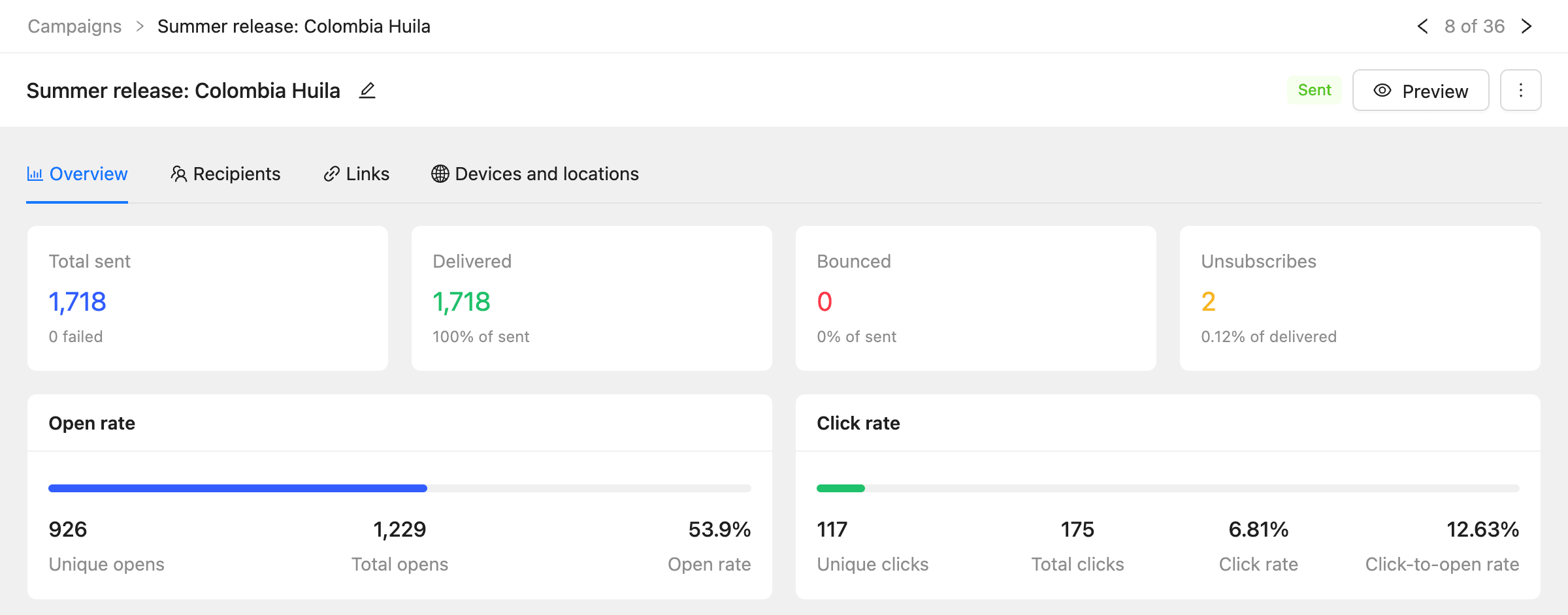
| Open rate | Unique opens divided by delivered emails |
| Click rate | Unique clicks divided by delivered emails |
| Click-to-open rate | Unique clicks divided by unique opens |
| Bounced | Bounced emails, as a share of total sent |
| Unsubscribes | Contacts who unsubscribed through this email, as a share of delivered |
A unique open or click is one per recipient; the total counts every open and click. A click also counts as an open when the open was not recorded, for example because images were blocked.
Opens and clicks made by software do not count. Kelune CRM Cloud leaves out link scanners, link previews, and the automatic opens of mail privacy features, so your rates reflect people. Opens through image proxies such as Gmail’s still count, without a device or location.
To turn open or click tracking off, see How to set up general settings.
Read a campaign’s report
Open a campaign from Campaigns. The Overview tab shows the figures above, with Opens and clicks over time.
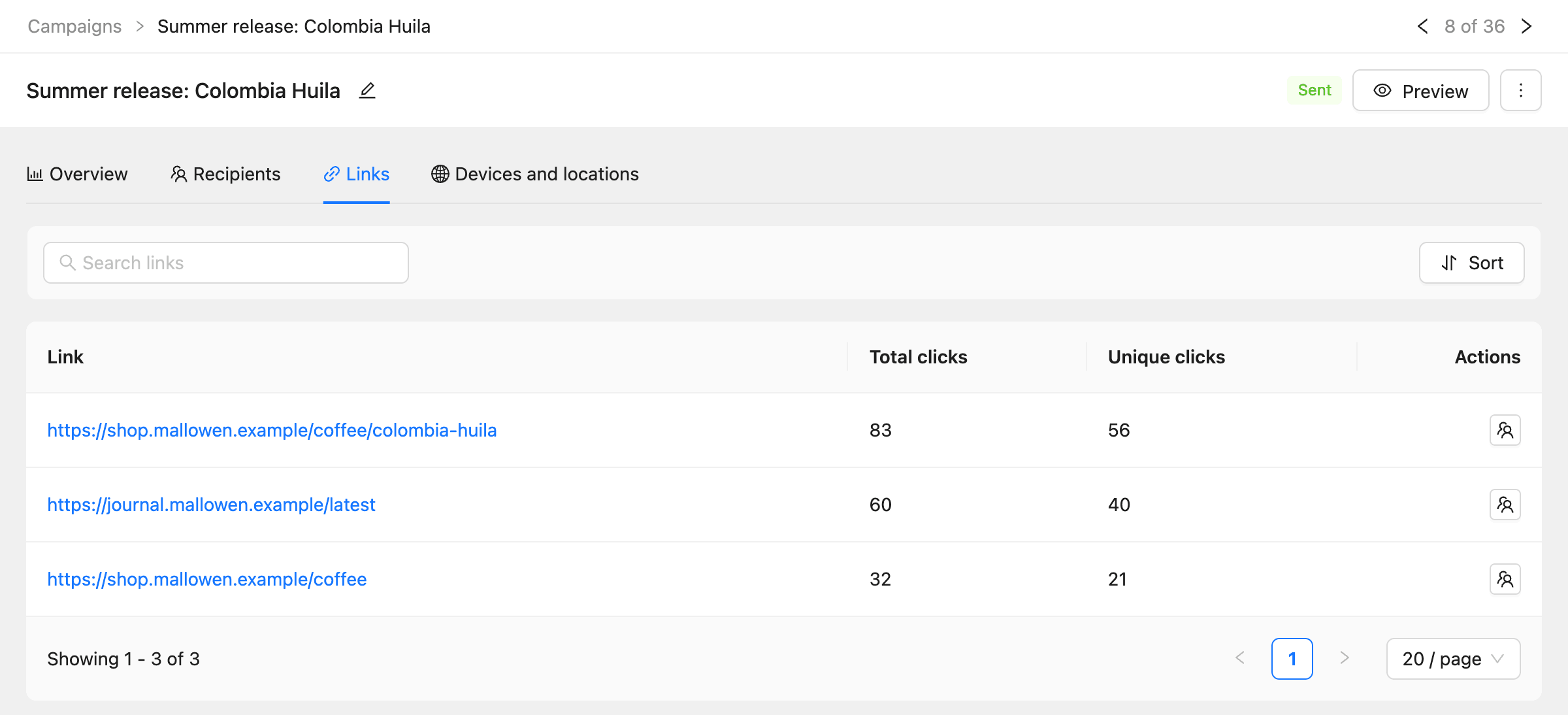
| Tab | What it shows |
|---|---|
| Recipients | Every recipient and what they did. Filter by Opened, Clicked, Unsubscribed, and more |
| Links | Total clicks and Unique clicks per link. Click View clickers to see who clicked |
| Devices and locations | Opens and clicks by country, device, browser, and operating system |
| A/B test | Each version’s results, when the campaign ran a test |
Troubleshooting
A contact says they never got the email. Search for their address. Delivered means it reached their mail server: ask them to check spam and promotions. Bounced or Failed shows the reason in the details. No entry means they were not in the audience, or were not mailable, such as unsubscribed.
Many emails show Failed. Open one and read the Error. A wrong password or a disconnected provider is the usual cause. Fix the provider in Email providers, then retry the campaign’s failed emails.
Opens look low. Some people read email with images turned off, and opens by software are not counted. Click rate is the more reliable measure.
An old email is missing. It is older than your plan keeps logs for, and was removed.