How to set up general settings
- Kelune CRM Cloud
General settings hold the details that appear in every email footer and on your public pages, the rules every contact must follow, and what Kelune CRM Cloud tracks when people open and click your emails.
Add your business details
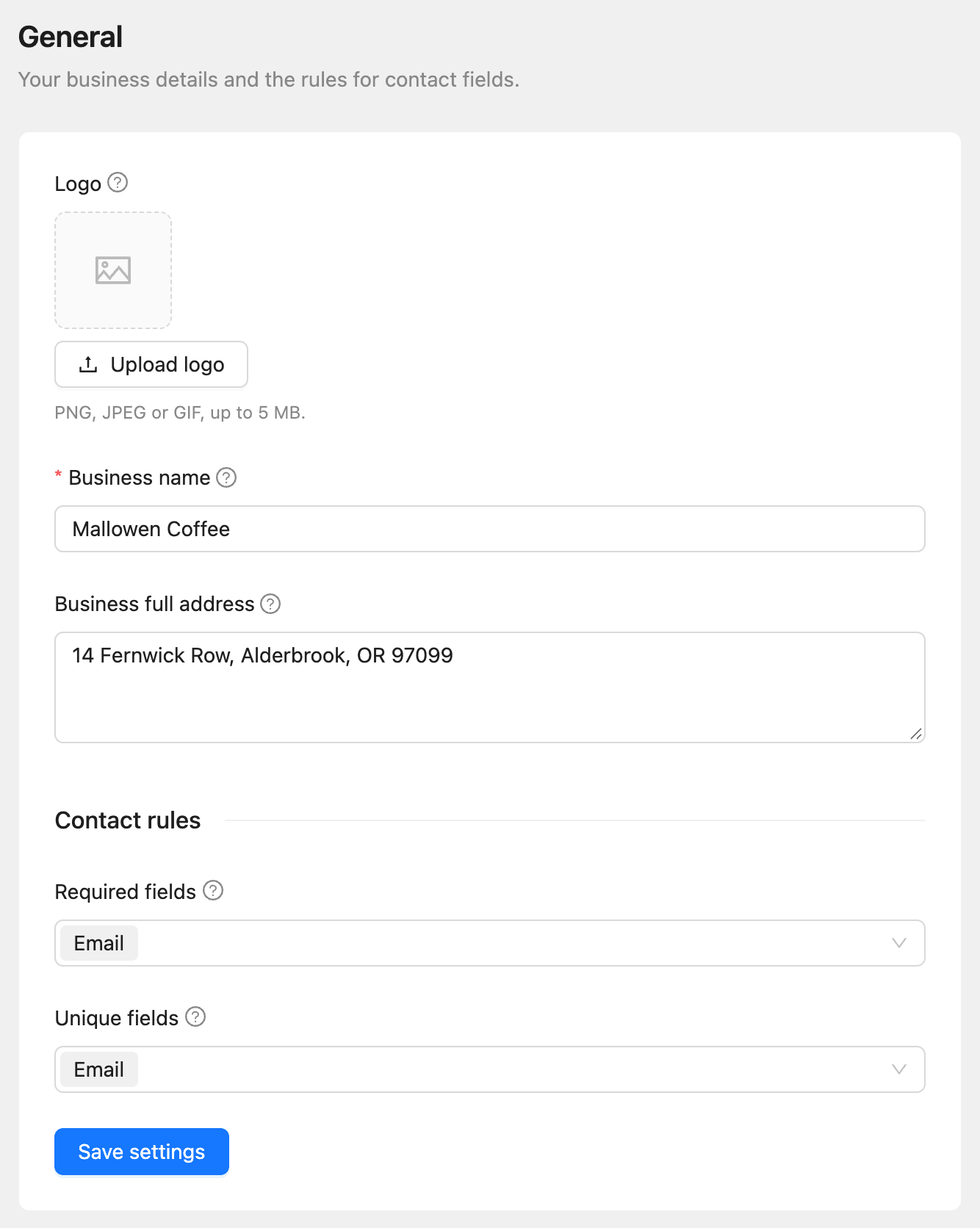
- Click Settings in the sidebar. General opens first.
- Click Upload logo and choose a PNG, JPEG, or GIF. A square image of at least 400×400px works best.
- Enter the Business name.
- Enter the Business full address.
- Click Save settings.
| Field | Where it appears |
|---|---|
| Logo | The unsubscribe and subscription confirmation pages |
| Business name | Your email footer and public pages. Insert it with {{business_name}} |
| Business full address | Your email footer. Insert it with {{business_address}} |
Set contact rules
Contact rules on the same page decide which fields every contact must have and which must be different for every contact.
- Under Required fields, choose the fields a contact cannot be saved without.
- Under Unique fields, choose the fields no two contacts may share.
- Click Save settings.
| Rule | What it means |
|---|---|
| Required fields | A contact cannot be saved without the field, and an import must map a column to it. At least one field stays required |
| Unique fields | No two contacts can have the same value. Case and extra spaces do not count, and empty values never match. An import updates the contact with the matching value |
Email is always unique. If you make Email optional, contacts without one cannot get campaigns or automation email.
Choose what to track
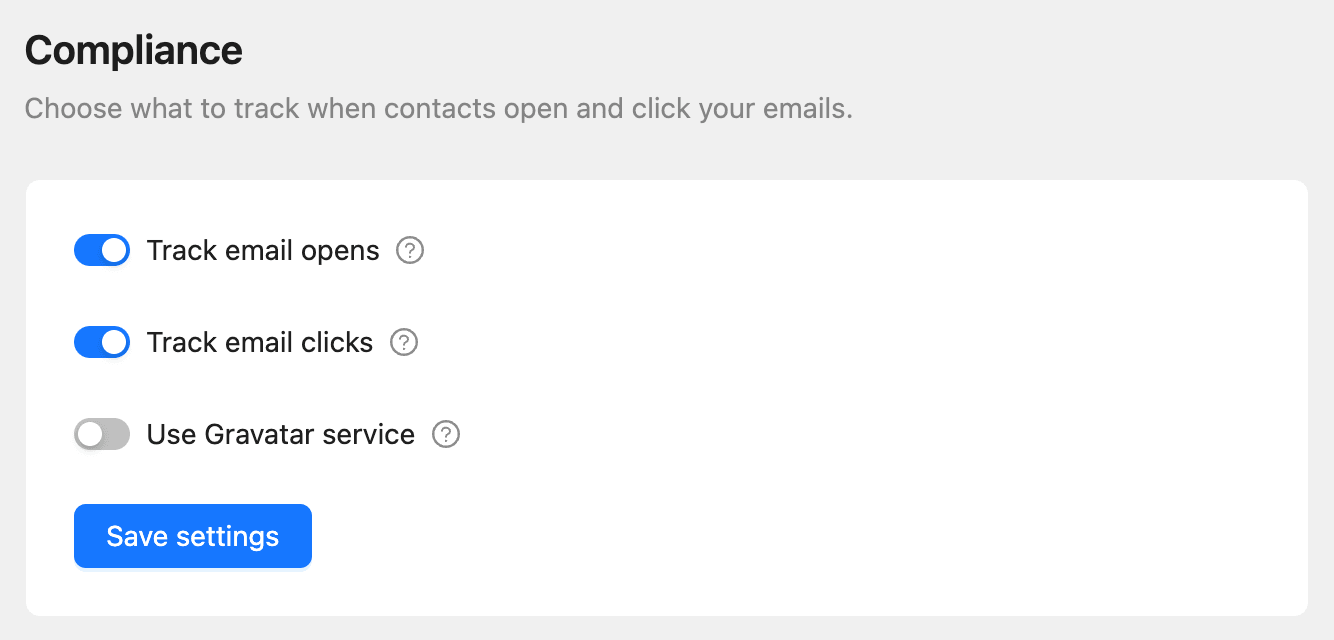
- Click Settings, then Compliance.
- Turn Track email opens on or off.
- Turn Track email clicks on or off.
- Turn Use Gravatar service on or off.
- Click Save settings.
| Setting | What it does when on |
|---|---|
| Track email opens | Adds a tiny invisible image to every campaign and automation email to record opens. Off, open rates are no longer recorded |
| Track email clicks | Sends link clicks through a tracking link to record them. Off, links stay as written and clicks are no longer recorded |
| Use Gravatar service | Shows a contact’s Gravatar picture instead of their initials. A hash of their email address is sent to Gravatar each time the contact list is viewed. Off by default |
Other settings
| Setting | Article |
|---|---|
| Default sender, footer, and unsubscribe page | How to set global email settings |
| Double opt-in email | How to set up double opt-in |
| Workspace name, slug, time zone, export, and deletion | How to manage workspace settings |