How to set up double opt-in
- Kelune CRM Cloud
Double opt-in asks a new contact to confirm their address before they get your emails. A contact with the Pending status receives a confirmation email. When they click its link, they become Active. Until then they get no campaigns, sequences, or automation email.
Double opt-in proves that each person asked to hear from you, keeps mistyped and fake addresses off your list, and protects your sending reputation.
When the confirmation email is sent
A contact gets the confirmation email when they are created as Pending, or changed to Pending, from:
- the Create contact or Quick edit form,
- an incoming webhook,
- the API or an AI tool.
Contacts imported from a file as pending are not emailed automatically. Send them the confirmation from their profile, below.
Write the confirmation email
- Click Settings in the sidebar, then Double opt-in.
- Edit the Subject.
- Edit the Email body. Use Merge tags to add values such as the contact’s first name.
- Enter a Redirect after confirmation to send confirmed contacts to your own welcome page. Leave it empty to show the built-in confirmation page.
- Click Save settings.
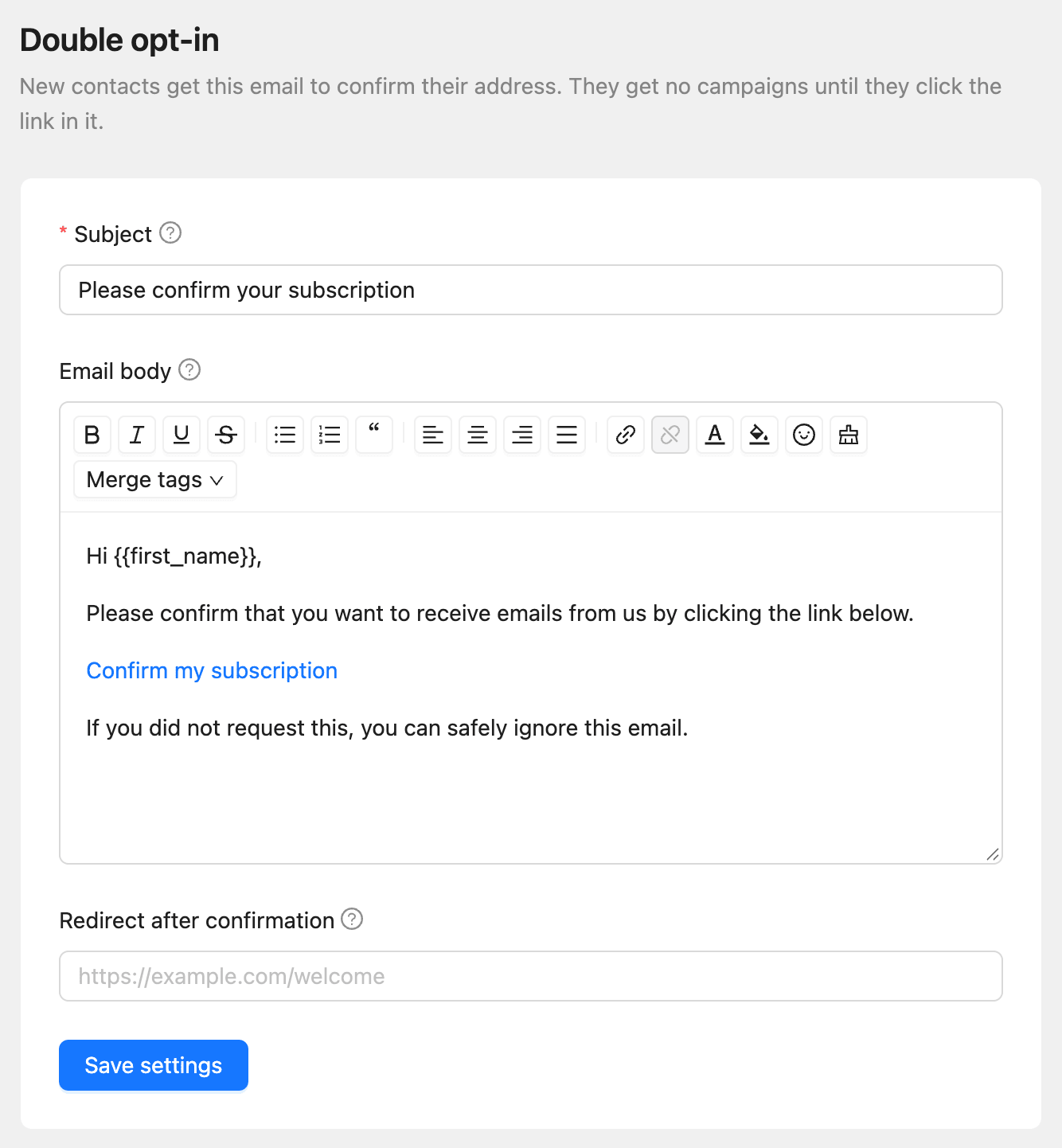
The body must include the confirmation link tag. Your business name and address from Settings, then General, are added at the end of the email.
Resend the confirmation email
A pending contact’s profile shows “This contact has not confirmed their subscription yet.”
- Open the contact.
- Click Resend confirmation email.
- Confirm.
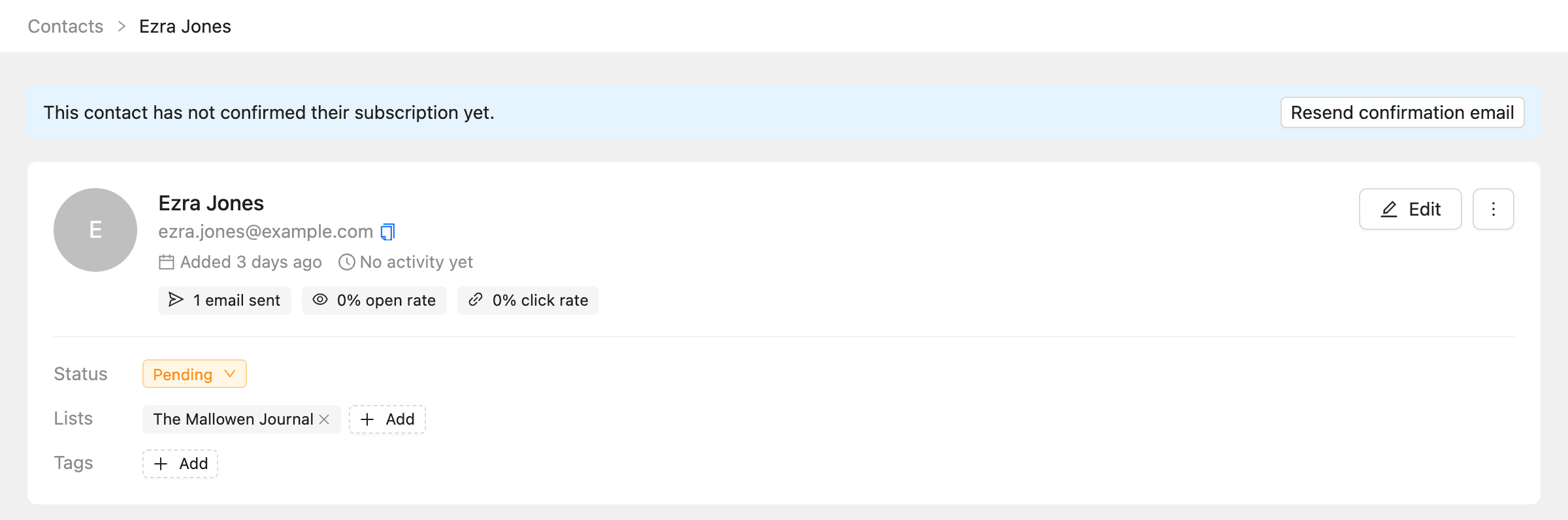
You can also click Resend confirmation in the row’s More actions menu on the Contacts page.
Common questions
A contact never confirmed. Check that they are still Pending, and resend the email. If it bounced, their status changes to Bounced.
Can I skip double opt-in for a contact? Yes. Create them as Active. Only do this for people who already agreed to hear from you.