How to export contacts
- Kelune CRM Cloud
Export contacts to back them up, analyze them in a spreadsheet, or move them to another tool. The export uses the same search and filters as the Contacts page, so you can export everyone or one group.
Export contacts
- Click Contacts in the sidebar.
- Search or filter to the contacts you want. Skip this to export everyone.
- Click the More button (the three dots) at the top right.
- Click Export.
- Under Columns, select the fields to include. Select all includes every field, custom fields too.
- Under Range, leave Limit empty for all matching contacts, or set a Limit and Offset to export part of them.
- Choose the Format: CSV or Excel (.xlsx).
- Click Export.
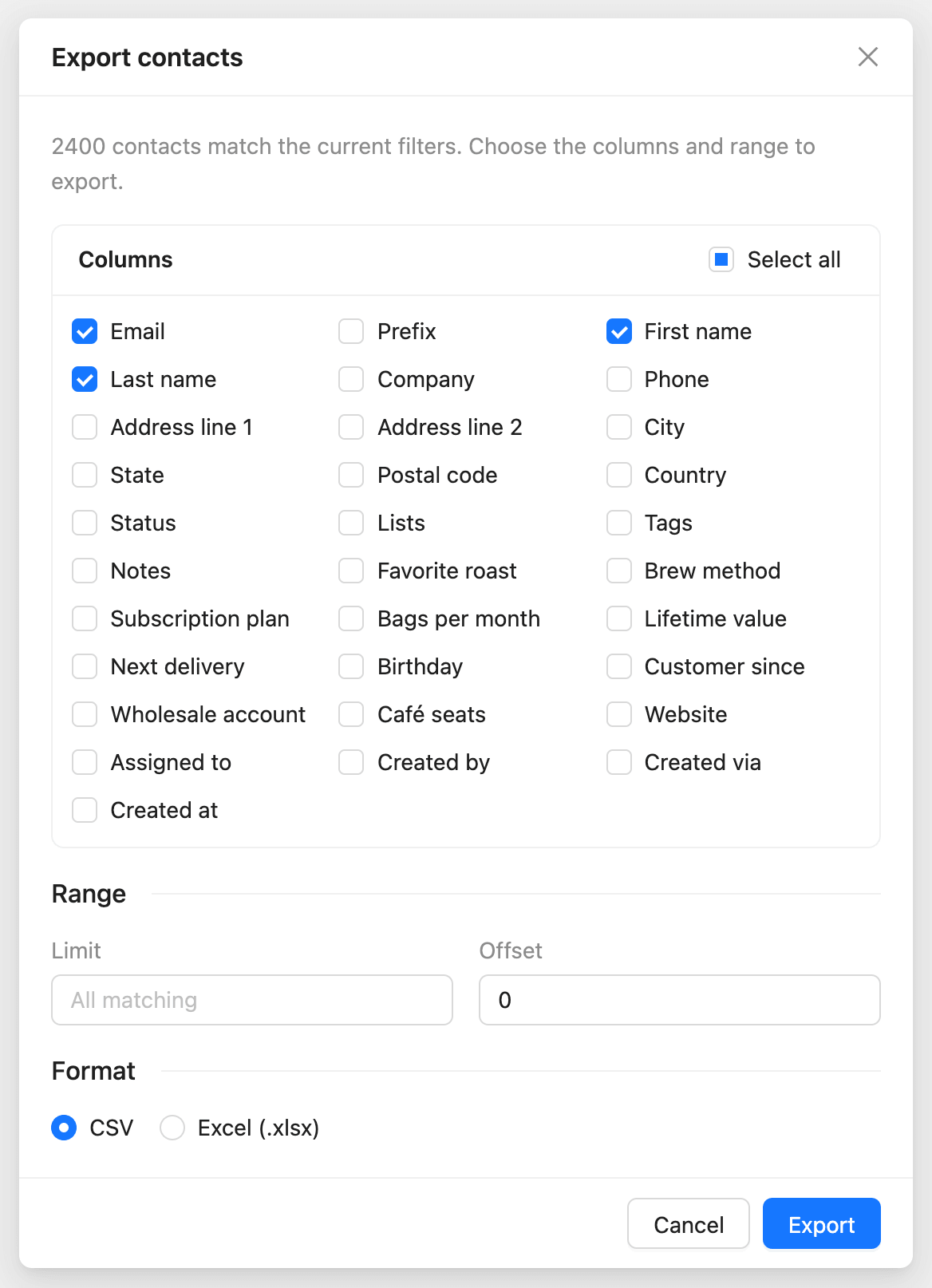
The window shows the progress, such as “Preparing the export: 1,200 of 2,400 rows”. The file downloads by itself when it is ready.
Export a segment
On the Segments tab, open a segment’s More actions menu and click Export. The export includes the contacts in the segment.
What the file contains
- One row per contact, one column per field you chose.
- Lists and Tags as comma-separated names, the same format the importer reads.
- Dates in UTC, except date custom fields, which are calendar dates.
An exported file can be imported again into any workspace. See How to import contacts.