How to manage email campaigns
- Kelune CRM Cloud
The Campaigns page lists every campaign in the workspace, from drafts to sent newsletters. Use it to follow a send while it runs, stop or change one before it goes out, and act on the results afterward. To write and send a new campaign, see How to send your first campaign.
Find a campaign
- Click Campaigns in the sidebar.
- Type in Search campaigns… to find a campaign by name or subject.
- Click Filters, then Status, to show only some statuses.
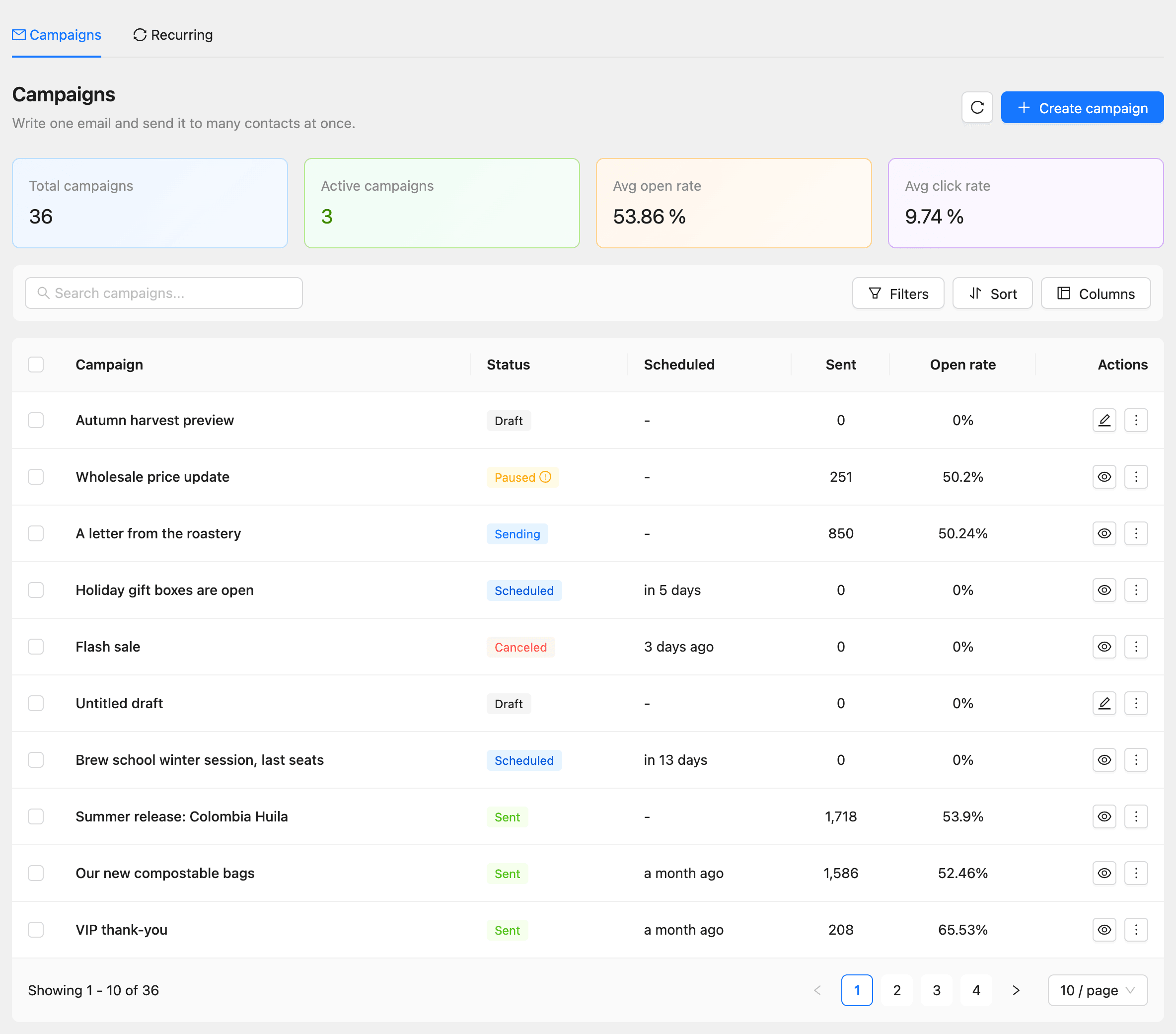
The cards at the top show Total campaigns, Active campaigns (scheduled or sending), and the average open and click rates of sent campaigns. Click Columns to add Click rate, Sent date, and more.
| Status | What it means |
|---|---|
| Draft | Not sent or scheduled yet. Click the pencil button to keep editing it |
| Scheduled | Waits for its send time. The Scheduled column shows when |
| Sending | Emails are going out now |
| Paused | Sending stopped part way. Hold the pointer over the status to see why |
| Sent | Every email went out |
| Canceled | Sending was stopped for good |
Recurring campaigns have their own Recurring tab. See How to send recurring campaigns.
Change a scheduled campaign
A scheduled campaign cannot be edited. Turn it back into a draft first:
- Open the campaign.
- Click Unschedule.
- Make your changes, then schedule it again on the Review step.
Pause, resume, or cancel a send
Open a campaign that is sending. The Sending progress bar shows how many emails are queued, sent, and failed.
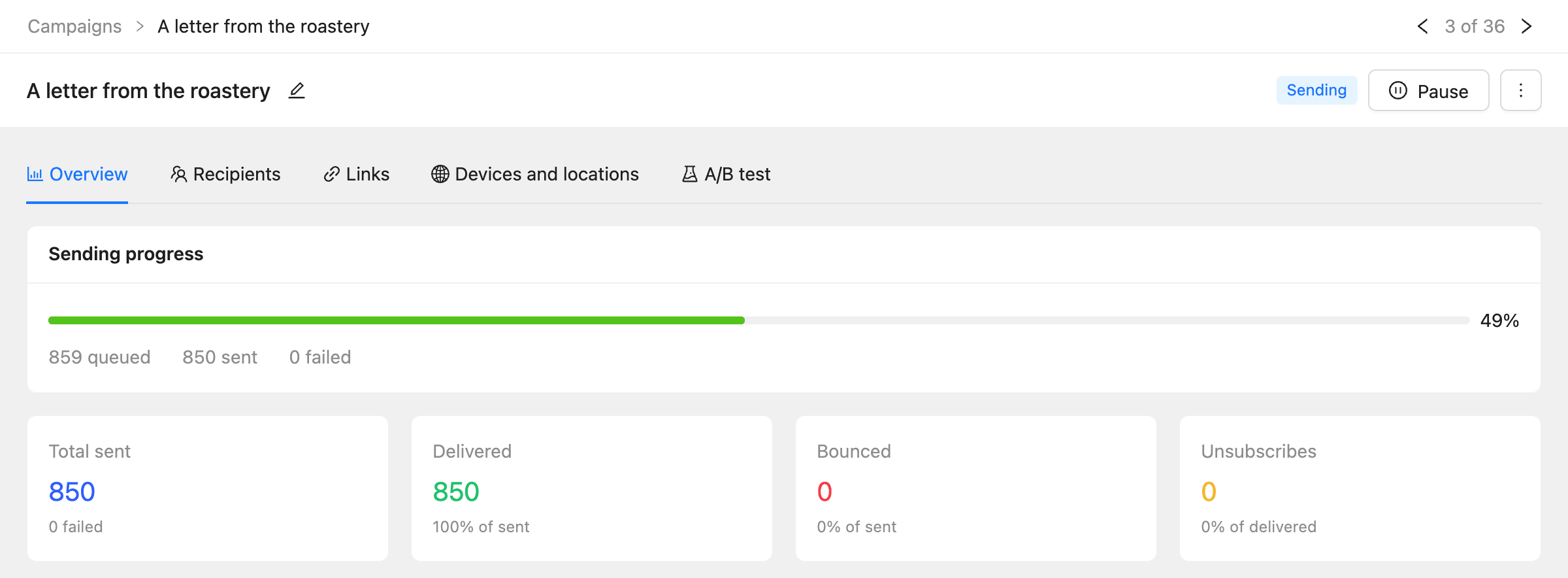
- Click Pause to stop sending. The emails not sent yet stay queued.
- Click Resume on a paused campaign to send the rest.
- Open More actions and click Cancel sending to stop it for good.
A campaign can also pause by itself, for example when the plan’s daily or monthly email limit is used up. A yellow message at the top of the campaign says why. Resume it once the cause is fixed or the limit resets.
Retry failed emails
When some emails fail, for example because an email provider was disconnected, the campaign shows how many failed.
- Fix the cause.
- Open the campaign and click Retry in the message about the failed emails.
- Confirm.
Contacts who can no longer be mailed, such as those who unsubscribed in the meantime, are skipped.
See who got the email
Open the Recipients tab to see every recipient with their status and when they opened and clicked.
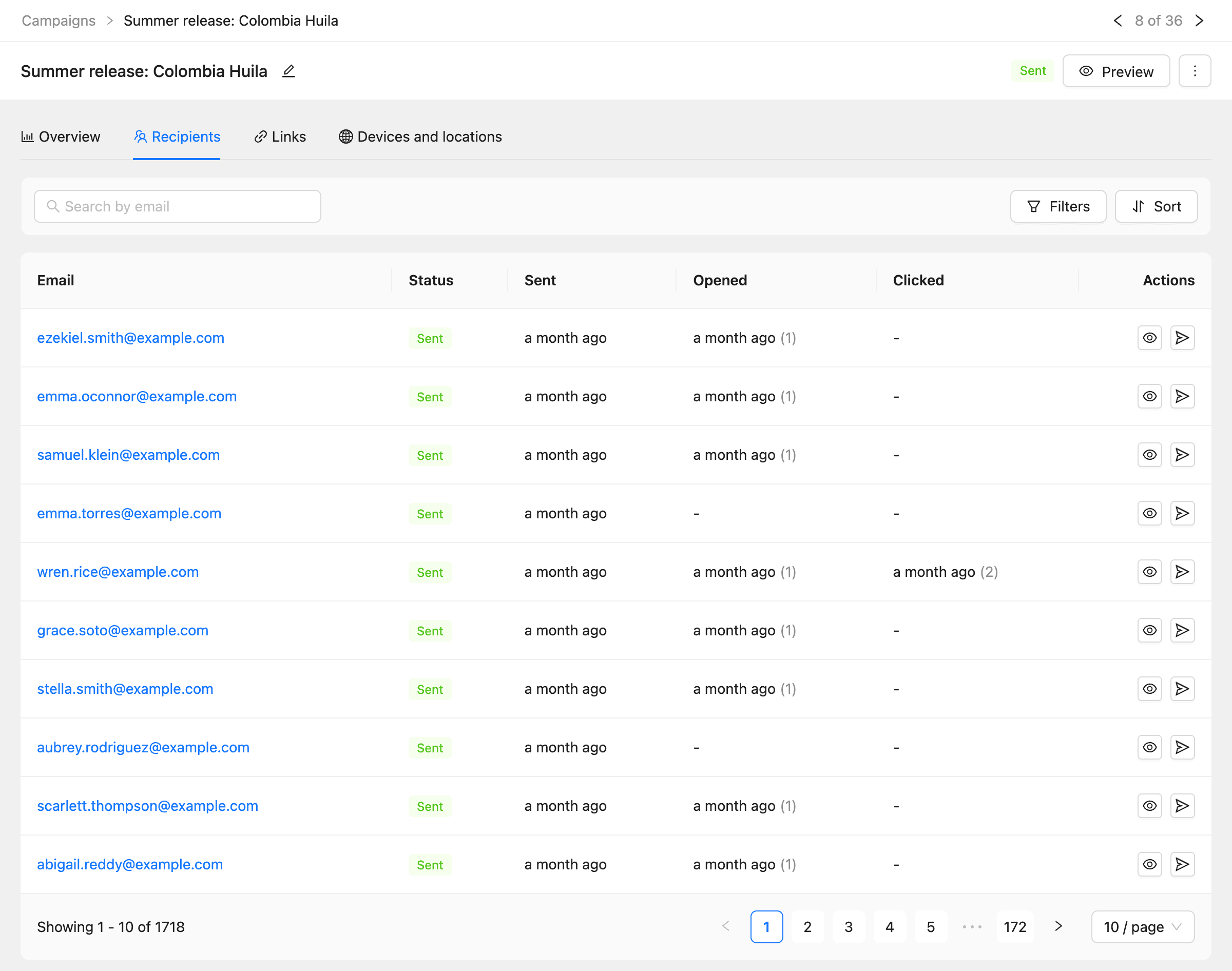
Click Filters to show only recipients who Opened, Didn’t open, Clicked, Didn’t click, or Unsubscribed. Click the eye button (View email) to see the email as that contact got it.
To send the email again to one contact, click Resend to this contact in their row. It counts toward your plan’s email limit.
Tag contacts by what they did
After a campaign is sent, you can tag or list the contacts who reacted to it, for example to tag everyone who clicked the new coffee.
- Open the campaign.
- Click More actions, then Tag by engagement.
- Under Contacts who, choose Opened the email, Didn’t open the email, or Clicked a link.
- Choose what to change: Add tags, Add to lists, Remove tags, or Remove from lists.
- Click Apply.
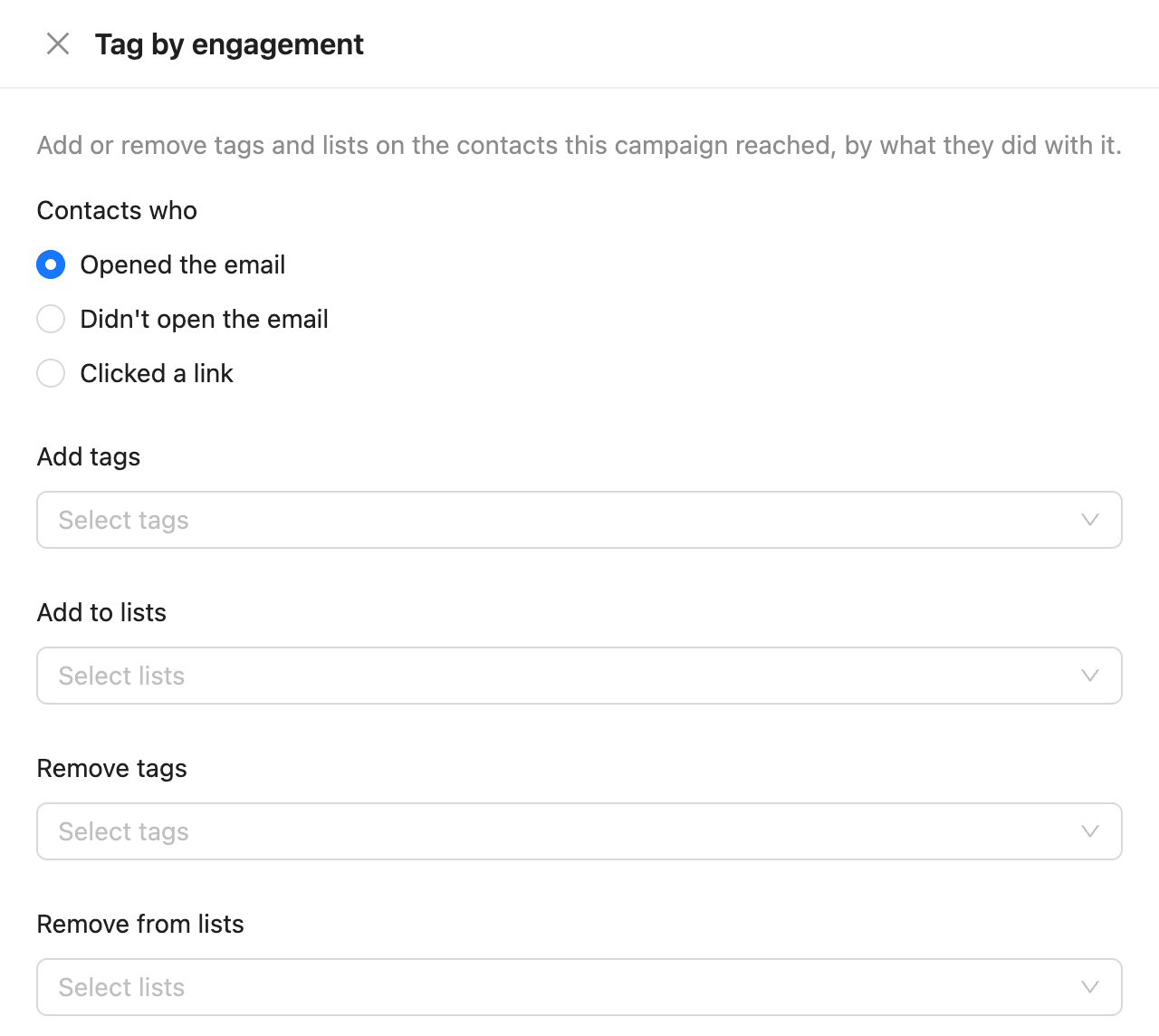
Only contacts the email was delivered to are counted. You need the permission to edit contacts.
Duplicate or delete a campaign
On Campaigns, open a campaign’s More actions menu (the three dots in its row):
| Action | What it does |
|---|---|
| Preview | Shows the email |
| Analytics | Opens the campaign’s report |
| A/B testing | Sets up a test of two or more versions. See How to A/B test a campaign |
| Duplicate | Makes a new draft with the same content, sender, and audience, named with “(Copy)” at the end |
| Delete | Deletes the campaign and its report |
A campaign cannot be deleted while it is sending; pause or cancel it first. To act on many campaigns at once, select them with the checkboxes and choose an action.
Common questions
Can I edit a campaign after it was sent? No. Duplicate it, change the copy, and send that. To reach people who did not open the first one, use a follow-up.
Why can’t I schedule another campaign? Each plan limits how many campaigns can be scheduled or sending at once, and the Free plan limits the number of campaigns. See How to check plans, usage, and billing.
A scheduled campaign became a draft again. At its send time, none of its audience could be mailed, for example because the segment was empty. Check the Audience step and schedule it again.