How to use triggers, delays, and actions
- Kelune CRM Cloud
An automation is built from three kinds of steps: a trigger that starts it, actions that do something, and delays that wait. This page lists each one and its settings. For conditions and branches, see How to build a conditional automation.
Triggers
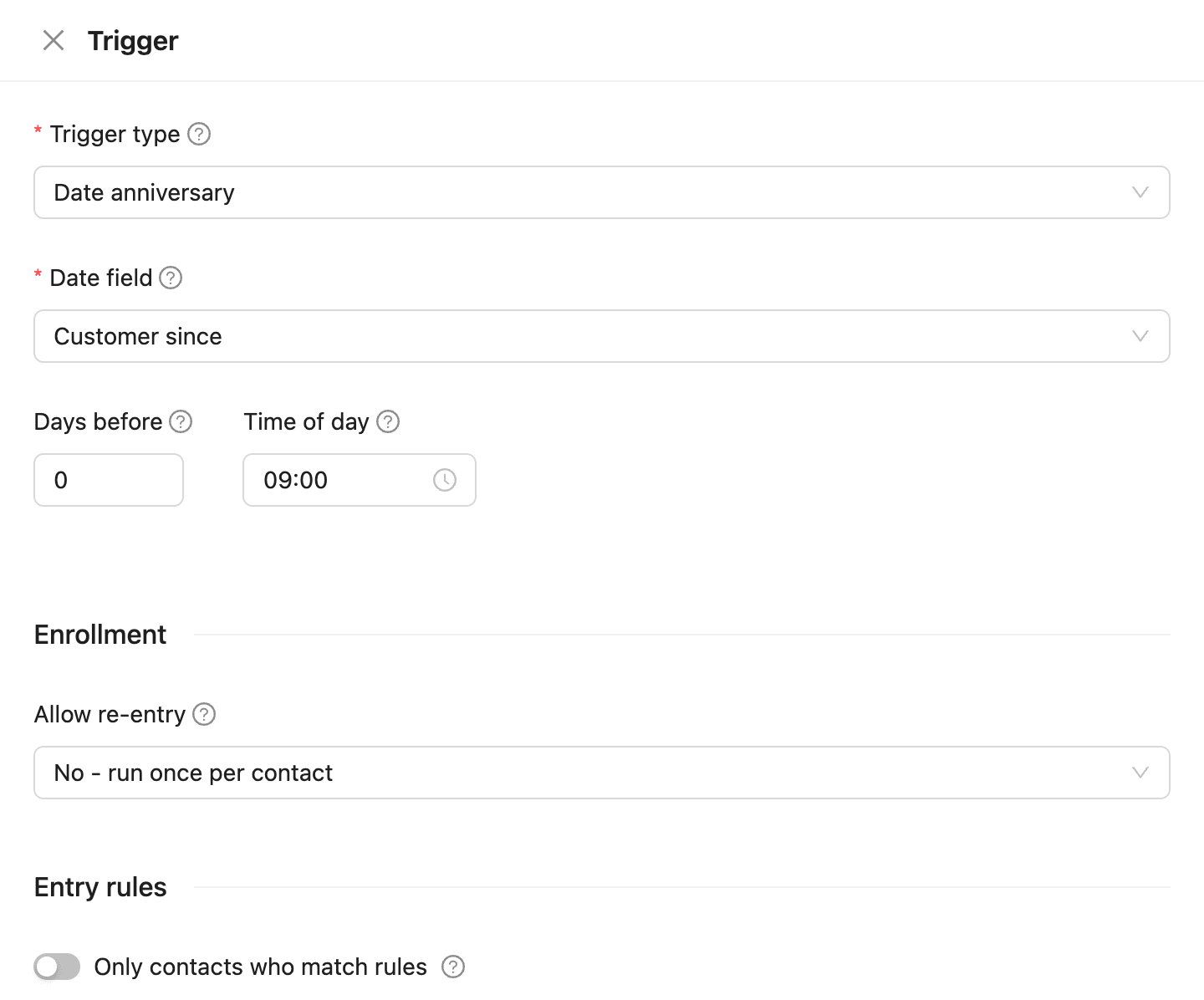
Click the Trigger step on the canvas to choose the Trigger type.
| Trigger | A contact enters when | Settings |
|---|---|---|
| Contact created | They are added to the workspace | None |
| Contact updated | Their details are updated | None |
| Tag added, Tag removed | One of the chosen tags is added or removed | Tags, and Match: Any of them or All of them |
| Added to list, Removed from list | They join or leave one of the chosen lists | Lists, and Match |
| Manual enrollment | A member adds them by hand | None |
| Email opened, Email clicked | They open, or click a link in, any of your emails for the first time. Opens by software do not count | None |
| Smart link clicked | They click a smart link | Smart link, or Any smart link |
| Webhook received | An incoming webhook sends them | Webhook, or Any webhook. See How to start automations from an incoming webhook |
| Status changed | Their status changes, for example from Active to Unsubscribed | From status and To status, or Any status |
| Date anniversary | A date in a date custom field comes around each year, such as a birthday | Date field, Days before, and Time of day |
| Sequence completed | They get the last email of a sequence | Sequences, or Any sequence |
Re-entry and entry rules
Under Enrollment, Allow re-entry decides whether a contact can go through the automation more than once:
- No - run once per contact: each contact enters once.
- Yes - allow multiple entries: set Wait between entries, counted from when their previous run ended.
A contact who is still in the automation never enters it twice at the same time.
Under Entry rules, turn on Only contacts who match rules to let in only contacts who match conditions, such as a country or a tag. Contacts you add by hand skip these rules.
Actions
Click a + button, open the Action tab, and choose the action.
| Action | What it does |
|---|---|
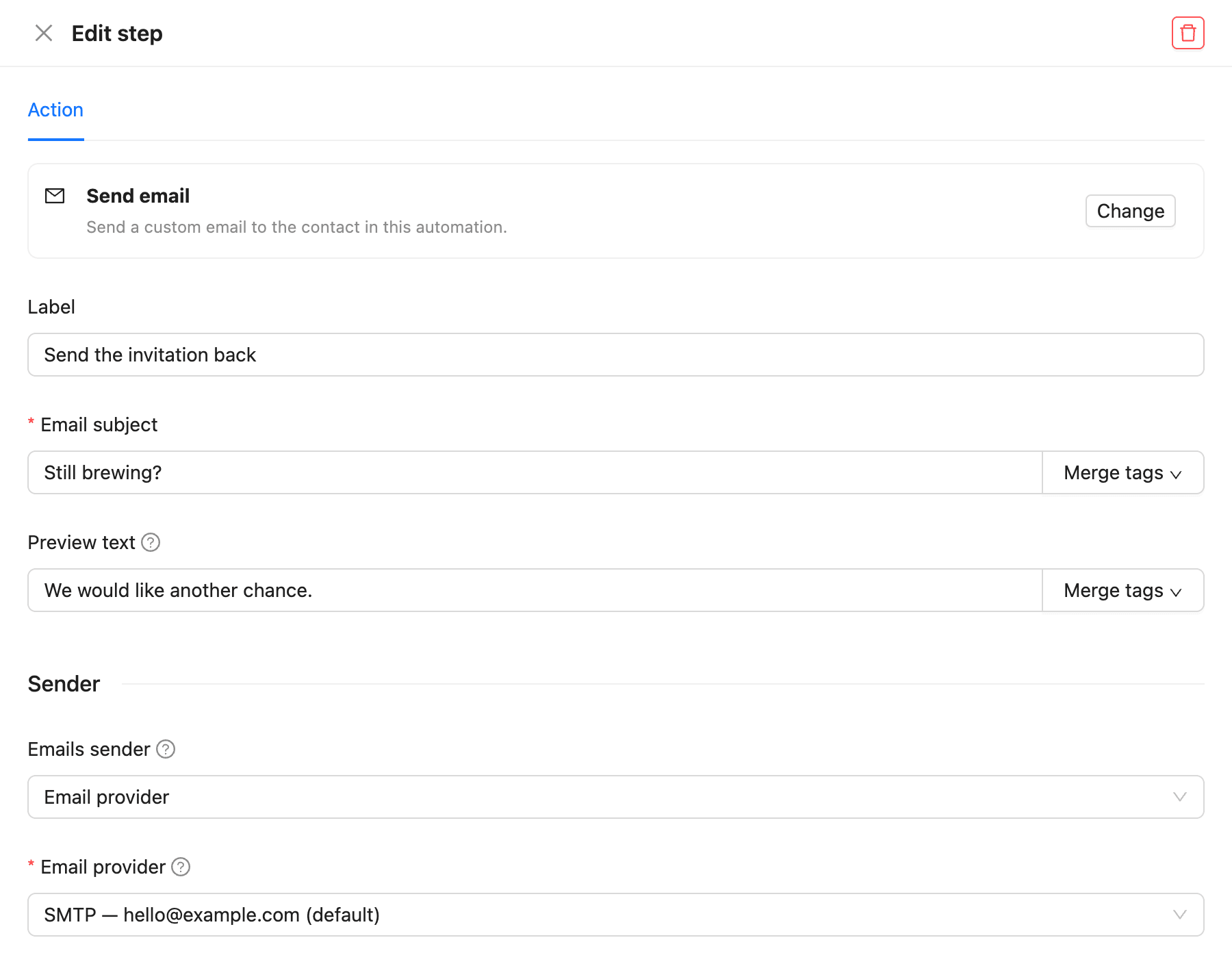
| Send email | Sends an email you write in the step, with its own subject, sender, and content |
| Add to lists, Remove from lists | Adds the contact to lists or takes them off |
| Add tags, Remove tags | Adds or removes tags |
| Update field | Sets a contact field or custom field. Number custom fields can also add or subtract |
| Assign to member | Makes a member responsible for the contact, or unassigns them |
| Change status | Sets the contact’s status. An automation cannot subscribe again a contact who unsubscribed |
| Add note | Writes a note on the contact. Merge tags fill in their details |
| Notify members | Emails workspace members about the contact, with your subject and message |
| Trigger webhook | Sends the contact’s data to another app’s URL. See below |
| Add to sequence, Remove from sequence | Starts the contact on an email sequence, or takes them out |
| Cancel automations | Ends the contact’s runs in other automations |
| End automation | Stops the automation for the contact here |
Send email goes only to contacts whose status is Active; for others the step is skipped and the automation carries on. Adding a tag or a list can start other automations that use that trigger.
Trigger webhook
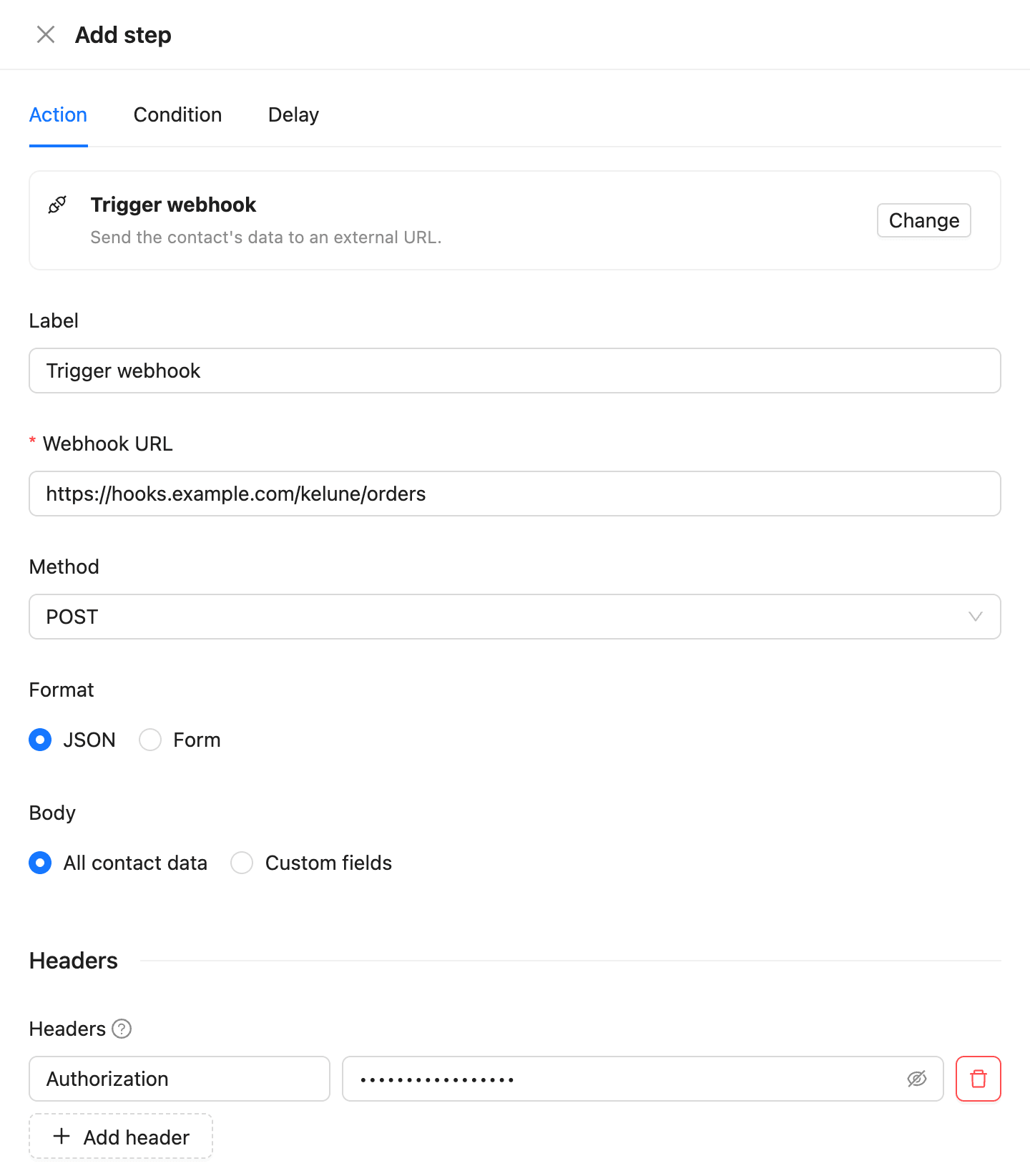
Trigger webhook calls another app, such as your shop or an integration service, when a contact reaches the step.
- Enter the Webhook URL.
- Choose the Method: POST, PUT, PATCH, DELETE, or GET.
- Choose the Format: JSON or Form.
- Choose the Body: All contact data, or Custom fields to send only the fields you list under Body fields. Values can use merge tags, such as
{{email}}. - To add authentication, click Add header and enter its name and value, such as an
Authorizationheader. - Click Save.
With All contact data, the request carries the contact’s fields and custom fields, what started the automation, and a timestamp in UTC.
| Behavior | Detail |
|---|---|
| Success | Any 2xx response. The contact moves on to the next step |
| Failure | Any other response, no answer within 15 seconds, or a network error. The step is not retried, and the contact’s run ends as failed |
| Headers | Stored encrypted and never shown again |
| Addresses | Only public http and https addresses. Redirects are not followed |
Check each call on the automation’s Log tab: a success shows the URL and the status code; a failure shows the reason.
Delays
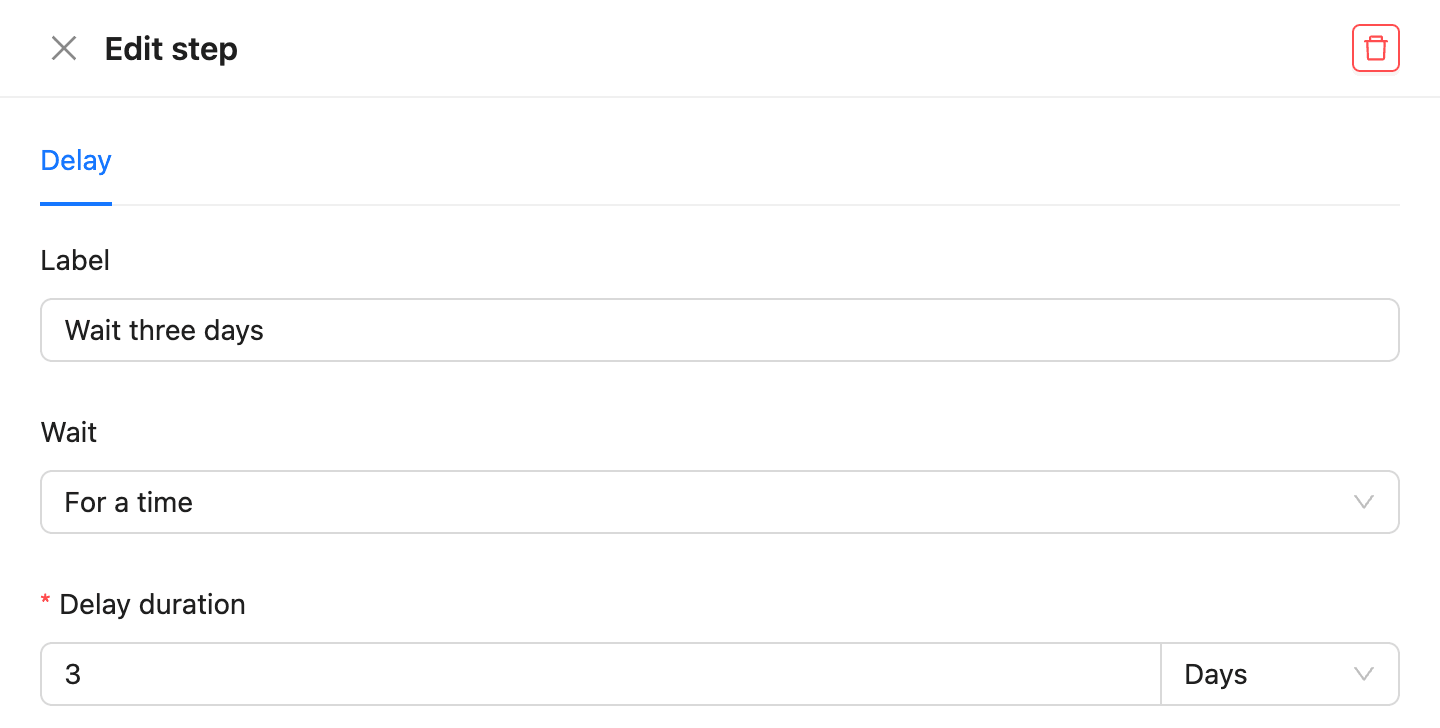
Click a + button, open the Delay tab, and choose how to Wait.
| Wait | The contact moves on |
|---|---|
| For a time | After the Delay duration, in minutes, hours, days, or weeks |
| Until a date | At the date and time you pick. A date in the past moves them on at once |
| Until a day of the week | On the next of the chosen Days, at the Time of day in the contact’s time zone |
| Until a date field | On the date in a date custom field, or with Every year, its next anniversary |
The contact’s own time zone is used where it is known; otherwise the workspace’s.
To wait for something the contact does, such as opening an email, with a time limit, use the Wait until (goal) condition. See How to build a conditional automation.