How to read the audit log
- Kelune CRM Cloud
The audit log records important changes in your workspace: who sent a campaign, invited a member, changed a role, exported contacts, or created an API key. Use it to answer “who did this, and when?”
Open the audit log
- Click Settings in the sidebar.
- Under System, click Audit log.
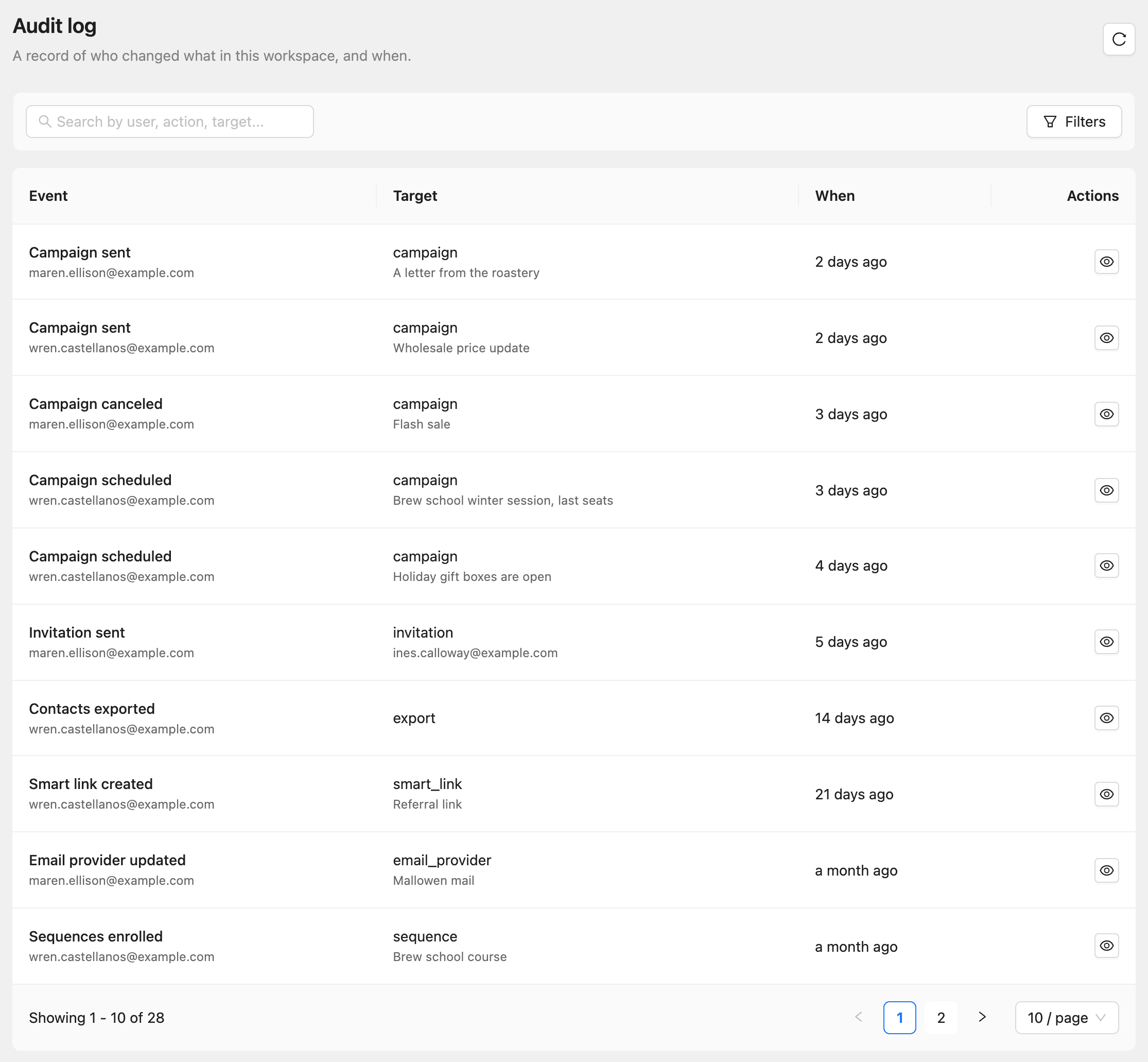
Each row shows the Event, the email address of the person who did it, the Target (the kind of record and its ID), and When. The newest events come first.
Find an event
- Type in Search by user, action, target… to find events by a person’s email, a record’s ID, or the kind of record, such as
campaign. - Click Filters, then Event, to show one kind of event, such as Campaign sent or Role changed.
See the details
Click an event, or the eye button (View) in its row.
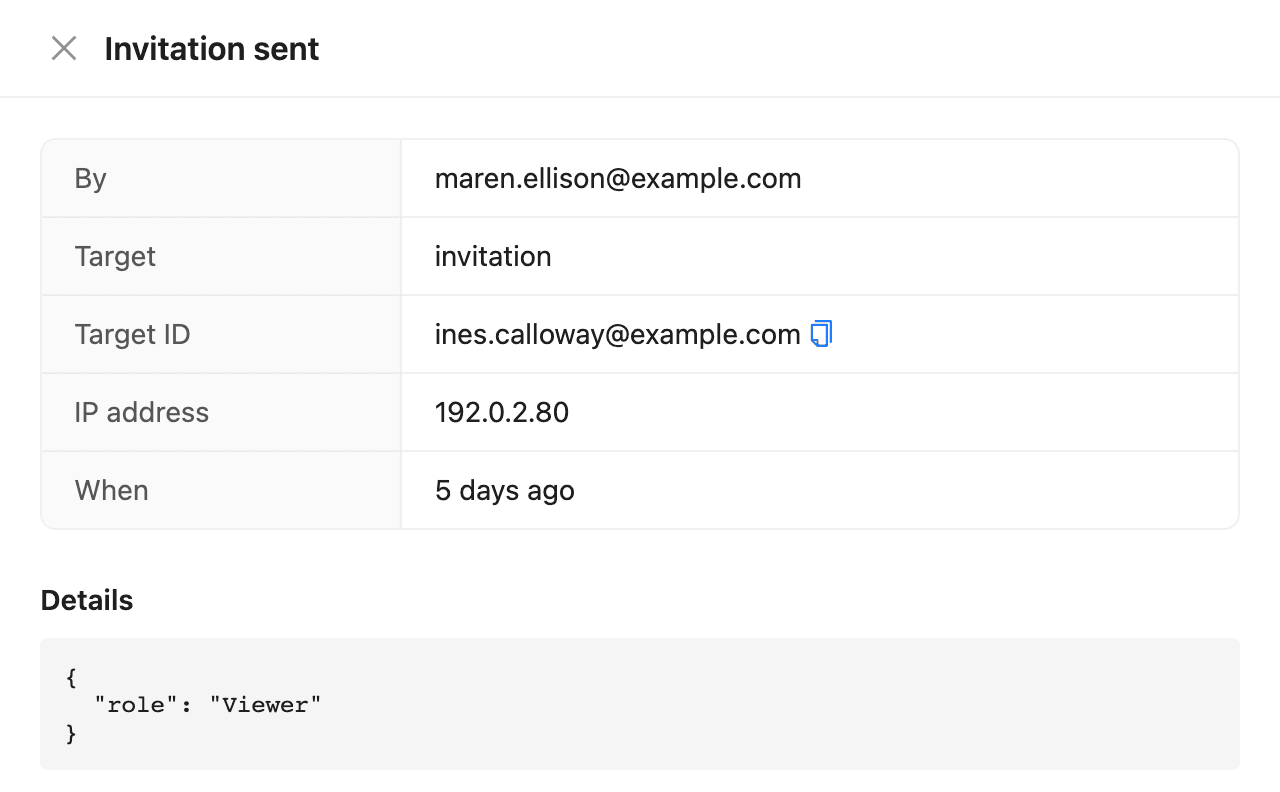
Details holds what was recorded about the change, such as the role an invitation was for, or the fields a settings change touched.
What is recorded
| Area | Examples |
|---|---|
| Team | Members added, removed, or leaving; roles changed; invitations sent, revoked, or declined; roles created or changed |
| Workspace | Workspace created, updated, deleted, or restored; workspace exports; settings changed |
| Access | API keys created or revoked; AI tools connected or disconnected |
| Billing | Plan changed, subscription canceled |
| Contacts | Contacts imported, exported, or bulk deleted; a contact erased |
| Campaigns | Sent, scheduled, unscheduled, paused, resumed, canceled, or deleted; follow-ups; recurring campaign runs |
| Automations and sequences | Activated, paused, or deleted |
| Other | Smart links, incoming webhooks, email providers, bounce handling, media files and folders |
Everyday edits, such as changing one contact’s name, are not recorded in the audit log.
Changes made by keys, AI tools, and support
The person shown is always a member’s email address:
- A change made with an API key shows the member who created the key; Details includes the key’s ID.
- A change made by an AI tool shows the member who connected it; Details includes the tool’s name.
- A change made by our support team while helping you shows your member’s email, with the support person in Details. Support access starting and ending is recorded too.
Recurring campaign editions created on schedule show “system”.