How to send your first campaign
- Kelune CRM Cloud
A campaign is one email sent to many contacts at once, such as a newsletter or an announcement. This guide takes one campaign from a blank draft to its report.
Step 1: Create the campaign
- Click Campaigns in the sidebar.
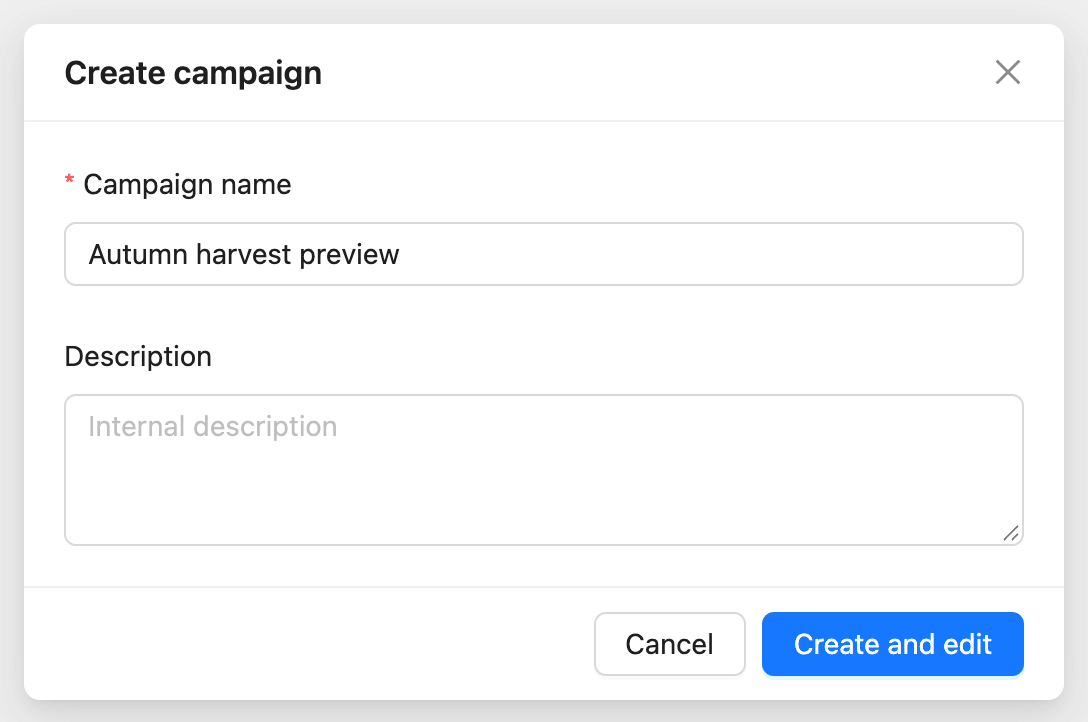
- Click Create campaign.
- Enter a Campaign name. Only your team sees it.
- Add a Description if it helps your team.
- Click Create and edit.
The editor opens with four steps: Content, Subject & sender, Audience, and Review. Click Save & next at the top right to save a step and move on, or Back to return.
Step 2: Add the content
- Choose the editor in the menu above the email: Visual editor or Rich text editor.
- To start from a design, click Templates, pick a template, and click Use template.
- Build the email. In the visual editor, drag blocks such as Heading, Paragraph, Image, and Button from the left panel onto the email.
- Click Preview to see it as recipients will.
- Click Save & next.
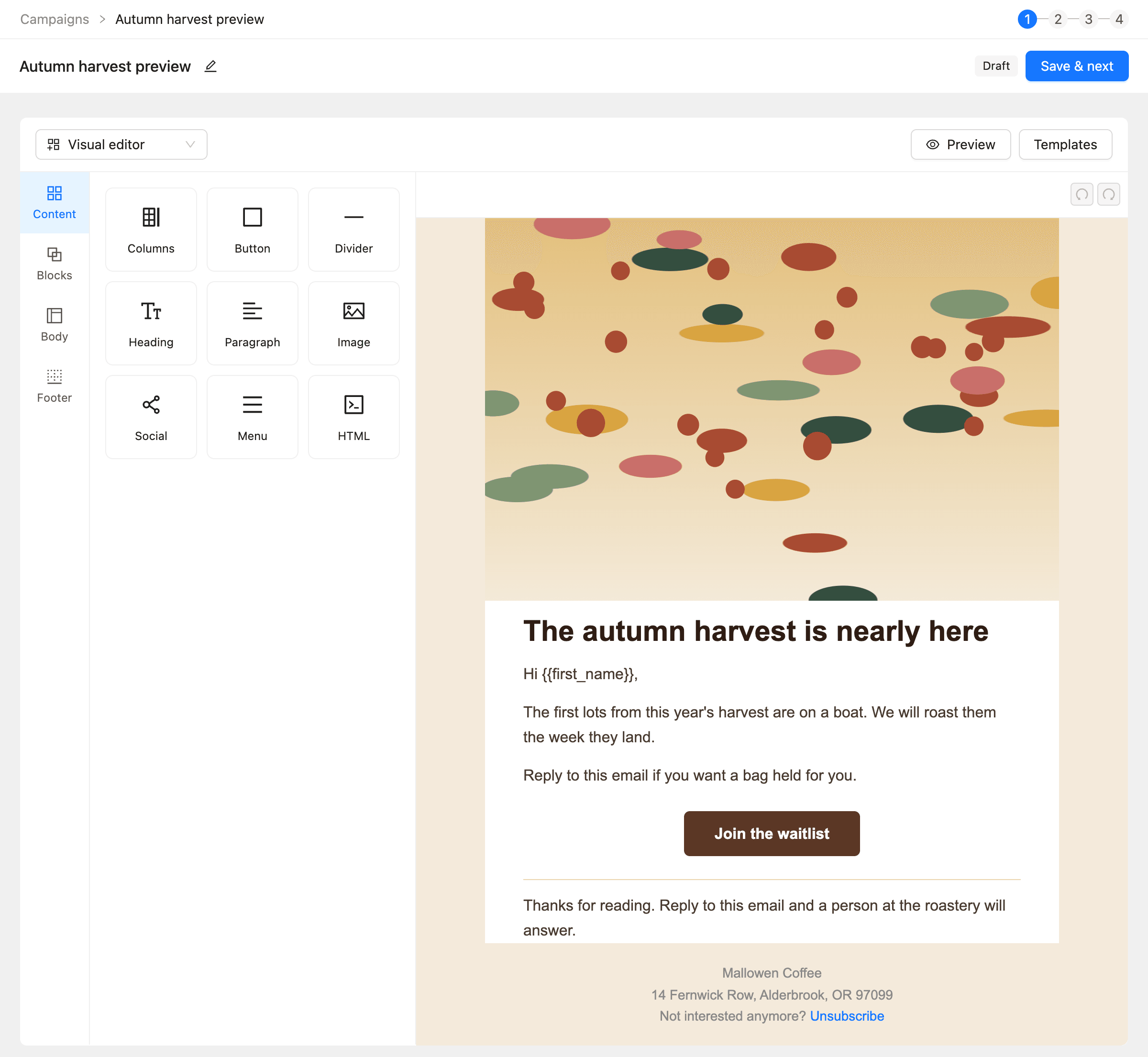
Merge tags such as {{first_name}} fill in each contact’s own value. Every campaign ends with the workspace footer and its unsubscribe link, so you do not add one yourself. See How to design email templates.
Step 3: Set the subject and sender
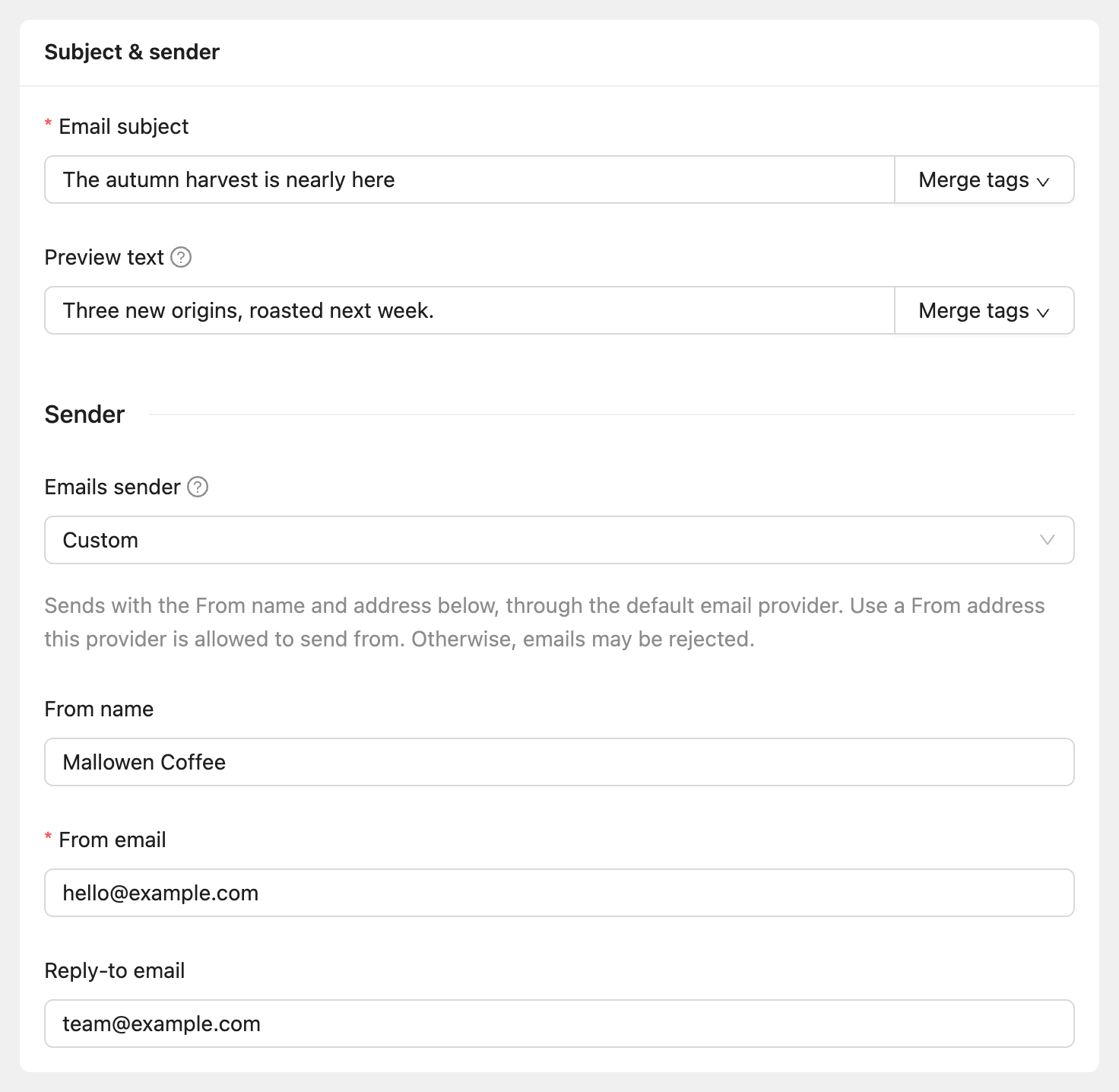
- Enter the Email subject.
- Enter Preview text, the line inboxes show after the subject.
- Under Emails sender, choose who the email comes from.
- Click Save & next.
| Sender option | What it sends as |
|---|---|
| Global email | The workspace’s default From name and address, through the default email provider |
| Email provider | The verified From address of the provider you choose |
| Custom | The From name, From email, and Reply-to email you enter, through the default provider |
Step 4: Choose the audience
- Under Target recipients, choose one or more Target lists, Target tags, or Target segments.
- Under Exclude recipients, choose anyone to leave out.
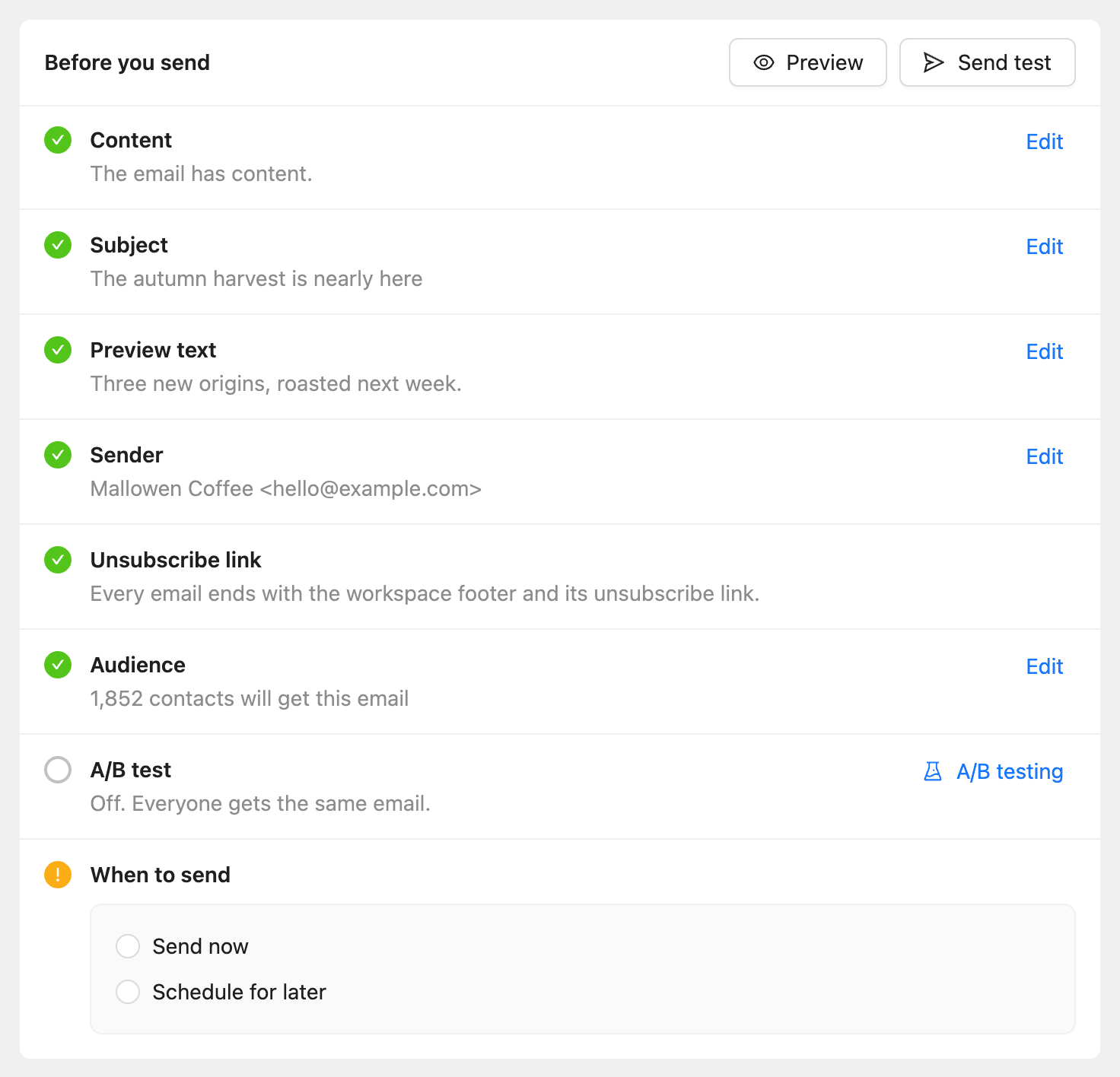
- Check the count at the bottom, such as “1,852 contacts will get this email”.
- Click Save & next.
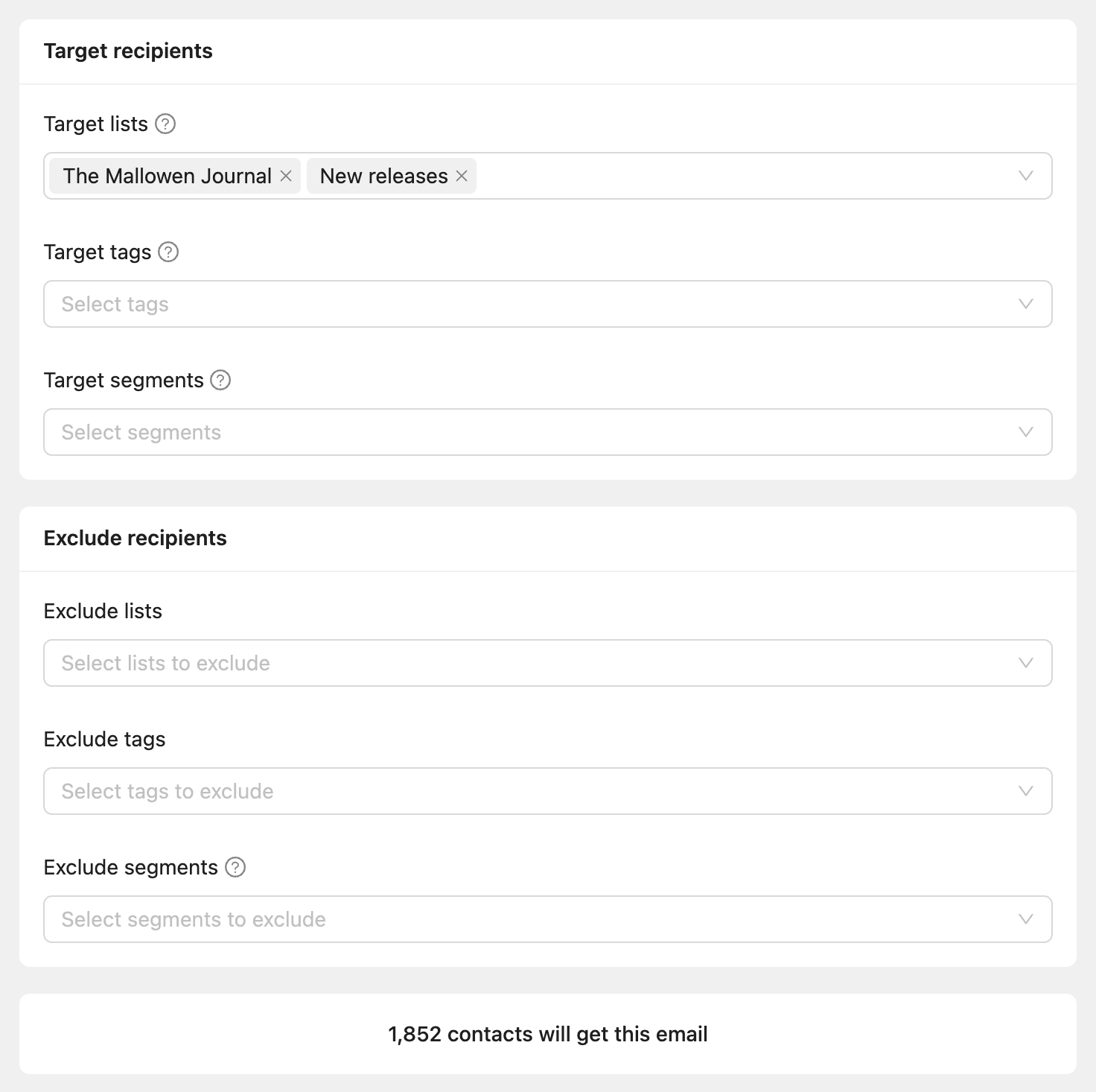
A contact in two targets gets the email once. Exclusions win over targets. Only Active contacts with an email address are counted and sent to. A segment counts the contacts it had at its last refresh.
Step 5: Review and send a test
The Review step checks the campaign under Before you send. Each item is marked ready or needs attention, with Edit to go back to it.
- Click Send test.
- Enter your Email address and send it.
- Open the test in your inbox and check the content, links, and sender.
Step 6: Send now or schedule
- Under When to send, choose Send now or Schedule for later.
- For Schedule for later, pick the date and time. Times are in the workspace time zone, shown under the picker.
- Click Send or Schedule.
- Confirm in the window that opens.
You can unschedule a scheduled campaign until it starts. While it sends, you can pause or cancel it from its page. See How to manage email campaigns.
Read the report
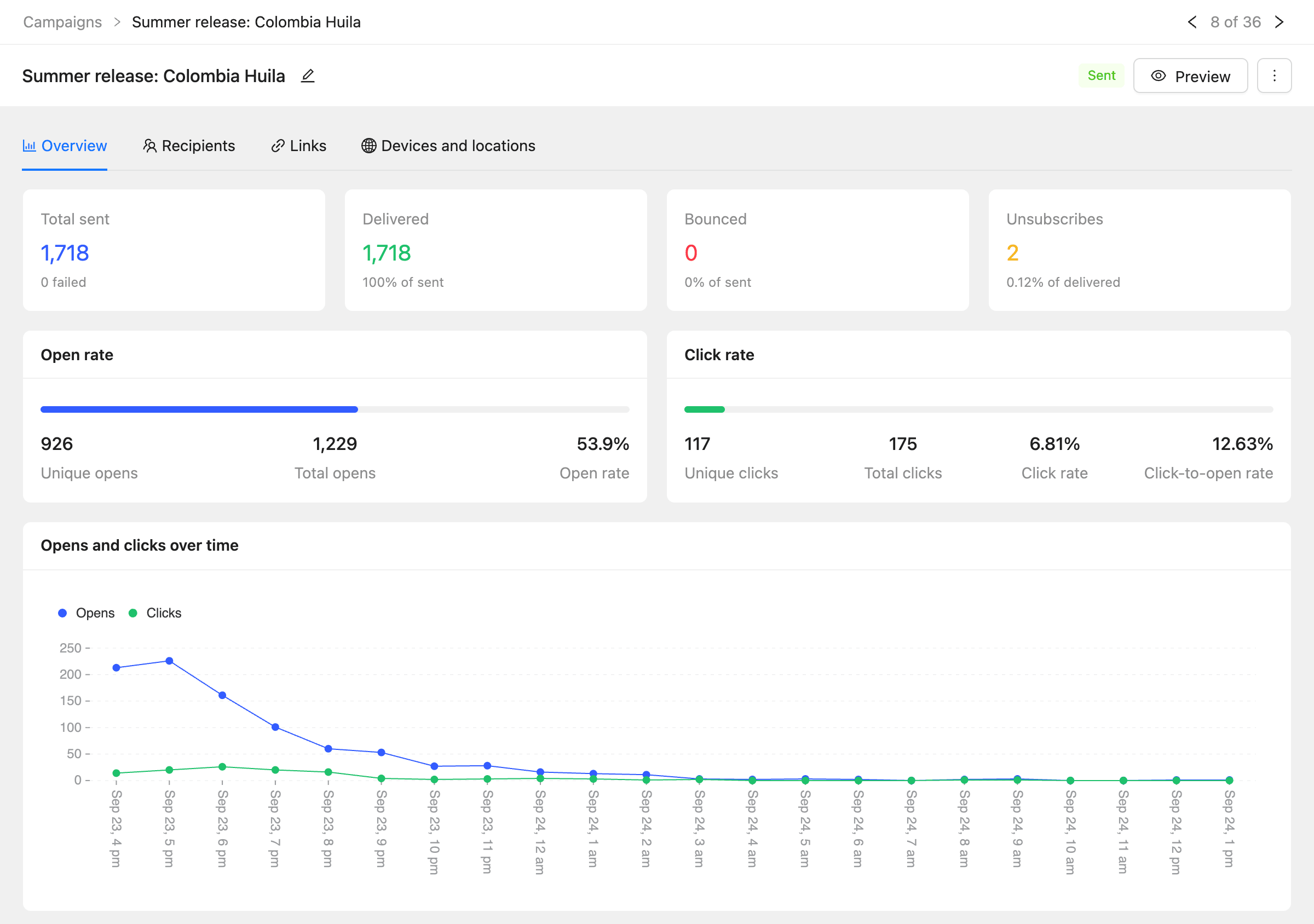
Open the campaign from Campaigns to see its report.
| Tab | What it shows |
|---|---|
| Overview | Sent, delivered, bounced, and unsubscribed totals, open and click rates, and Opens and clicks over time |
| Recipients | Every recipient and what they did |
| Links | Clicks per link |
| Devices and locations | Where and on what devices the email was opened |
Common questions
The campaign paused by itself. The plan’s daily or monthly email limit was used up. The message on the campaign says which. Resume it after the limit resets, or upgrade.
Some emails failed. Open the campaign and retry the failed emails once the cause is fixed, such as a provider that was disconnected.
Can I send it again to people who did not open it? Yes, with a follow-up. See How to send a campaign follow-up.