Every automation begins with a trigger. Delays control timing, while actions perform work on the enrolled contact.
Triggers
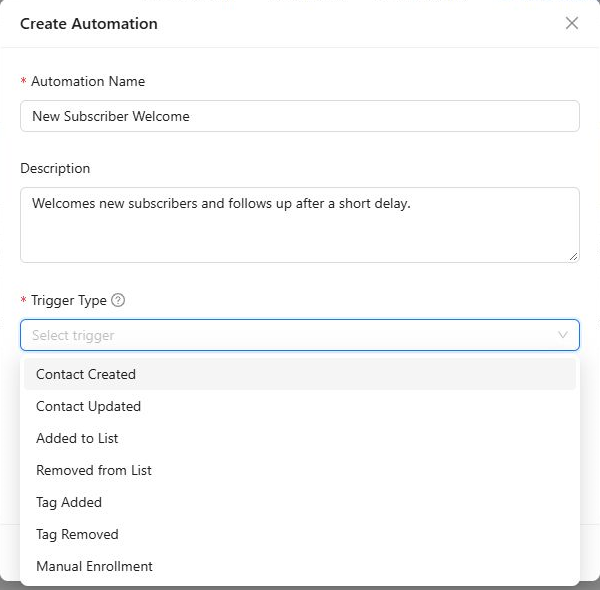
| Trigger | When it enrolls a contact |
|---|---|
| Contact Created | A new contact record is created |
| Contact Updated | An existing contact record is updated |
| Added to List | The contact is added to the selected list |
| Removed from List | The contact is removed from the selected list |
| Tag Added | The selected tag is applied to the contact |
| Tag Removed | The selected tag is removed from the contact |
| Manual Enrollment | A user deliberately enrolls the contact |
List and tag triggers require you to select the specific list or tag. Use the narrowest trigger that accurately represents the contact’s intent.
Re-entry rules
Choose No when each contact should enter only once. Choose Yes when the same contact may repeat the journey, then set Wait Between Entries in minutes, hours, days, or weeks.
Re-entry is useful for genuinely repeatable events, but it can also cause duplicate emails. Use a suitable waiting period and test repeated trigger activity before activation.
Delays
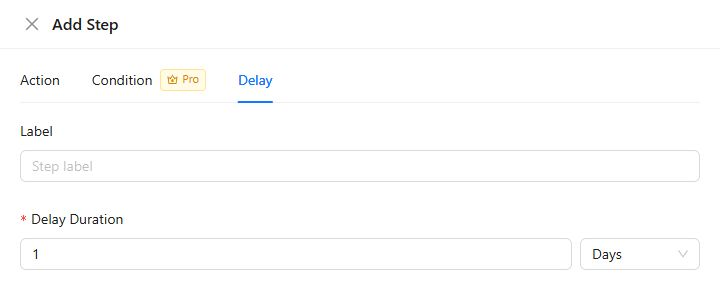
A delay pauses an enrolled contact for a fixed duration before the next step. Enter a value of at least 1 and choose minutes, hours, days, or weeks.
Delays run per contact. If two contacts reach a two-day delay on different dates, each continues two days after their own arrival.
Actions
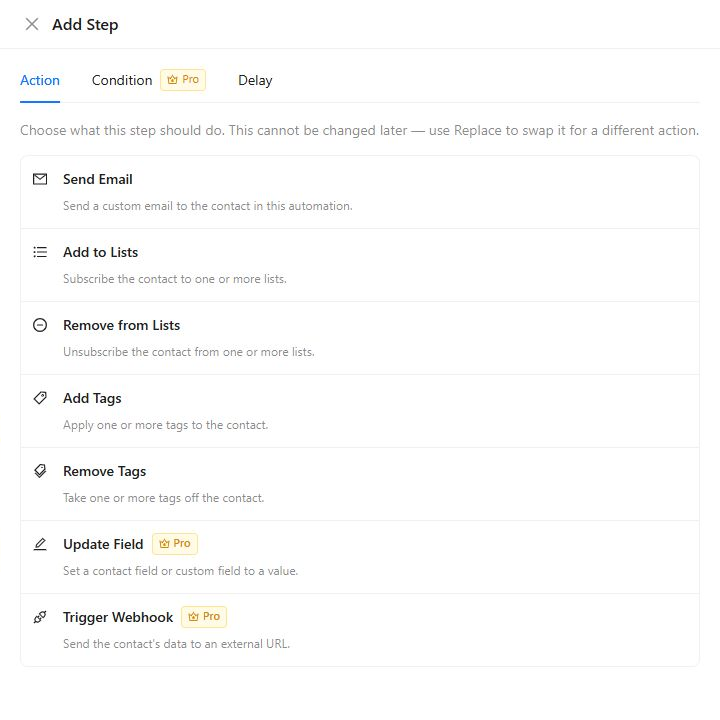
The standard actions are:
- Send Email sends a configured message through Global Email, a saved email provider, or supported custom sender details.
- Add to Lists adds the contact to one or more selected lists.
- Remove from Lists removes the contact from selected lists.
- Add Tags applies one or more selected tags.
- Remove Tags removes selected tags.
Kelune CRM Pro also provides:
- Update Field to change a supported contact field.
- Trigger Webhook to send automation data to an external endpoint.
An action can trigger another automation. For example, an Add Tags action can enroll the contact in an automation whose trigger is Tag Added. Map these relationships before activating interconnected journeys.
A practical sequence
A good onboarding flow might use:
- Added to List as the trigger.
- Send Email for the immediate welcome.
- A three-day Delay.
- A second Send Email with the next step.
- Add Tags to mark completion.
Save the automation, use a test contact, and confirm every contact change and email before activating it for your audience.