Email templates let you reuse a consistent layout and design instead of rebuilding every message from the beginning.
Open Kelune CRM → Emails → Templates.
Create the template
- Select Create Template.
- Enter a Template Name.
- Add an optional description that explains when the template should be used.
- Create the template to open the builder.
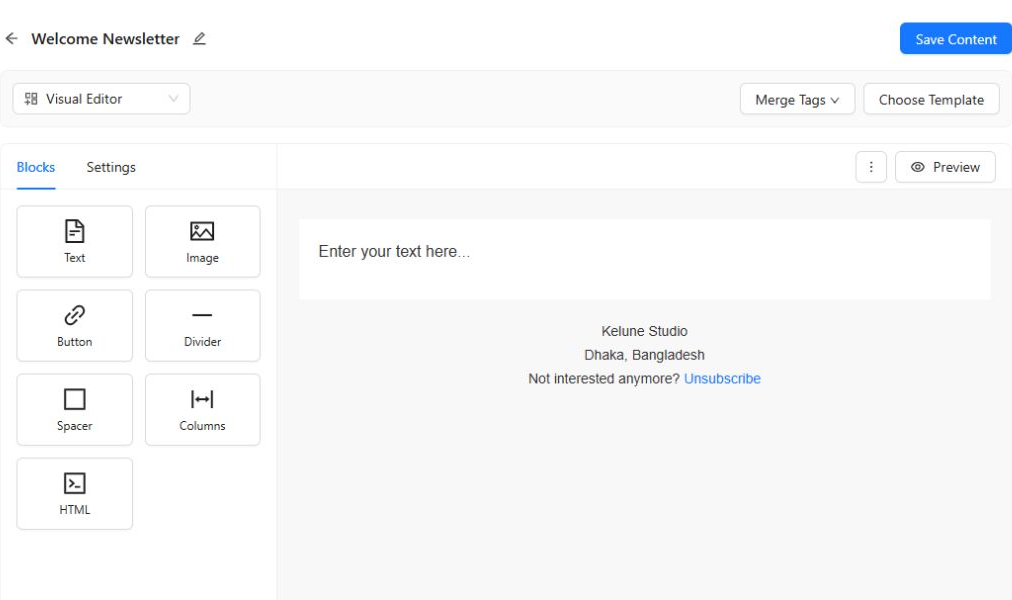
The new template starts as a draft with a text block ready to edit.
Build the email
Use the Blocks tab to add content to the canvas. Available blocks include:
- Text for headings, paragraphs, and formatted copy.
- Image for branded graphics and product imagery.
- Button for a clear call to action.
- Divider and Spacer for visual separation.
- Columns for side-by-side content.
- HTML for supported custom markup.
Select a block on the canvas to edit its content and appearance. Use the Settings tab for the wider email design, and open Footer Settings to configure the footer area.
Keep the most important content near the top, use one clear primary action, and write meaningful alternative text for important images.
Add personalized content
Insert the available merge tags where you want Kelune CRM to use contact or campaign information. Always preview personalized copy and provide wording that still reads naturally when optional contact information is missing.
Preview and test
- Select Preview and review the email at the available display sizes.
- Check spacing, links, image sizing, footer information, and personalized text.
- Select Send Test and deliver a copy to an address you can inspect.
- Open the test on both desktop and mobile, then test every link.
- Select Save when the template is ready.
Manage saved templates
From the Templates page you can edit, preview, duplicate, favorite, or delete a template. Duplicate an established template when you need a variation while preserving the original.
Deleting a template removes it from future selection. Check that your team no longer needs it before deleting it.