How to complete the Kelune CRM setup wizard
- Kelune CRM for WordPress
The Kelune CRM setup wizard opens immediately after you activate the plugin. It guides you through the essential information and contact organization needed to start using your CRM.
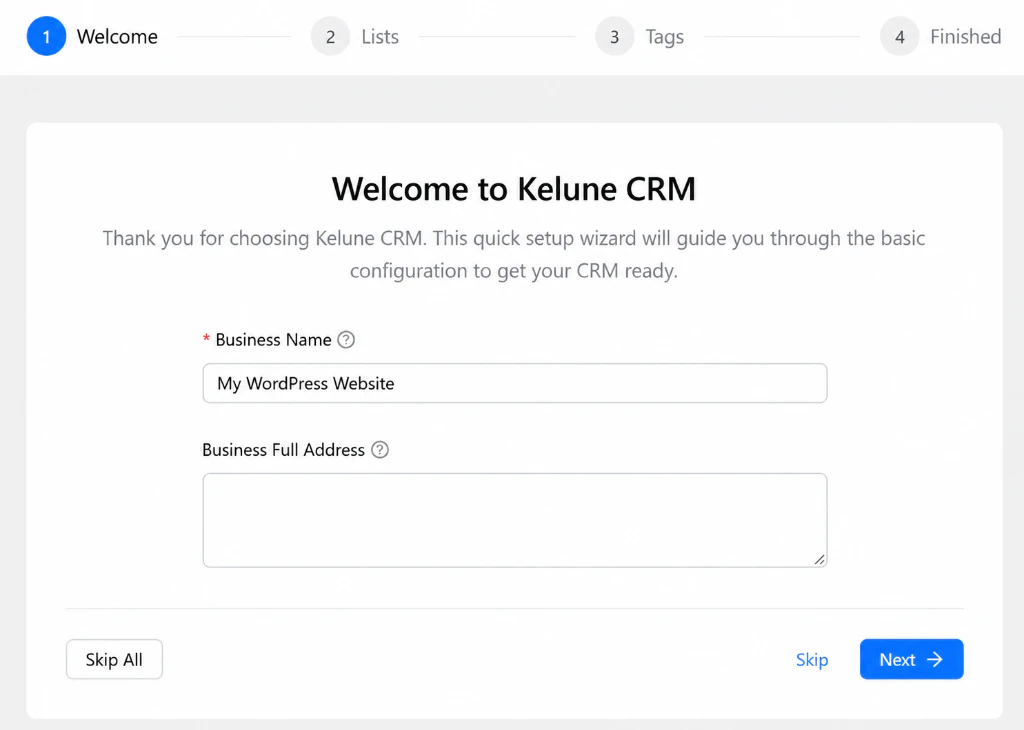
Step 1: Add your business details
Enter the information that identifies your organization:
- Business Name — required. Kelune CRM can display it in email footers and on public subscription pages.
- Business Full Address — your postal address. You can insert it into emails with the
{{business_address}}merge tag.
Select Next to save the details and continue. Select Skip to continue without saving this step, or Skip All to leave the wizard.
Step 2: Create contact lists
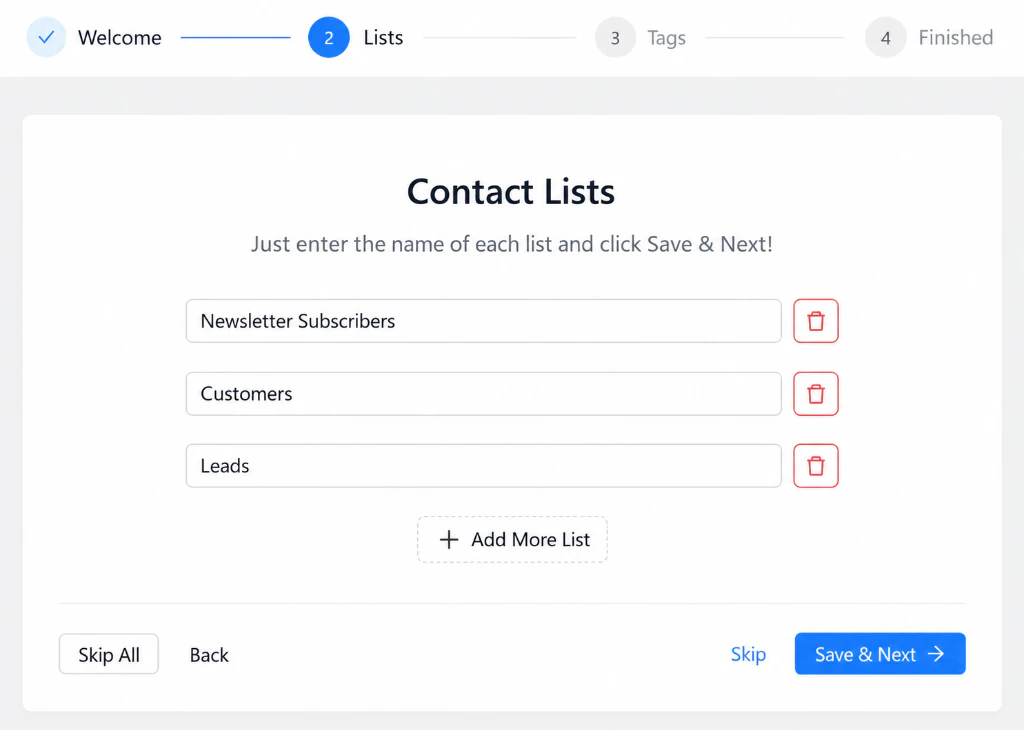
Lists help you organize contacts by audience or purpose—for example, Newsletter Subscribers, Customers, or Leads.
- Enter one list name in each field.
- Select Add More List if you need another row.
- Select Save & Next.
You can use the delete icon to remove an existing list or the minus icon to remove an unsaved row.
Step 3: Create contact tags
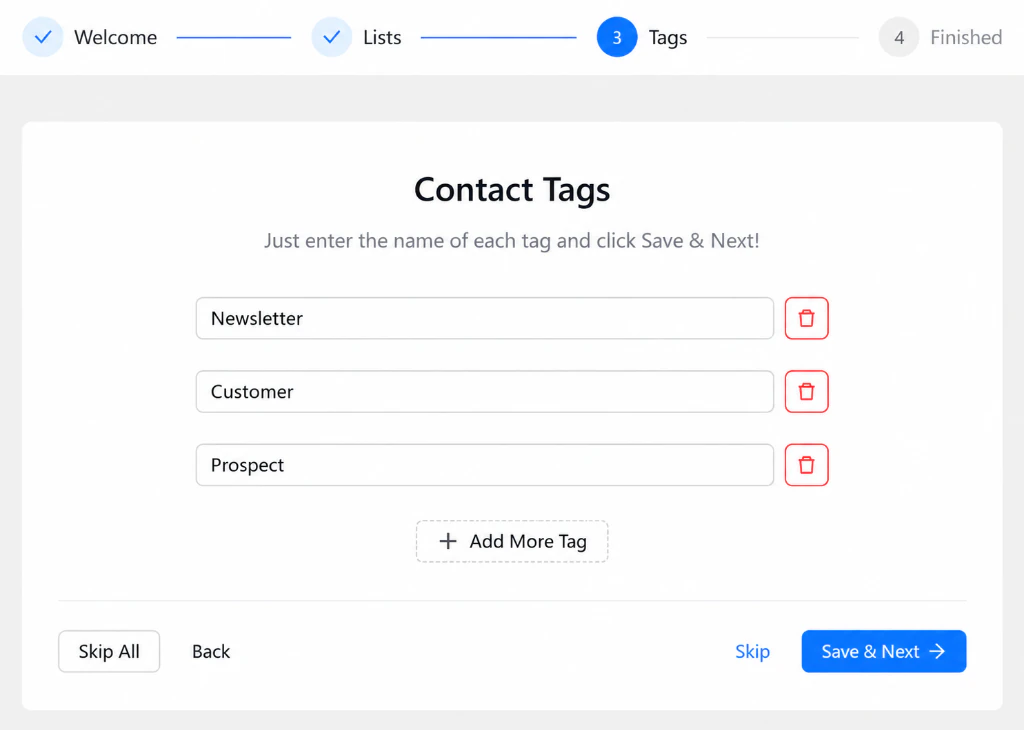
Tags add flexible labels to contacts. They are useful for interests, lifecycle stages, sources, and other details that may overlap between lists.
- Enter starter tags such as Newsletter, Customer, or Prospect.
- Select Add More Tag when you need another row.
- Select Save & Next.
Step 4: Finish the setup
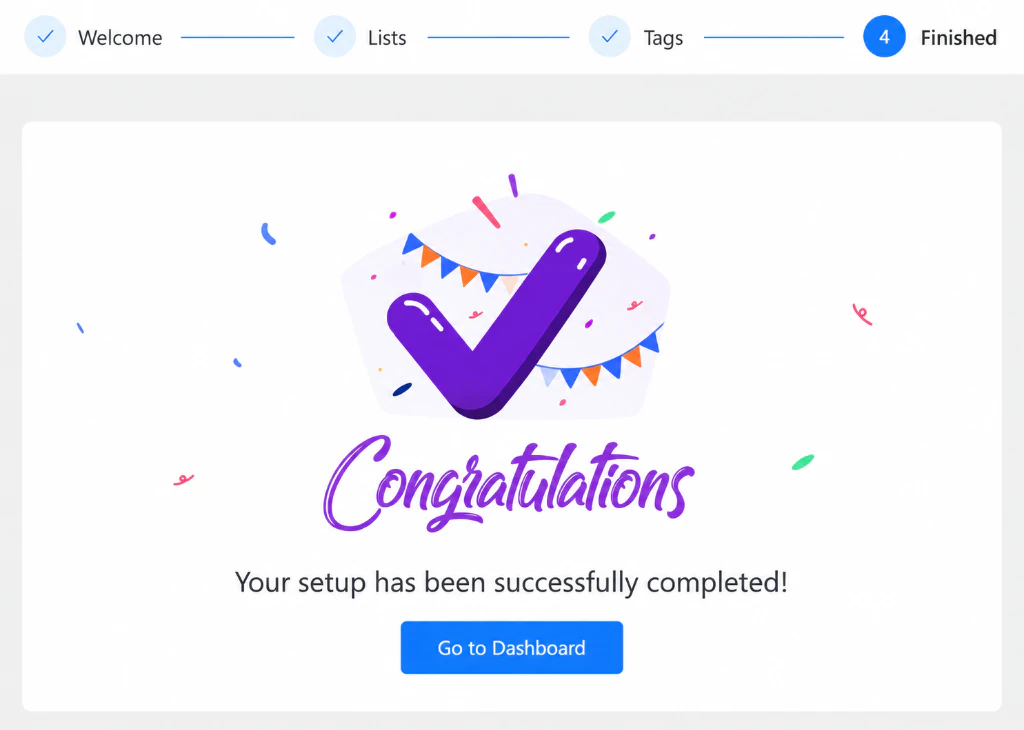
When the completion screen appears, select Go to Dashboard. Kelune CRM records the wizard as complete and opens your main dashboard.
Skip or change the setup later
- Skip moves past the current step.
- Skip All closes the wizard and marks the initial setup as finished.
- Business details can be changed later under Kelune CRM → Settings → General.
- Lists and tags can be managed later from the Contacts section.